Appearance
Completing a Dispatch Inspection
Step-by-Step
- Open the inspection from the work list
- Work through each item in the list from top to bottom
- Tap an item to open the input screen
- Enter the required data (choice, value, photo, or signature)
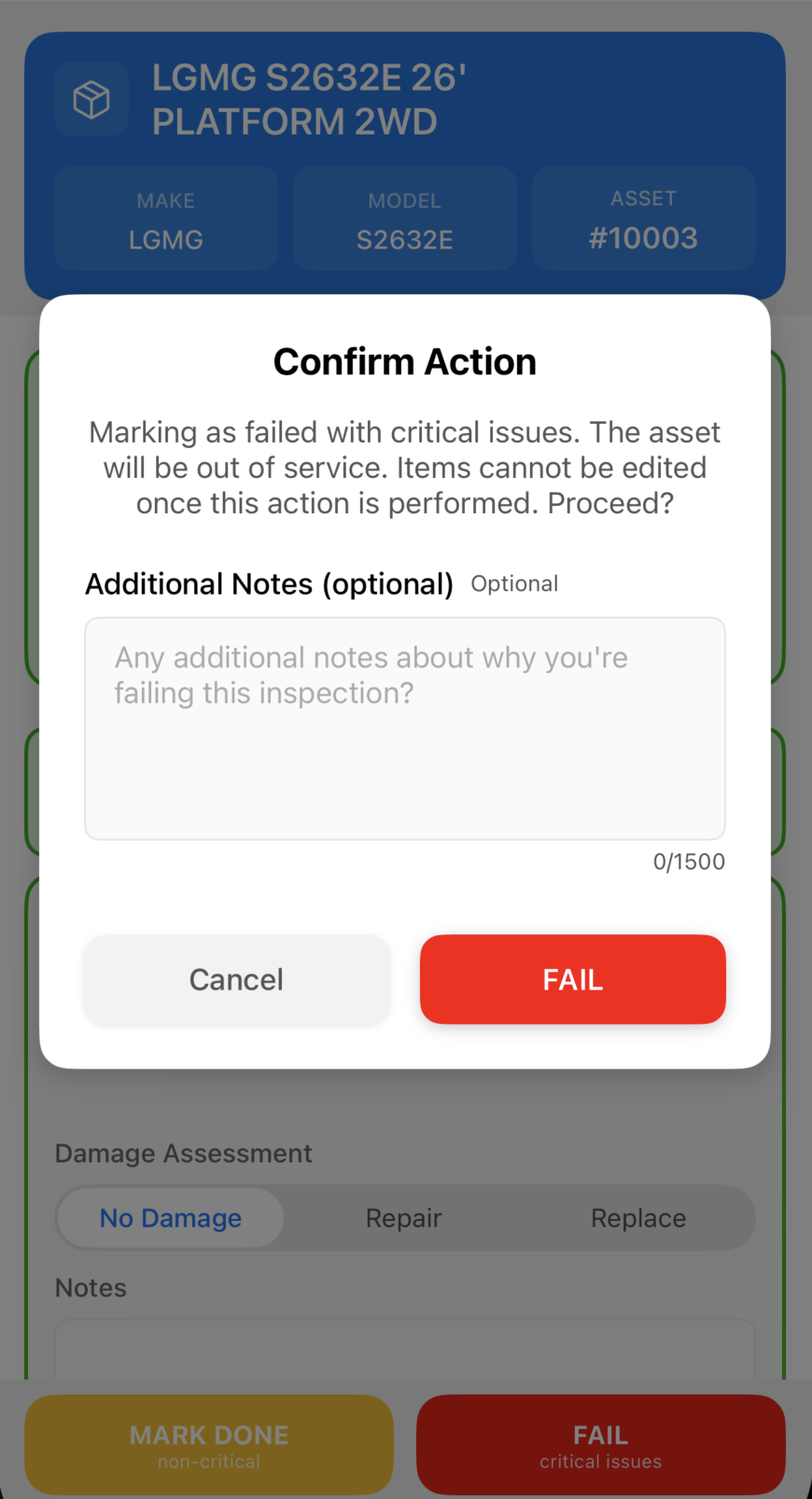
- Record a fault if applicable (Minor or Major)
- Tap Save to confirm the item
- The item is marked complete and you return to the items list
- Repeat for all remaining items
- Required items must be completed before the inspection can advance
Saving
Every item must be saved individually. Navigating away without tapping Save discards the input for that item.
Partial Completion
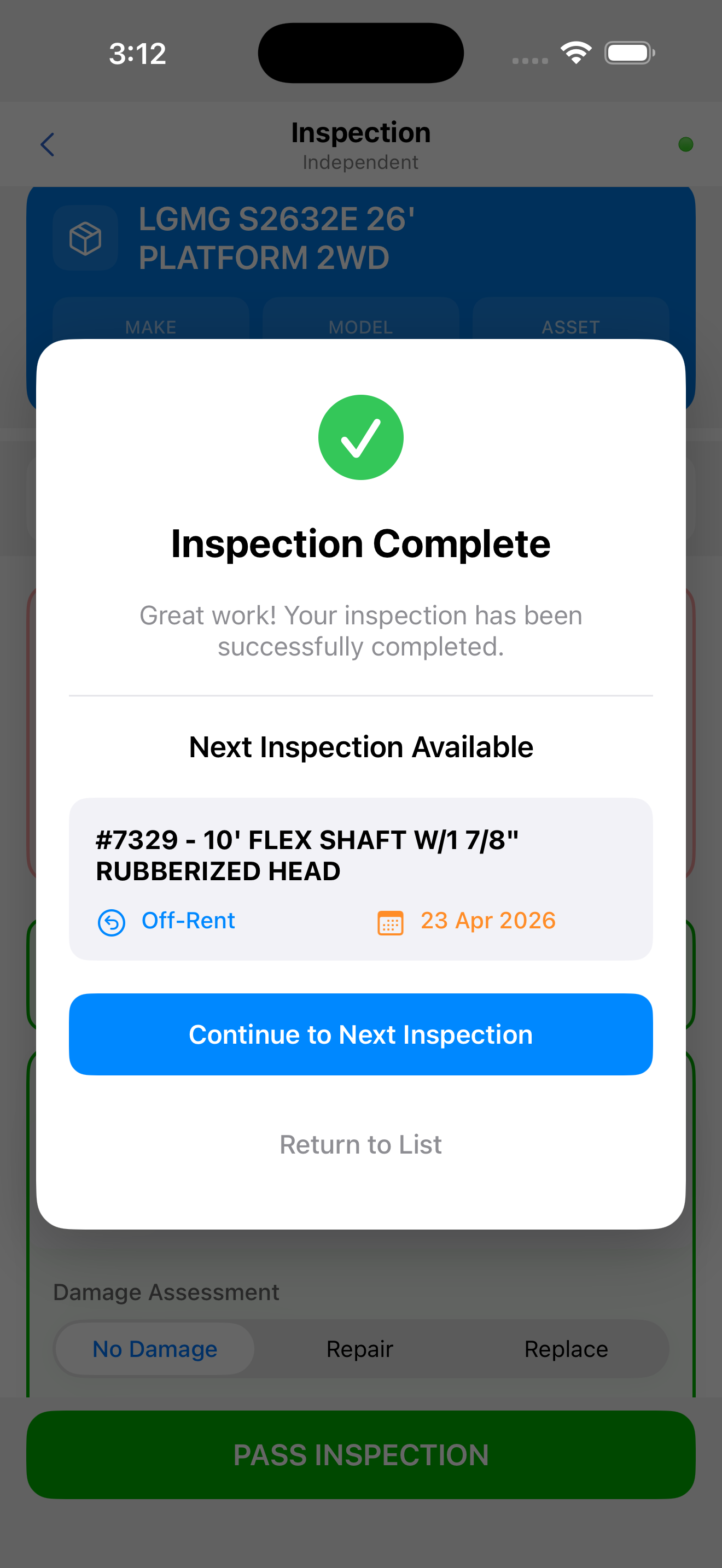
You do not need to complete all items in one session. Partially completed inspections are saved and remain accessible from the work list. The status advances to Partially Inspected after the first item is saved.
Offline Completion
Dispatch inspections can be completed fully offline. All saved results are stored locally and uploaded to CloudERM automatically when connectivity is restored.