Appearance
Custom Camera and Image Annotation
InspectERM includes a built-in camera with drawing tools for annotating photos. It is used for inspection item photos and work log photo attachments.
Camera Screen
| Control | Description |
|---|---|
| × Cancel (top left) | Exit without taking a photo |
| Flash Toggle (top right) | Cycles through Auto, On, and Off |
| Capture Button (bottom center) | Takes the photo |
| Flip Camera (bottom right) | Switches between front and rear camera |
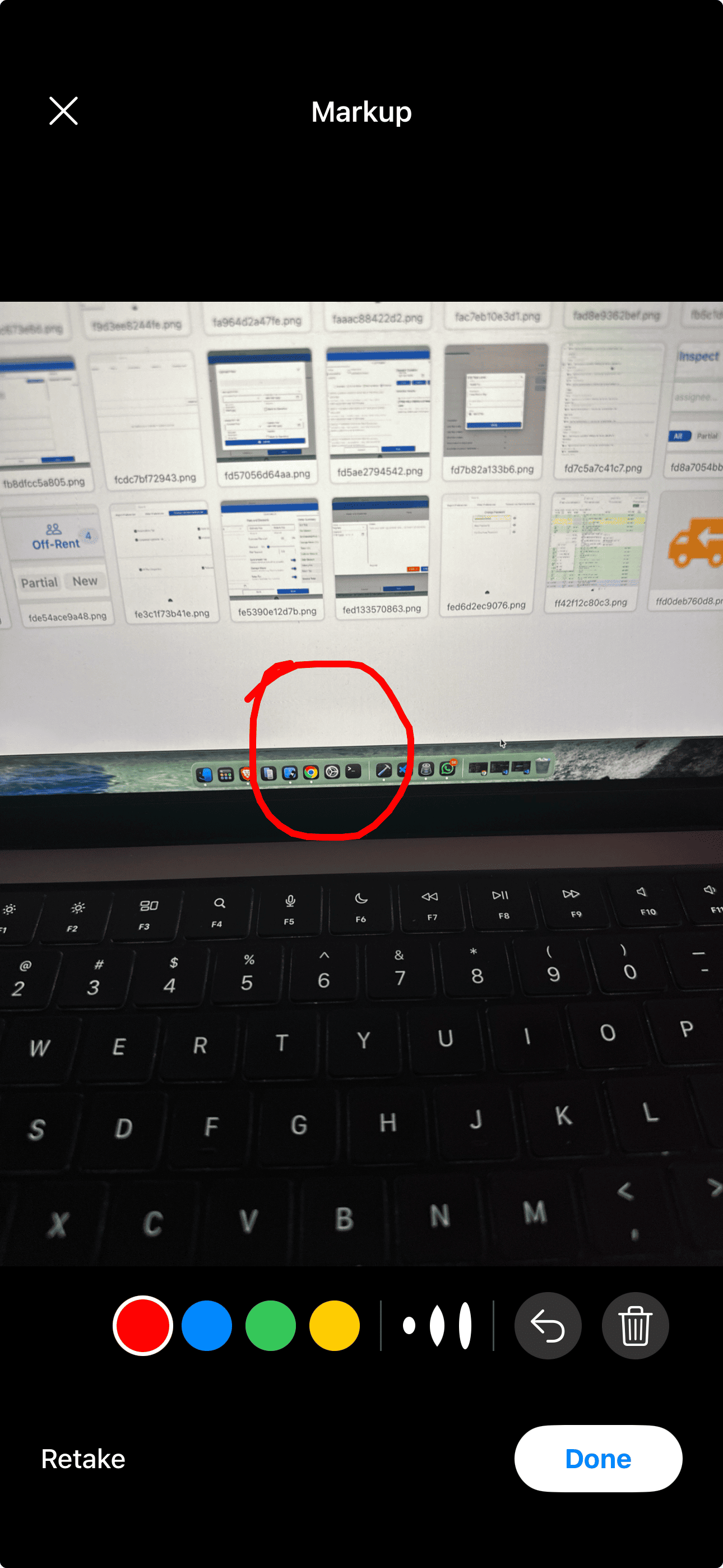
Markup Screen (After Capture)
After taking a photo, the markup screen opens automatically. Annotations are drawn on top of the image before it is attached.
| Control | Description |
|---|---|
| Retake (bottom left) | Discard the photo and return to the camera |
| Done (bottom right, blue) | Attach the photo with all annotations applied |
Drawing toolbar:
| Tool | Description |
|---|---|
| Color swatches | Select the pen color |
| Pen size | Thin, Medium, or Thick |
| Undo | Remove the last drawn stroke |
| Clear All | Remove all strokes (confirmation required) |
Draw with your finger. Annotations are permanently applied to the photo when you tap Done, they cannot be edited after attachment.
Offline behavior: Photos taken offline are stored on your device and uploaded to CloudERM automatically when connectivity is restored.