Appearance
Logging In
Before You Begin
Your account must be created by your administrator in CloudERM before you can log in. Your registered phone number is set at account creation. Make sure your device can receive SMS messages.
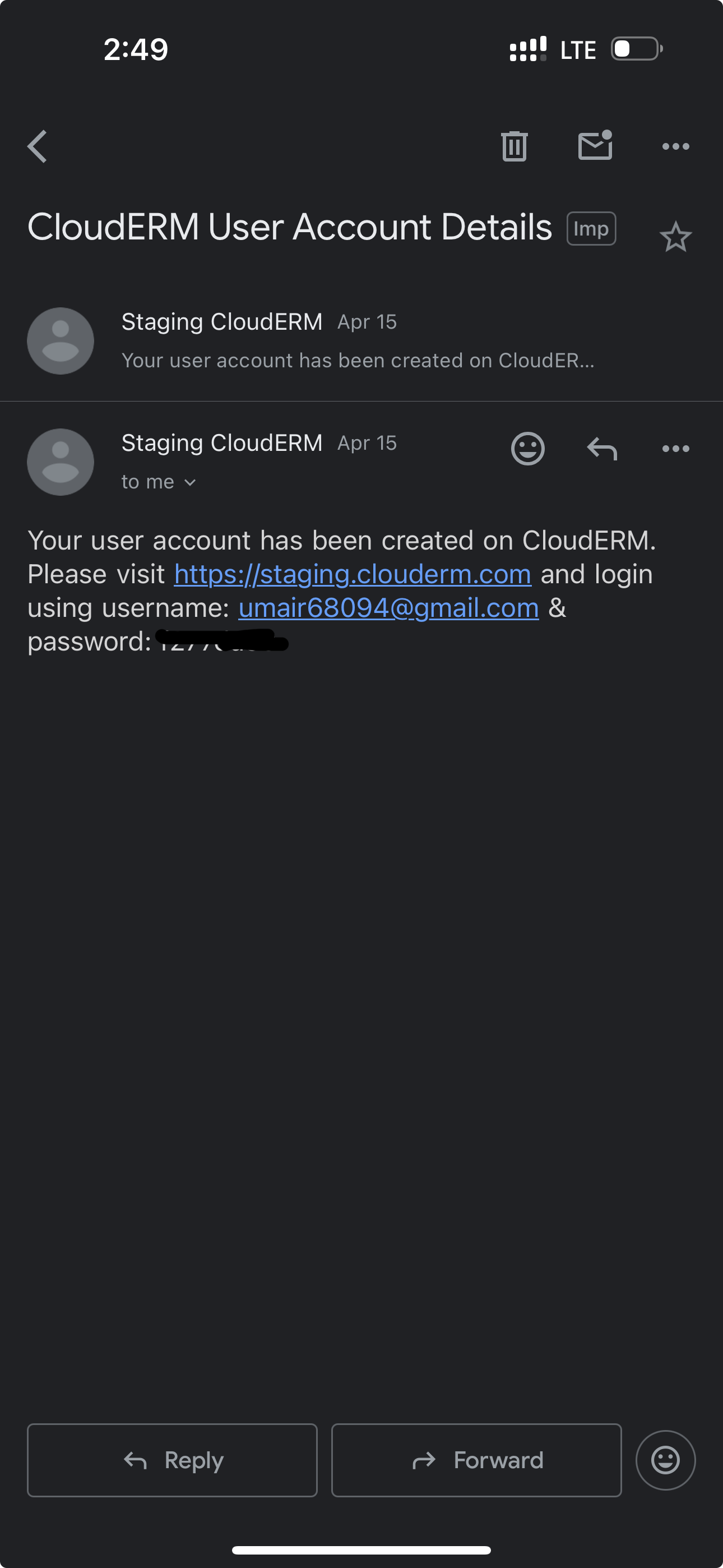
If you are a new user, check your registered email inbox for a welcome email from CloudERM containing your login credentials.
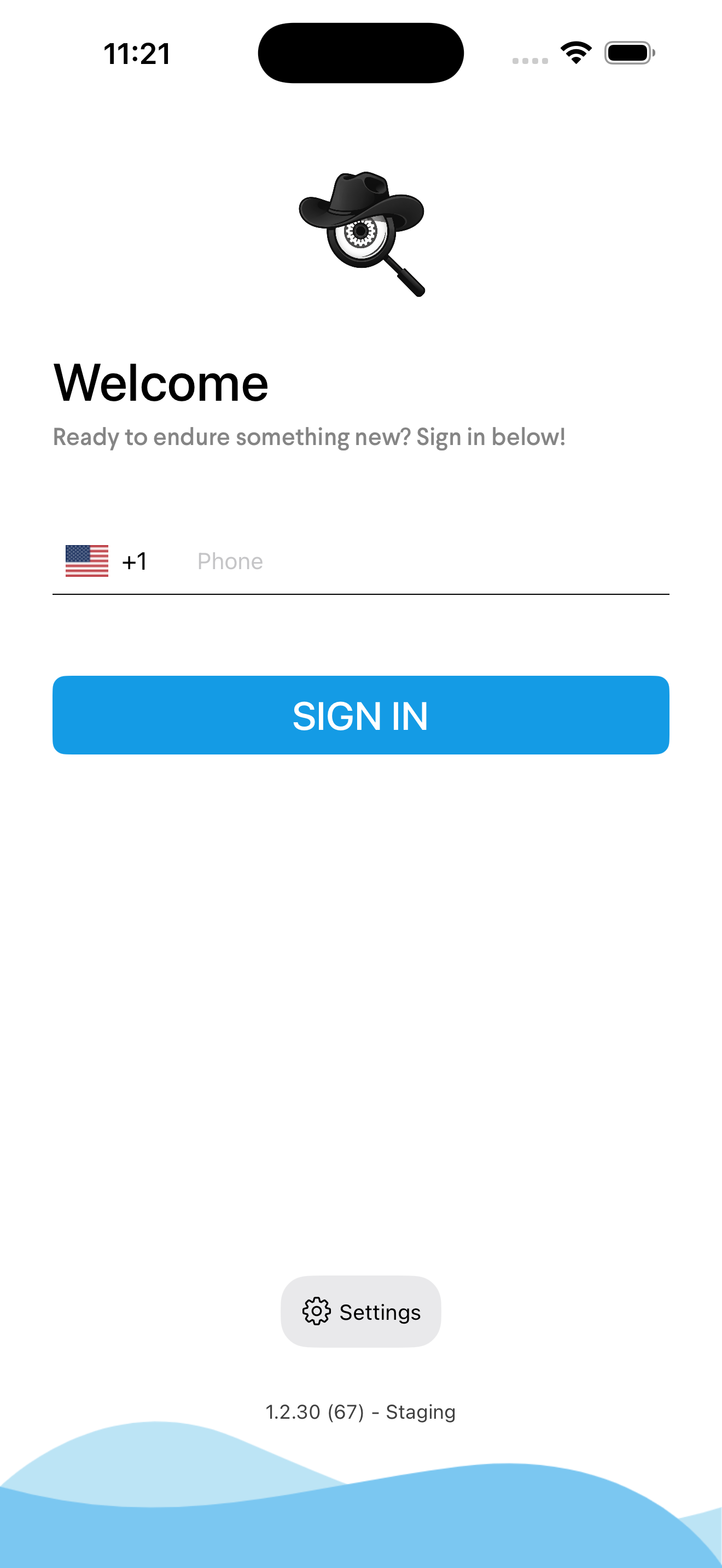
Login Screen
When you open InspectERM, the login screen appears immediately.
| Element | Description |
|---|---|
| Flag / Country Picker | Tap to select your country dialing code |
| Phone Number Field | Enter your registered phone number (digits only, without the country code prefix) |
| Sign In Button | Sends a one-time code to your phone |
| Settings Button (⚙️) | Located at the bottom, switches between server environments. Leave on Production for all daily work |
| Version Info | App version shown at the very bottom |
Steps to Log In
- Confirm the country code flag is correct, tap to change if needed
- Enter your registered phone number
- Tap Sign In
- An SMS with a 6-digit code is sent to your number, the Verification screen opens automatically
Verification Screen
| Element | Description |
|---|---|
| 6-digit input boxes | One box per digit, tap to enter each digit from your SMS |
| Verify Button | Tap after all six digits are entered |
| Resend Link | Appears with a countdown timer, tap after the timer expires if you need a new code |
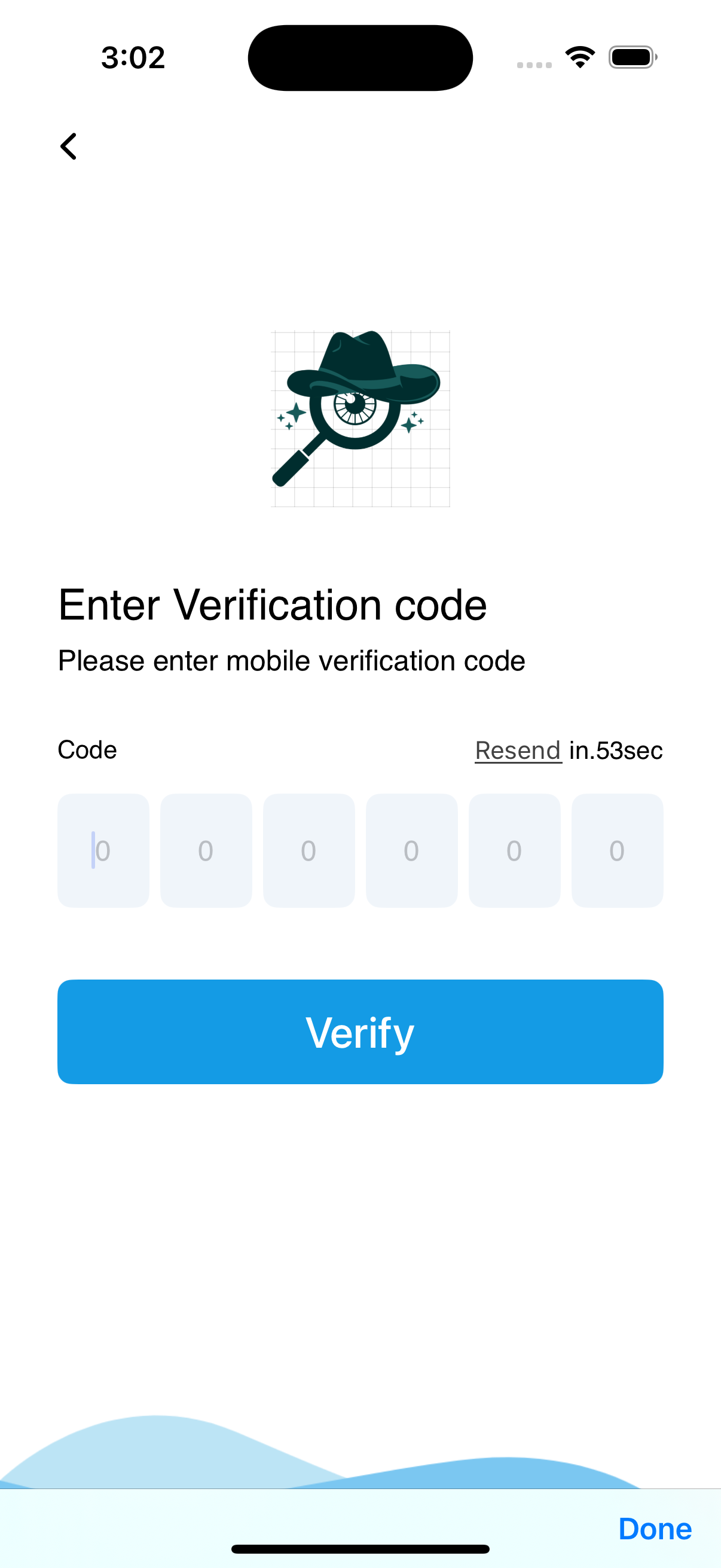
After successful verification, your session is established and you are taken directly to the work list.
Session Persistence
Your session is saved securely on your device. You will not be prompted to log in again unless:
- You tap Logout from the side drawer
- Your session expires on the server
- You switch to a different environment in Settings
Troubleshooting
| Problem | Solution |
|---|---|
| Did not receive SMS | Wait for the Resend timer, then tap Resend |
| Entered the wrong phone number | Return to the login screen and re-enter your number |
| OTP code expired | Tap Resend to request a fresh code |
| Cannot log in at all | Contact your CloudERM administrator to confirm your account is active |