Appearance
Work List
What the Work List Shows
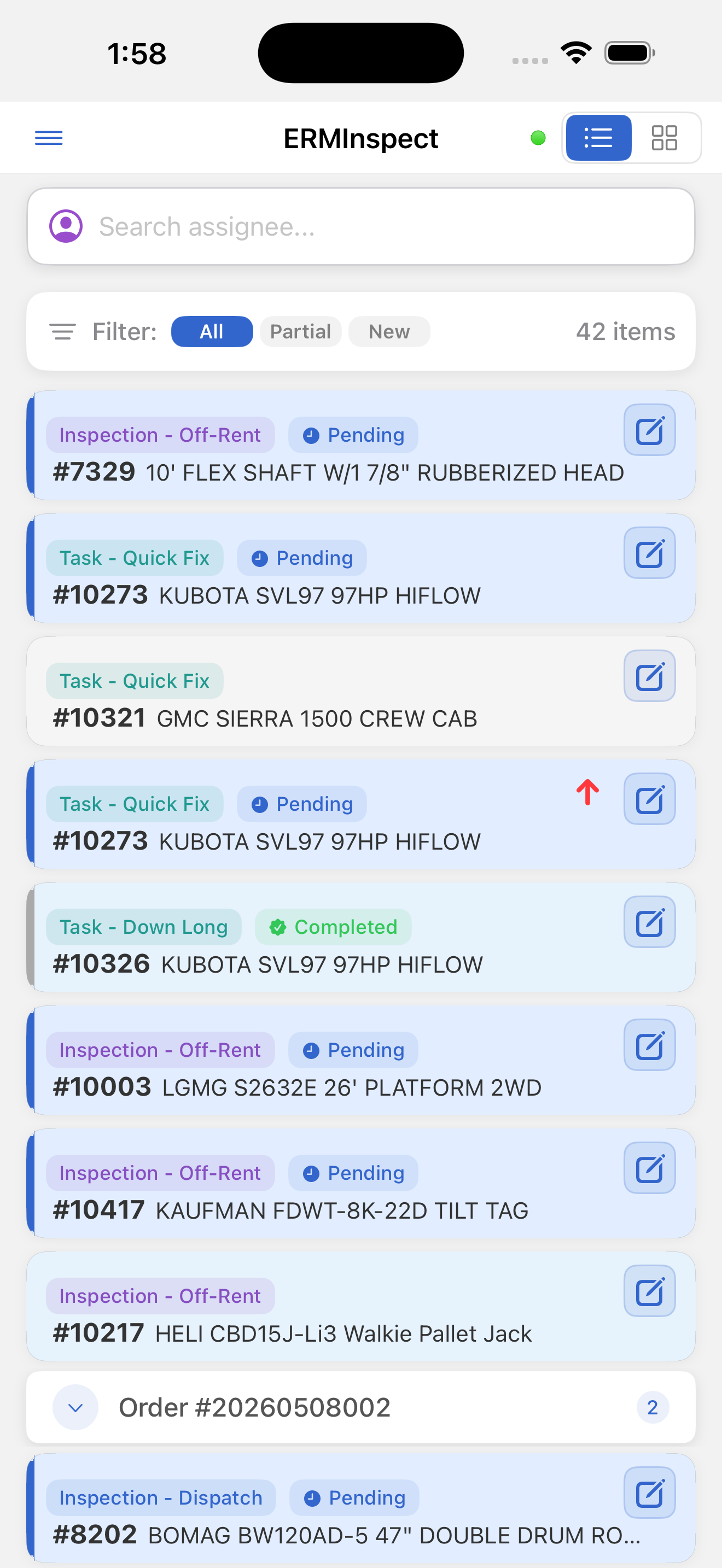
The work list is a single unified scrollable list containing all your assigned inspections and tasks. All item types appear together. Use the side drawer or filter bar to narrow the view.
Item Ordering
Items are sorted by expected start date, ascending (earliest first). Items without a start date appear at the bottom. This ordering comes from the backend — the app does not change it.
Order Number Grouping
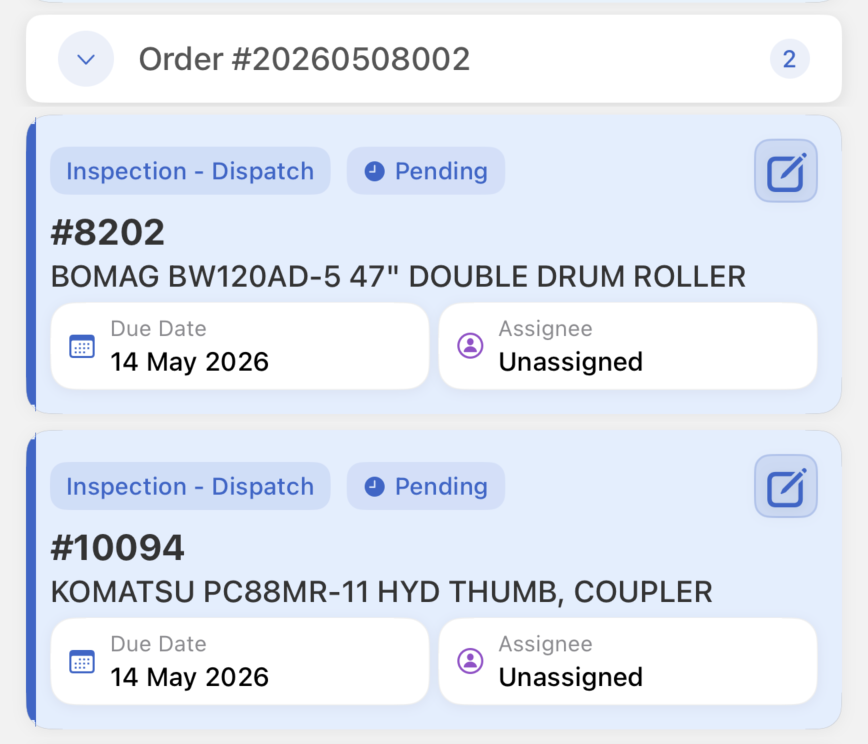
When two or more items share an order number and appear consecutively in the sorted list, they are grouped under a collapsible section header.
| Element | Description |
|---|---|
| Order #XXXXX | The shared order number |
| Item count badge | Number of items in the group |
| Chevron (▼ / ▶) | Tap the header to expand or collapse the group |
Groups are expanded by default. Items with the same order number that are not consecutive appear as individual rows. Order section headers are hidden when the Tasks filter is active from the side drawer.
What Each Card Shows
| Element | Description |
|---|---|
| Colored left border | Reflects the item's current status |
| Work type badge | Colored pill identifying the item type |
| Status badge | Icon + label for the current status. Hidden for Ready, Ready for Inspection, and Can Be Promoted states |
| Asset number | Shown as #XXXXX |
| Asset name | Full asset name |
| Due date | Shown in red if overdue; "Not set" if absent |
| Customer / Assignee | Technicians see the customer name; managers see the assigned person's name |
| Priority indicator | Red circle with up arrow (↑) for high-priority items |
| Edit button (✏️) | Visible to managers — opens the edit modal |
Work Type Badge Colors
| Badge | Color |
|---|---|
| Inspection - Dispatch | Blue |
| Inspection - Off-Rent | Purple |
| Inspection - Independent | Indigo |
| Inspection - Sale | Orange |
| Task / Task - [Sub-type] | Teal |
Status Colors
| Status | Badge Color |
|---|---|
| Pending | Blue |
| Partially Inspected | Orange |
| In Progress | Orange |
| Validation Needed | Orange |
| Parts Enroute | Orange |
| Needs Attention | Red |
| Paused | Purple |
| Completed / Done | Green |
| Unassigned | Gray |
| Ready / Ready for Inspection / Can Be Promoted | Badge hidden; left border reflects state |
Refreshing the List
Pull down from the top of the list to refresh. The app fetches the latest assignments from CloudERM and updates the list when complete.
Empty States
No work available: Appears when nothing is assigned or all work is complete.
- Message: "No current work assigned"
- Button: Reload - refreshes the list from CloudERM
Filters active with no matches: Appears when active filters exclude all items.
- Message: "No inspections match the selected filters"
- Button: Reset - clears all active filters and reloads
Editing from the List (Managers Only)
Tap the edit button (✏️) on any card to open the edit modal:
- For inspections: change the assigned inspector, update priority
- For tasks: change assignee, update priority, change status
Changes sync to CloudERM immediately when connected.