Appearance
Layout Familiarization
The main screen is organized into three zones:
| Zone | Description |
|---|---|
| Header Bar | App title, sync dot, card/list view toggle, hamburger menu |
| Filter Bar | Status filters (All / Partial / New), visible to users with full access permissions |
| Work List | Unified scrollable list of all assigned inspections and tasks |
Header Bar
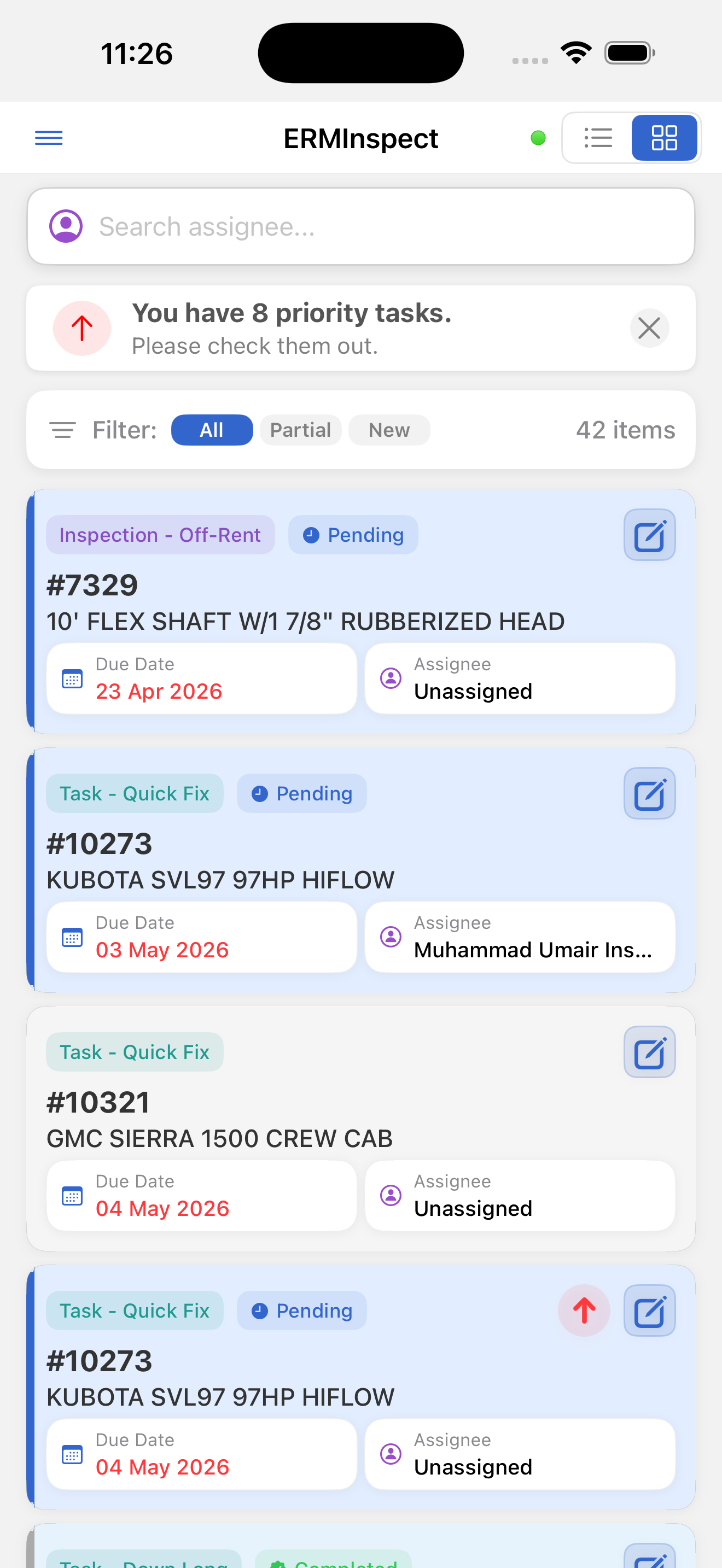
| Element | Description |
|---|---|
| ☰ Hamburger Menu (left) | Opens the side drawer |
| InspectERM (center) | App title |
| Sync Status Dot (right of title) | Green = synced, Yellow = syncing, Red = offline |
| List View Toggle | Compact row layout |
| Card View Toggle | Detailed card layout |
The app remembers your card/list view preference between sessions.
Card View vs. List View
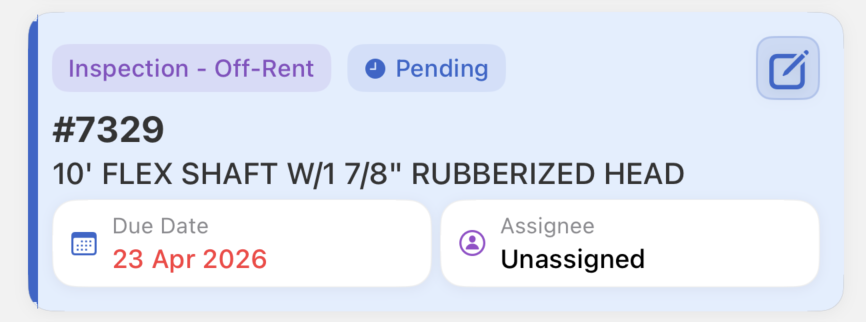
Card view shows full details per item: asset number, asset name, work type badge, status badge, due date, customer or assignee name, priority indicator, and edit button.
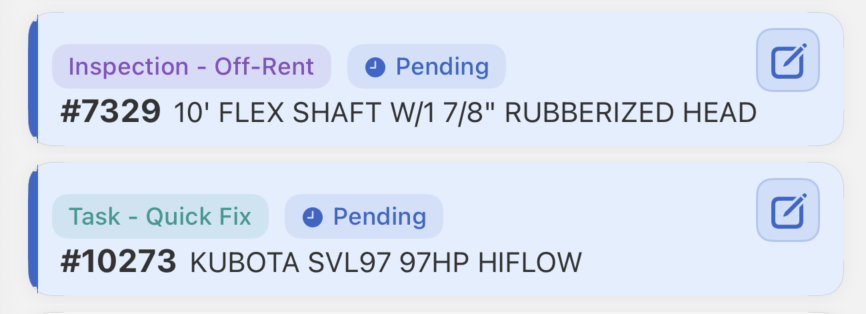
List view shows the same information in a compact row, with a status pill overlay rather than an inline badge.
Priority Banner
When high-priority items are assigned to you, an alert banner appears below the header bar. Tap × to dismiss it for the current session. It reappears on the next launch if priority items remain. This banner is visible only to users with full access permissions.
