Appearance
Work Logs
A work log entry is a timestamped record of work performed on a task. Each entry can include a description, time spent, a task status update, photo attachments, and an optional asset service state change.
Work logs create a chronological audit trail visible to all stakeholders in CloudERM.
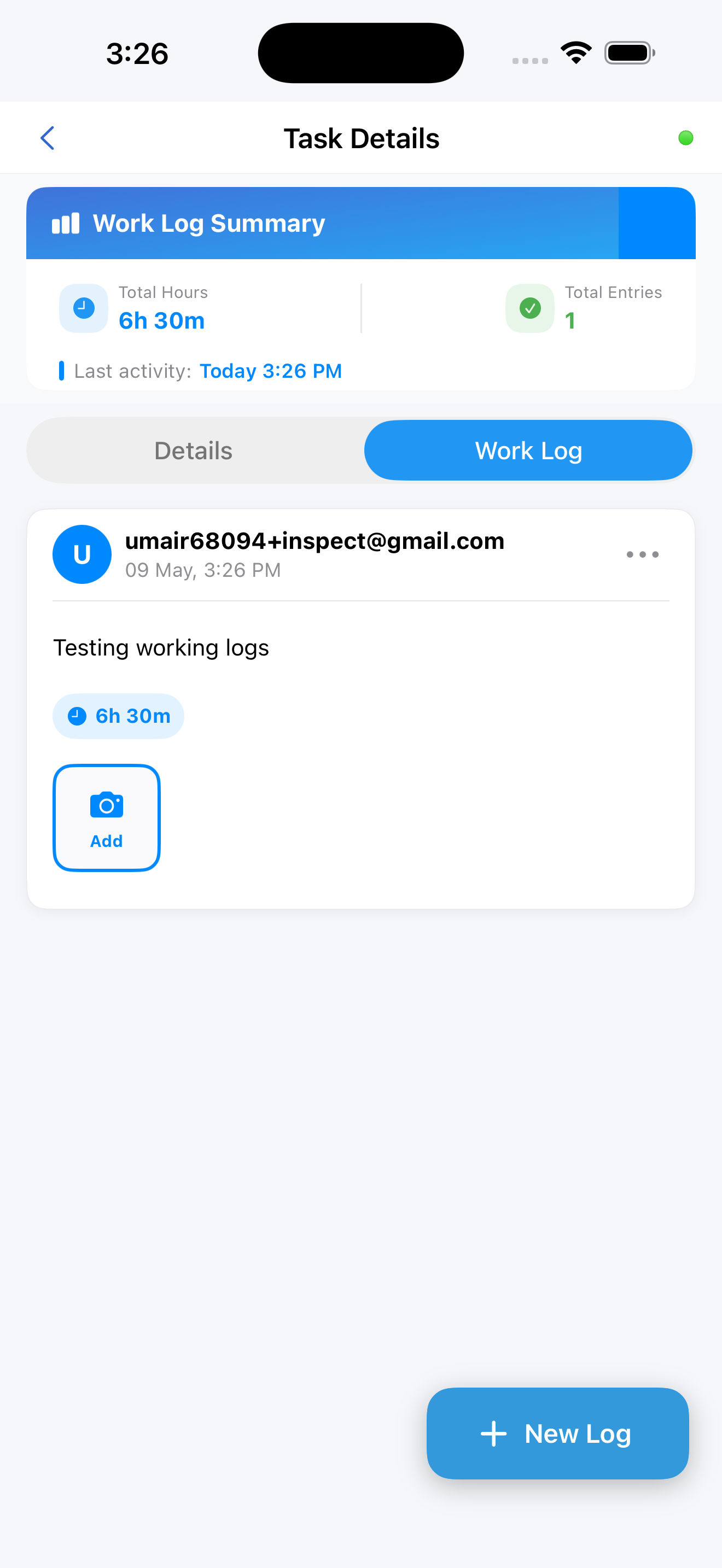
Work Log Summary Strip
At the top of the Work Log tab, a summary strip shows totals across all entries.
| Item | Description |
|---|---|
| Total Hours | Combined time from all entries |
| Total Entries | Count of all work log records |
| Last Activity | When the most recent entry was created |
Last Activity display format:
| When | Display |
|---|---|
| Same day | "Today 3:45 PM" |
| Yesterday | "Yesterday" |
| Within past week | Day name, e.g., "Monday" |
| Older | Date, e.g., "Apr 12" |
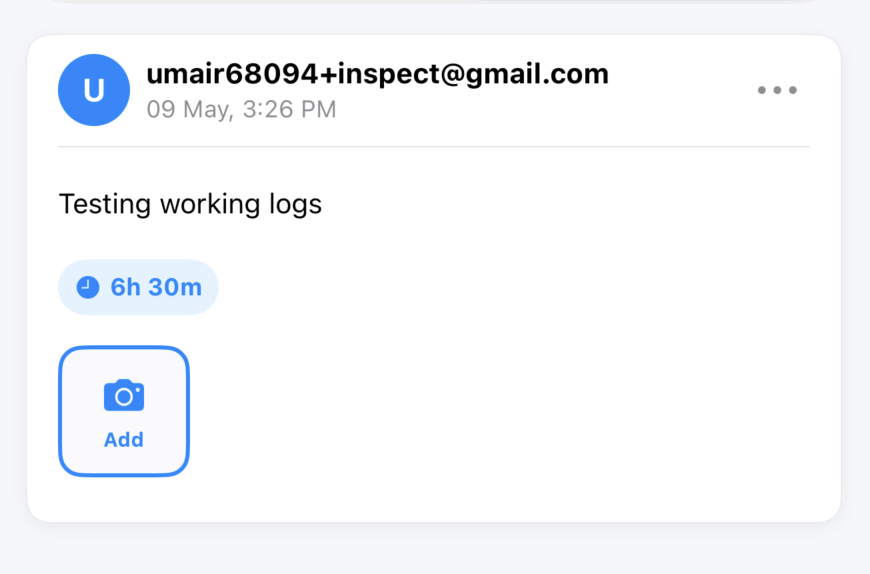
Individual Entry Elements
| Element | Description |
|---|---|
| Avatar | Circle with the author's initials |
| Username | Who created the entry |
| Timestamp | Date and time of creation |
| Edited indicator | Gray "edited" label if modified after creation |
| Work description | Notes about the work performed |
| Time badge | Duration logged |
| Status update | The task status that was set when this entry was saved |
| Photos | Horizontal scroll row — tap to view full screen |
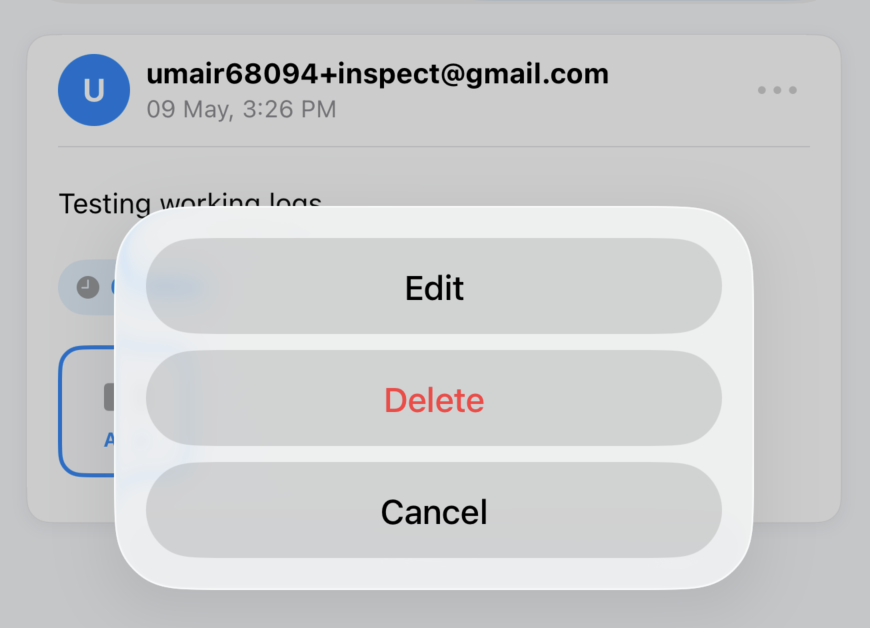
| Menu button (⋮) | Edit / Delete options — visible only to authorized users |
Adding a Work Log Entry
Tap + New Log at the bottom-right of the Work Log tab. The sheet slides up from the bottom.
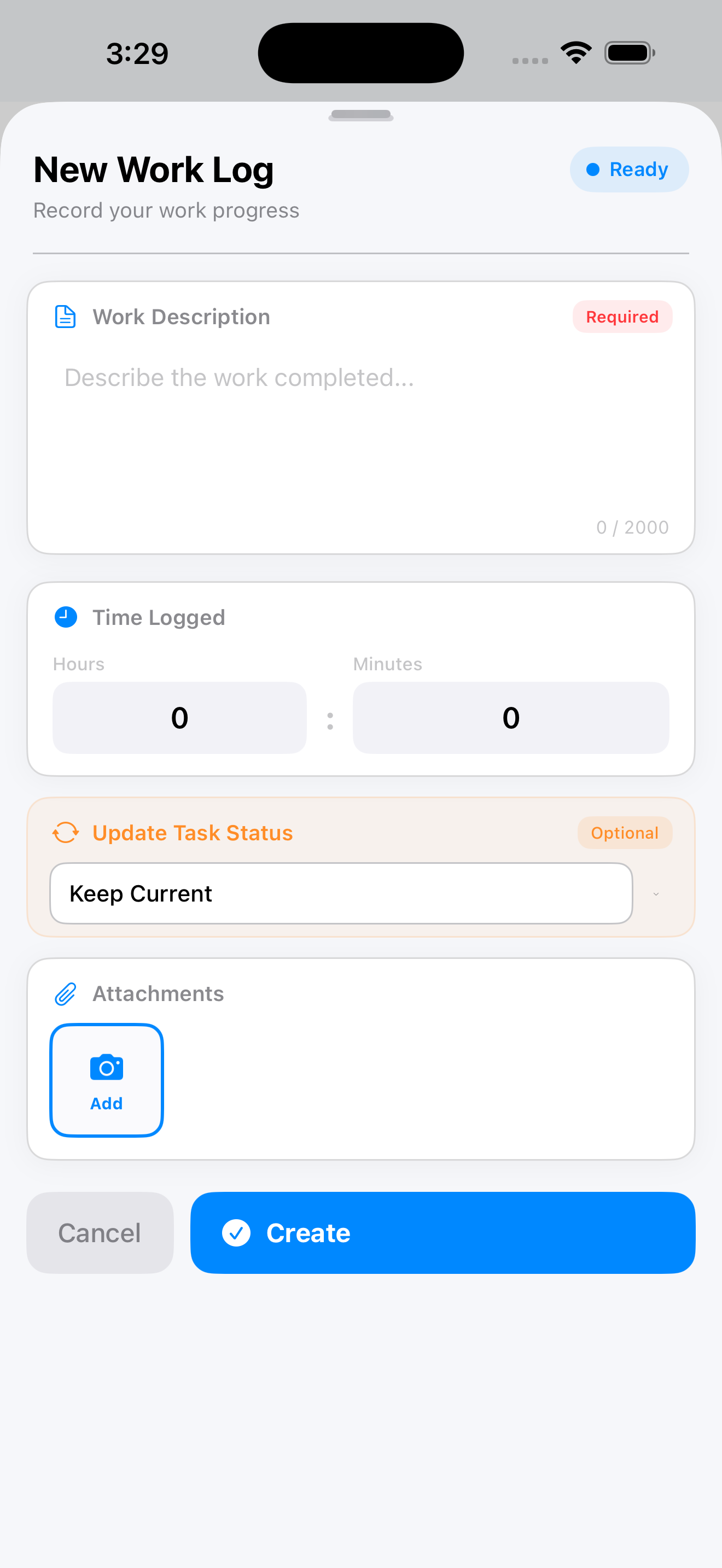
Work Description (required)
- Describe the work done, progress made, or any observations
- Minimum 5 characters, maximum 2,000 characters
Time Logged
| Picker | Options |
|---|---|
| Hours | 0 – 10 |
| Minutes | 0, 15, 30, 45 |
Both default to 0. Time is optional - you can save with zero time to record a note or status change only.
Status Update - Optional. Updates the task status alongside this log entry.
| Option | Available When |
|---|---|
| Keep Current | Always (default — no change) |
| Pending | Task Status Update permission required; task not already Pending |
| Ready | Task not already Ready |
| In Progress | Task not already In Progress |
| Paused | Task not already Paused |
| Work Completed | Task not already completed |
Asset Out-of-Service Toggle - Visible only to users with Task Status Update permission when the task's linked inspection has flagged the asset.
| Transition | Confirmation Prompt |
|---|---|
| Moving away from Pending | "Put asset out of service?" |
| Moving to Pending | "Put asset back in service?" |
| Moving to Work Completed | "Put asset back in service?" |
Photo Attachments - Tap Add Photo to attach images using the built-in camera. Multiple photos can be added per entry. See Custom Camera and Image Annotation.
Saving: Tap Create to save. The entry appears at the top of the list and the summary strip updates. Tap Cancel to discard all input.
Editing a Work Log
Tap ⋮ → Edit on an entry. The same sheet opens pre-filled. Modify any fields and tap Save. A gray "edited" label appears after saving.
Who can edit:
- The user who created the entry
- Users with the Update All Task Notes permission (managers / supervisors)
Deleting a Work Log
Tap ⋮ → Delete. A confirmation prompt appears. Confirm to permanently delete. The summary strip updates immediately.
Deletion is permanent and syncs to CloudERM. Deleted entries cannot be recovered from the application.
Offline Work Logs
Work logs can be created fully offline:
- Entries are queued locally and synced when connectivity returns
- Status updates are applied to CloudERM on reconnect
- Photos are uploaded automatically when the connection is restored