Appearance
Task List
Task cards appear on the main work list with a teal badge. To view only tasks, open the side drawer and tap Tasks.
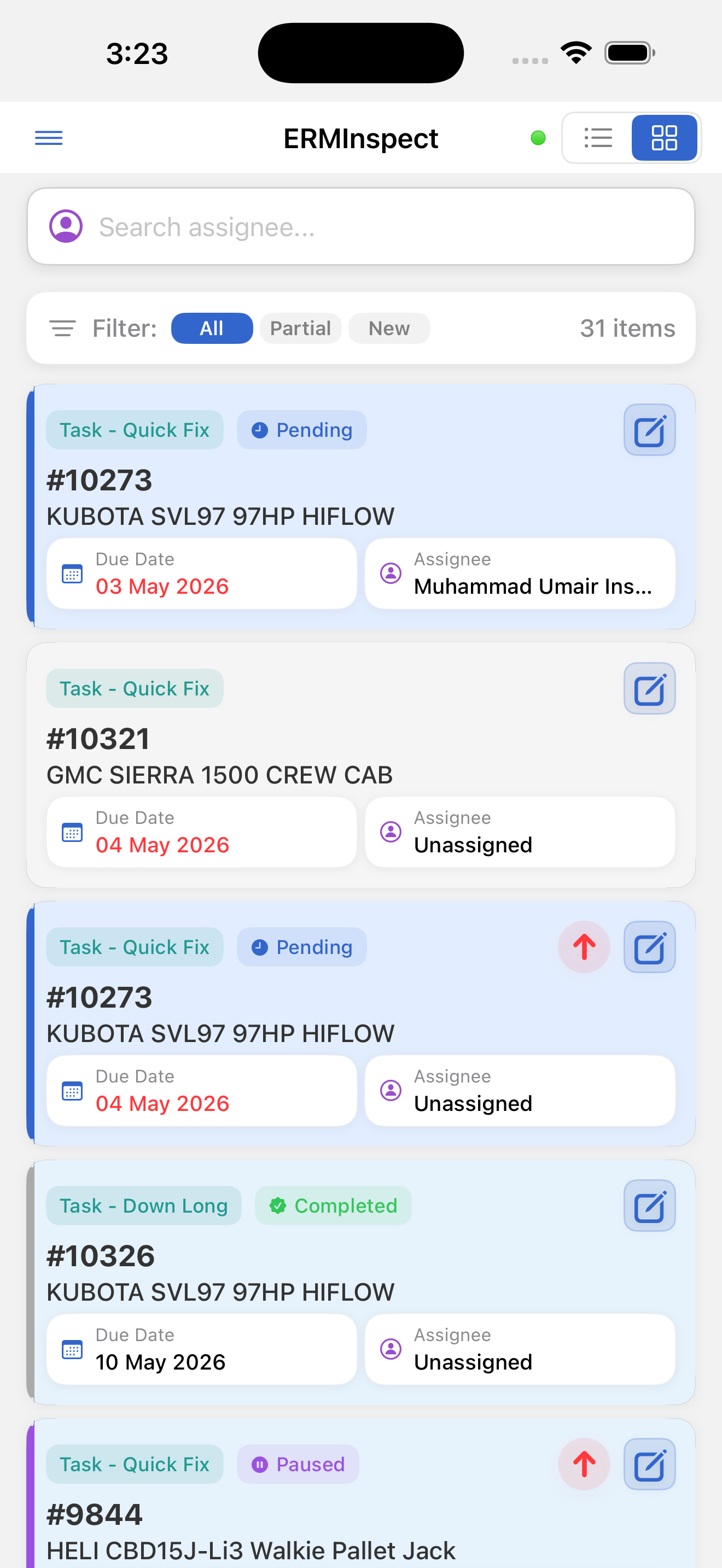
What Each Task Card Shows
| Element | Description |
|---|---|
| Work type badge | Teal - Task or Task - [Sub-type name] |
| Status badge | Hidden for Open / Ready states |
| Asset number | #XXXXX |
| Asset name | Full asset name |
| Due date | Shown in red if overdue |
| Assignee (managers) | Assigned technician's name |
| Customer (technicians) | Customer account name |
| Priority indicator | Red circle with up arrow (↑) for high-priority items |
| Edit button (✏️) | Visible to managers only, opens the edit modal |
Editing a Task from the List (Managers Only)
Tap the edit button (✏️) on a task card to open the Edit Task modal directly. Available changes:
- Assignee
- Priority
- Status (e.g., Mark as Ready)