Appearance
Accessing NADC Checklists
NADC checklists appear on the main work list alongside all other assigned work. They are identified by the violet "New Asset Detail Checklist" badge.
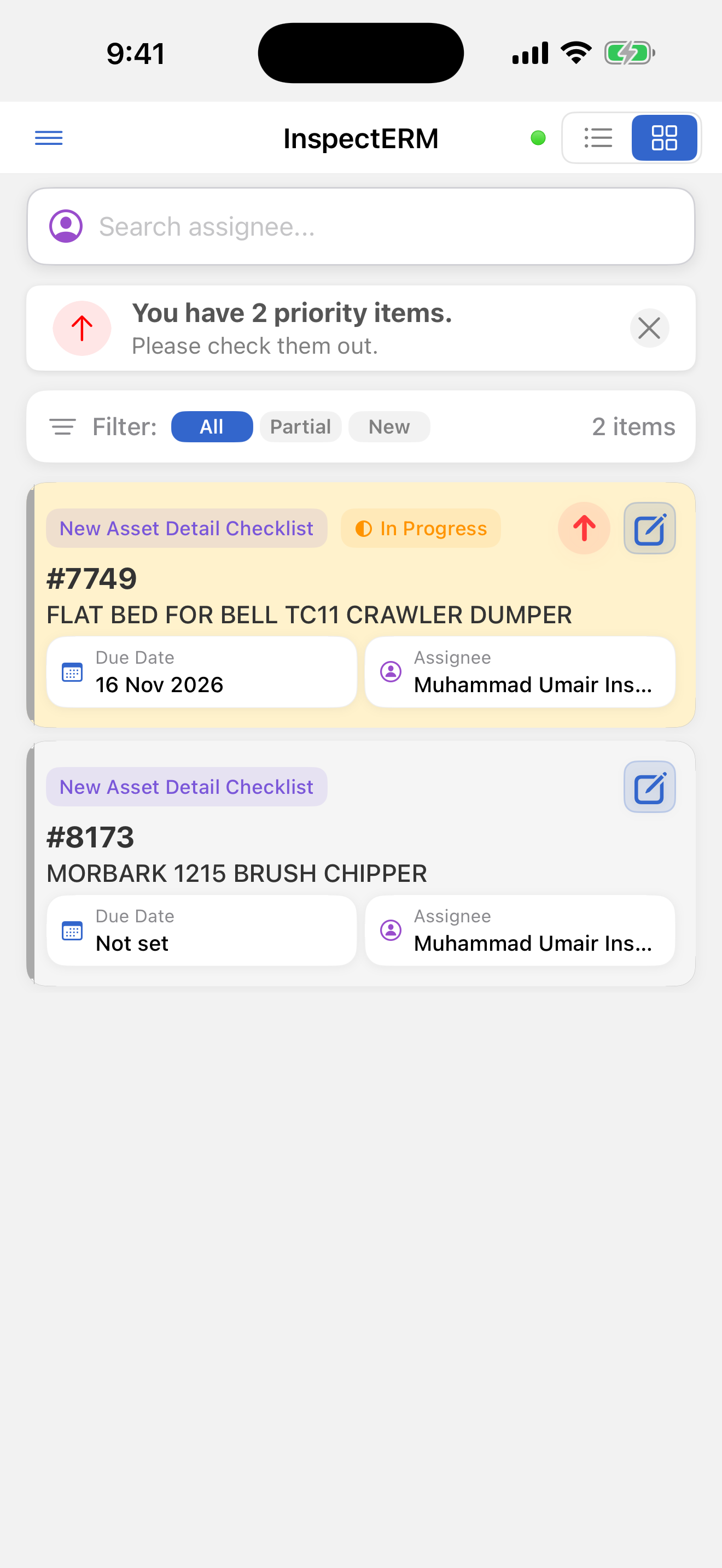
To view NADC checklists only:
- Open the side drawer (☰)
- Tap NADC
- The list shows only New Asset Detail Checklists
When there are none, the message "No New Asset Detail Checklists found" appears with a Reload button.
Opening a checklist: Tap the card to open the NAD Checklist screen. This needs an internet connection.
Editing a Checklist from the List (Managers Only)
Tap the edit button on a checklist card to open the edit modal. Available changes:
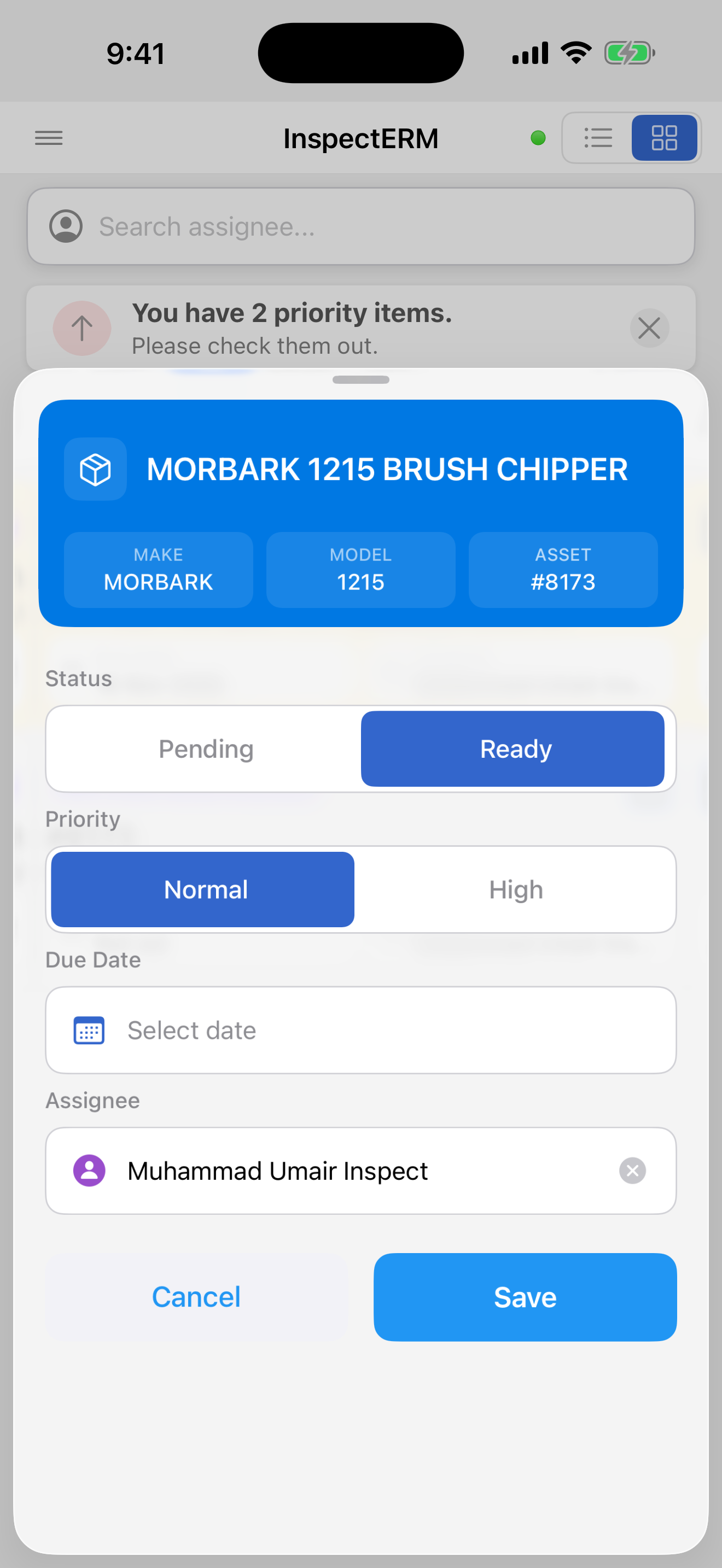
- Status - Pending or Ready. Shown only while the checklist is in one of these two statuses
- Priority - Normal or High
- Due Date
- Assignee
Tap Save to apply the changes. The message "Checklist updated successfully" confirms the save. Tap Cancel to close without saving.