Appearance
Completing an NADC Checklist
Step-by-Step
- Open the checklist from the work list
- In Asset Information, check each value against the asset and tap its tick button. Correct the value if it is different
- If the checklist includes an Hour Meter Reading, tick it and enter the current reading
- Answer the questions in General and Asset Details
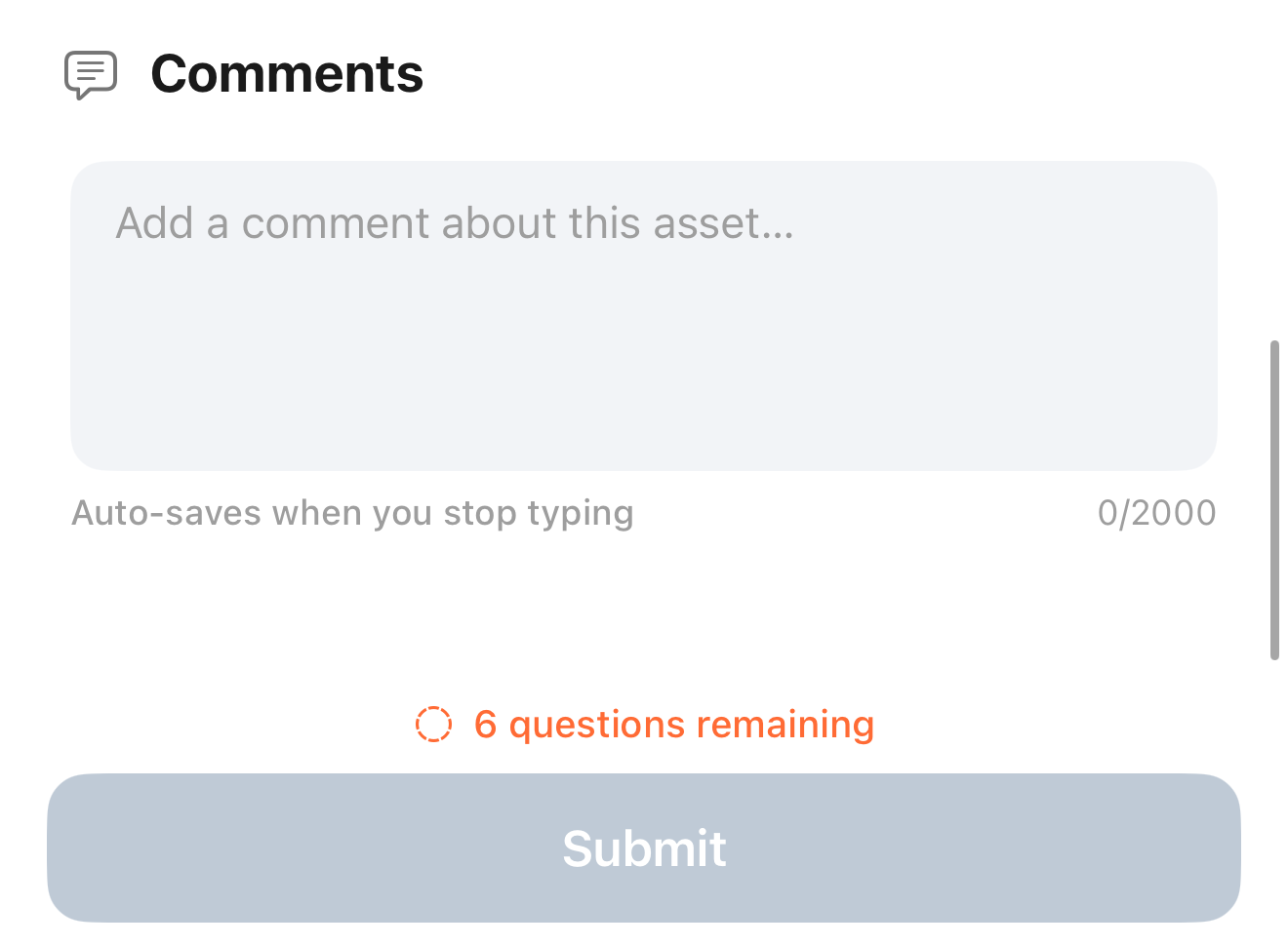
- Add a comment in Comments if needed
- Check the footer. It shows how many required questions remain
- When the footer shows "All required questions answered", tap Submit
- The message "Submitted - This checklist has been submitted for review." confirms the submission
After you submit, the checklist becomes read-only.
While required questions are unanswered, the footer shows how many remain and Submit is disabled.
Saving
Each answer is saved automatically about a second after you enter it. There is no Save button. You can leave the checklist at any time and continue later, your answers are kept.
A Yes answer without a number is saved, but the question stays unanswered until you enter the number.
Partial Completion
You do not need to answer all questions in one session. A partly answered checklist remains on the work list until it is submitted.
Errors
If an answer cannot be saved or the checklist cannot be submitted, an Error message shows the reason. Tap OK, correct the answer, and try again.
Offline Behavior
- A checklist cannot be opened without an internet connection
- If the connection drops while a checklist is open, your answers are queued and uploaded when connectivity returns
- Submit needs an internet connection