Appearance
Work Order List
Work order cards appear on the main work list with a teal badge. To view only work orders, open the side drawer and tap Work Orders.
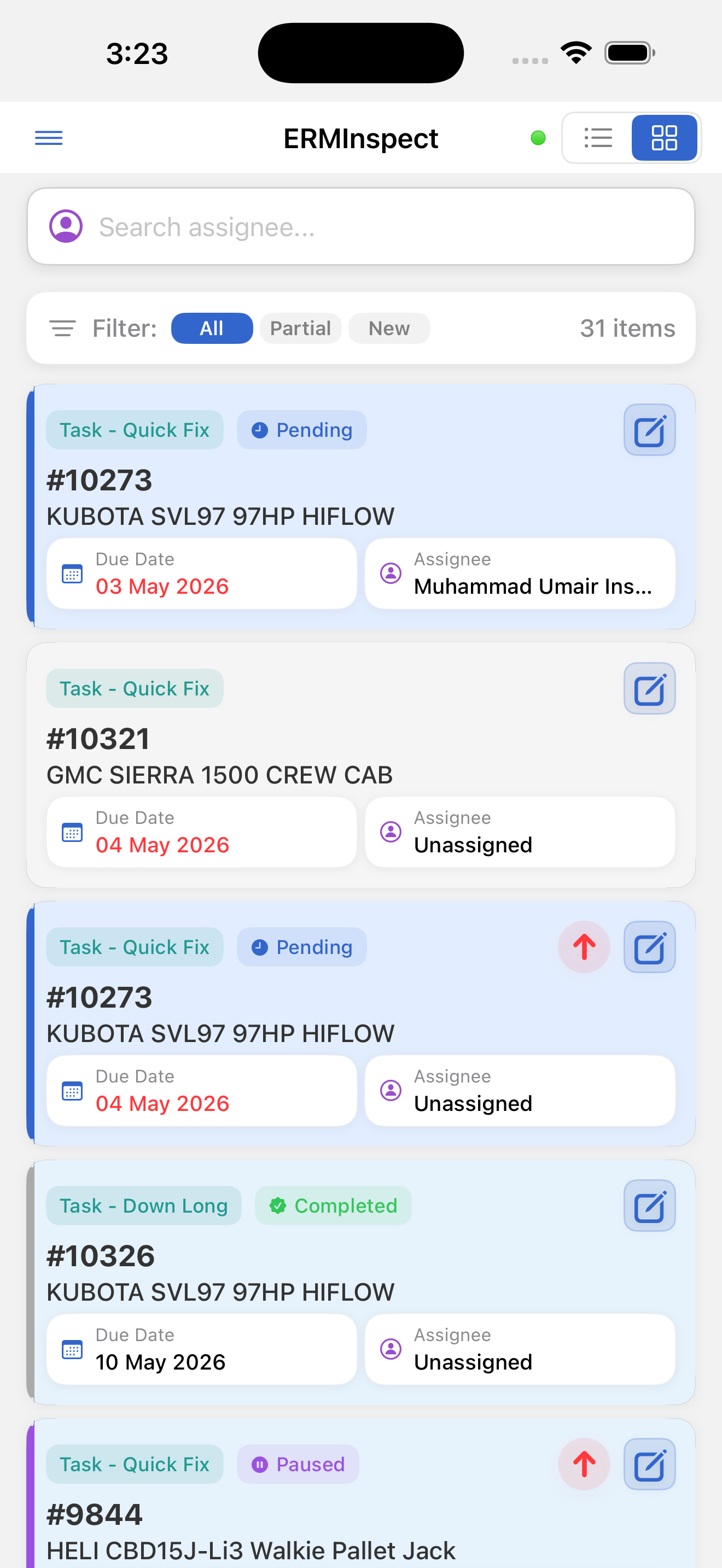
What Each Work Order Card Shows
| Element | Description |
|---|---|
| Work type badge | Teal - Work Order or Work Order - [Task level name] |
| Status badge | Hidden for the Ready state |
| Asset number | #XXXXX, or "No asset" when the work order has no asset |
| Asset name | Full asset name |
| Due date | Shown in red if overdue. Card view only |
| Assignee (managers) | Assigned technician's name, or "Unassigned". Card view only |
| Customer (technicians) | Customer account name. Card view only |
| Priority indicator | Red circle with up arrow (↑) for high-priority items |
| Edit button | Visible to managers only, opens the edit modal |
Editing a Work Order from the List (Managers Only)
Tap the edit button on a work order card to open the edit modal directly. Available changes:
- Task Level (required)
- Assignee - select a team member, or turn on Assign to all assignees
- Priority - Normal or High
- Expected Date
- Due Date
Tap Save to apply the changes. The message "Work Order updated successfully" confirms the save.
If the work order is Pending and you add or change the assignee, a Confirm Status Change prompt asks whether to move it from Pending to Ready. Tap Confirm to change the status, or Cancel to save your other changes without changing the status.
To change the status at any other time, add a work log. See Work Logs.