Appearance
Additional Functions
INFO
Note: Categories can only be viewed, deleted and created by organizational users who have been granted relevant permissions
Categories can save a form template for Asset Details and for Inspections.
Form Templates can be set and inherited on categories, and in turn are inherited on assets assigned under categories. Form Templates follow a cascading approach, such that the final template on the lowest level category contains a union of all distinct items on inherited/set form templates.
Each attached inspection template also carries a scope that determines which inspection flow it applies to: Rental (rental dispatch/off-rent inspections), Sale (asset-sale inspections), Independent (stand-alone inspections), or Generic (applies across flows). Set the scope with the toggle on the template within the Form Templates tab, and use the Template Scope filter to narrow a long list of attached templates. (Asset Details templates are always Generic.)
INFO
The Purchase scope has been retired. New-asset detail capture now uses the New Asset Detail Checklist, whose question set is managed in Platform Settings rather than as a category template scope.
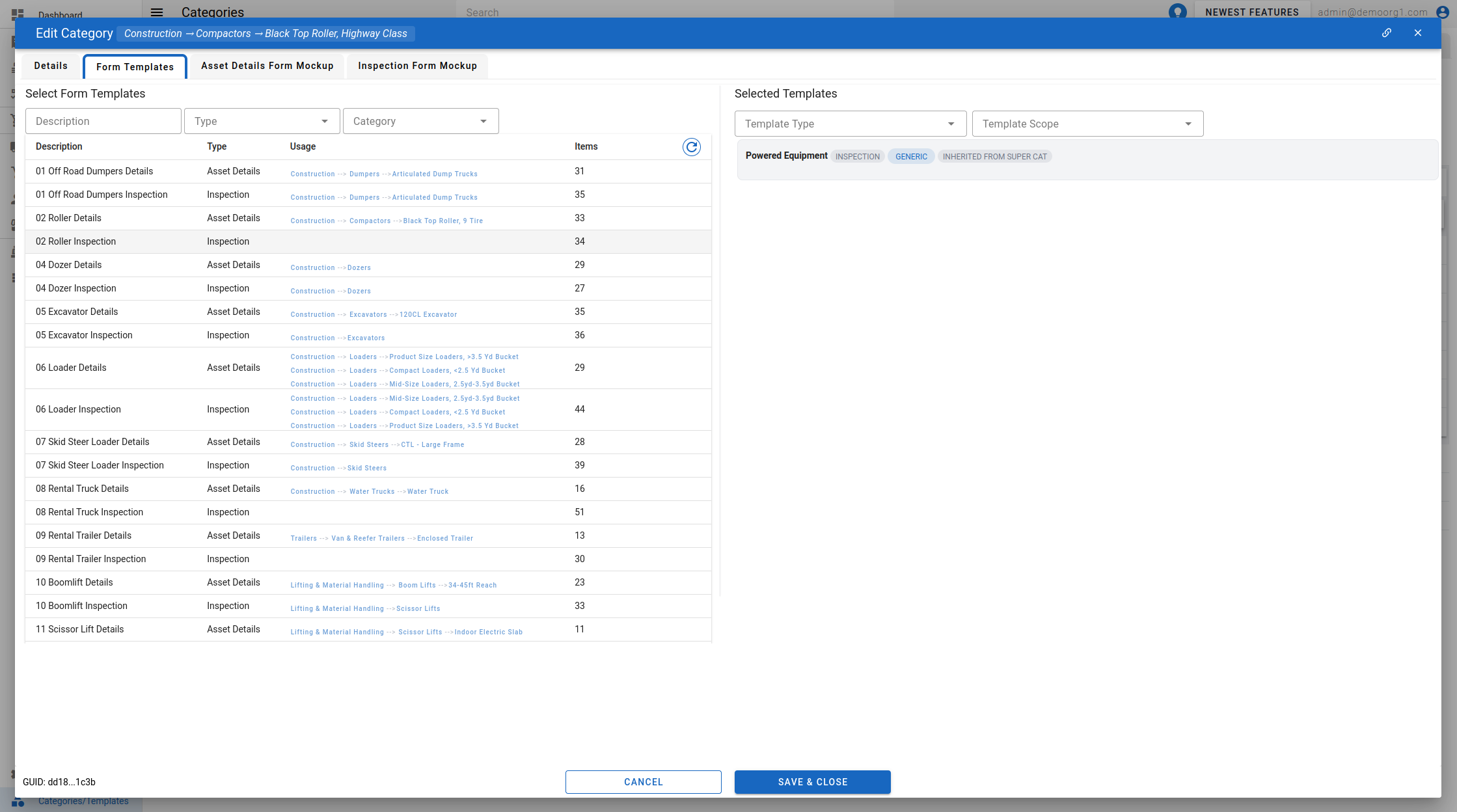
Setting the priority order of attached templates
When a category has more than one of its own templates attached (not counting templates inherited from a level above), the Selected Templates list on the Form Templates tab becomes reorderable — a drag handle appears on the left edge of each template card. Drag a card up or down to change its position in the list.
Order matters wherever two of the category's own templates carry the same question (see Category Tree Inheritance for how items are matched and merged): the template higher in the list wins, and its block, its Required flag and its position on the form are the ones used. Templates inherited from a level above are listed above the category's own templates in a read-only shade and never take part in the drag — reorder them on the category they actually belong to instead.
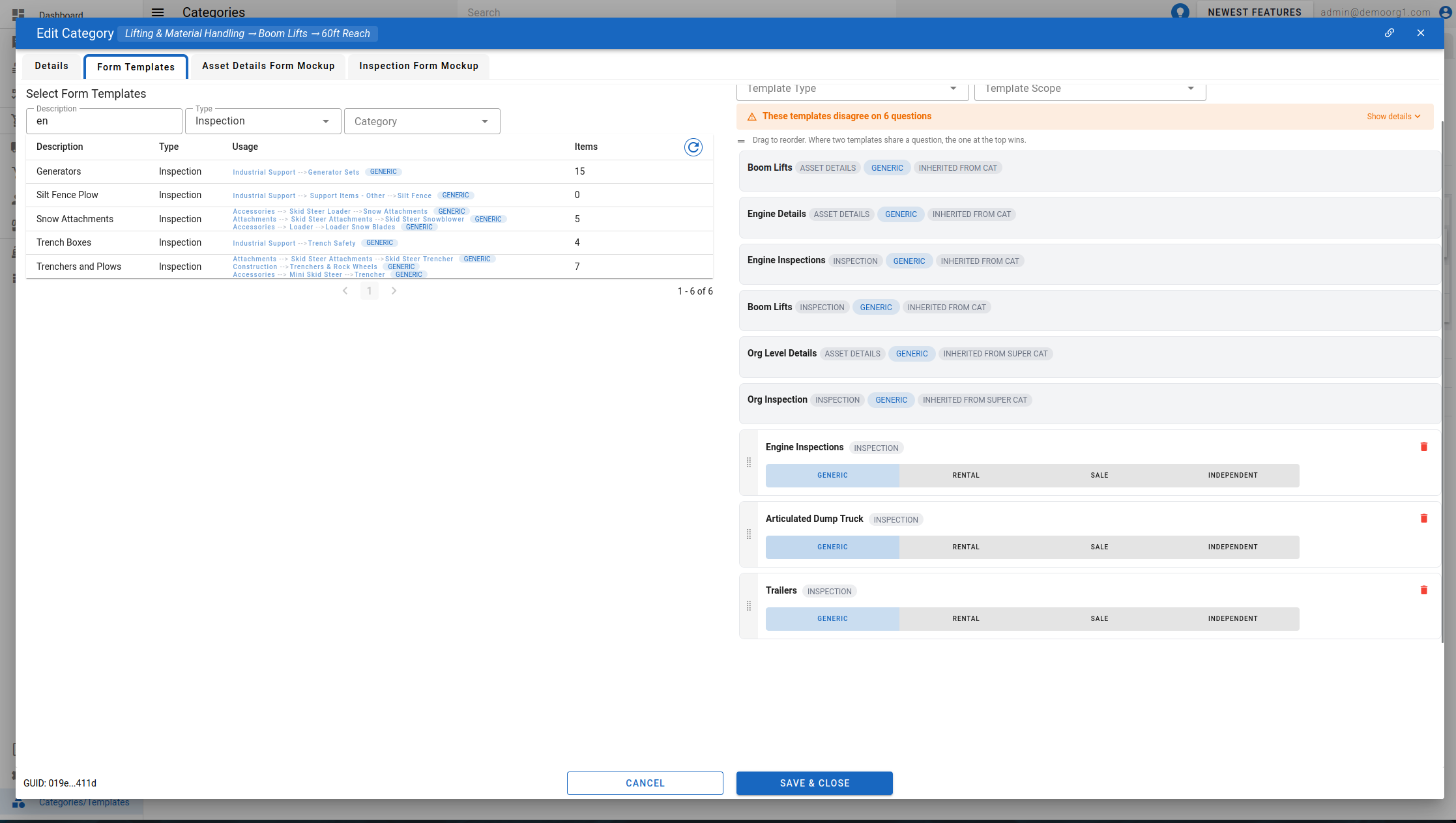
Template disagreement warning
If two or more of the category's own templates set a conflicting value for the same question — a different block (inspection templates only) and/or a different Required setting — an orange "These templates disagree on N questions" banner appears above the Selected Templates list. It's collapsed by default; click it (or its Show details link) to expand a line per disputed question, listing each competing template as a chip with the value it sets, the winning template's chip highlighted with a trophy icon, and a sentence naming the winner and why (for example "X wins because it is higher on the list.").
Because an inspection template's scope (Rental / Sale / Independent / Generic) determines which inspections it applies to, the winner is worked out per scope: if the same template wins for every applicable scope, the banner reads as one sentence; if different scopes land on different winners, it names the winner for each scope separately (for example, "X wins on Rental inspections; Y wins on Sale and Independent inspections, because each is the highest on the list among the templates that apply there.").
The warning re-checks itself whenever a template is attached, removed or re-scoped. Reordering the list alone doesn't refetch it — a reorder can only change who currently wins among the same disputed questions, and that's recalculated immediately from the new order.
The Asset Details Form Mockup Tab on the Category Popup shows the resultant Asset Details form that will be inherited by assets or the next level of categories under that category.
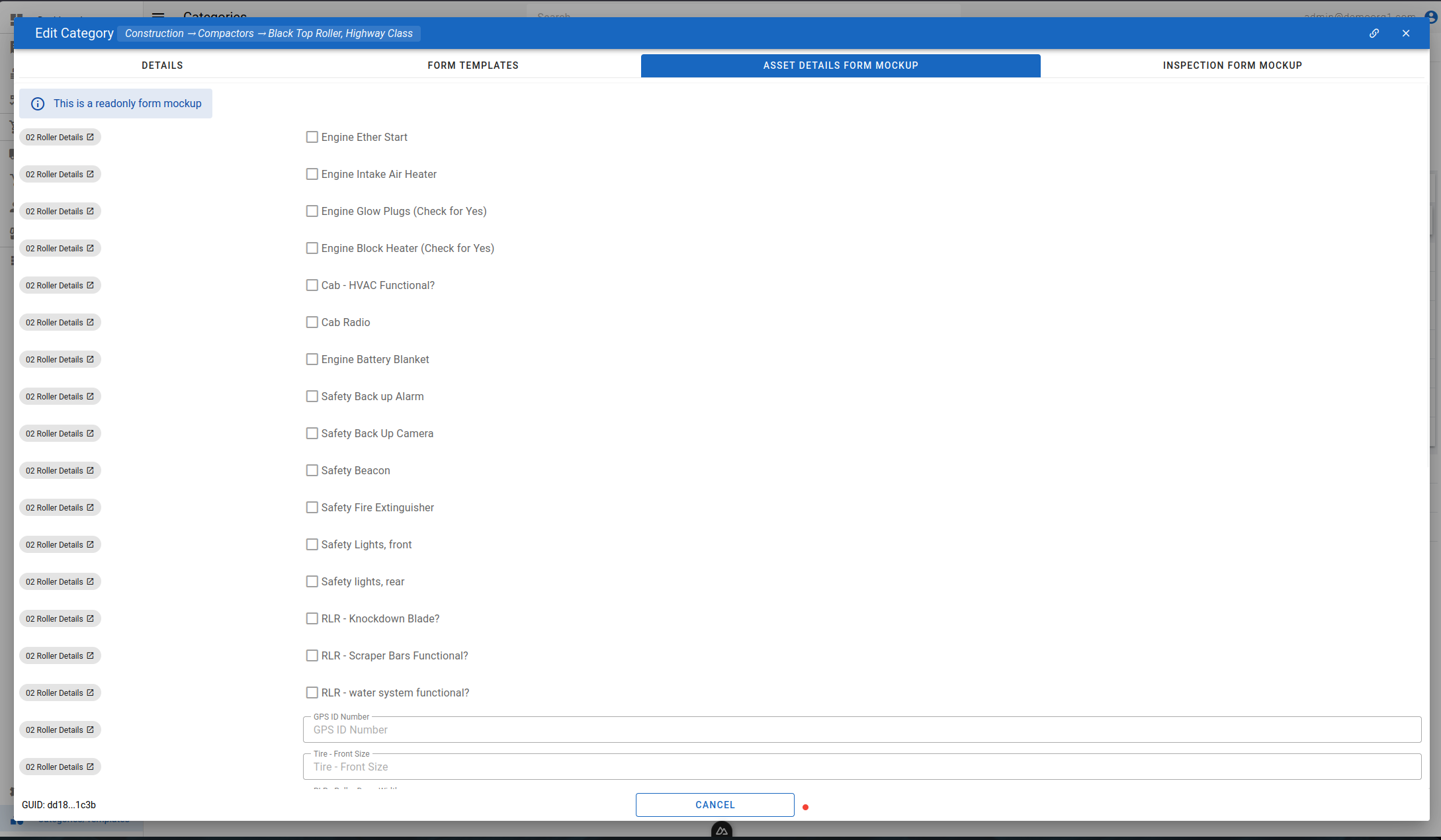
The Inspection Form Mockup Tab on the Category Popup shows the resultant Inspection form that will be inherited by assets or the next level of categories under that category. Where the merged question set uses more than one block, the mockup also shows a heading for each block, in the same order the actual inspection form will use.
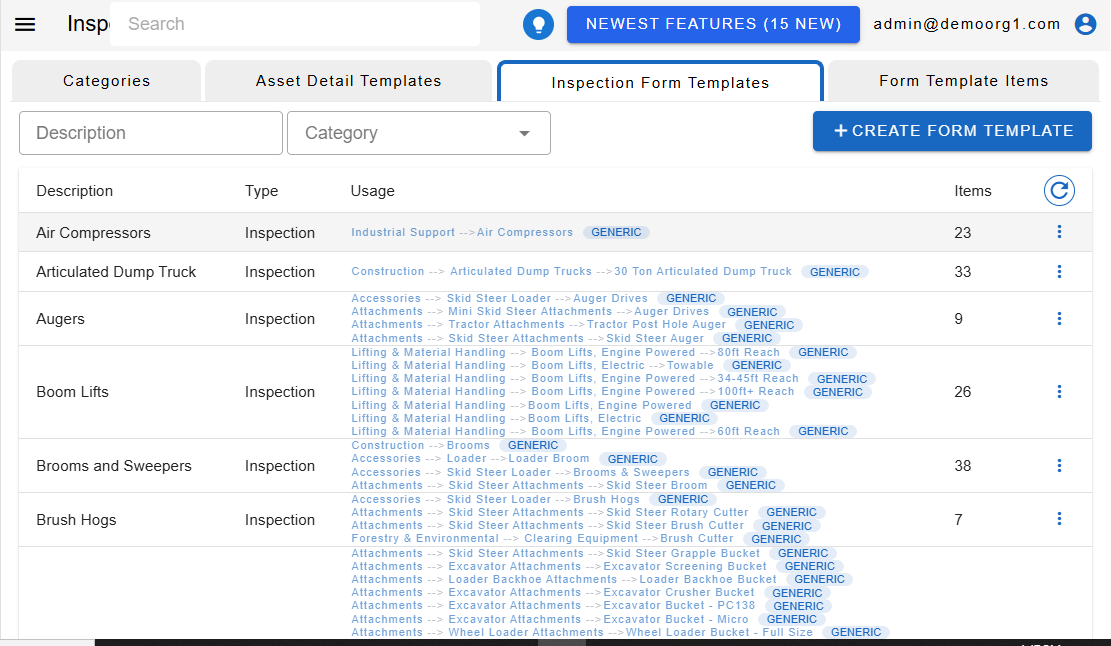
Categories can be bulk edited via the Categories Table. To do so, click on the yellow colored pencil icon visible on the top left corner of the categories table.
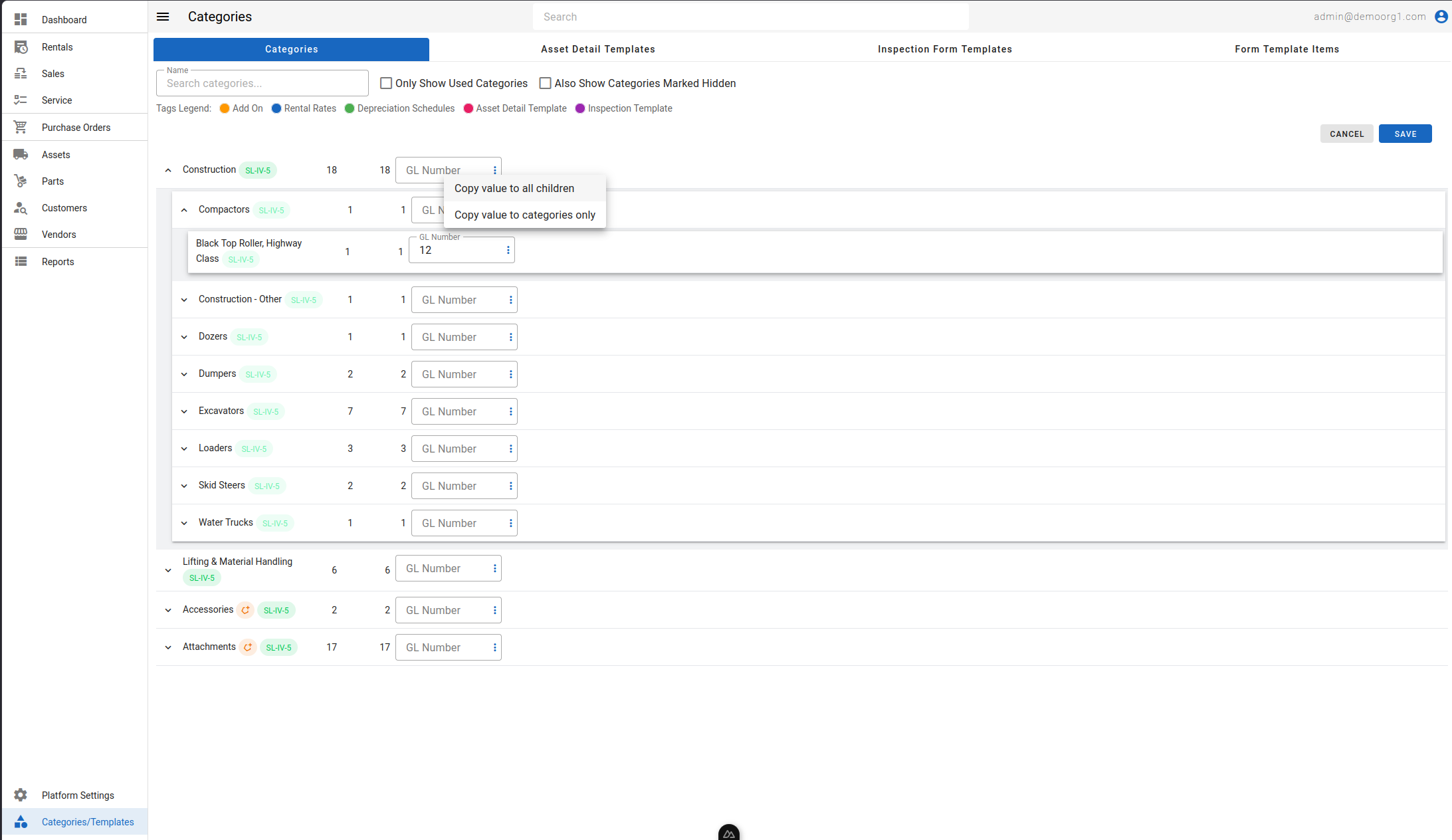
Right clicking on a field allows copying values to next level of categories or all categories under that category.