Appearance
Creating A Sales Quote/Order
INFO
Note: Sales can only be viewed and created by users who have been granted relevant permissions.
Step 1 - Open The New Sales Quote Popup
Head to the Sales Page via links available on the Left Navigation Bar.
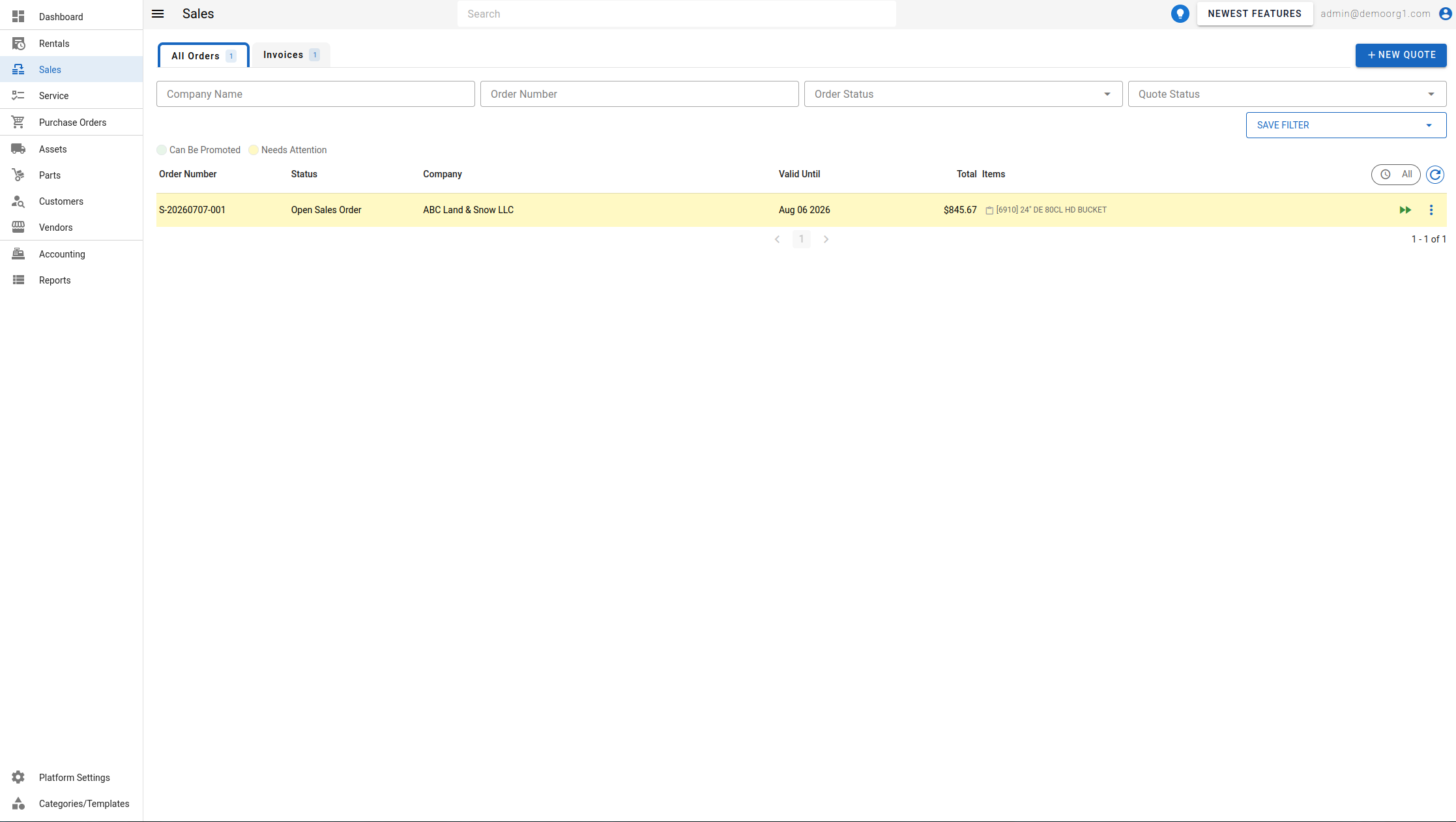
Click on the + New Quote button visible on the top right corner of the page. This will open up the New Sales Quote Popup.
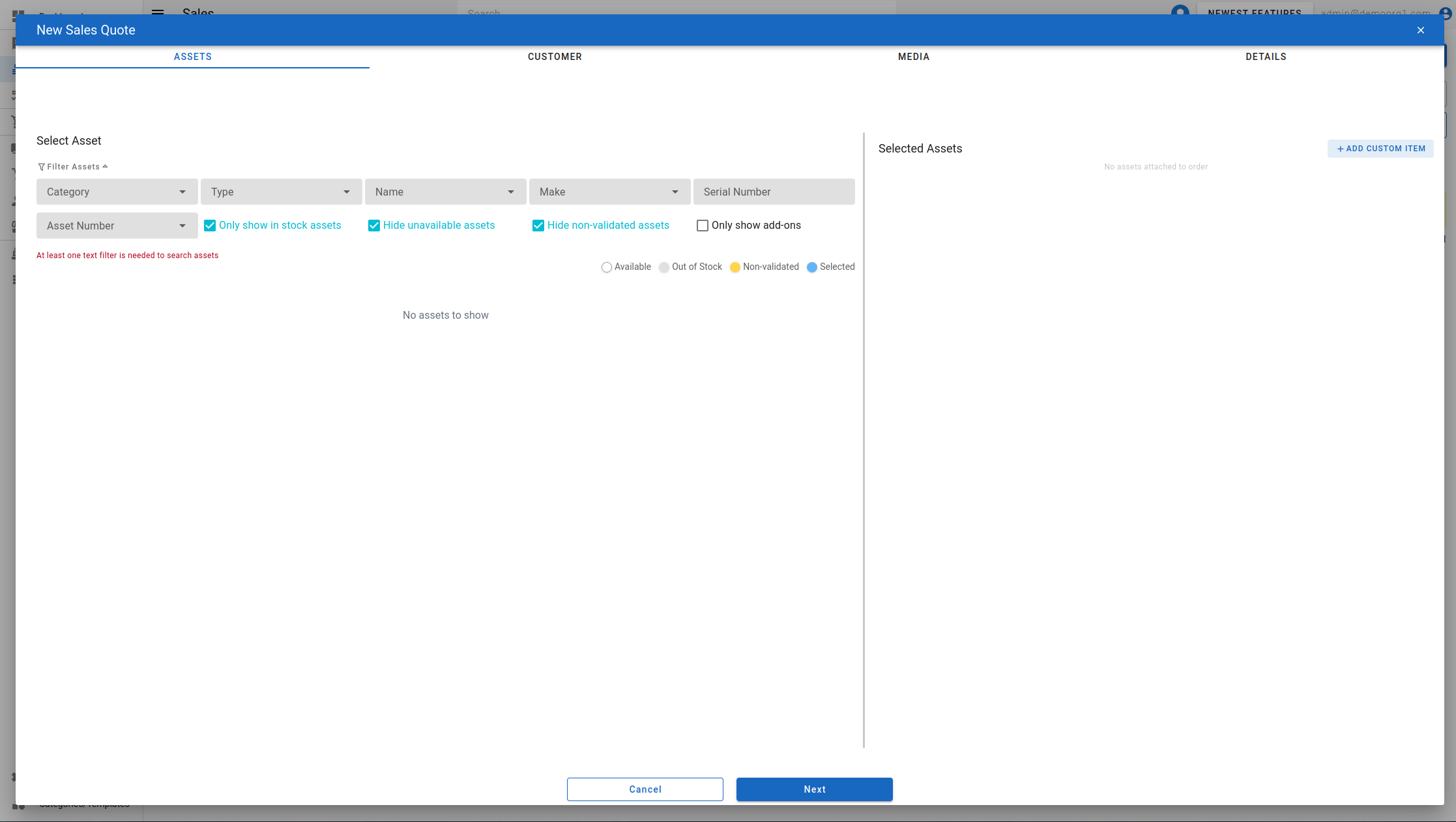
Step 2 - Filter and Select Assets
The first screen on the popup displays an asset selection interface, where user can filter, search and select assets for sale. By default, at least one text filter needs to selected to show assets. Scrolling down loads more search results (if any) as end of list is reached.
Users can only attach one non-attachment asset by default, unless they have permissions to attach more than on non-attachment asset. Users can attach as many attachment assets as required.
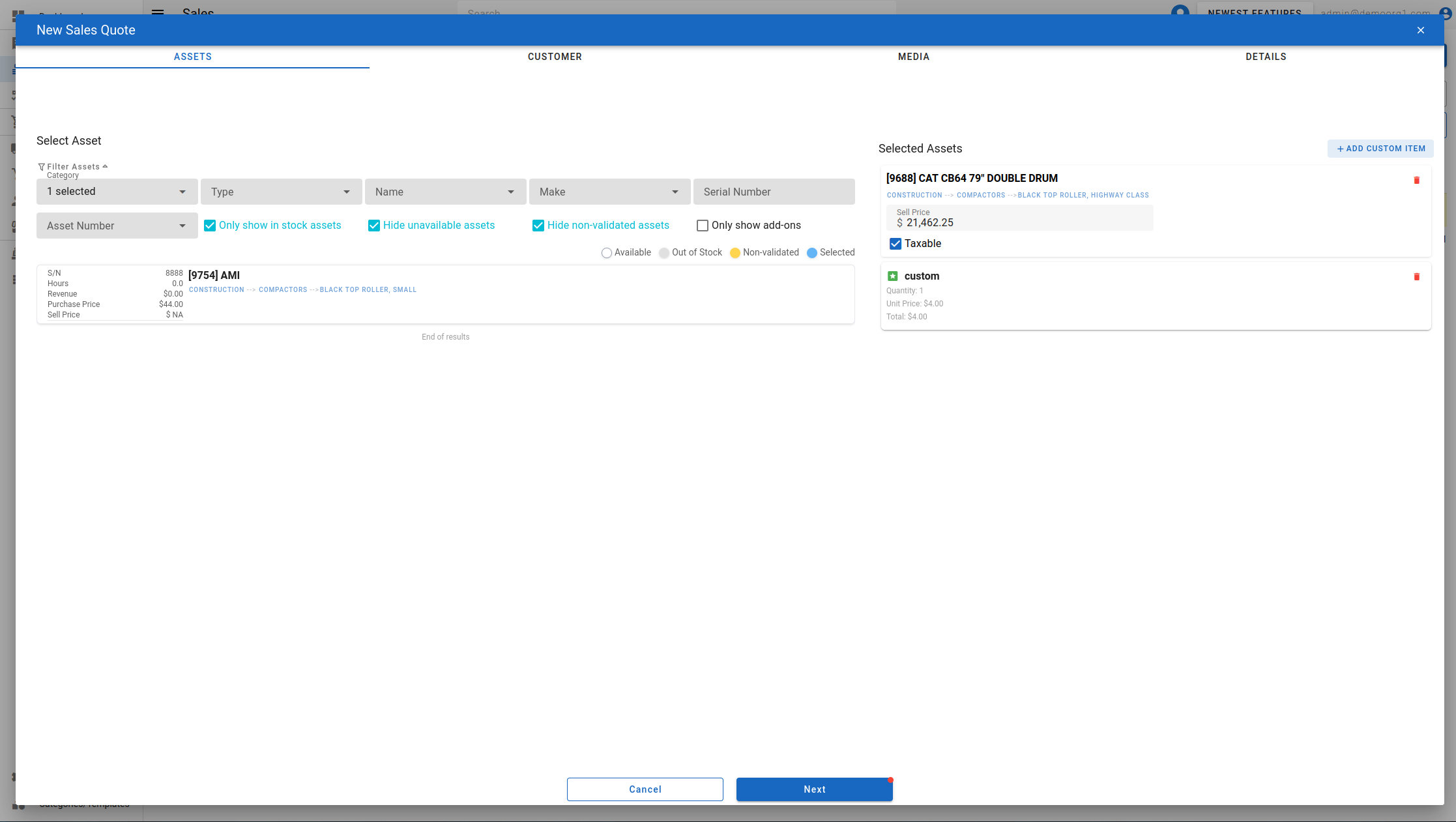
Filtered assets show up on the left section of the popup. Assets that appear with yellow colored category names are Attachments and Add Ons assets. These can also be filtered via the Attachments and Add Ons option in the asset-type/category filter.
An asset can be added to the quote by clicking on an asset, then clicking on the + Add button that shows up on the clicked asset. Selected assets show up on the right section of the popup, and are hidden from the left section.
Selected assets can also be deleted by clicking on the red trash can button on the top right corner of each selected asset. When an asset is selected, an Edit Asset button (open-in-new-tab icon) also appears on it — clicking it opens that asset in a new browser tab.
Sell Price for selected assets can be modified via the Sell Price field visible on each selected asset.
If an asset you are adding is already committed to a rental order, an amber indicator appears on it reading "Engaged on a Rental <Status>" (for example, "Engaged on a Rental Open Contract"). This indicator is a link that opens the conflicting rental order in a new browser tab.
Linking an attachment to an asset
A selected asset that has compatible attachment/add-on categories shows a green link icon button. Click it to open the attachment picker, already filtered to that asset's compatible categories, and pick an attachment to add it directly beneath its parent asset.
The first attachment you link to an asset is added free (no charge). Any attachment you link after that is billed — it's added at the attachment's catalog sell price, which you can still edit via its own Sell Price field like any other line.
After you add an attachment, you're asked whether to add another one for the same asset (Add Another Attachment) — confirming reopens the same filtered picker so you don't have to search or re-filter again; declining just closes the prompt. Deleting a parent asset that has one or more linked attachments asks you to confirm deleting it along with all of its attachments.
Adding a custom line item
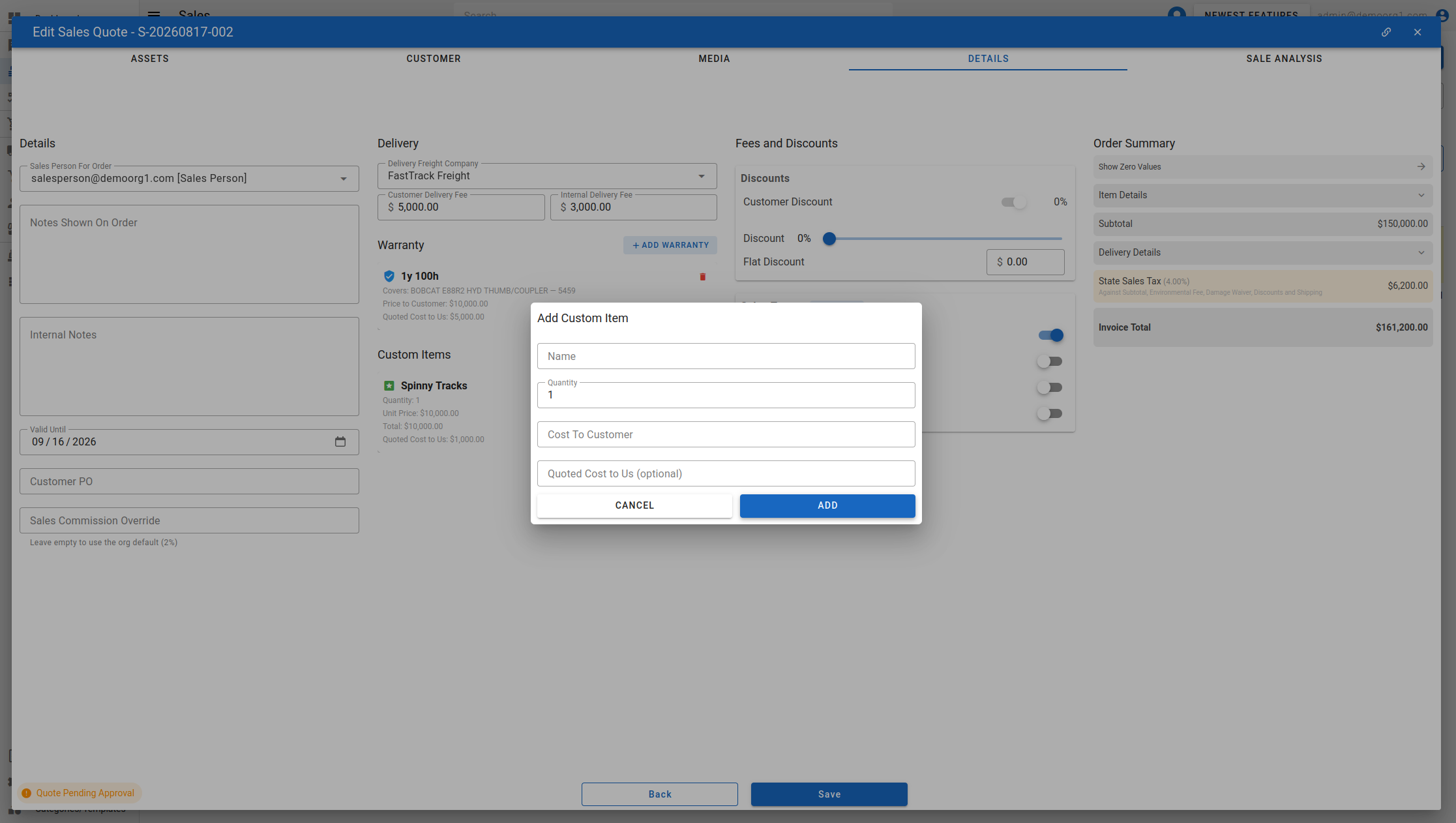
Besides catalog assets, you can add a custom line item to the sale for something that isn't in your catalog. Custom items now live in their own Custom Items section on the Details step (see Step 5 below) rather than on the asset-selection screen. Click Add Custom Item, then enter a Name, a Quantity (greater than 0), and a Customer Cost (the amount the customer is charged), and confirm. You can optionally record an Internal Cost — the internal cost of the item — which does not affect what the customer is billed but feeds the Sale Analysis profitability figures. The custom item is added to the line items like any other and is flagged as a custom item. A custom item's Customer Cost may be negative to record a credit or adjustment (for example, -100); catalog asset sell-price overrides remain positive-only.
Adding a warranty
Warranties (Specialty Protection Plans, or SPP) now have their own dedicated Warranties tab on the sales order popup (the second tab, after Assets) — the warranty controls used to be squeezed into each selected-asset card on the Assets tab. The Warranties tab shows one row per main asset (attachments and add-ons can't carry a warranty, so they aren't listed), surfacing inline what previously needed a click into the asset: eligibility, each coverage tier offered (months, hours, Customer Cost, Internal Cost, margin), and the authorization form's sent/signed status. An add/Warranty button at the end of each row opens that asset's Warranty popup for the detailed controls below.
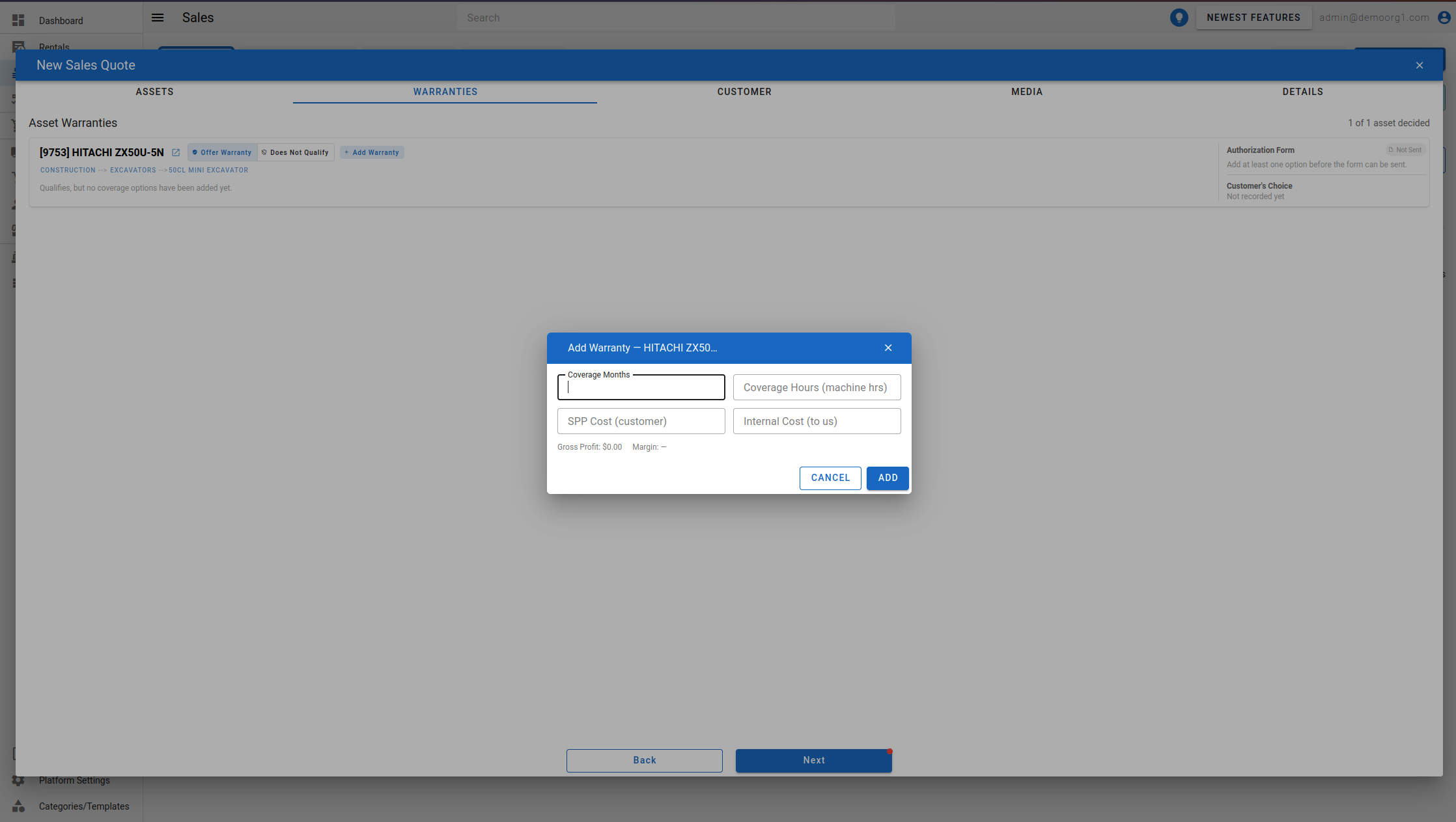
Eligibility — Toggle between Offer Warranty and Does Not Qualify. Switching to Does Not Qualify clears any warranty options already entered for the asset.
Warranty Options — While offering a warranty, add up to 3 coverage tiers. Each tier records a Coverage Months, Coverage Hours (machine hrs), Customer Cost, and Internal Cost; the popup shows the tier's resulting Gross Profit and Margin as you fill it in. You can leave the options empty and send an empty offer to fill in later.
Status chips next to the Warranty button summarize the asset's warranty state at a glance, for example Qualifies · 2 options, Does not qualify, No warranty decision, Form sent, Form signed, Option recorded, or Refused.
Sending the authorization form — Once the order (and this asset line) has been saved, the popup lets you send the authorization form for signature to one of the customer's contacts or to a custom email address. Confirm the Send Authorization Form prompt to send it — if the order has unsaved changes, they're saved automatically first. Sending requires at least one warranty option to be entered.
Once the form has been sent, its warranty options are locked: the tiers are shown as read-only text instead of editable fields, and the asset can no longer be marked as not qualifying.
Once the customer has signed the form, the signed document can be viewed straight from the popup — a View Signed Document control opens the signed warranty PDF inline, so you can read the customer's selection and make a decision without leaving the screen. You can then record the customer's choice — the option they selected, or that they refused the warranty. This recorded choice becomes a billable line item on the order. Click Re-read form to pull the customer's choice directly off the signed document; the popup tells you whether it matches, adds to, or conflicts with what's currently recorded, and lets you accept the form's answer with one click.
Deleting and recreating a warranty option — Until the authorization form is sent, each coverage tier listed on the asset's Warranties tab row has an Edit Warranty (pencil) and a Delete Warranty (trash) icon, so you can change or remove a tier and add a replacement with Add Warranty. Once the form has been sent these controls are hidden and the tiers are locked; to redo the warranty at that point, void it as described next and then add fresh options. Deleting a tier simply removes it from the offer before anything is sent to the customer, whereas voiding withdraws or cancels a form that has already gone out.
Voiding a warranty — Once an authorization form has been sent its options are frozen, so a Void Warranty action is available to throw the warranty away. The confirmation spells out exactly what voiding does, which depends on how far the form got: before signing it deletes the offered options and withdraws the form (the customer's signing link stops working); after the customer signed and chose a tier it removes that warranty (and its charge) from the order; after a signed refusal it simply cancels the form. In every case the customer is emailed that the form/authorization was voided.
INFO
The signed warranty document is also filed against the customer — it appears in Customer → Documents (the customer's Documents tab) alongside their other signed paperwork.
Warranty items are no longer listed on the Details step — manage each asset's warranty from its Warranty button here, or review warranty charges on the Sale Analysis tab, where they're grouped under their asset.
Once required assets are selected, proceed to the next step by clicking on the Next button.
Step 3 - Filter and Select A Customer
The next screen on the Sales Quote Popup displays a customer selection interface, where user can filter, search and select a customer whom the quotation is being generated for. Scrolling down loads more search results (if any) as end of list is reached.
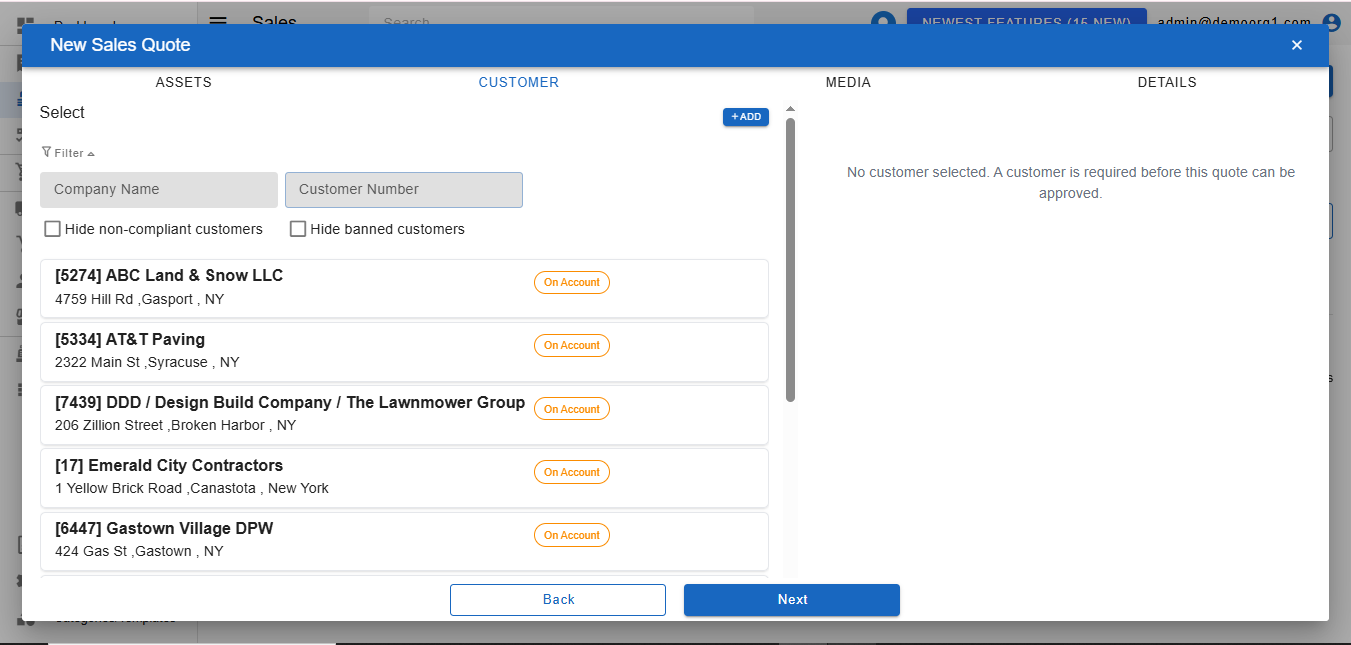
Filtered customers show up on the left section of the popup. Customers highlighted yellow are indicate pending customer validation. Customer highlighted red indicate a banned customer. Quotations cannot be generated for banned customers. The filter section is titled Filter. Each customer card also shows a billing-type chip — Pay On Open (blue) or On Account (orange) — so you can identify the customer's billing type before selecting.
INFO
Selecting a customer is optional when creating and saving a sales quote — you can save a quote with no customer attached. A customer is only required before the quote can be approved: until one is set, the Customer tab shows "No customer selected. A customer is required before this quote can be approved.", and attempting to approve shows "A customer must be set before approving this quote."
A customer can be selected by clicking on a customer in the left section. The selected customer shows up under the 'Selected Customer' label on the right section of the popup. When a customer is selected, an Edit Customer button appears — clicking it opens the customer in place (as a popup) over the order.
Optionally a customer contact can also be provided. A customer contact refers to the default customer contact that will be used for this order. To select a customer contact, click on the 'Customer Contact' drop down visible on the right section of the popup.
If the selected customer has attached contacts, they will appear in the drop down. If the customer has no customers attached, you can attach one by clicking on the + Create A New Contact button visible in the drop down.
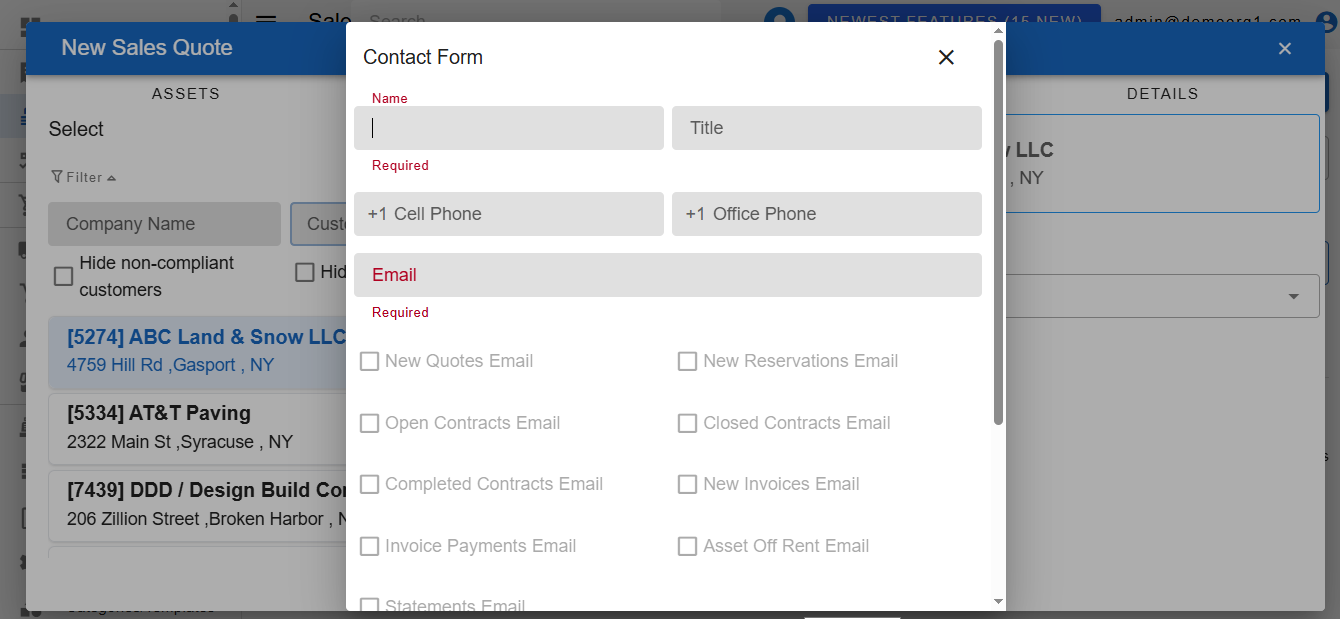
Fill in the resultant form and click Submit to attach the contact against the customer. The newly attached contact will now be available for selection in the 'Customer Contact' drop down.
Once required information is selected, proceed to the next step by clicking on the Next button.
Step 4 - Upload Media
The next screen on the Sales Quote Popup displays a media uploading and viewing interface. Media attachment on a sales quote is optional.
To upload media, click on the upload button visible towards the top right corner of the screen to trigger the upload media popup.
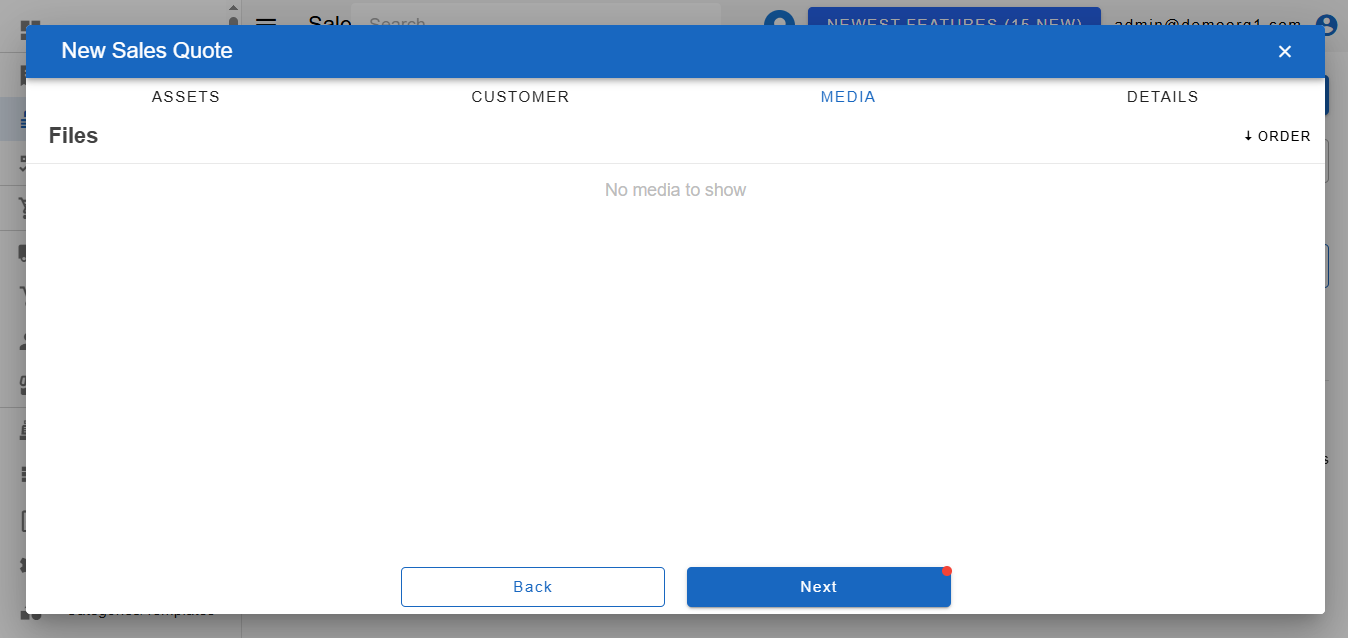
Click on the + button visible on the Upload Media Popup, select the files you wish to attach and confirm. Selected files will now be visible on the Upload Media Popup, along with a few input fields relevant to each attached file.
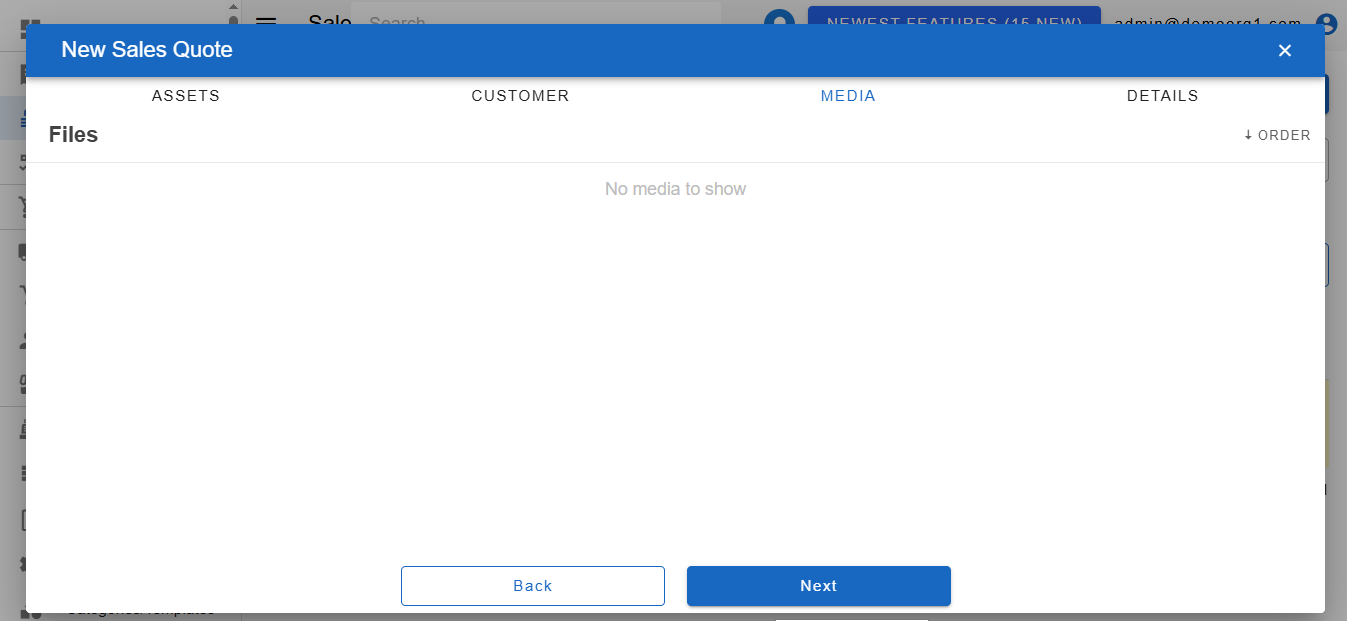
Fill in required fields and click on confirm to attach these files to the new sales quote. Newly attached files will be visible on the Media Section. Once media is attached, proceed to the next step by clicking on the Next button.
INFO
Note: Uploading or deleting media on a sales quote/order requires the sale-create or sale-update permission. Existing files can always be viewed and downloaded regardless of these permissions.
This same Media section is also available when editing an open sales order, for example to attach a customer's already-signed paperwork against the order.
Step 5 - Fill In Extra Fee and Order Details
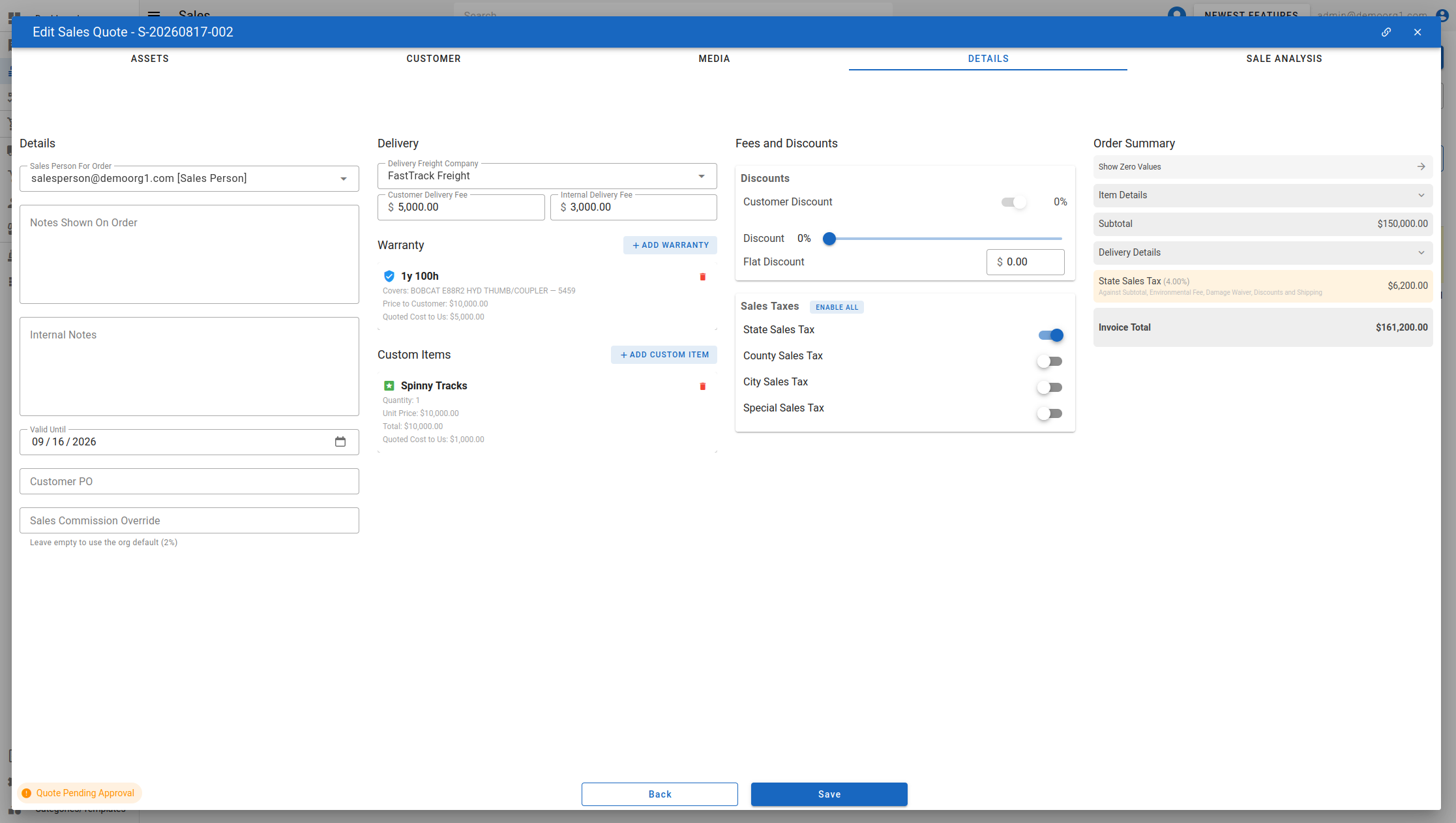
The next screen on the Sales Quote Popup displays an interface to provide miscellaneous details related to the order.
Notes
Orders keep a record of Notes (visible to customers) and Internal Notes (Not visible to the customer). These notes can optionally be provided on the details screen.
Custom Items
The Custom Items section on this step is where you add and manage custom line items — one-off charges (or credits) that aren't in your catalog. Each entry shows its Quantity, Unit Price, and line Total, and can be removed with its trash icon. Use the pencil (Edit Custom Item) icon to change an entry's Name, Quantity, Customer Cost or Internal Cost after it has been added; the same popup used for adding opens pre-filled, and your changes apply when you save the order. Editing requires permission to edit the order.
Sales Person For Order
A Sales Person For Order field assigns the order's sales person — a searchable user dropdown (placeholder Search Sales People...) that defaults to the selected customer's assigned sales person when a customer is chosen, is clearable, and drives sales-commission attribution. Choosing among users requires the order-ownership permission.
Sales Commission Override
A Sales Commission Override field (a percent, with a % suffix) lets you set a commission rate for this order that differs from the organization default. Leave it empty to use the org default (the hint reads "Leave empty to use the org default (X%)"). The override can only be set at or below the org default — a higher value is rejected with "Commission rate can't exceed the organization default (X%)". The commission affects the Sale Analysis profitability figures only and is not billed to the customer. The same value can also be edited as Commission Rate on the Sale Analysis tab (editable while the order is a quote).
Quote Valid Until
This date is recorded on the quote for reference. Sales quotes no longer expire automatically once this date passes — it does not force a re-quote.
To select a valid until date, click on the field labelled 'Quote Valid Until', and select a date for this quotation.
Customer PO
Purchase order issued by the customer
Delivery (Freight)
If the sale is delivered, select a Delivery Freight Company and enter the Customer Delivery Fee. When the chosen freight company is marked as no-fee, the fee field is disabled. The freight details then appear in the Delivery Details section of the Charges Summary.
Fees and Discounts
Customers can also be offered dedicated discounts and fee waivers on orders by users who have relevant permissions. To edit discounts on the quote, simply use the slider under the Fee and Discounts section and use the toggles below to waive off taxes and fees.
Under the Discounts card, in addition to the percentage-based Customer Discount and the order Discount slider, a Flat Discount field lets you apply a flat dollar-amount discount (a $-prefixed currency input). This field is only shown to users granted the flat-cash-discount permission.
The flat discount is combined with the customer, order, and per-asset percentage discounts, and the combined total is capped at your maximum offerable discount. If the total exceeds that cap, a Discount Exceeded dialog appears and one of the discounts is automatically reset to bring the order back within the limit (in priority order: customer discount, then order discount, then flat discount, then the offending asset's discount). Free attachments are exempt from this check. If the server rejects the discount when you save, an error notification is shown that includes the Max Allowed Flat Discount figure.
In the Charges Summary, the Customer Discount and Order Discount rows each show a small helper line underneath describing what the discount is calculated against (for example "Against Subtotal"). This basis text is returned by the server and reflects what actually applies to the order, so it may read differently depending on which charges the order carries. (The Environmental Fee and Damage Waiver are applied after the customer discount, so they are not part of the discount's basis.)
INFO
A new quote's Customer Discount starts pre-filled with the selected customer's assigned discount. This default is governed by the Apply Customer Discount to Sales Agreements platform setting (on by default). When it's turned off, new quotes start at 0% instead — the field remains visible, but adding a discount back in is rejected until the setting is re-enabled. A quote that already carries a customer discount keeps it either way.
Charges Summary
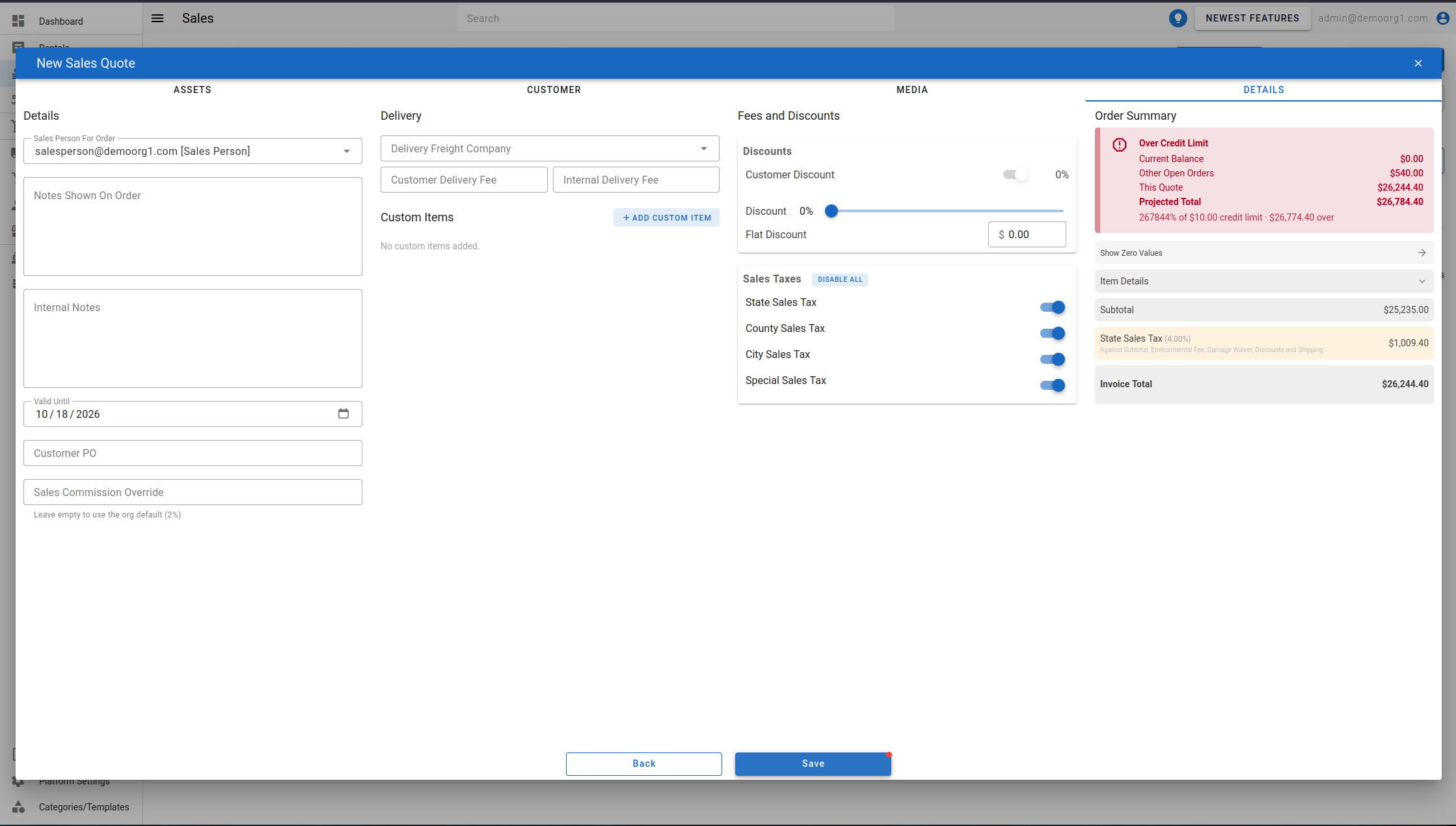
If the customer's projected exposure — their outstanding balance, other open orders, and this quote combined — reaches 50% of their credit limit, a Credit Limit Advisory appears above the charges summary, reading Approaching Credit Limit (or Over Credit Limit once exposure exceeds the limit). It breaks down the Current Balance, Other Open Orders, This Quote, and Projected Total, along with the utilization percentage of the credit limit. The advisory recalculates automatically as you edit the quote and is available even before the quote is first saved. It's hidden entirely for customers with no credit limit configured.
INFO
This advisory is informational only — it doesn't block saving the quote. A separate credit-limit check runs when converting the quote to an open order.
The charges summary section shows an estimate of the quote that will be generated. Changing details in the quote updates this charges summary, and is meant to assist the user in estimating the quotation's cost before creation. It includes a collapsible Delivery Details section showing the freight company and the Customer Delivery Fee and Internal Delivery Fee, and any warranty or custom items appear as line items in the summary. When a flat discount is applied, a Flat Discount line appears in the summary showing the discount as a negative amount.
Once details are finalized, click on the Save button to complete the Quote Creation Flow and generate the new quote. Once new quote is created, user is redirected to the newly created quote's Sale Analysis Tab.