Appearance
Creating A Rental Quote/Order
INFO
Note: Rentals can only be viewed and created by users who have been granted relevant permissions.
INFO
Note: Shortcut [CTRL+ALT+T] shows current time in the organization's timezone
Step 1 - Open The New Order Popup
Head to the Rentals Page via links available on the Left Navigation Bar.
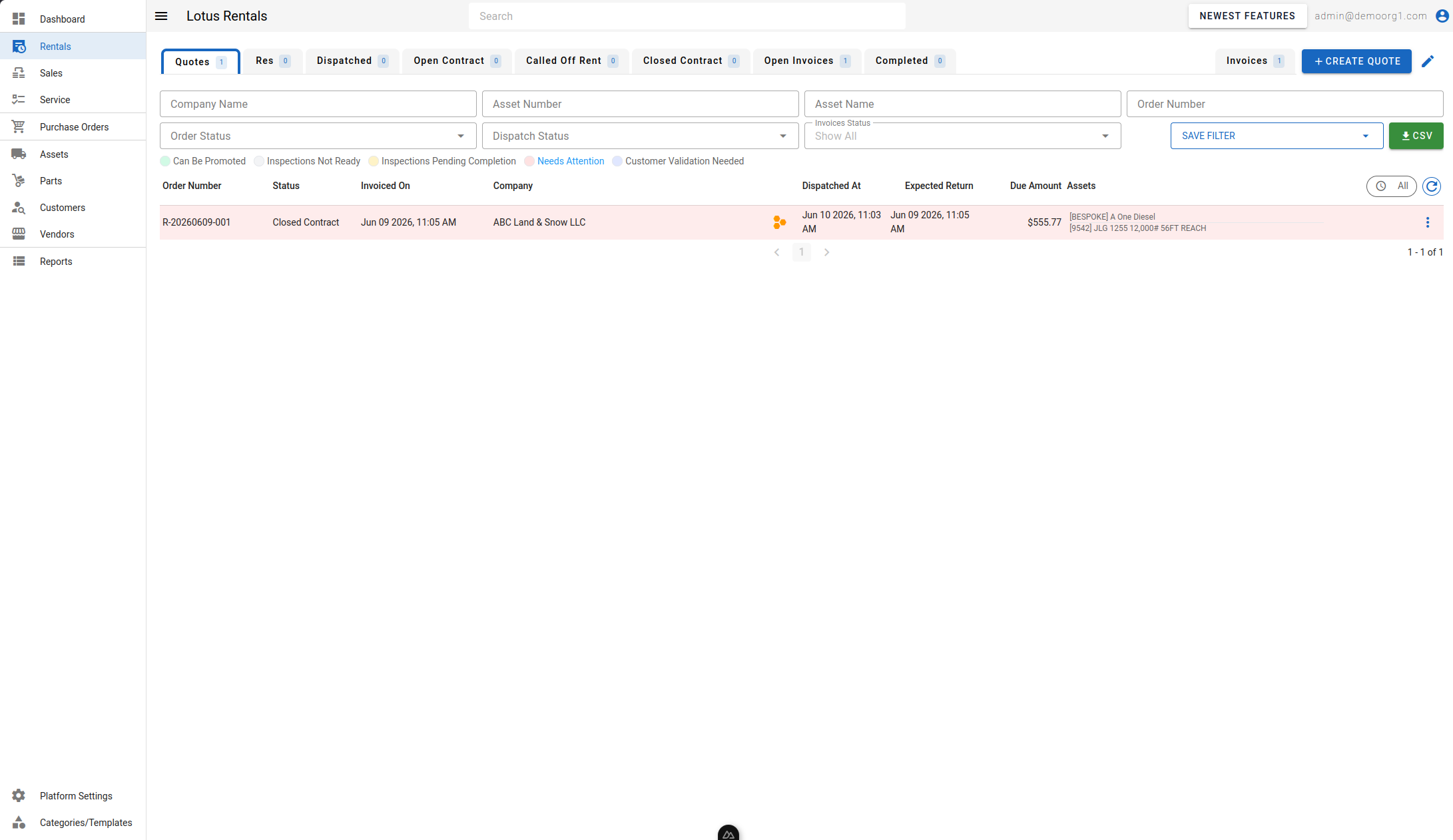
Click on the + Create Quote button visible on the top right corner of the page. This will open up the New Order Popup with the Duration Picker visible.
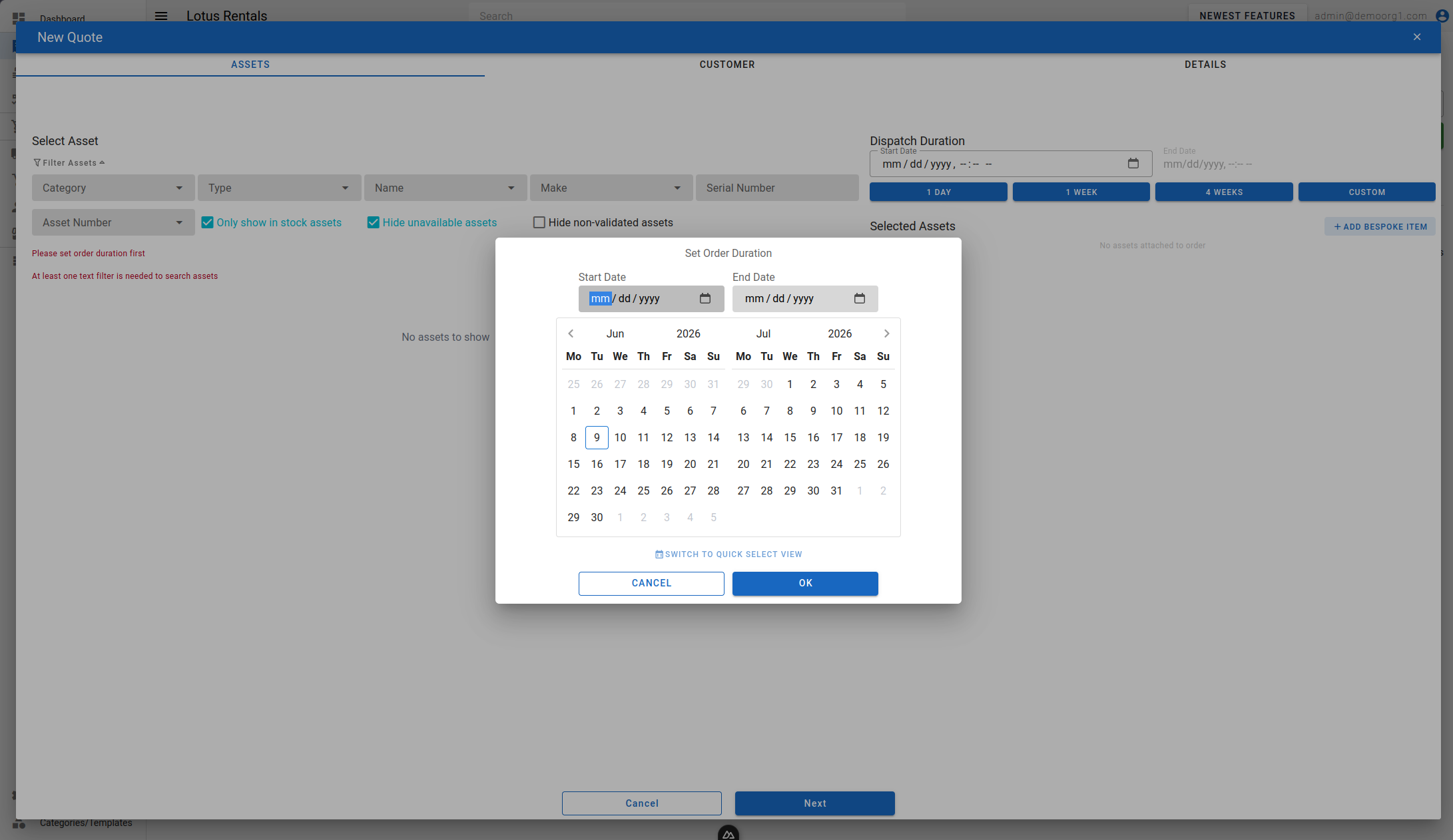
Step 2 - Select a Rental Duration
Select a rental duration for assets being dispatched. Duration can be set in multiple ways, either by selecting dates on the calendar, or by manually entering dates in the date fields above the calendar, or by switching to the quick select view and inputting a duration instead.
Selecting a date in the past will eventually create a back-dated rental. To learn
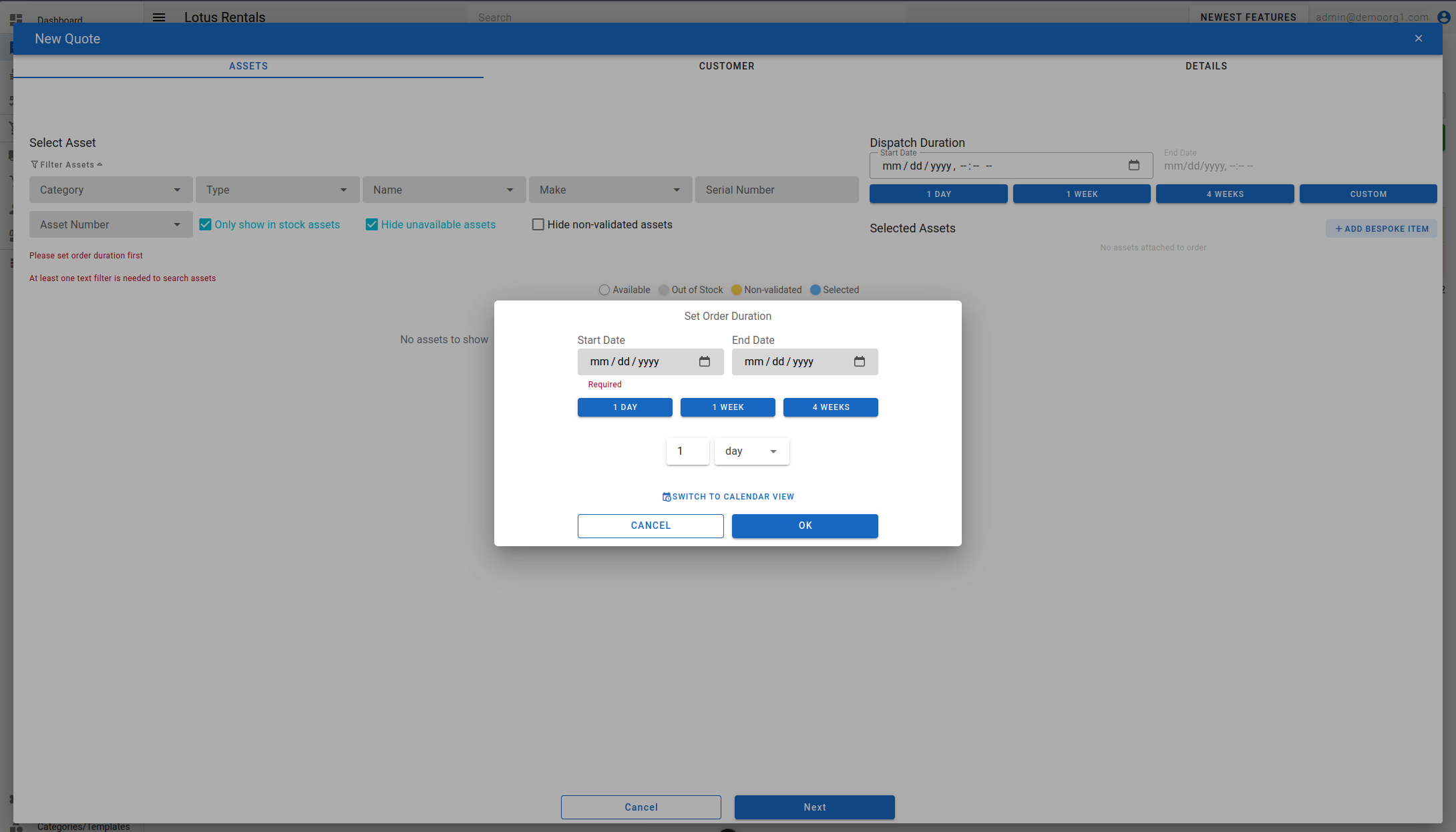
The duration picker that opens when you create a new quote remembers the view you last used. If you switch to Quick Select View (or back to Calendar View), the next new quote opens in that same view. The choice is stored in your browser, so it persists across reloads and re-logins on the same browser but does not follow you to another browser or device. By default the picker opens on the calendar.
Step 3 - Filter and Select Assets
Once a duration is provided, click the OK button on the duration picker popup to return back to the New Order Popup. The first screen on the popup displays an asset selection interface, where user can filter, search and select assets for rent. By default, at least one text filter needs to selected to show assets. Scrolling down loads more search results (if any) as end of list is reached.
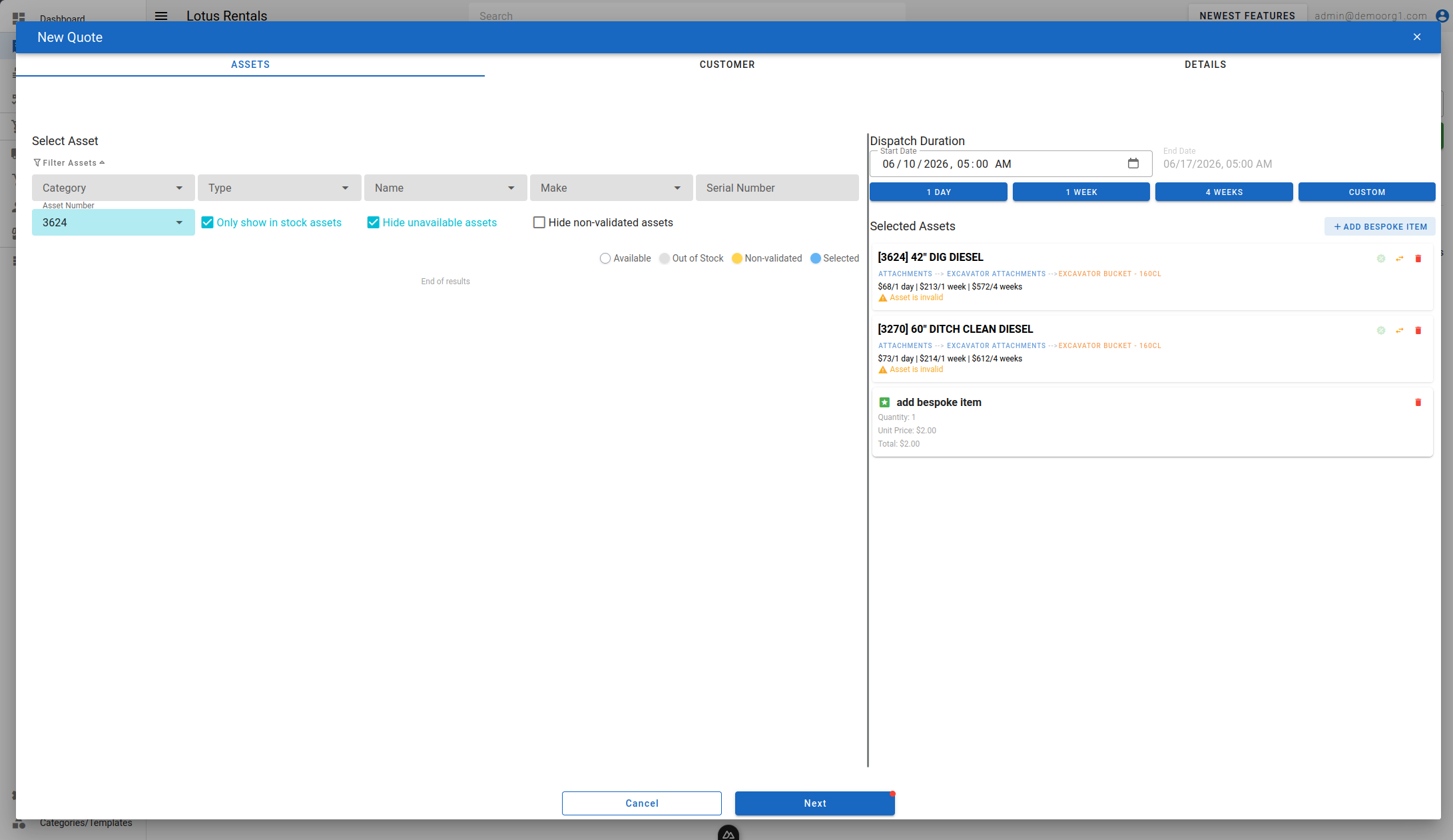
Filtered assets show up on the left section of the popup. An asset can be added to the quote by clicking on an asset, then clicking on the + Add button that shows up on the clicked asset. Selected assets show up on the right section of the popup, and are hidden from the left section.
Assets currently out of stock cannot be quoted.
Note: If Non-Validated Asset settings are disabled then quote will not be registered against an invalid asset and corresponding warning will be shown.
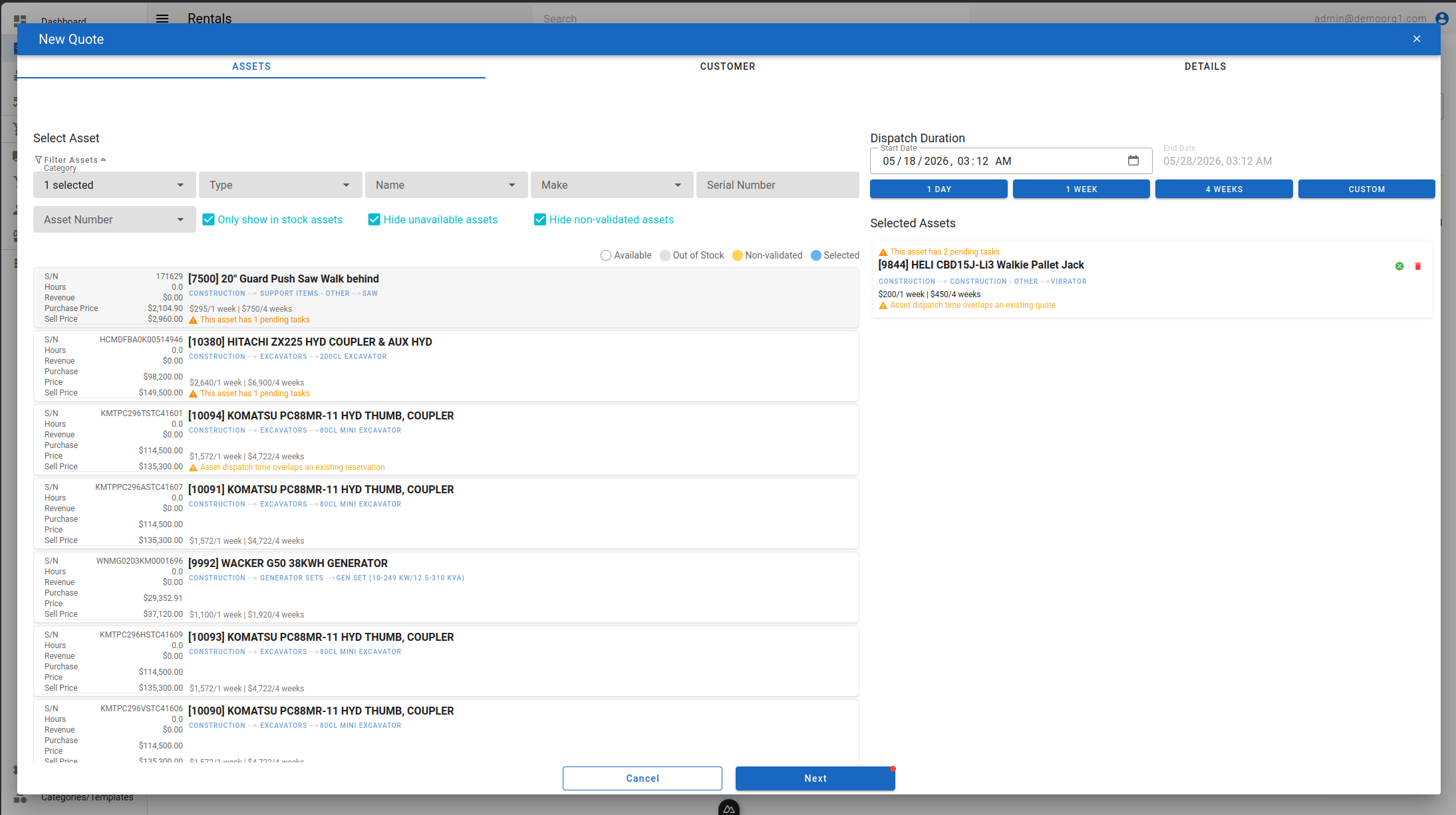
If an asset has pending work orders while selecting it to make a rental order, a warning will be displayed. This warning is clickable — "This asset has N pending work orders — click to view work order" — and opens that work order on the Service page in a new browser tab.
Selected assets can also be deleted by clicking on the red trash can button on the top right corner of each selected asset. When an asset is selected, an Edit Asset button (open-in-new-tab icon) also appears on it — clicking it opens that asset in a new browser tab.
Selected assets can also be discounted individually by clicking on the green percentage button and using the slider on the resultant popup to select a discount. Learn more about Rental Order Discounts here.
Some special assets also allow attaching a free (100% discounted) attachment against the asset. When such an asset is added to the list of selected assets, the user is prompted whether they would like to also add a free attachment with the asset.
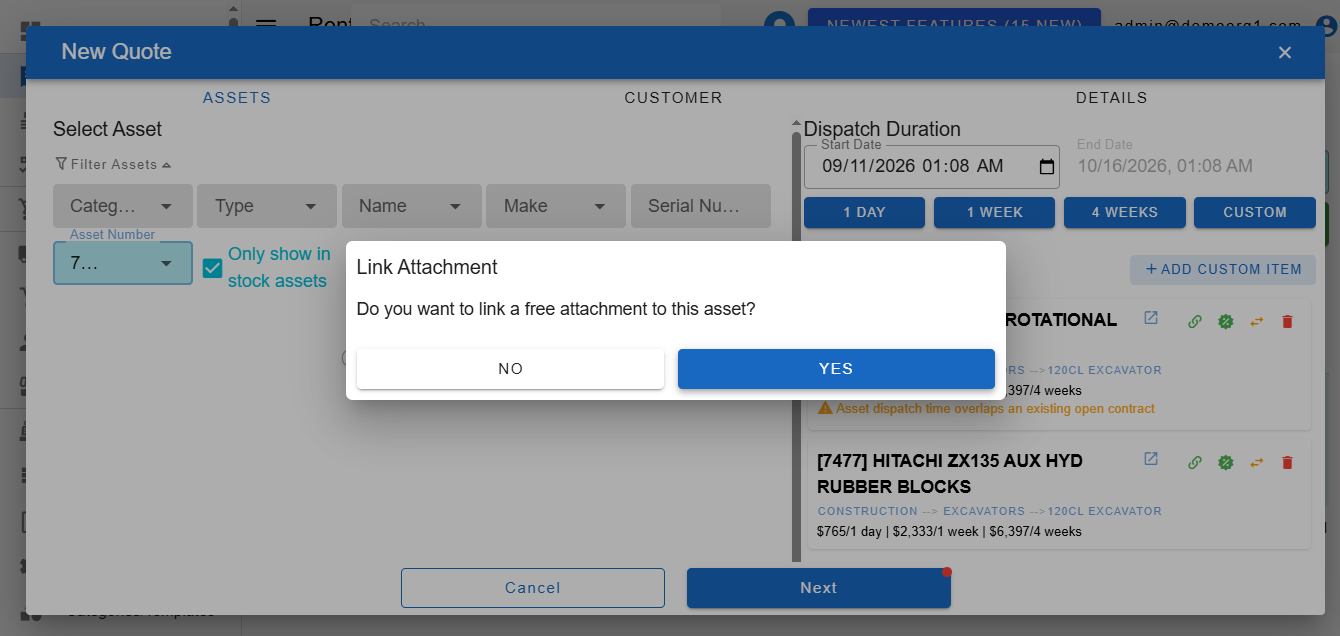
If the user confirms, an attachment popup opens, displaying a list of attachments that can be attached against the asset.
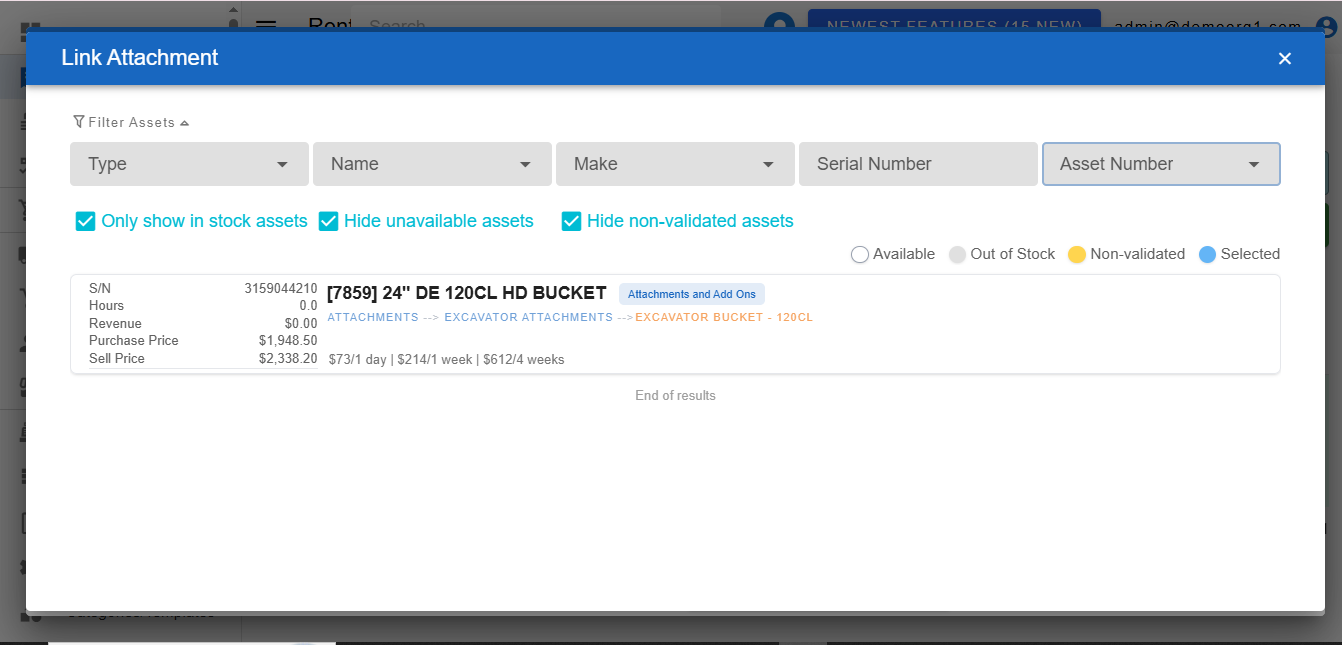
Attachments on this popup can be filtered to find desired attachment. Scrolling to the end of the attachments list loads up more search results (if any). Once an attachment is selected and added, it appears on the selected assets section, highlighted under it's parent asset.
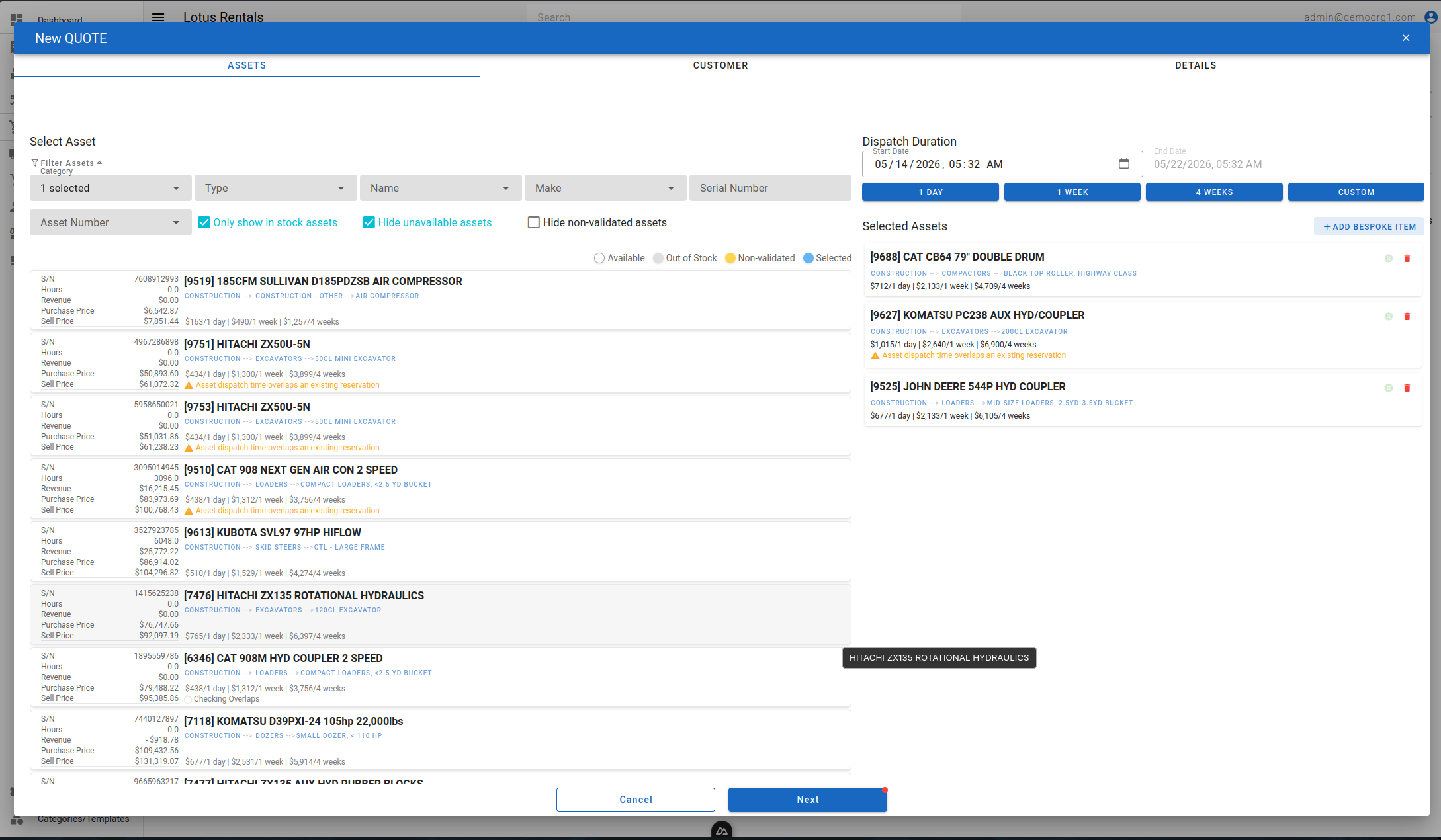
The right section of the asset selection interface features two fields on the top that display the rental/dispatch duration. If a rental duration was not selected earlier or needs to be modified, this section can be used to do so. A few quick select buttons below the fields enable user to set a default duration quickly, without having to manually select dates. The Custom button enables user to select a custom duration instead. Duration selected will automatically apply to all selected assets.
Quotes, Reservations, and Open Contracts now all support direct edits on these two fields, both when creating a new order and when reopening an existing one to edit it (see Opening an order): the Start Date field can be edited directly — type or pick a new date/time and the order's duration updates to match — and clicking the End Date field (read-only inline, but clickable) opens the same Custom duration window as the Custom button, where both dates can be adjusted together. These two fields aren't shown when editing a Closed Contract — change dates there via Edit Rental Dates instead.
Clicking the + Add Custom Item button opens a prompt that allows users to add a custom item to the rental.
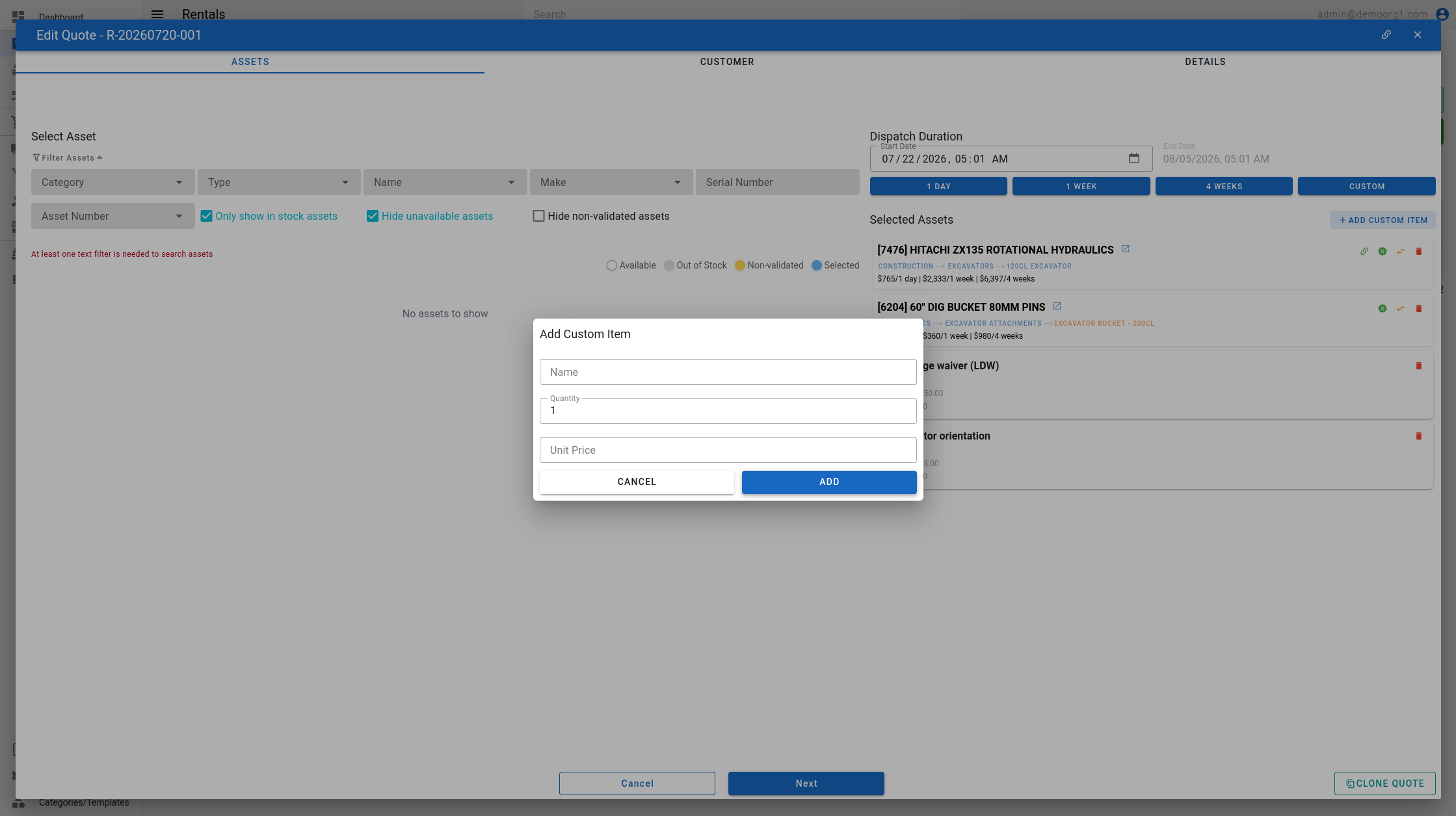
Add the relevant details to create and add the custom item to the Rental order. The price charged to the customer is entered in the Customer Cost field (previously labelled Unit Price), and it may be negative to record a credit or adjustment (for example, -100).
Once a rental duration is set and required assets are selected, proceed to the next step by clicking on the Next button.
Step 4 - Filter and Select A Customer
The next screen on the New Order Popup displays a customer selection interface, where user can filter, search and select a customer whom the quotation is being generated for. Scrolling down loads more search results (if any) as end of list is reached.
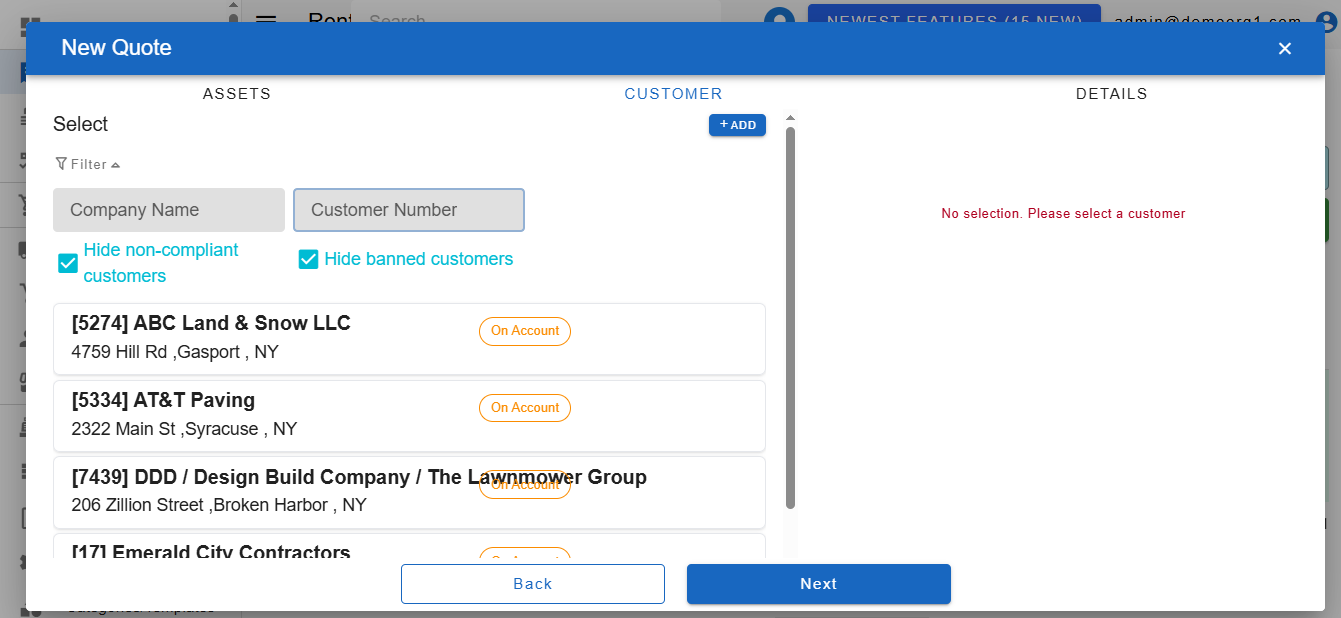
Filtered customers show up on the left section of the popup. Customers highlighted yellow are indicate pending customer validation. Customer highlighted red indicate a banned customer. Quotations cannot be generated for banned customers. The filter section is titled Filter. Each customer card also shows a billing-type chip — Pay On Open (blue) or On Account (orange) — so you can identify the customer's billing type before selecting.
A customer can be selected by clicking on a customer in the left section. The selected customer shows up under the 'Selected Customer' label on the right section of the popup. When a customer is selected, an Edit Customer button appears — clicking it opens the customer in place (as a popup) over the order.
Step 5 - Select A Customer Site and (optional) Customer Contact
A customer site refers to the address where the customer needs the assets delivered. This is an essential (required) detail within an order. To select a customer site, click on the 'Customer Site' drop down visible on the right section of the popup.
If the selected customer has attached sites, they will appear in the drop down. Select the site where the customer wants their assets delivered. If the customer has no sites attached, you can attach one by clicking on the + Create A New Site button visible in the drop down.
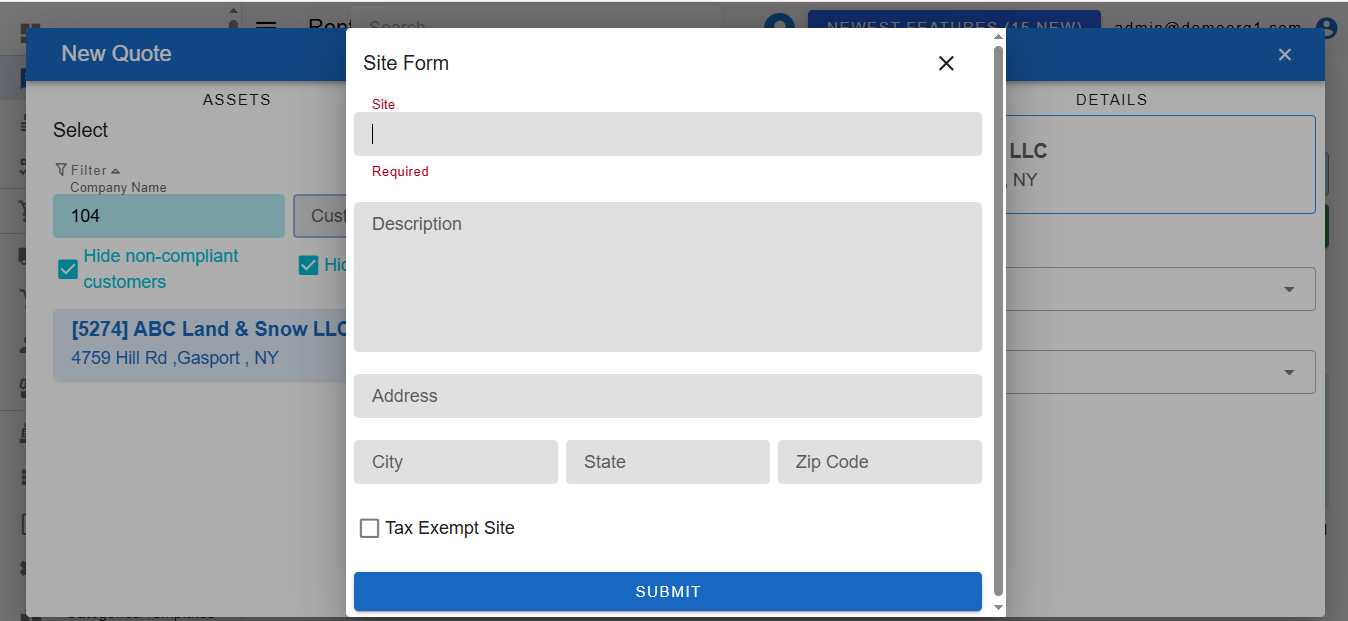
Fill in the resultant form and click Submit to attach the site against the customer. The newly attached site will now be available for selection in the 'Customer Site' drop down.
Similarly, the Customer Contact field can be used to select the default customer contact that will be used for this order. Selecting a customer contact is optional.
Once a customer and customer site is selected, proceed to the next step by clicking on the Next button.
Step 6 - Fill In Extra Fee and Order Details
The next screen on the New Order Popup displays an interface to provide miscellaneous details related to the order.
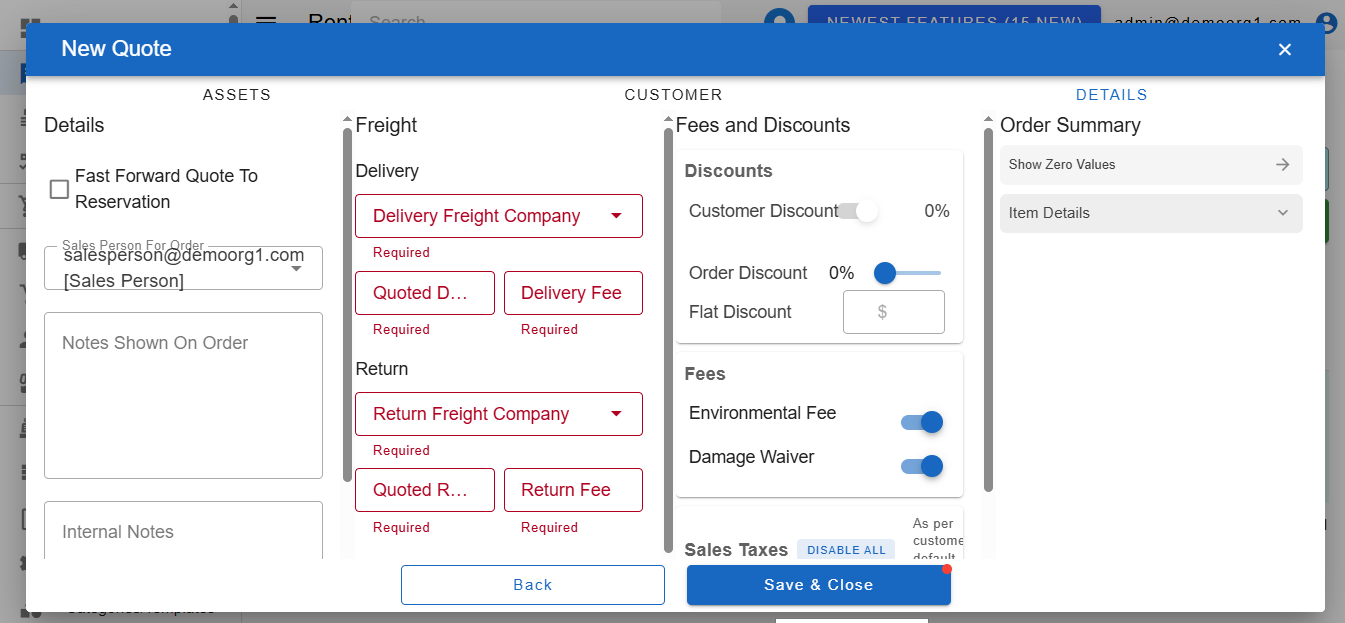
Fast Forward
Quotes can be fast forwarded to reservations if the user has relevant permissions and the customer meets required conditions. To fast forward a quote, check the checkbox labelled 'Fast Forward Quote To Reservation'.
The checkbox only appears for users who hold the Fast Forward permission. When fast forwarding isn't currently possible, the checkbox stays visible but disabled, with the reason shown as a hint beneath it:
- Platform settings require the quote to be e-signed before it can become a reservation. — your organization has e-sign enabled and requires a signature before a quote becomes a reservation. Save the order as a quote and send it for signature first.
- Quotes cannot be fast forwarded for non-compliant customers. — the selected customer is non-compliant and your organization does not allow reservations for non-compliant customers.
If you tick the checkbox and then pick a customer that blocks fast forwarding, the checkbox is unticked automatically.
Sales Person For Order
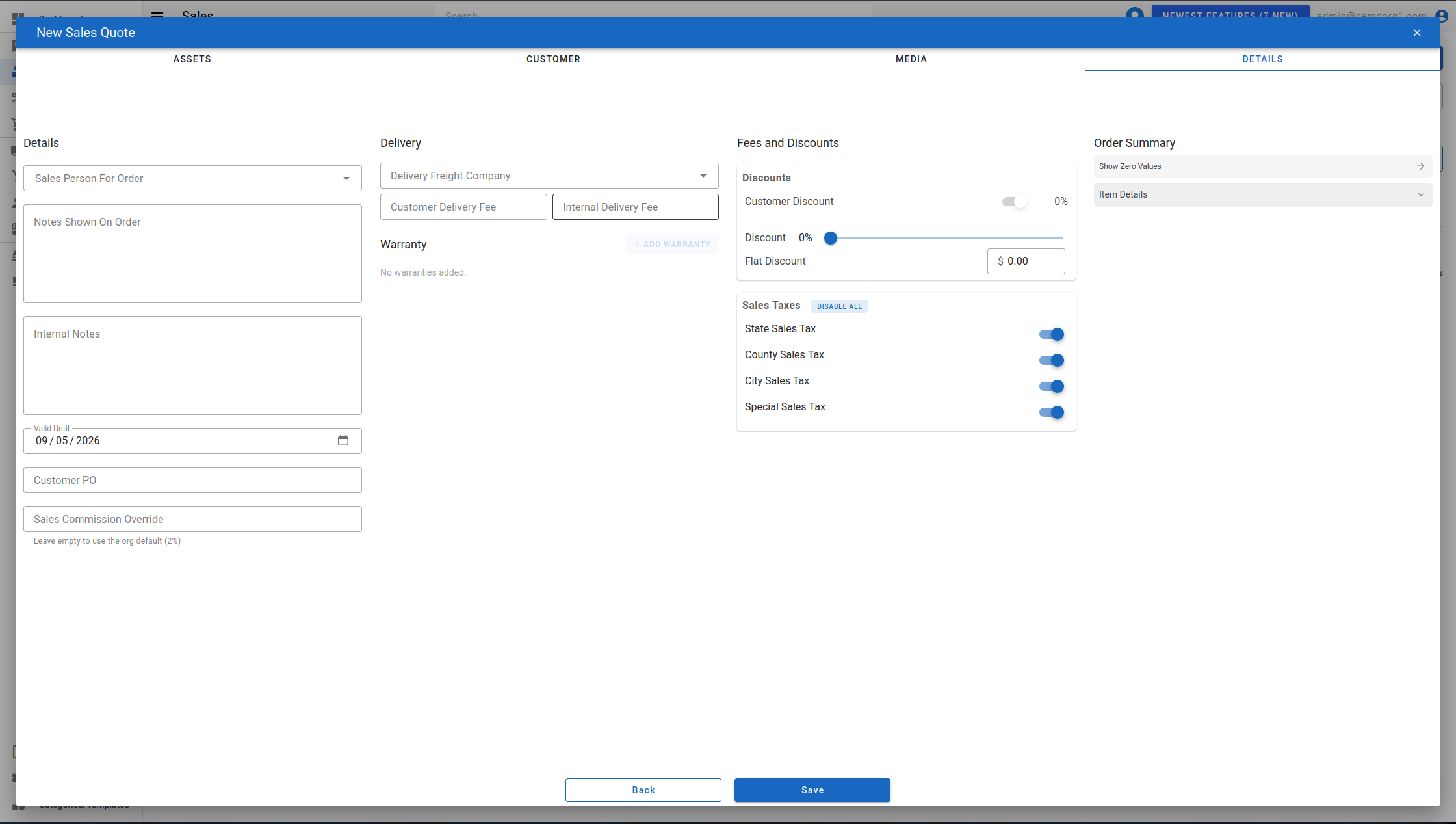
The details screen includes a Sales Person For Order field — a searchable user dropdown (placeholder Search Sales People...) that assigns the order's sales person. It defaults to the selected customer's assigned sales person when a customer is chosen, is clearable, and drives sales-commission attribution. Choosing among users requires the order-ownership permission.
Notes
Orders keep a record of Notes (visible to customers) and Internal Notes (Not visible to the customer). These notes can optionally be provided on the details screen.
Quote Valid Until
This date determines how long this quote will remain valid for reservation. Once the valid until date has passed, the quote will automatically expire and a fresh quotation will be required for reservation.
To select a valid until date, click on the field labelled 'Quote Valid Until', and select an expiry date for this quotation.
INFO
Note: Valid Until dates are only available on quotes and not for fast forwarded orders
Customer PO
Purchase order issued by the customer
Freight
Freight details contain information of companies that are going to provide delivery services, fee quoted to the customer, and actual freight fee incurred on the order.
Record for a freight company can be created on the fly using any of the freight company selection dropdowns.
Fees and Discounts
Delivery and return fee is required for rental order creation.
Additionally, customers can also be offered dedicated discounts and fee waivers on orders by users who have relevant permissions. To edit discounts on the order, simply use the slider under the Fee and Discounts section and use the toggles below to waive off taxes and fees. Learn more about Rental Order Discounts here.
Once details are finalized, click on the Save button to complete the Order Creation Flow and generate the new order.
Charges Summary
The charges summary section shows an estimate of the quote that will be generated. Changing details in the quote updates this charges summary, and is meant to assist the user in estimating the quotation's cost before creation.
The Customer Discount and Order Discount rows each show a small helper line underneath describing what the discount is calculated against (for example "Against Subtotal"). This basis text is returned by the server and reflects what actually applies to the order, so it may read differently depending on which charges the order carries.
The Environmental Fee and Damage Waiver rows show the same kind of helper line (defaulting to "Against Subtotal"), also returned by the server. The Environmental Fee is calculated after the customer discount, so its basis text reflects that rather than a fixed label.
When a customer is picked on a new order, its sales taxes (state, county, city and special), Damage Waiver and Environmental Fee are set from that customer's own settings. Picking a tax-exempt site turns the four sales taxes off. Choosing a different site on a Quote or Reservation re-applies this rule; re-selecting the same site leaves the taxes untouched, and saving an Open or Closed Contract keeps its existing taxes.
If the order includes dispatched assets, the preview prices their actual dispatch and off-rent dates rather than the expected ones, so the estimate matches the invoice that billing generates (for example on a backdated dispatch).
Credit Limit Advisory
If the customer has a credit limit set and their exposure (current balance, other open orders, and this quote/order combined) reaches 50% of that limit, a Credit Limit Advisory banner appears above the Order Summary. It breaks down Current Balance, Other Open Orders (when there are any), This Quote, and the Projected Total, along with what percentage of the credit limit that total represents.
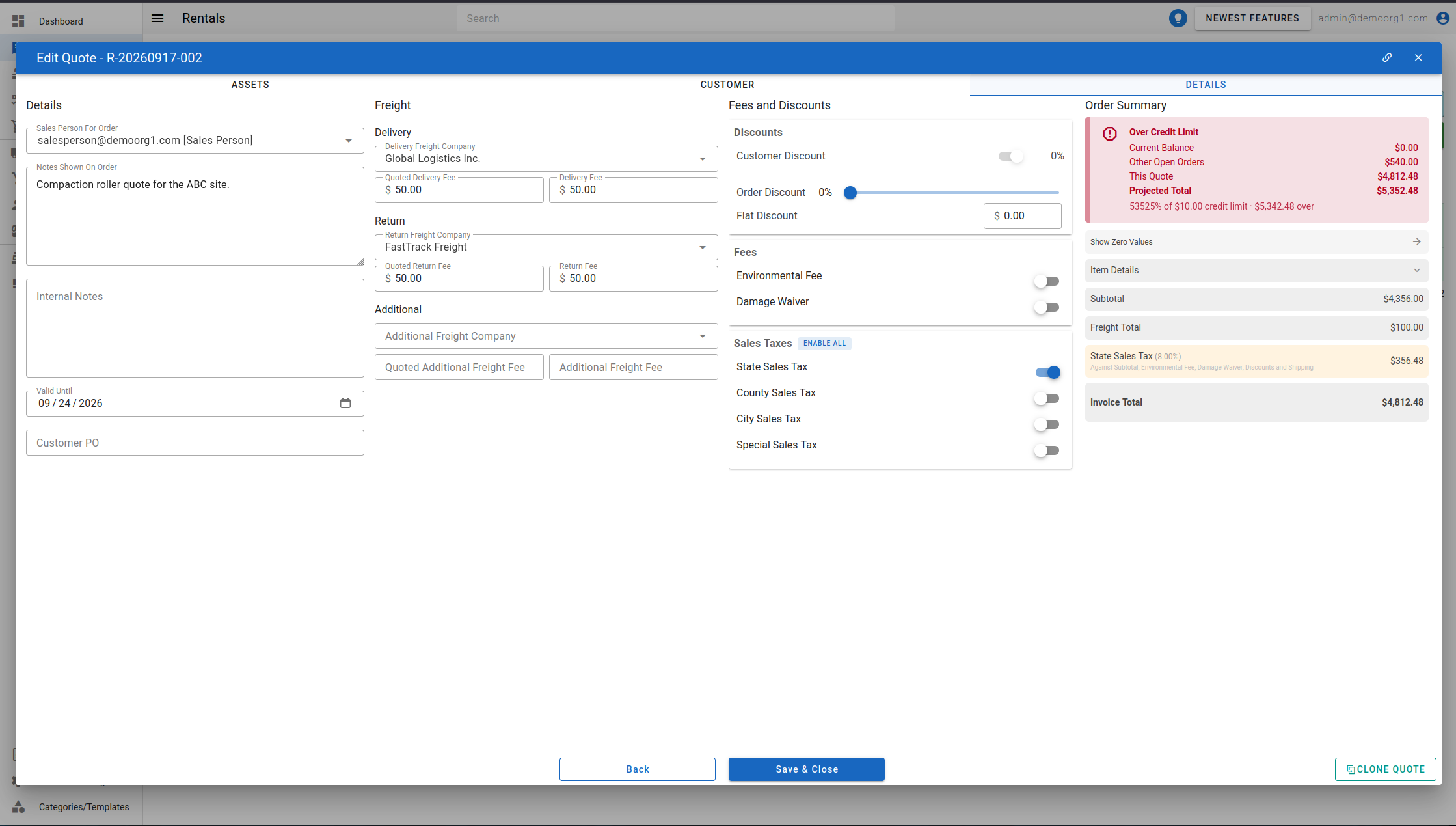
The banner shows as a warning (Approaching Credit Limit) while under the limit, and switches to an error (Over Credit Limit), additionally noting the amount over, once the projected total exceeds it. On an unsaved or Quote-stage order it recalculates as you edit; on a Reservation, Open Contract, or Closed Contract it reflects the order's last saved figures. Customers with no credit limit configured never show this advisory.
This banner is informational on its own — it does not stop you from continuing to edit the order. However, converting a quote to a reservation (or, for a fully backdated quote, to a backdated closed contract) does now run an enforced credit-limit check that can warn-and-confirm or block the conversion outright, depending on your organization's credit-limit policy and your permissions — see Credit-limit check on conversion. Saving an edit to an existing Reservation, Open Contract, or Closed Contract that increases the customer's exposure (for example, swapping in a pricier asset, or extending the rental dates) is gated the same way: a Credit Limit Warning prompt lets you acknowledge and save anyway, or, if the customer is over the limit and you lack the override permission, the save is blocked and the server's message is shown.