Appearance
Users
INFO
Note: Users can only be viewed and created by organizational users who have been granted relevant permissions
Users are accounts that can login and are allowed a certain degree of access to the platform. To view users, head to the Platform Settings Page via links available on the Left Navigation Bar and click on the Users Tab to open the Users Page.
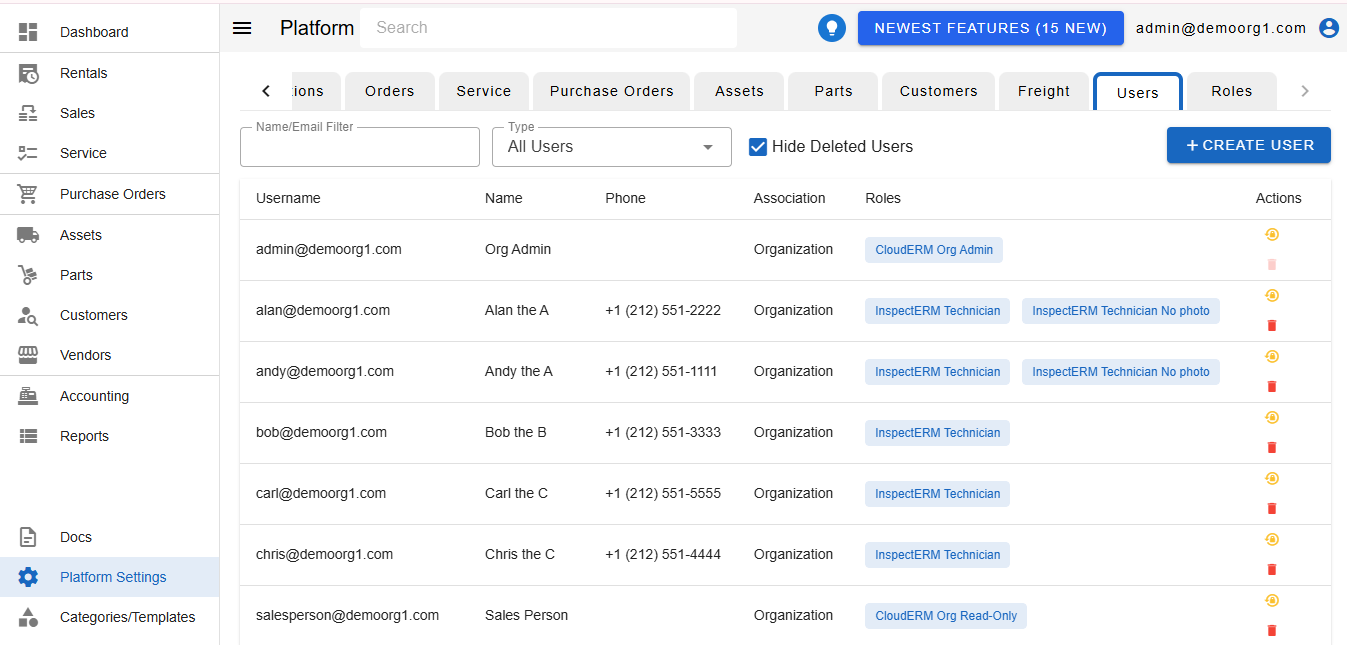
The Users Page features several filters atop the Users Table. Each of these filters can be set to filter users within the Users Table and search for desired user(s).
To view detailed information on a user, simply click on a user row to open up the User Popup.
Creating A New User
If access for the platform needs to be granted to a new account, a new user can be created via the following steps:
Step 1 - Open The New User Popup
Head to the Platform Settings Page via links available on the Left Navigation Bar and click on the Users Tab to open the Users Page. Click on the + Create User button on the top right corner of the User's Page to open the New User Popup
Step 2 - Provide Information On The New User Popup
The New User Popup features several fields.
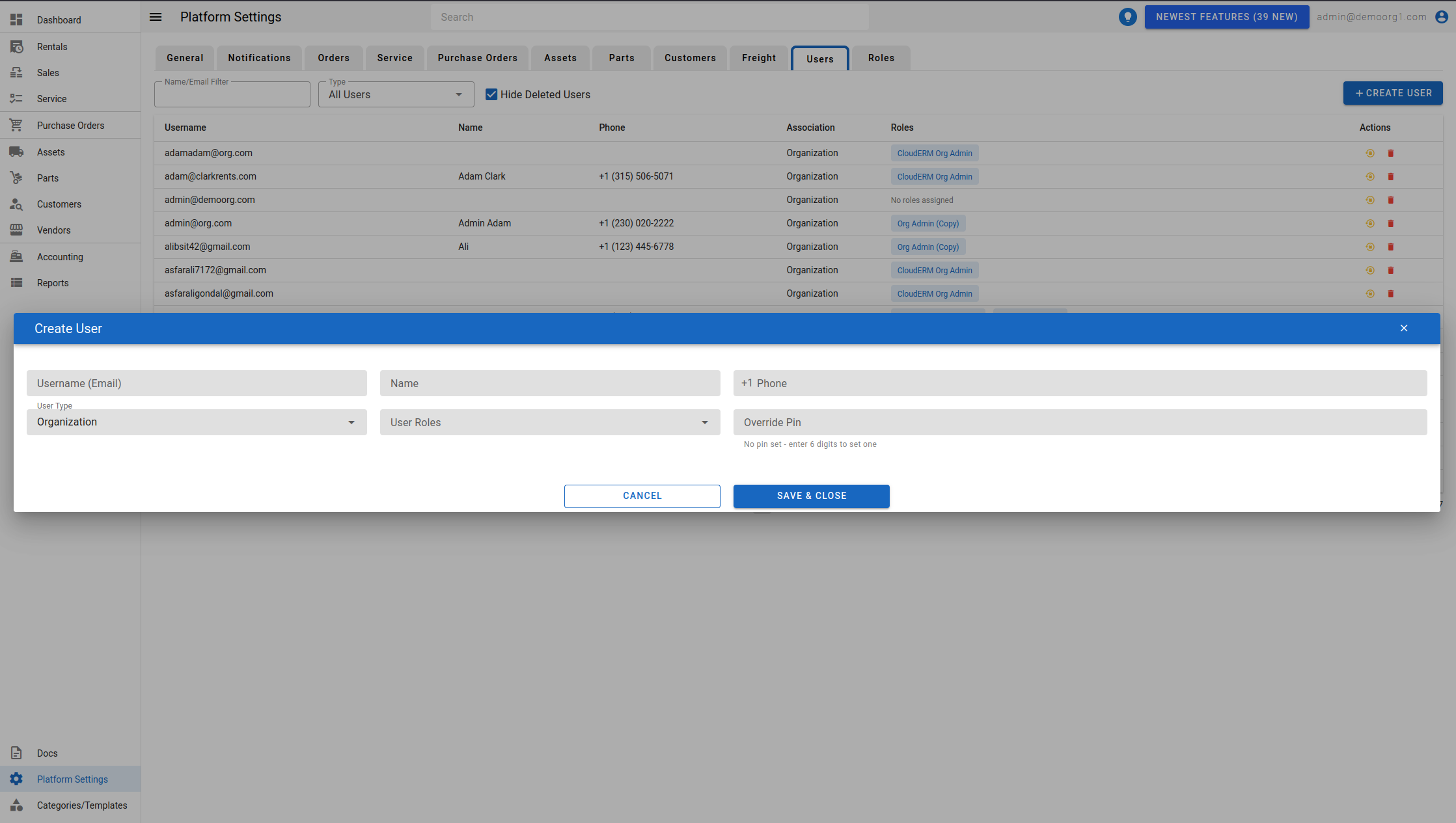
A user must at least either a username, or a phone number. All other fields are optional
INFO
Note: The Override Pin field is only visible to users who have been granted the relevant permissions.
Setting a 6-digit Override Pin lets that user log in with this fixed pin instead of receiving a one-time SMS code, when logging in with a phone number. Leave it blank to keep normal SMS-based login.
Step 3 - Save Information
Once you have provided all necessary information, click on the Save & Close button to submit information and have it stored into our database.
INFO
You don't set the new user's password yourself. When the user is created, the platform emails them a secure, time-limited link they use to set their own password (subject to the platform's password policy). The same one-time link mechanism is used when a user requests a password reset — the link expires after a while, so a fresh one must be requested if it lapses.
Editing A User
A newly created user appears on the User Table on the Users Page. Follow the steps below to edit a user's information
Step 1 - Open The Edit User Popup
Head to the Platform Settings Page via links available on the Left Navigation Bar and click on the Users Tab to open the Users Page. On the Users Page, search for your desired user's row in the Users Table and click on it to open the Edit User Popup.
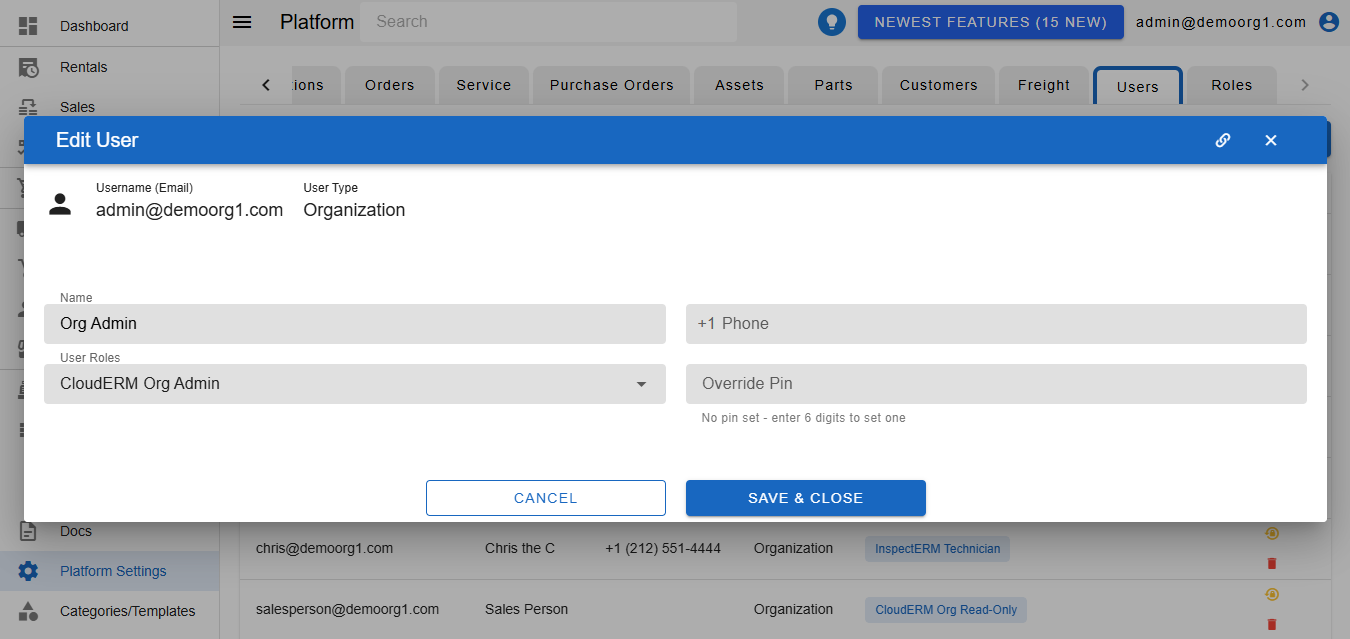
The Edit User Popup features an info bar at the top, that displays the user's username (email) and type.
Step 2 - Edit And Save Desired Information
To modify information, simply click on a field and enter/modify information. Once modified, clicking the Save button will sync this information on our servers.
If the user already has an Override Pin set, the field's hint shows "Pin set - enter 6 digits to replace it" and displays a clear icon that removes the existing pin. Otherwise the hint shows "No pin set - enter 6 digits to set one".
Roles For Customer Users
For a customer (portal) user, the Roles picker only offers that customer's own roles plus the shared default customer roles. Roles that belong to another customer are never listed. If you change the user's Customer, any roles belonging to the previously selected customer are removed from the user automatically, while shared default roles are kept. Re-select the roles you want for the new customer before saving.
INFO
Note: If you edit and save your own user record, your session refreshes automatically as part of the save so that any changes to your own roles or permissions take effect immediately, without needing to log out and back in.
Deleting A User
To delete a user, head to the Platform Settings Page via links available on the Left Navigation Bar and click on the Users Tab to open the Users Page. On the Users Page, search for your desired user's row in the Users Table and click on the red delete button on the far right side of the row. This will open up a confirmation prompt.
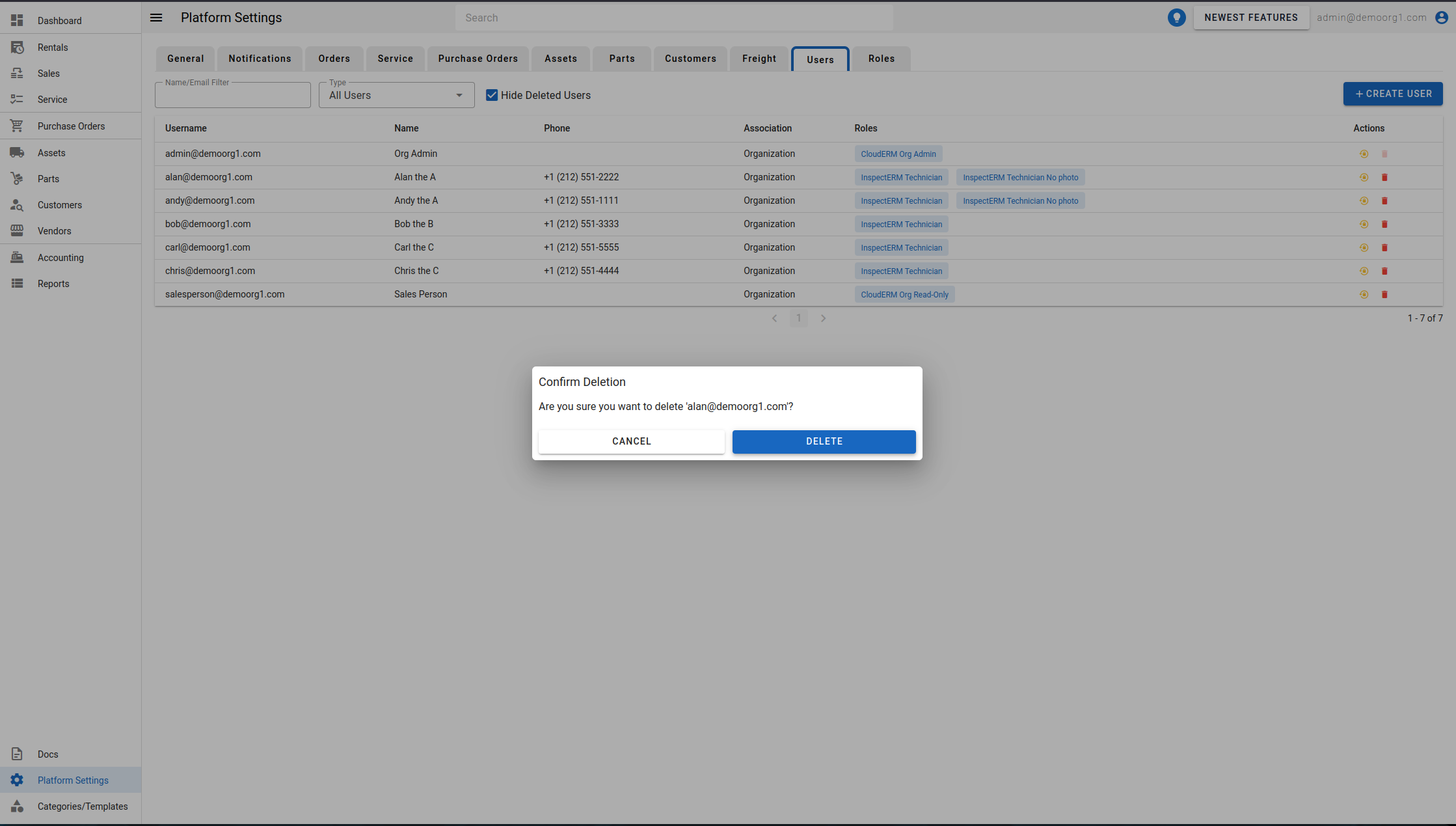
Click on the delete button to confirm the users deletion.