Appearance
Filtering Purchase Orders
INFO
Note: Purchase Orders can only be viewed by organizational users who have been granted relevant permissions
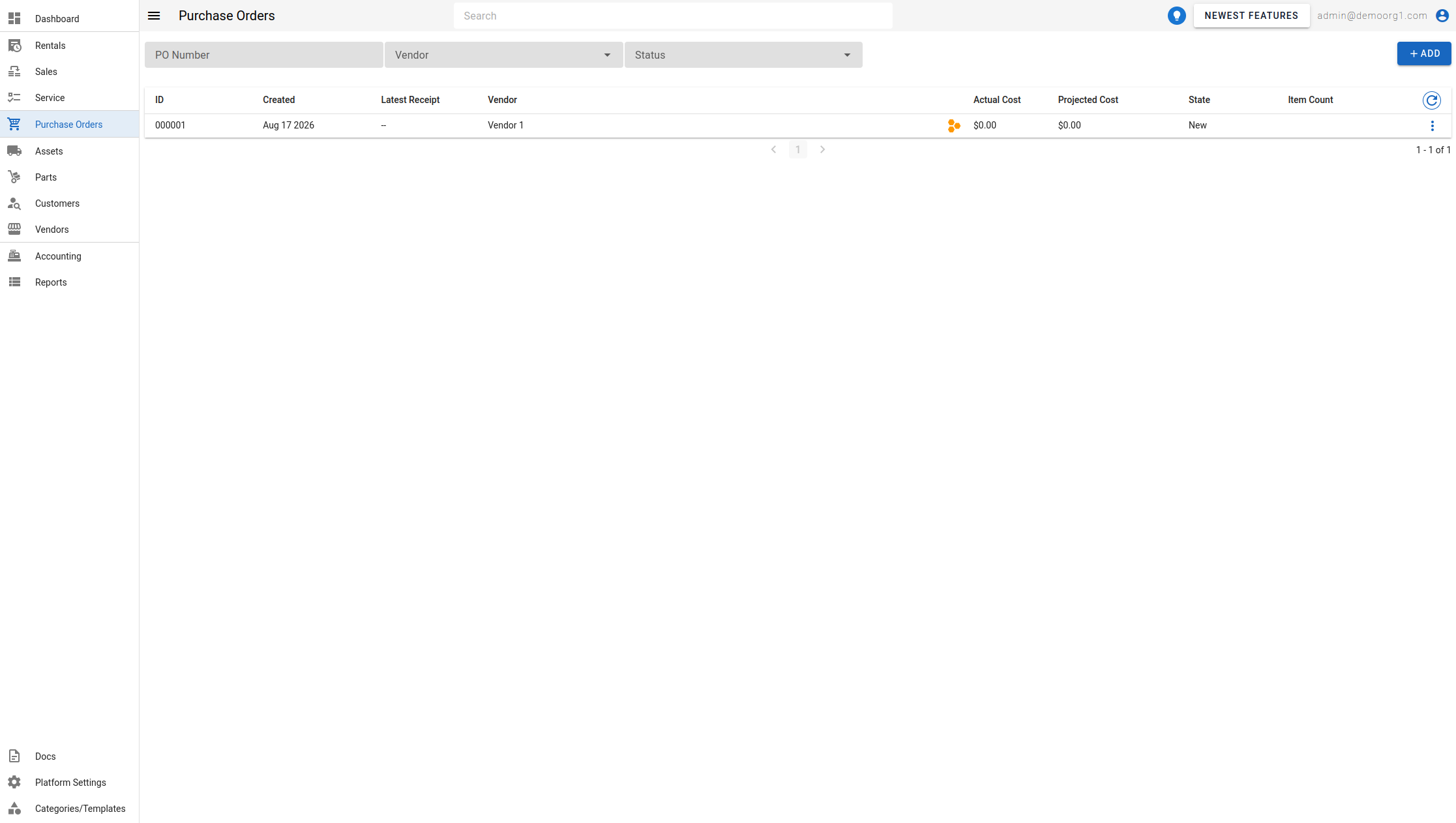
The Purchase Orders Page features several filters atop the Purchase Orders Table. Each of these filters can be set to filter purchase orders within the Purchase Orders Table and search for your desired purchase order(s).
Status Filter
The Status filter includes New, Released, Partially Received, Received, and Closed. A purchase order moves to Partially Received once any of its items have been received while others are still outstanding; the Purchase Orders Table shows its state as Partially Received along with a received/ordered item count (for example (5/10)) next to it. By default, the table shows New, Released, Partially Received, and Received purchase orders.
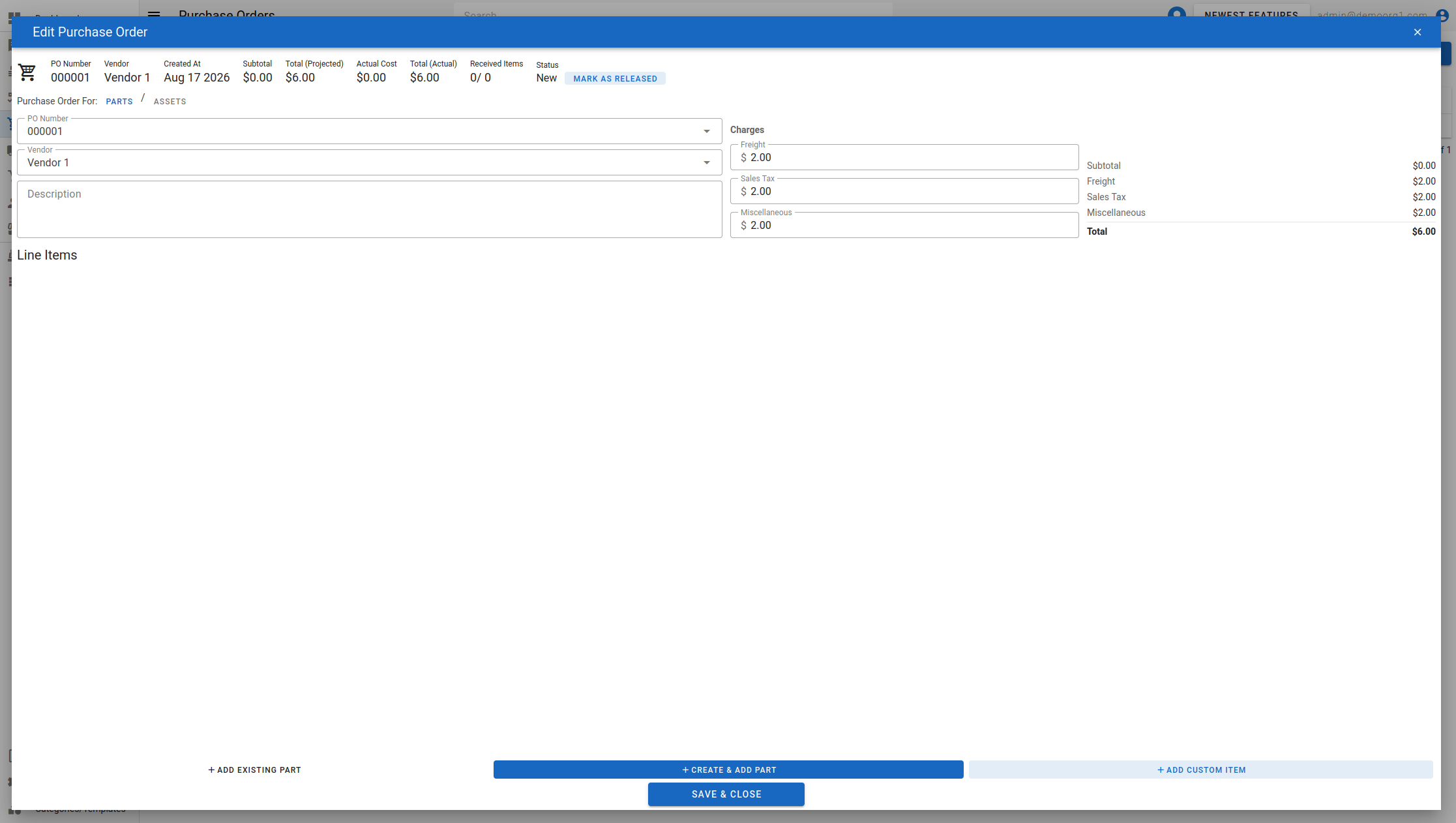
To view detailed information for a purchase order, simply click on a purchase order row to open up the Edit Purchase Order Popup.
Invoice Status Filter
The Invoice Status filter is a separate axis from Status, letting you find purchase orders by how much of their received value has been billed: Not Invoiced, Partially Invoiced, or Invoiced. The Purchase Orders Table shows the same value as an Invoice column chip on each row. See Reconciling A Purchase Order for how a purchase order's vendor invoices are recorded and matched.
Progress Summary
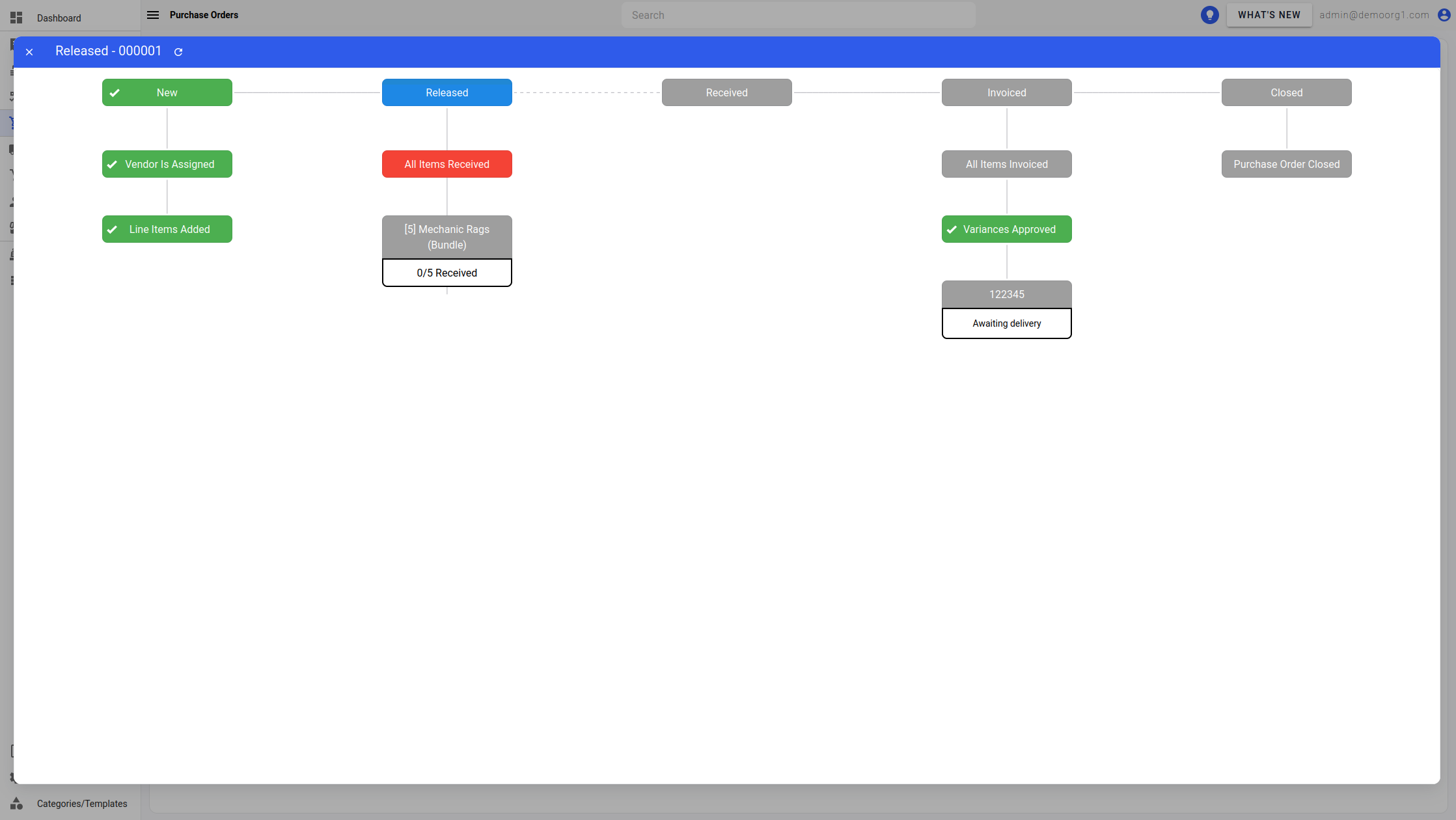
Each purchase order row also has a View Progress Summary action (an orange multi-hexagon icon) that opens a progress summary popup — a flowchart of the purchase order's stages (for example vendor, ordering, receipt, invoicing) so you can see at a glance where the PO stands. There is no separate stage for Partially Received — a partially received purchase order is shown with its Received stage highlighted as in progress.
An Invoiced stage sits between Received and Closed. It has two checks — All Items Invoiced and Variances Approved (no vendor-invoice variance still awaiting approval) — and, once any vendor invoice has been recorded, one node per invoice showing its number and match status (Matched, Awaiting delivery, Variance approved, or Pending approval). Once a purchase order is fully received, Invoiced is the active stage until it is closed. On a closed purchase order, a check that was never met says so rather than reading as not applicable — for example that the order was closed without every item being invoiced (closed before invoice tracking, or past a billing discrepancy), or that no vendor invoices were recorded before it was closed.
Each node is colour-coded by status (green when met, orange for an in-between state, red when still outstanding), and hovering a node shows a tooltip explaining its status and the next step.