Appearance
GL Codes
The GL Codes screen is your organization's Chart of Accounts — it maps each internal CloudERM account to the GL/account code your external accounting system (for example, QuickBooks) uses. Setting these codes once keeps the figures CloudERM produces aligned with your books.
INFO
Note: GL Codes are only visible to, and editable by, users granted the relevant GL configuration permissions. With view-only access the codes are read-only; edit access is required to change them.
To open the screen, select Accounting from the Left Navigation Bar and choose the GL Codes tab. The header shows how many accounts still need a code, so you can see at a glance whether your chart of accounts is complete.
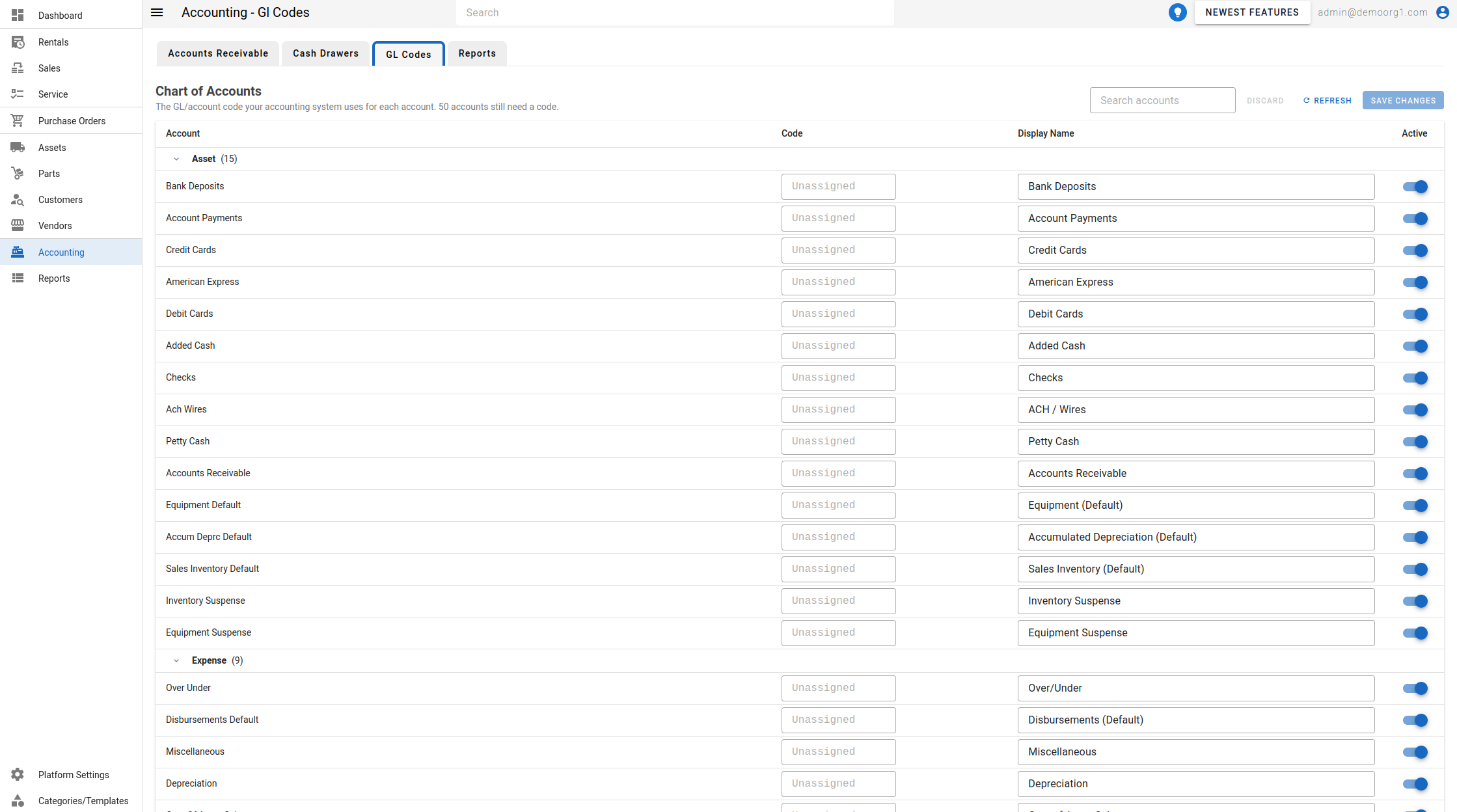
The Chart of Accounts table
Accounts are grouped into collapsible categories, shown in this order, with a count beside each group name:
- Asset
- Expense
- Purchase Order
- Income
- Liability
Each account row has the following columns:
- Account — the system name of the account. This identifies the account and cannot be changed.
- Code — the GL/account code your accounting system uses for this account. Leave it blank to mark the account Unassigned; more than one account may share the same code if your books are set up that way.
- Display Name — the customer-facing name for the account. Clearing this field resets it back to the shipped default name (shown as the field's placeholder).
- Active — a toggle to enable or disable the account.
Use the Search accounts box at the top to filter the list by account name or code; matching groups are expanded automatically so results stay visible.
Editing and saving
Edit an account by typing into its Code or Display Name field, or by flipping its Active toggle. As soon as anything changes:
- Save Changes becomes available. Saving commits all of your edits together — if any single account is rejected, the whole batch is rolled back and nothing is saved. On success you'll see a "GL accounts saved" confirmation.
- Discard reverts every unsaved change back to the last saved values.
- Refresh reloads the list from the server.
If no accounts have been set up yet, the table shows "No GL accounts have been configured for this organization yet."