Appearance
Inspections Report
The Inspections Report is a tabular list of inspections across your assets — dispatch, off-rent, sale, and independent inspections — with their status, assignee, and key dates, so you can review inspection activity in one place.
INFO
Note: This report can only be viewed by organizational users who have been granted the relevant report permissions (report access plus the Service reports permission). The report opens in a new browser tab.
TIP
This is a list-style report covering many inspections. For a single inspection rendered as a printable document, see the Inspection Report page; for inspection history on a single asset, see the Asset Inspections Report.
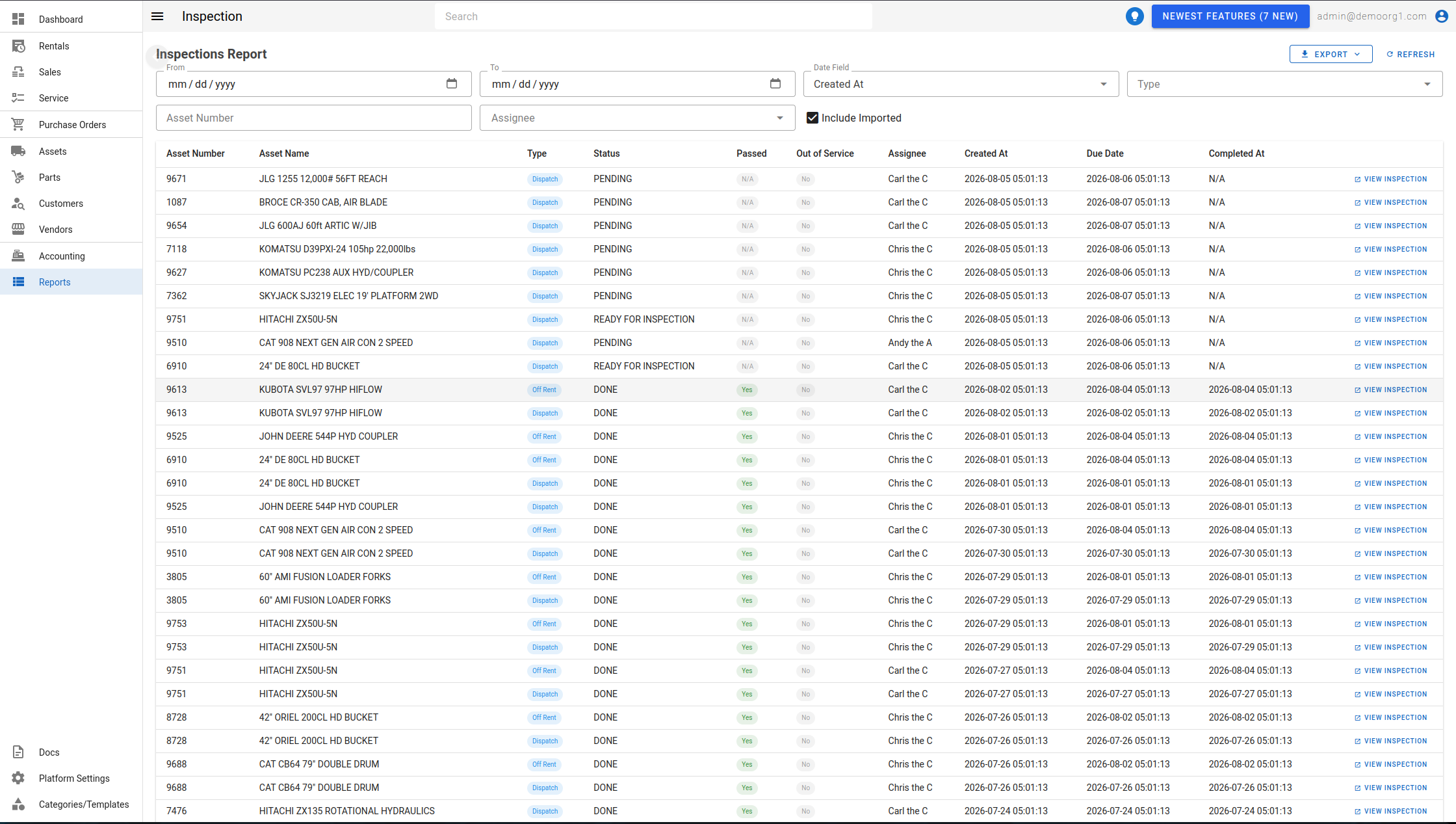
Open it from the Reports page (under the Service reports). Use the Refresh button to reload, the download menu (Excel / CSV / PDF / JSON) to export, and the page controls to move through results.
Filters
- From / To — the date window.
- Date Field — which date the window applies to: Created At or Due Date.
- Type — Dispatch, Off Rent, Sale, or Independent.
- Asset Number — limit to a single asset.
- Assignee — the user the inspection is assigned to (placeholder
Search Assignees…). - Include Imported — include imported/legacy inspections (on by default).
The table
| Column | Description |
|---|---|
| Asset Number | The inspected asset's number. |
| Asset Name | The asset's name. |
| Type | The inspection type (shown as a chip). |
| Status | The inspection's current status. |
| Passed | Whether the inspection passed (green Yes / red No). |
| Out of Service | Shows a red Yes when the inspection put the asset out of service. |
| Assignee | The user the inspection is assigned to. |
| Created At | When the inspection was created. |
| Due Date | When the inspection is due. |
| Completed At | When the inspection was completed. |
| View Inspection | A link that opens the inspection in a new tab. |
When no inspections match the filters, the report shows "No inspections found".