Appearance
Invoices
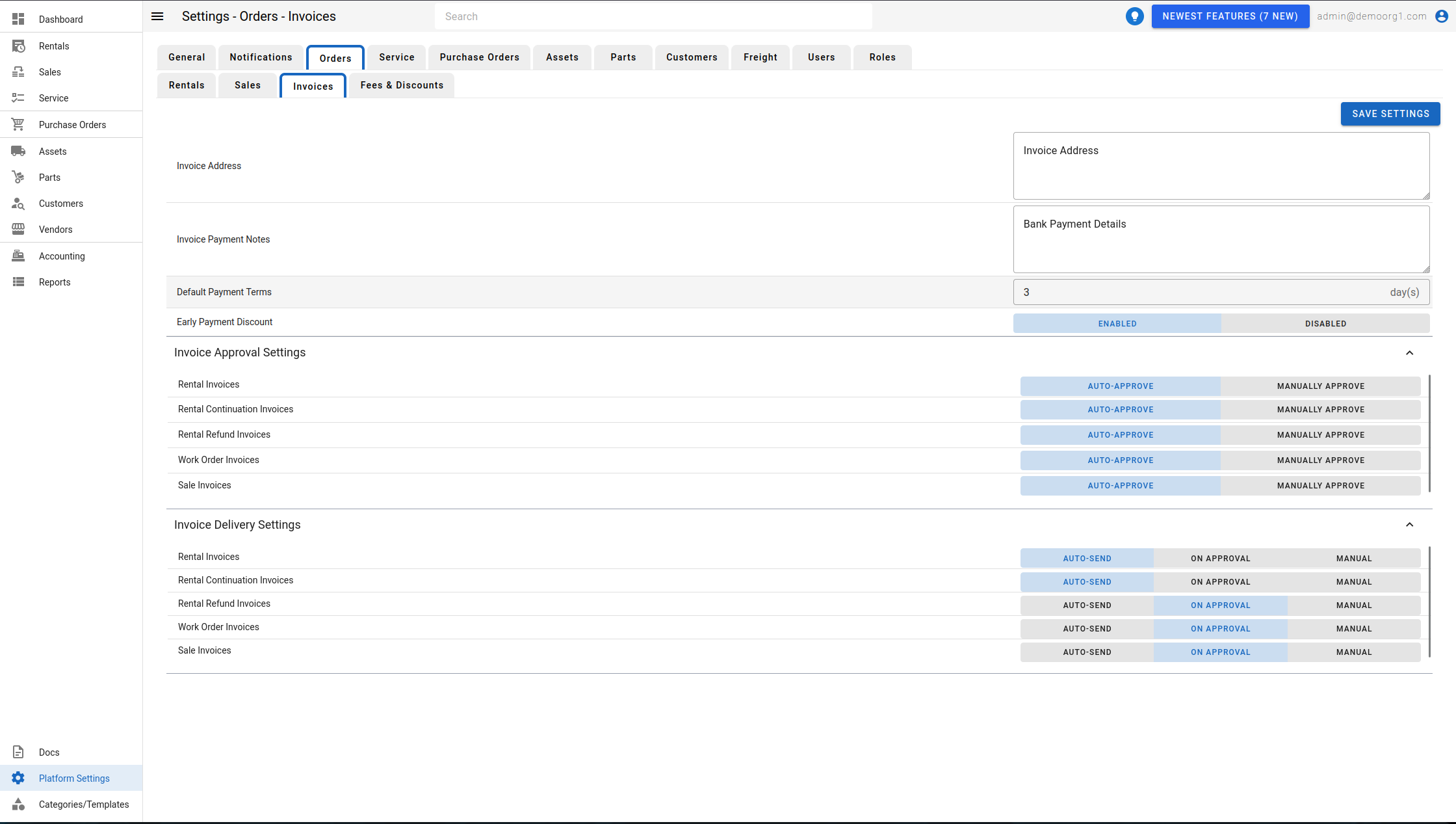
The Invoices Tab allows viewing/modifying the following settings:
- Invoice Address: Business Address used on invoices
- Invoice Payment Notes: Default Payment Notes on invoices.
- Default Payment Terms: Default invoice payment window.
- Early Payment Discount: Enables or disables early-payment (cash) discounts for the organization (Enabled / Disabled). When enabled, a customer who pays an invoice within their early-payment window receives the discount configured on their record — the Invoice Early Payment Discount % and Window (Days) (see Editing and Validating Customers). Together with the Default Payment Terms above, this expresses cash-discount terms such as 1%/10/net 30 — 1% off if paid within 10 days, otherwise due in 30.
- Invoice Approval Settings: Determines for each type of invoice, whether it should be auto-approved or not.
- Invoice Delivery Settings: Determines, for each type of invoice, when it is emailed to the customer (see below).
To modify information, simply edit the field and click on the Save Settings button to sync settings with the server.
Invoice Delivery Settings
The Invoice Delivery Settings panel controls when each type of invoice is emailed to the customer. For each invoice type — Rental Invoices, Rental Continuation Invoices, Rental Refund Invoices, Work Order Invoices, and Sale Invoices — choose one of:
- Auto-send — email the invoice to the customer as soon as it is generated.
- On Approval — email the invoice when it is approved.
- Manual — never email automatically; you send it yourself from the order's Email menu.
INFO
The Invoice Delivery Settings panel is available to CloudERM organizations only and requires the invoice-delivery-settings permission; it is hidden for InspectERM organizations.
When emailing an invoice from an order's Email menu, you can send to more than one recipient at once — use Send to all flagged contacts or Send to Selected (N) to pick several customer contacts, or send it to yourself.
INFO
Note: Delinquent-account locking is not configured here — it is set per customer via the Enforce a credit limit option and its Block action. See Editing and Validating Customers → Credit limit.