Appearance
Part Bundles
INFO
Note: Part Bundles can only be viewed and created by organizational users who have been granted relevant permissions
Part Bundles are an accounting concept that allow organizations to add parts as a bundle when creating or editing work orders on the Service page.
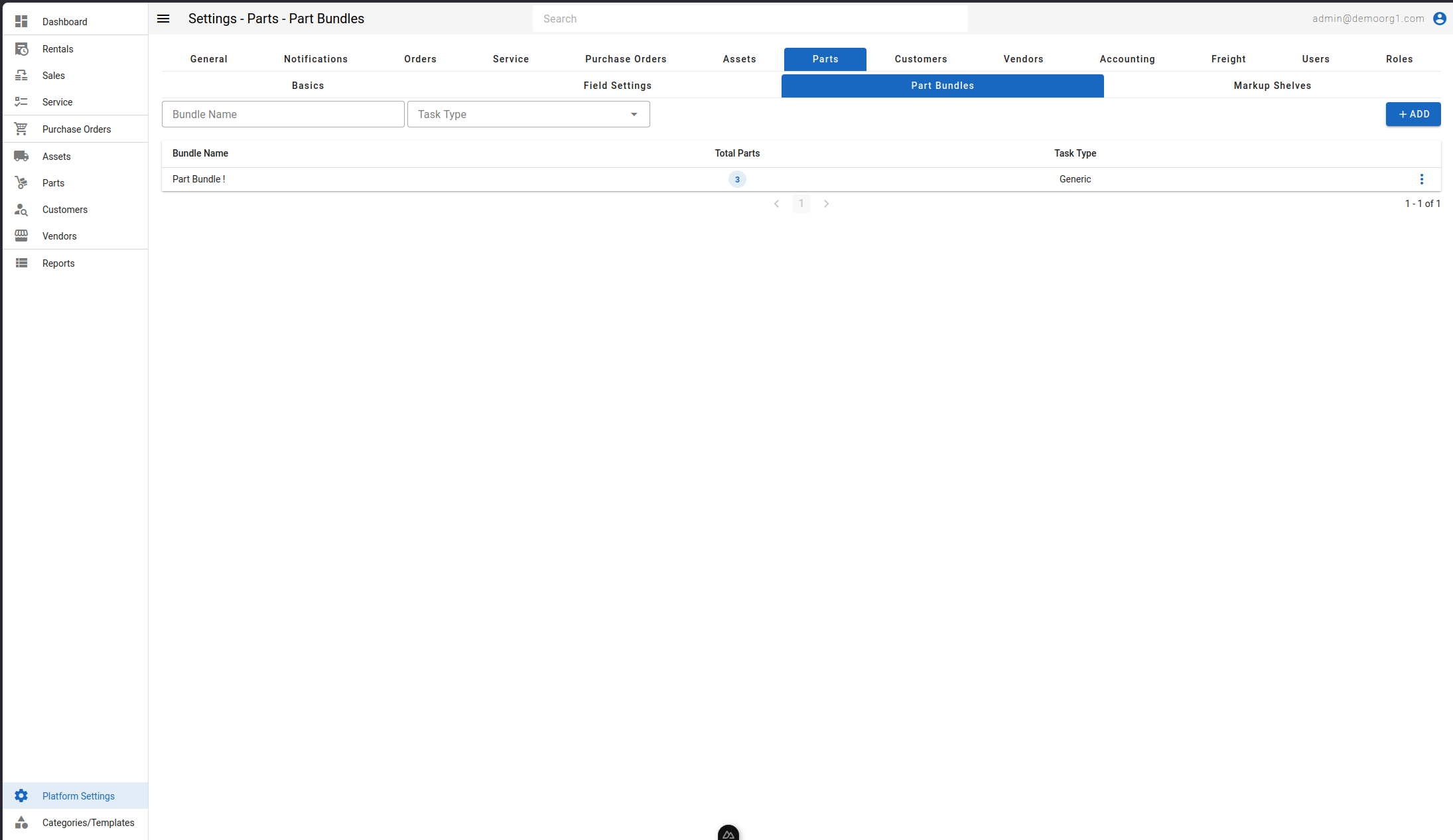
Creating A Part Bundle
Step 1 - Click The Add Button
When the Add button is clicked, the Create Part Bundle popup will appear.
Step 2 - Configure The Part Bundle
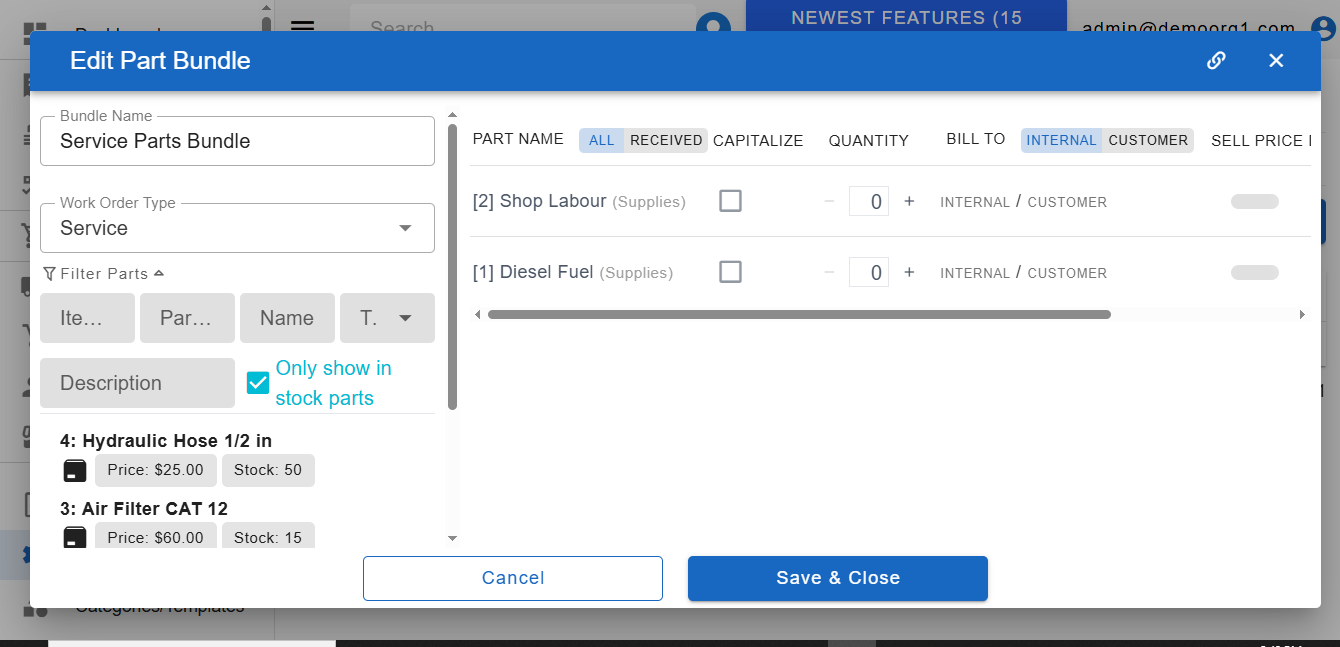
Through this popup, users can create and configure a part bundle by:
- Adding parts to the bundle
- Assigning a bundle name
- Selecting the bundle type
- Managing part quantities
- Configuring additional bundle-related options as required
Step 3 - Save The Part Bundle
After entering the required information, click the Save & Close button to create the bundle.
Once saved, the newly created bundle will appear in the Part Bundles table.
Editing A Part Bundle
Step 1 - Open The Edit Part Bundle Popup
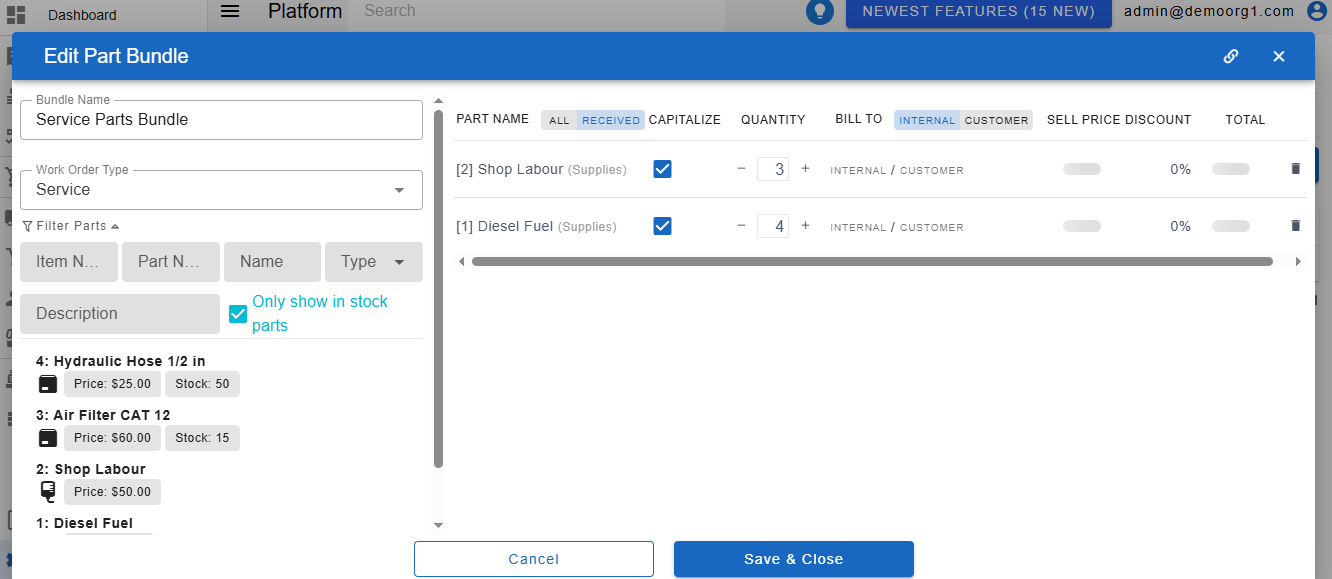
To edit an existing part bundle, click on the desired part bundle from the Part Bundles table. The Edit Part Bundle popup will appear.
Users can also open the Edit Part Bundle popup by:
- Clicking the three vertical dots located on the right-most side of the part bundle row and selecting Edit
- Right-clicking on the desired part bundle and selecting the Edit option
Step 2 - Modify The Part Bundle
Within the popup, users can update the desired bundle information, including parts, quantities, bundle type, and other available configurations.
Step 3 - Save Changes
After making the required changes, click the Save & Close button to save the updated part bundle.
Deleting A Part Bundle
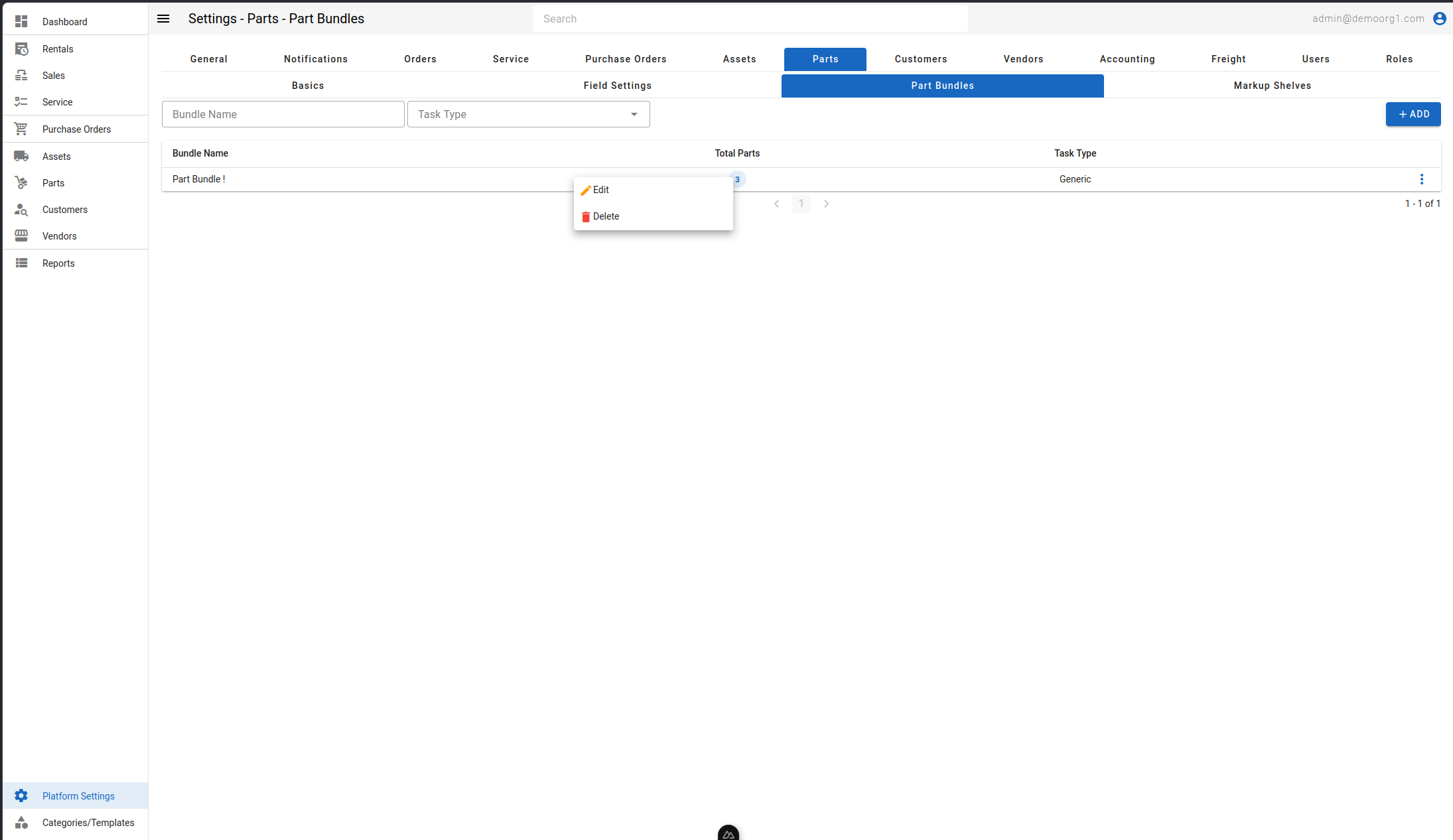
Users can open the actions menu for a part bundle by either:
- Right-clicking on the desired part bundle row in the **part bundles **table, or
- Clicking the vertical three-dot icon on the far right of the row
The actions menu includes a Delete option.
Step 1 - Open Delete Confirmation Prompt
When the Delete button is selected, a confirmation prompt will appear to verify the action before permanently deleting the selected part bundle.
Warning: Deleting a part bundle may remove associated configurations or references. Confirm carefully before proceeding.