Appearance
Cloning
The Cloning Tab controls which fields are copied over when an asset is created by cloning an existing asset. Cloning lets you spin up a new asset that is largely identical to one you already have, so you only need to change the handful of fields that differ.
INFO
Note: These settings can only be viewed and edited by organizational users who have been granted the relevant permissions.
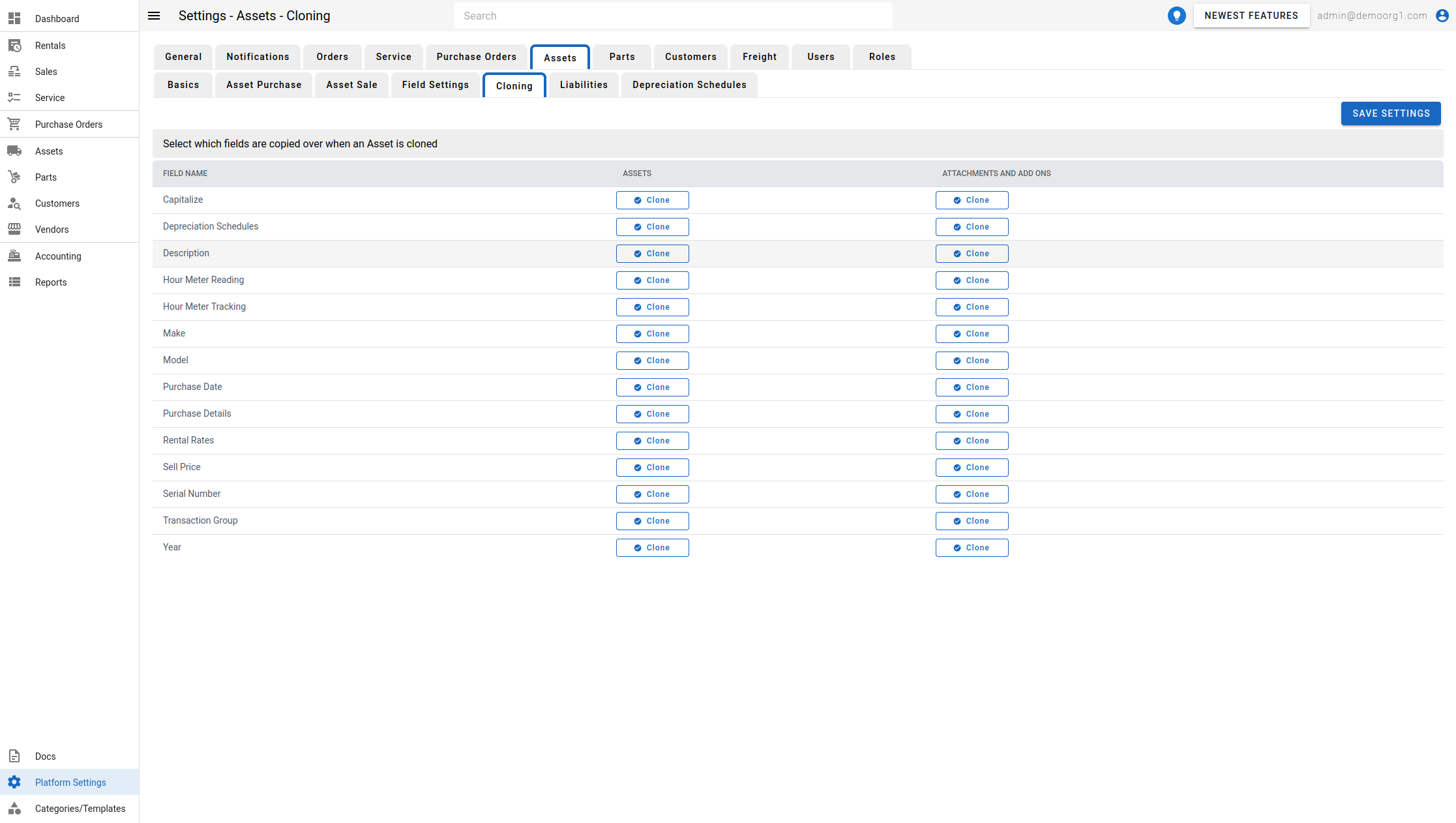
The tab shows a grid headed "Select which fields are copied over when an Asset is cloned". Each row is an asset field, and there is a toggle column per asset type so you can control cloning separately for regular Assets and for Attachments and Add Ons:
| Column | Meaning |
|---|---|
| Field Name | The asset field the row governs. |
| Assets | Whether the field is carried over when cloning a regular asset. |
| Attachments and Add Ons | Whether the field is carried over when cloning an attachment / add-on asset. |
When a field's toggle is on for that asset type, its value is copied from the source asset onto the new (cloned) asset; when off, the field starts empty (or at your organization's default), just as it would on a brand-new asset.
The fields that can be carried over include the asset's Description, Manufacturer, Model Number, Model Year, Serial Number, Sell Price, Purchase Date, Purchase Details, Capitalization, Hour Meter settings, Rental Rates, Depreciation Schedules, and Transaction Group. (The Capitalization row appears only when Enable Capitalization is on; when off it is hidden, though its clone preference is still saved.)
INFO
A clone always gets a fresh asset number and starts out of any order/lifecycle history regardless of these settings — only the fields listed above are governed by the toggles.
Changes are saved automatically. (Editing requires the field-settings update permission; without it the toggles are read-only.)
To learn how cloning is triggered, see Purchasing/Creating A New Asset → Clone From Asset.