Appearance
Sale Only to Rental Conversions Report
The Sale Only to Rental Conversions report lists the assets that were converted from Sale Only to rental in the Edit Asset popup, with who converted each one, when, and the reason they gave (see Removing Sale Only Status).
INFO
Note: This report can only be viewed by organizational users who have been granted the relevant report permissions for Assets reports.
Opening the report
On the Reports page, open the Assets section and click View Online against Sale Only to Rental Conversions (see Viewing and Generating Reports). The report can also be downloaded as CSV, Excel, or PDF.
Conversions made before a reason was required, or made outside the app, aren't listed.
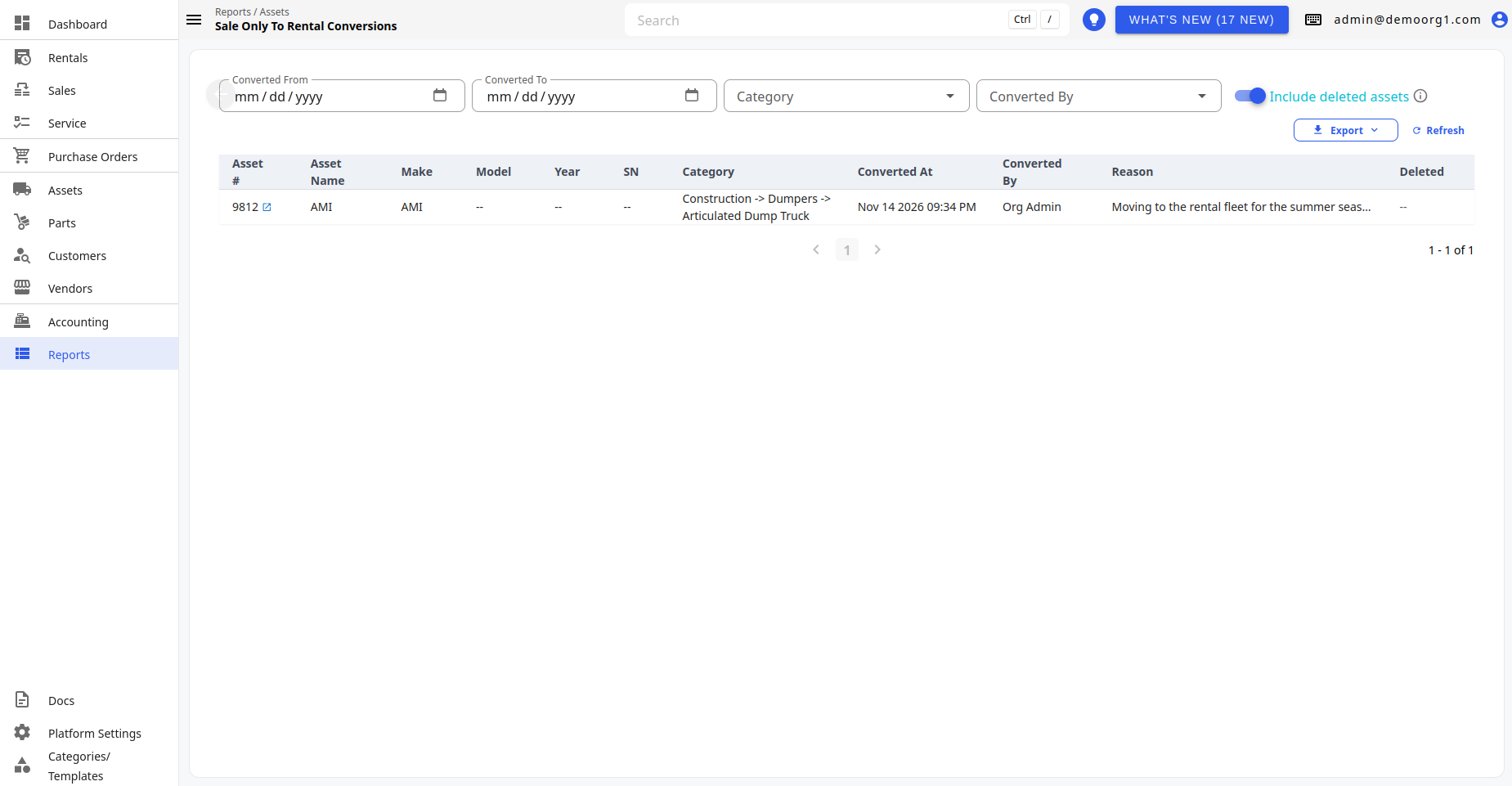
Filters
Filters apply as soon as you change them. Use the Refresh button to reload the data.
| Filter | Description |
|---|---|
| Converted From / Converted To | The conversion date range. If the From date is after the To date, the two are swapped. |
| Category | Only show assets in this category. |
| Converted By | Only show conversions made by this user. |
| Include deleted assets | Includes assets that have since been deleted. On by default. |
The table
| Column | Description |
|---|---|
| Asset # | The asset number. Click the open icon beside it to open the asset (not shown for deleted assets). |
| Asset Name | The asset's name. |
| Make | The asset's make. |
| Model | The asset's model. |
| Year | The asset's year. |
| SN | The asset's serial number. |
| Category | The asset's category. |
| Converted At | When the asset was converted. |
| Converted By | The user who converted it. |
| Reason | The reason given for the conversion. Long reasons are cut short; hover over one to read it all. |
| Deleted | A red Deleted chip when the asset has since been deleted. Deleted rows are dimmed. |
- Every column can be sorted. With no sort chosen, the newest conversions come first.
- Results are paginated (50 per page).
When nothing matches, the report shows "No conversions for these filters".