Appearance
Editing A Purchase Order
INFO
Note: Purchase Orders can only be viewed and edited by organizational users who have been granted relevant permissions
A newly created purchase order appears on the Purchase Orders Page. To edit a purchase order's information, follow the steps below
Step 1 - Open The Edit Purchase Order Popup
Head to the Purchase Orders Page via links available on the Left Navigation Bar. On this page, search for your desired purchase order in the table or filter purchase orders to find your desired purchase order. Once visible on the table, click on your desired purchase order's row to open the Edit Purchase Order Popup.
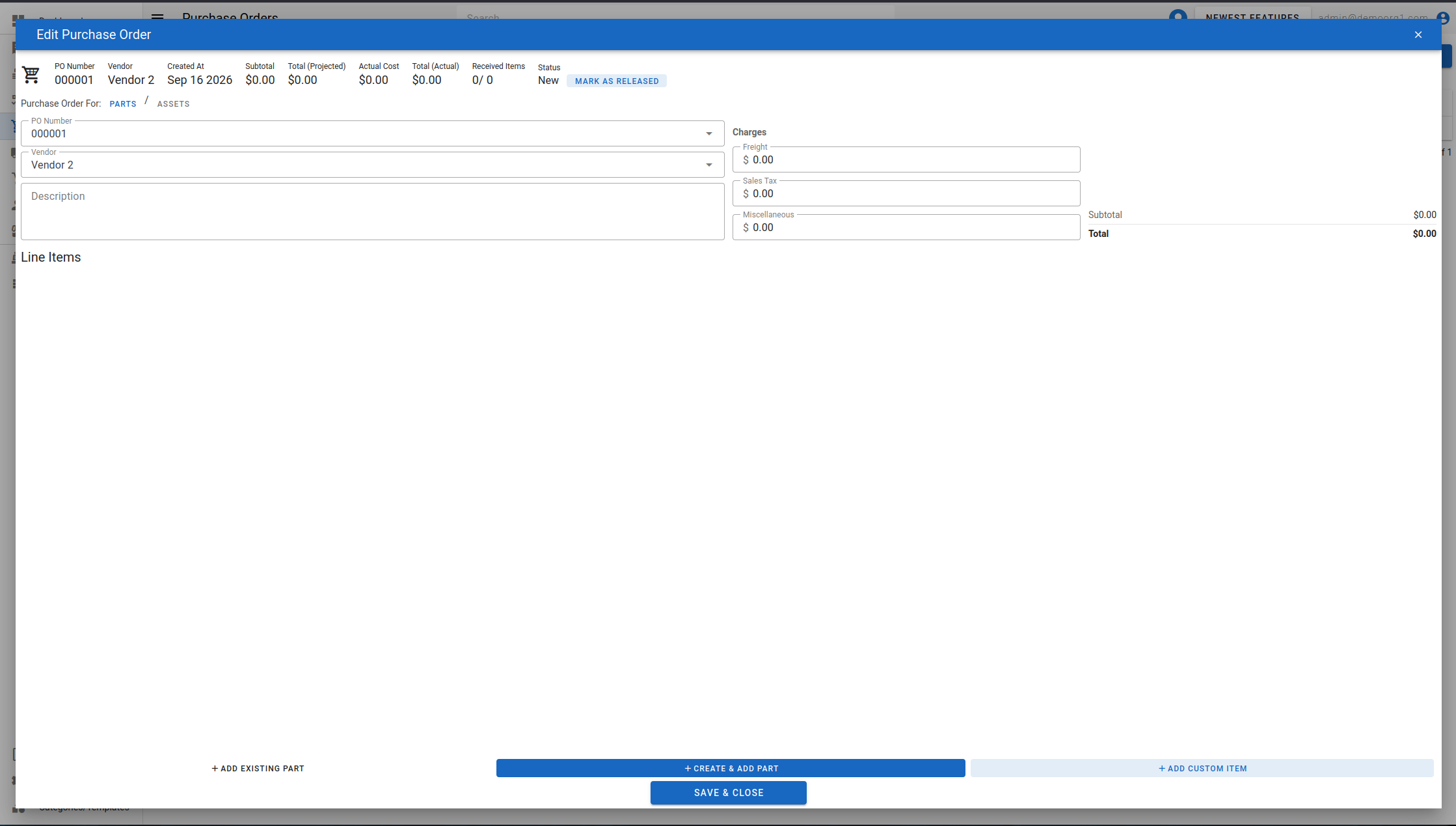
Step 2 - Edit And Save Desired Information
The Edit Purchase Order Popup features an info bar at the top, that displays the purchase order number, vendor name, date the purchase order was created on, projected cost, actual cost (calculated after the purchase order is marked received), quantity of received items and the purchase order's state.
Below the info bar, the popup features several fields of information. Fields that appear in red are required fields.
To modify information, simply click on a field and enter/modify information. Clicking the Save button will sync this information on our servers.
Editing permissions by state
Which purchase orders you can edit depends on the purchase order's state and your permissions. A draft (new) purchase order uses the base purchase-order update permission, while Released, Partially Received, Received, and Closed purchase orders each require their own dedicated edit permission. This lets, for example, accounting be granted post-release editing of purchase orders without also being able to edit drafts. Without the permission for a purchase order's current state, its fields are read-only.
Charges
Alongside the line items, the Charges column holds the purchase order's header-level Freight, Sales Tax, and Miscellaneous amounts. All three are visible and editable in every state (not only on a draft), gated by the same state-specific edit permission as the rest of the purchase order's fields. They feed the Invoices tab's Cost Breakdown, which sets each of them against what's actually been billed for it — see Reconciling A Purchase Order.
Allocating parts to work orders
Once a purchase order is released, its part and custom-item lines can also be allocated directly to a work order from this popup. See Allocating Parts To Work Orders.
Reconciling vendor invoices
Once a purchase order is released, an Invoices tab appears alongside Details on this popup for recording and matching vendor invoices against it. See Reconciling A Purchase Order.