
Appearance
Assets
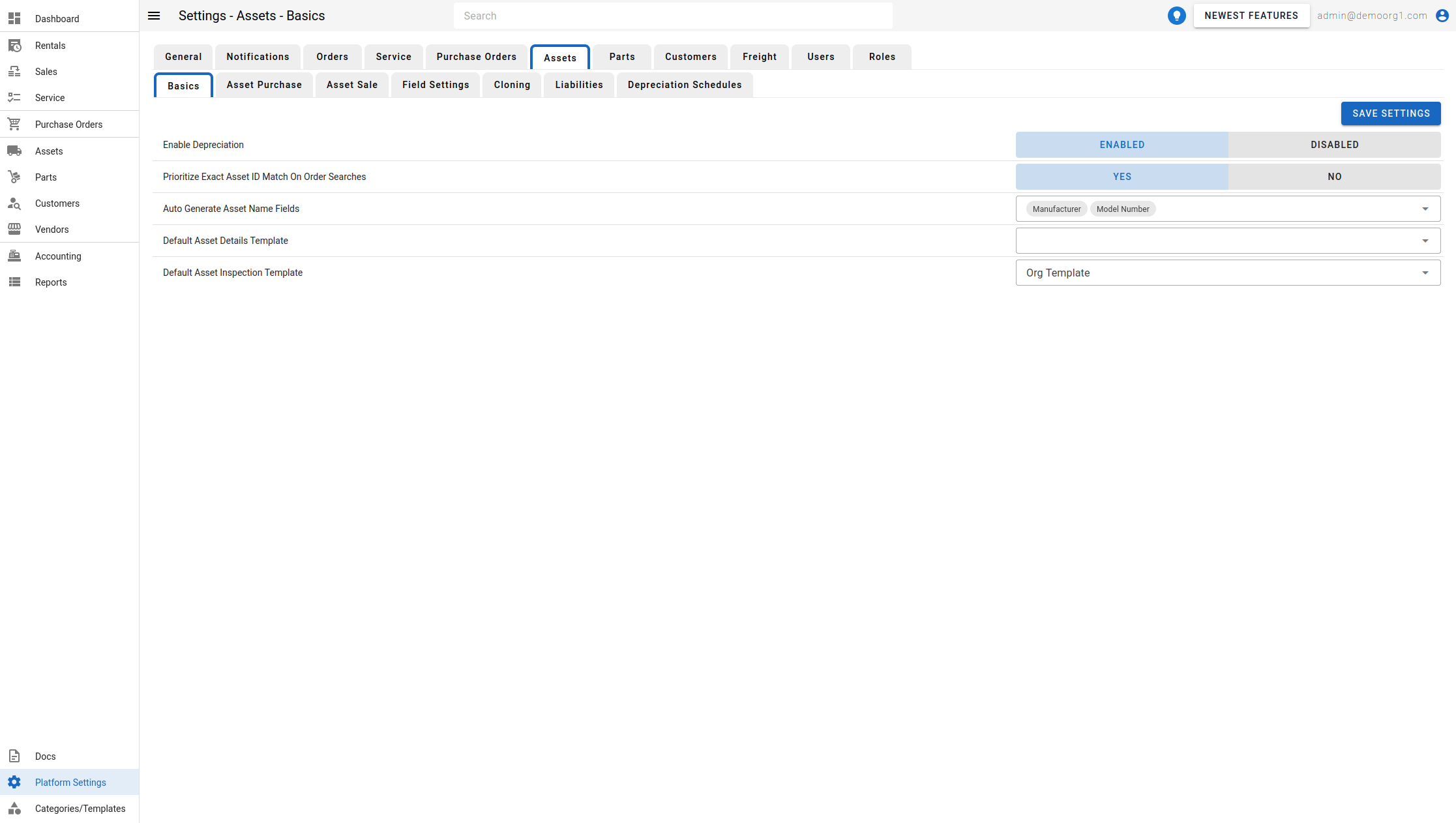
To view the Assets Page, head to the Platform Settings Page via links available on the Left Navigation Bar and click on the Assets Tab (if not already selected).
The Assets Page allows viewing/modifying settings pertaining to assets.
The Basics Tab allows viewing/modifying the following settings:
- Enable Depreciation: This organization-wide switch turns the asset depreciation feature on or off (default On). When Disabled, every depreciation surface is hidden — the Depreciation Schedules settings tab, the asset's Depreciation tab and history chart, the depreciation pickers on categories and asset checklists, the Missing – Depreciation Schedules / Missing – Accumulated Depreciation validation items, and the depreciation columns and filters across the asset list, the Assets Report, and the Inventory Report. Turning it back on restores them.
- Prioritize Exact Asset ID Match On Order Searches: This setting controls how user views results when searching for assets on orders. If checked, an exact match for an asset ID will be shown first. If not checked, search will smartly show less used alternatives first.
- Auto Generate Asset Name Fields: This setting controls what fields are used to auto generate Asset Name.
- Default Asset Details Template: The default template used to collect details on assets, if the asset's category does not provide a dedicated template.
- Default Asset Inspection Template: The default template used for asset inspections, if the asset's category does not provide a dedicated template.
INFO
The scheduled-maintenance, auto-create-inspection, unreasonable-hours, and inspection-link-expiry settings that previously lived here have moved to the Service settings tab.
To modify information, simply edit the field and click on the Save Settings button to sync settings with the server.