Appearance
Daily Summary Report
INFO
Daily Summary Report can be downloaded or viewed online
To view/download Daily Summary Report, head to the Reports Page Head via links available on the Left Navigation Bar and click on the Download button to download, or the View Online button against the Daily Summary Report to view online.
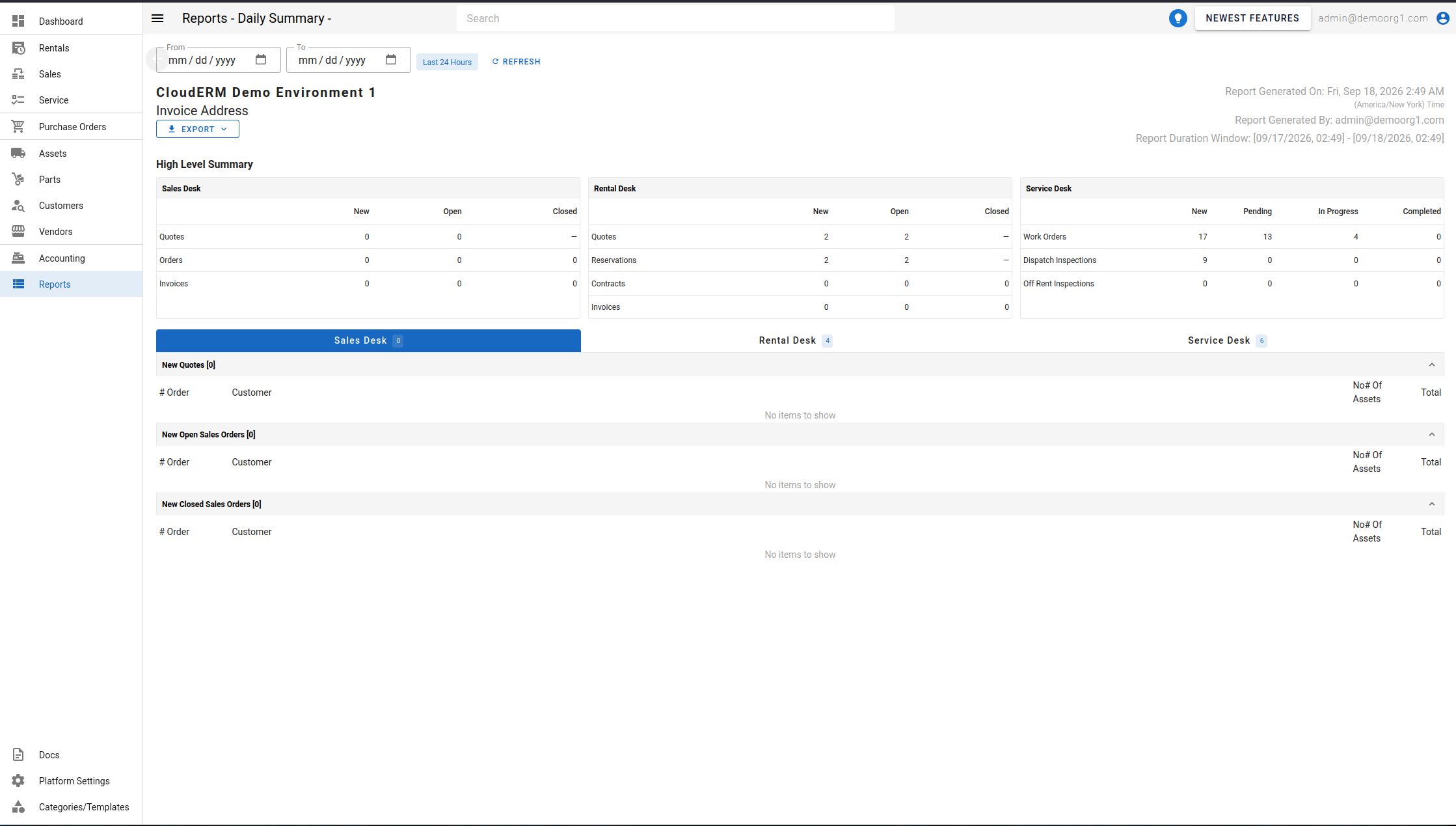
By default the report covers the last 24 hours. Set both a From and To date to view a custom window instead — a Reset To Last 24 Hours button appears once a custom window is applied, and a Refresh button re-runs the report. The report shows when it was generated, who generated it, and the exact window it covers.
High Level Summary
A High Level Summary section shows one grid per desk you have access to:
- Sales Desk and Rental Desk — counts of New, Open, and Closed quotes/orders/contracts.
- Service Desk — counts of New, Pending, In Progress, and Completed work.
On narrower screens, including mobile devices, the desk grids stack one above another instead of side by side, so the summary stays readable without scrolling sideways.
Desk detail tabs
Below the summary, the report features tabs for each desk you have access to — Sales Desk, Rental Desk, and Service Desk — each labeled with its total item count. Each tab lists its activity as collapsible sections, named to distinguish new activity from completed activity:
- Sales Desk — New Quotes, New Open Sales Orders, New Closed Sales Orders.
- Rental Desk — New Quotes, New Reservations, New Open Contracts, New Closed Contracts.
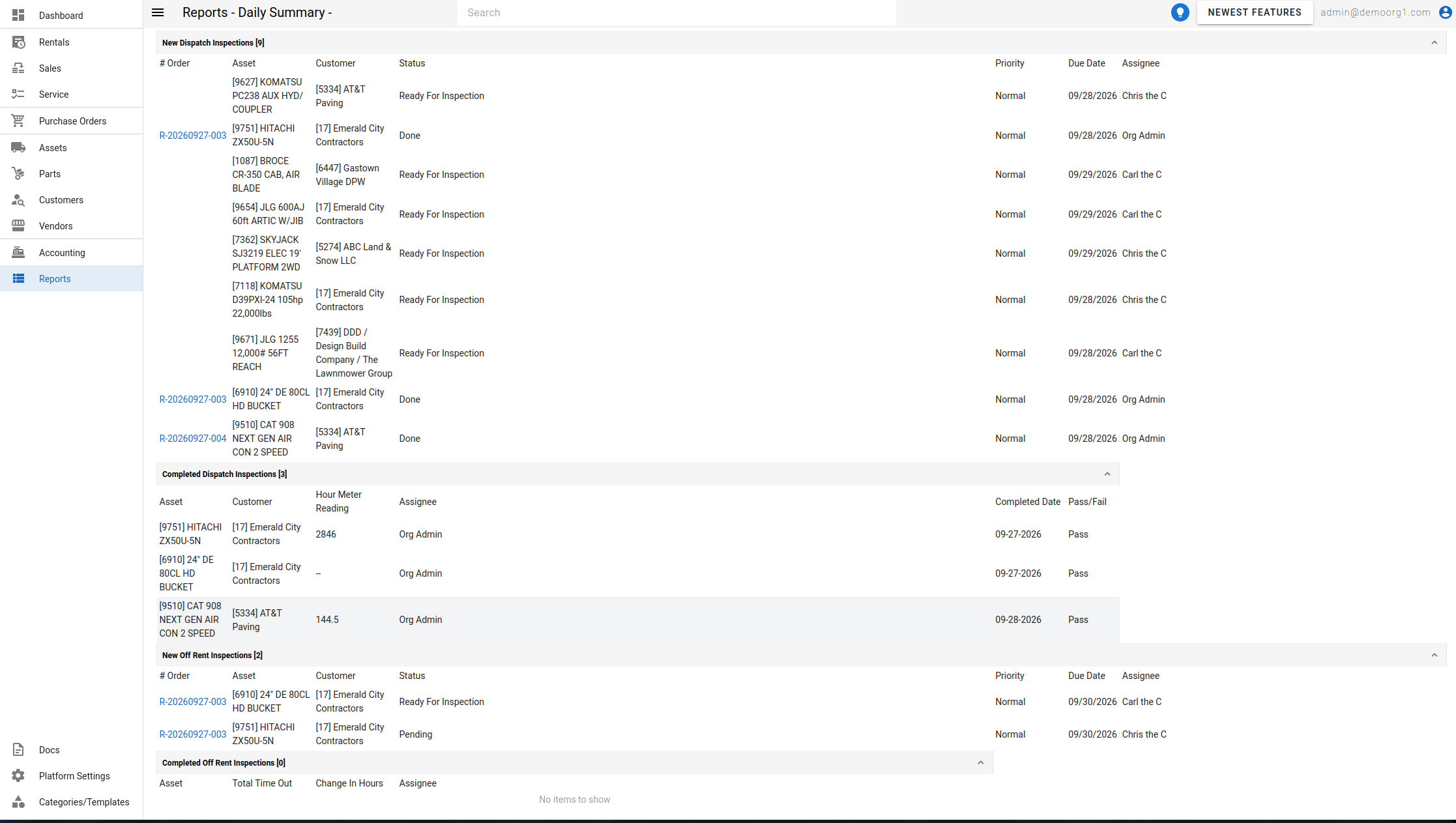
- Service Desk — New Work Orders, New Dispatch Inspections, Completed Dispatch Inspections, New Off Rent Inspections, Completed Off Rent Inspections.
Click a section's header to expand or collapse it. Clicking an order/inspection number within a section redirects you to the relevant activity in a new tab. A section with no activity in the window still appears, showing No items to show.
Completed Dispatch Inspections
The Service Desk's Completed Dispatch Inspections section lists dispatch inspections completed within the reporting window:
| Column | Description |
|---|---|
| Asset | The inspected asset. |
| Customer | The customer the asset is dispatched to. |
| Hour Meter Reading | The asset's hour meter reading recorded at completion (-- if none was recorded). |
| Assignee | The user assigned to the inspection. |
| Completed Date | The date the inspection was completed. |
| Pass/Fail | Whether the inspection passed. |
INFO
A failed inspection lists its failed checklist items directly beneath its row, each flagged with a red alert icon.
INFO
Which desks and sections appear — and whether the High Level Summary shows at all — is driven by your Report Preferences (see User Profile). A desk or section you've hidden there is left out entirely, rather than shown empty.