Appearance
Users Permissions Report
The Users Permissions Report is a matrix of every user in your organization against every permission on the platform — one row per user, one column per permission — so you can audit who has access to what.
INFO
Note: Reports can only be viewed by organizational users who have been granted relevant permissions.
To view the report, head to the Reports Page Head via links available on the Left Navigation Bar and click on the Users Permissions Report. This opens up the report in a new tab.
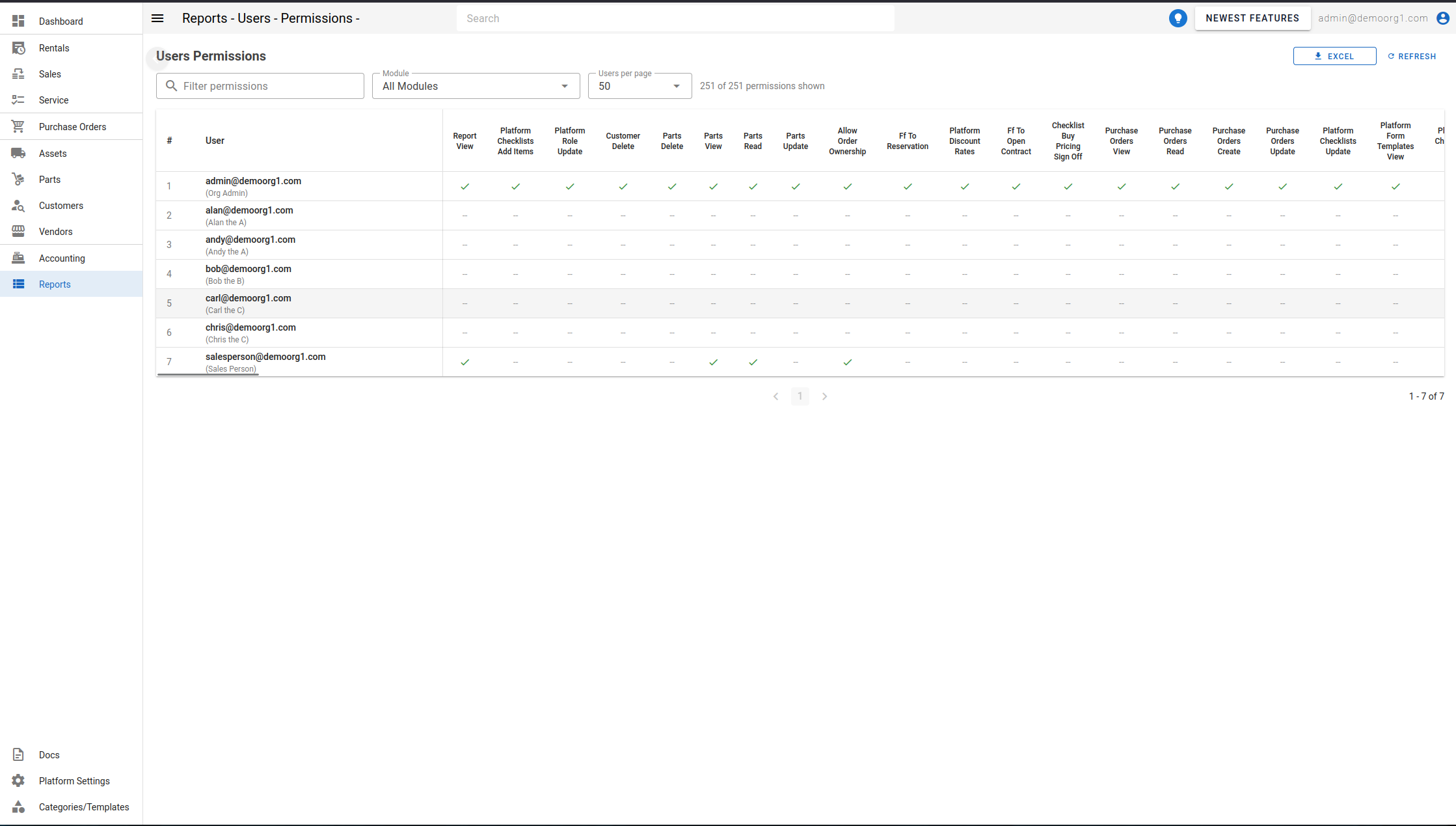
The report has no server-side filters of its own — the whole permission set for every user is always fetched. Instead, the on-screen controls narrow which columns are displayed:
- Filter permissions — free-text search that narrows the permission columns shown by name.
- Module — restricts the permission columns to one module (permissions are grouped by the area they belong to, for example
ASSET,RENTAL). - Users per page — how many user rows are shown per page (25, 50, or 100).
A counter below the controls shows how many of the total permission columns are currently displayed.
The table
- # and User are pinned to the left as you scroll. User shows the login name, with the person's display name underneath when available.
- Each remaining column is one permission. A green checkmark means the user has that permission — hover it to see which role(s) grant it. A
--means the permission is not granted.
Use the download control at the top right to export the report, or Refresh to reload.