Appearance
Service
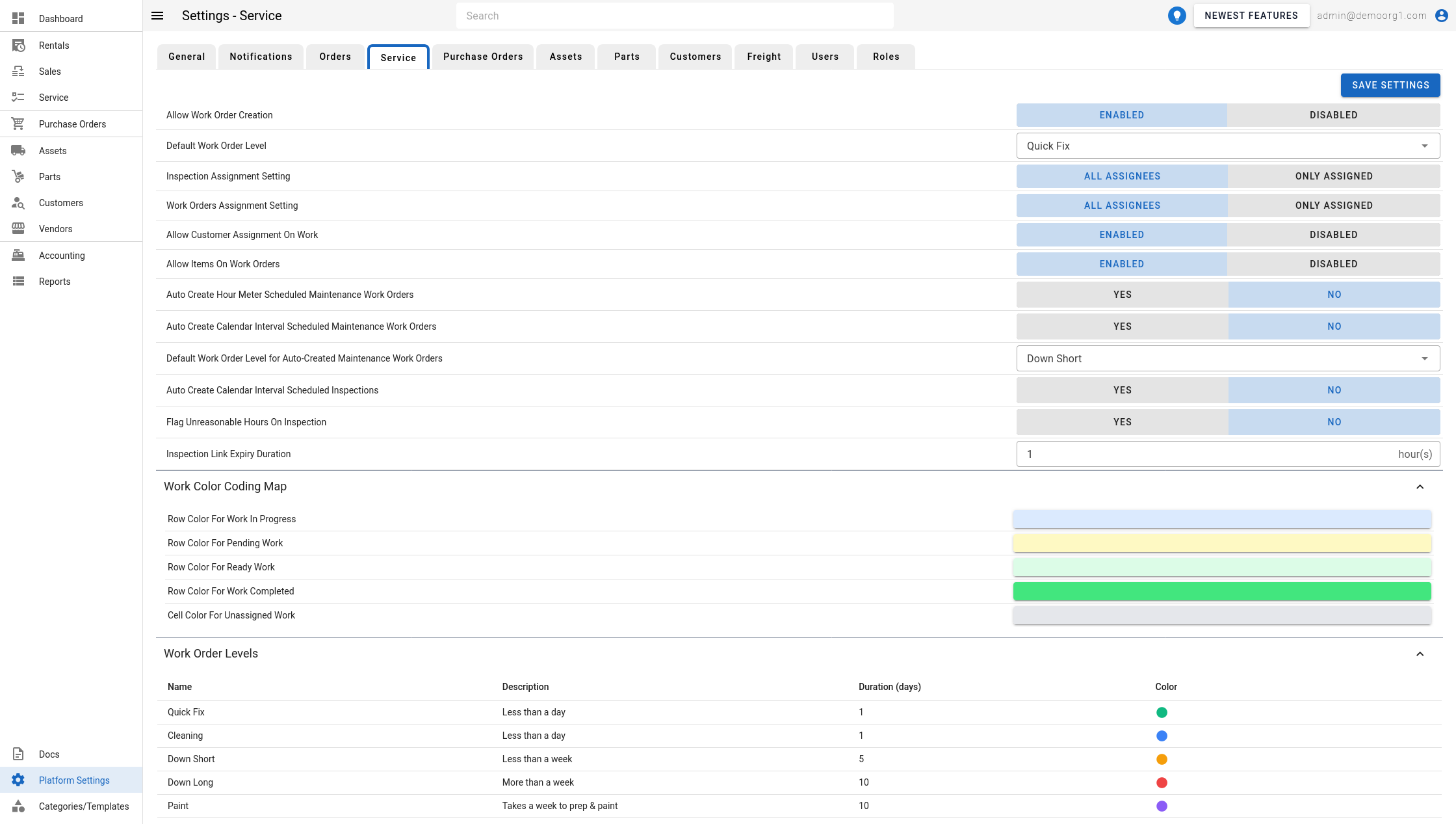
The Service Tab allows viewing/modifying the following settings:
- Default Work Order Level
- Inspection Assignment Setting: Determines whether an inspection can be assigned to all assignees at once or just one assignee at a time.
- Work Order Assignment Setting: Determines whether a work order can be assigned to all assignees at once or just one assignee at a time.
- Work Color Coding Map: Determines the color scheme used for work order rows in the work list.
- Allow Work Order Creation: Enabled / Disabled. Controls whether work orders can be created at all. When Disabled, the option to create a work order is removed across the app (the Create menu, work order popups, inspection reports, and Gantt/timeline views).
- Allow Customer Assignment On Work: Enabled / Disabled (default Enabled). Controls whether a customer can be attached to service work generally — not just work orders, but also inspections. When Disabled, the customer selector is removed from the New Work Order Popup, the New Inspection Popup, and the inspection/work order popups, and the customer/notes selection tab is titled Notes (or Asset on the work order popup) instead of Customer/Notes / Asset and Customer. Work is then created against an asset only.
- Allow Items On Work Orders: Enabled / Disabled (default Enabled). (Previously labelled Allow Parts On Work Orders.) When Disabled, the items/Parts step/section is removed from the New Work Order Popup and no items can be added to a work order.
- Auto Create Hour Meter Scheduled Maintenance Work Orders: Controls whether maintenance work orders are created automatically based on an asset's hour meter.
- Auto Create Calendar Interval Scheduled Maintenance Work Orders: Controls whether maintenance work orders are created automatically on a calendar interval.
- Default Work Order Level for Auto-Created Maintenance Work Orders: Sets the default work order level applied to auto-created maintenance work orders.
- Auto Create Calendar Interval Scheduled Inspections: Controls whether inspections are created automatically on a calendar interval.
- Allow Multiple Open Maintenance Work Orders: Controls whether an asset may have more than one open maintenance work order at a time.
- Flag Unreasonable Hours On Inspection: Shows a warning on off-rent inspections where the actual hours used exceeds the reasonable-hours threshold.
- Inspection Link Expiry Duration: The number of hours before a public inspection link expires.
- By Default Allocate All Parts To Work Order: Yes / No. Sets the default for the Auto Allocate All Parts To Work Order checkbox shown when a purchase order is created from the work-order parts flow. When Yes, selecting a purchase order in that flow automatically allocates every allocatable line at its full remaining quantity to the work order (you can still opt out per purchase order by unchecking the box). See Creating A New Purchase Order → Auto-allocating parts.
INFO
Items 8–14 moved here from the Assets → Basics settings tab during a settings cleanup, so all work-order and inspection-related settings now live together under Service.
To modify information, simply edit the field and click on the Save Settings button to sync settings with the server.
Additionally, Work Order Levels can also be modified via this page. To do so, expand the work order levels section.
Click on a work order level to open the Edit Work Order Level Popup
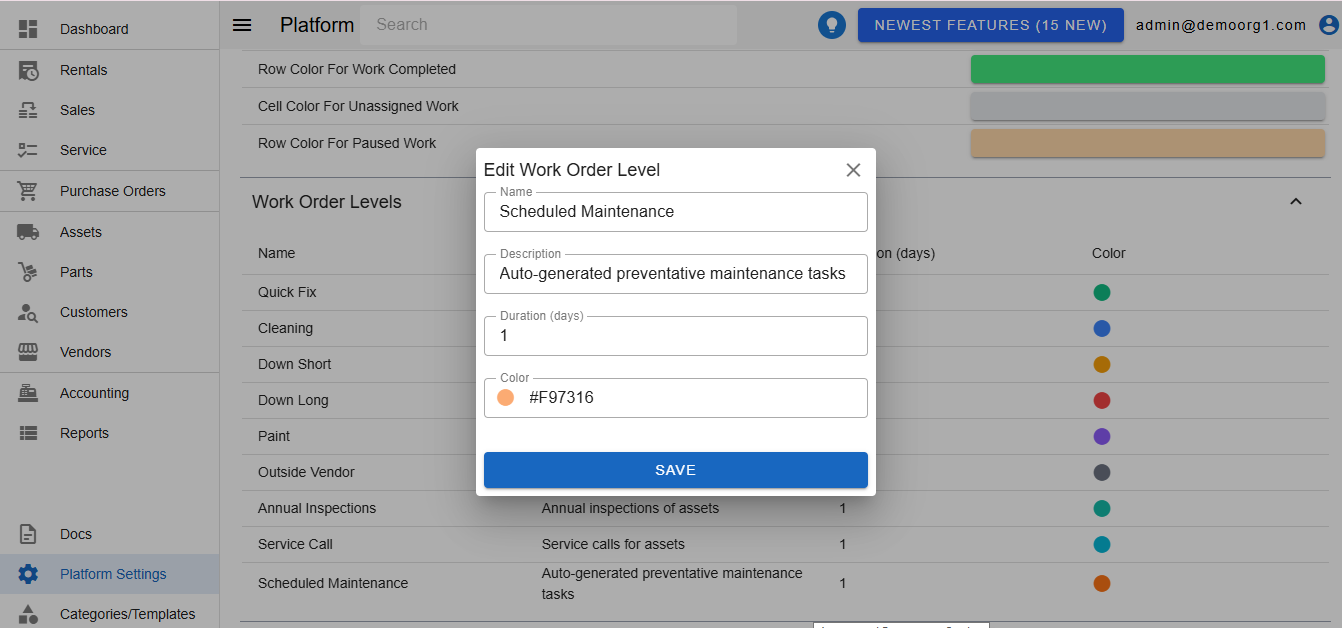
Modify information and press Save to sync information with the database.