Appearance
Layout Familarization
Once logged in, you'll be greeted by a compact looking UI as seen below
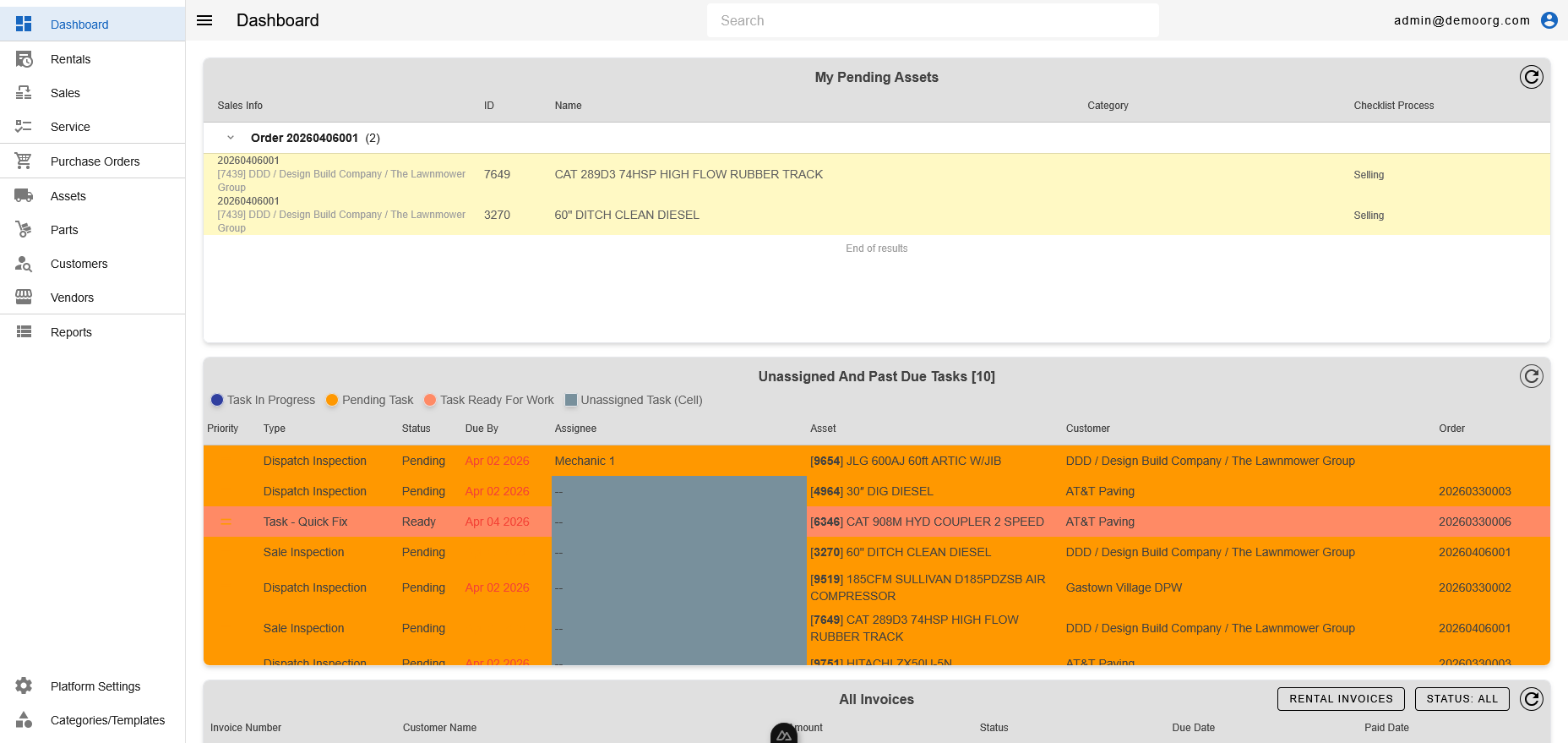
The Left Navigation Bar features links to different pages within CloudERM. The hamburger menu button visible on the Top Navigation Bar, adjacent to the Left Navigation Bar toggles the look and feel of the Left Navigation Bar. Near the bottom of the Left Navigation Bar, just above Platform Settings, a Docs link opens the CloudERM user documentation in a new browser tab.
On the left of the Top Navigation Bar, next to the menu button, the current page is shown over two lines: the parent sections in smaller text (separated by /) above the name of the page you are on. For example, a report shows Reports / Accounting above the report name. Record IDs are left out of this path, so a work order opened by its link reads Service / Work. Hover over it to see the full path.
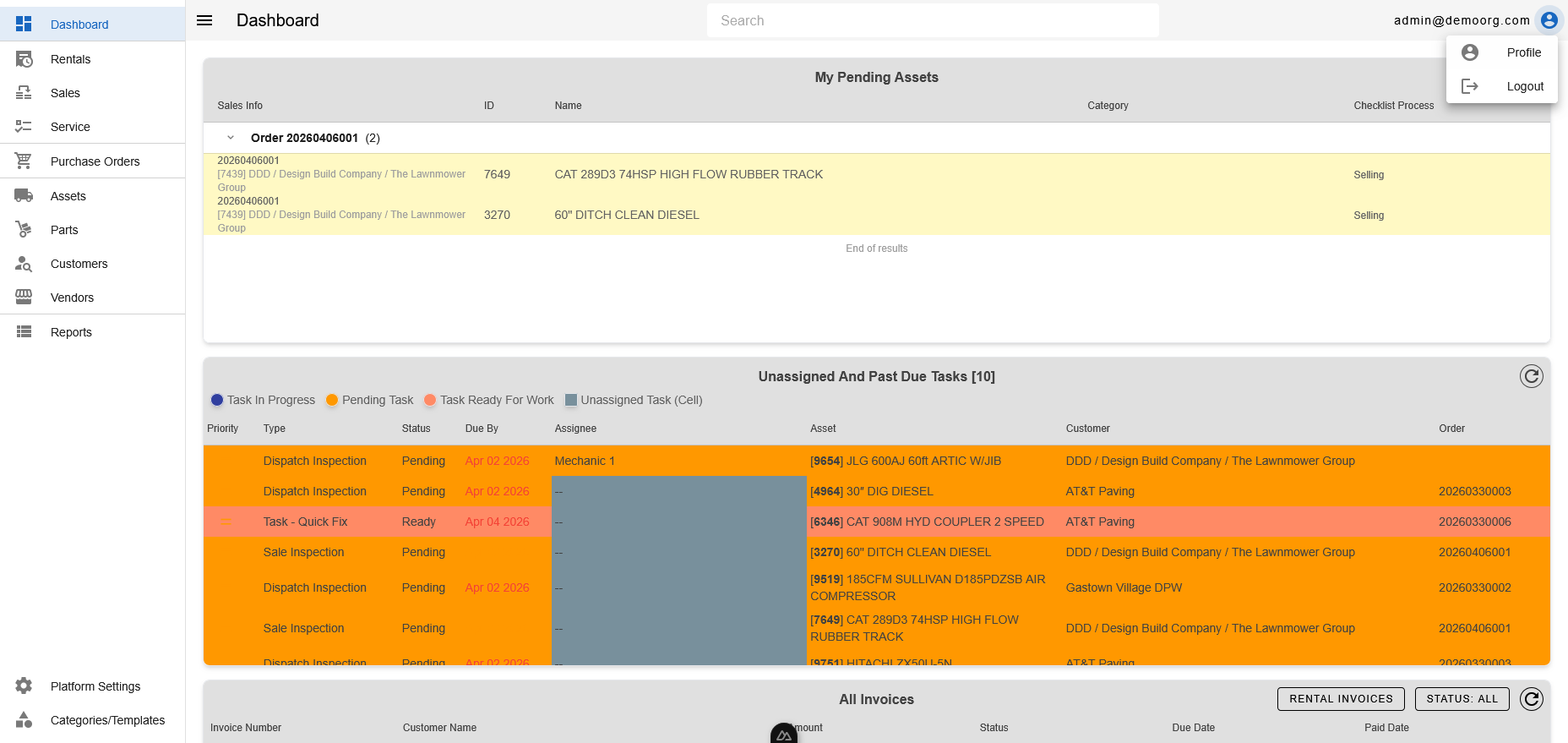
The Top Navigation Bar features a Search Bar that allows for quick searches across the platform. Visible on the Top Navigation Bar's right corner is the username of the logged in user, and a button to access the User Menu
The User Menu provides a link to the User Profile Page and a Logout Button
Working In Dialogs
Many pop-up dialogs that ask for input place the cursor in the first field automatically when they open, so you can start typing right away. You can also submit such a dialog from the keyboard with Ctrl + Enter (or Cmd + Enter on Mac) instead of clicking the confirm button.
Transaction windows — the rental order, sales order, work order, and inspection popups — now have an inline refresh button in their header, so you can pull the latest server data into the open window without closing and re-opening it.
Working With Tables
Most list tables let you sort by clicking a column header. Sorting orders the entire result set across all pages, not just the rows currently on screen, so the first page always shows the true top of the sorted list.
Records Open In Place
Opening a record — a customer, work order, inspection, checklist, sales or rental order, invoice, asset, purchase order, or category — now opens it as a popup over the current page instead of navigating to a new browser tab. This applies wherever you reach a record: clicking a row, clicking a record link in another popup (for example an order's customer or an asset on a work order), or opening one from a report's rows. You can work in the popup and close it to return exactly where you were, without losing your place or your filters.
INFO
Printable and downloadable documents still open in a new browser tab or download as a file — for example a View Summary as PDF / HTML / Print view, a report opened with View Online or downloaded, or a signed document. Only the record popups themselves changed from opening a new tab to opening in place.