
Appearance
Viewing and Searching Orders
INFO
Note: Rental orders can only be viewed by users who have been granted relevant permissions.
The Rentals page opens on a single tab that lists rental orders of every status in one table. Alongside it are any saved-filter tabs you create (see Saving Filters) and an Invoices tab.
Filtering orders
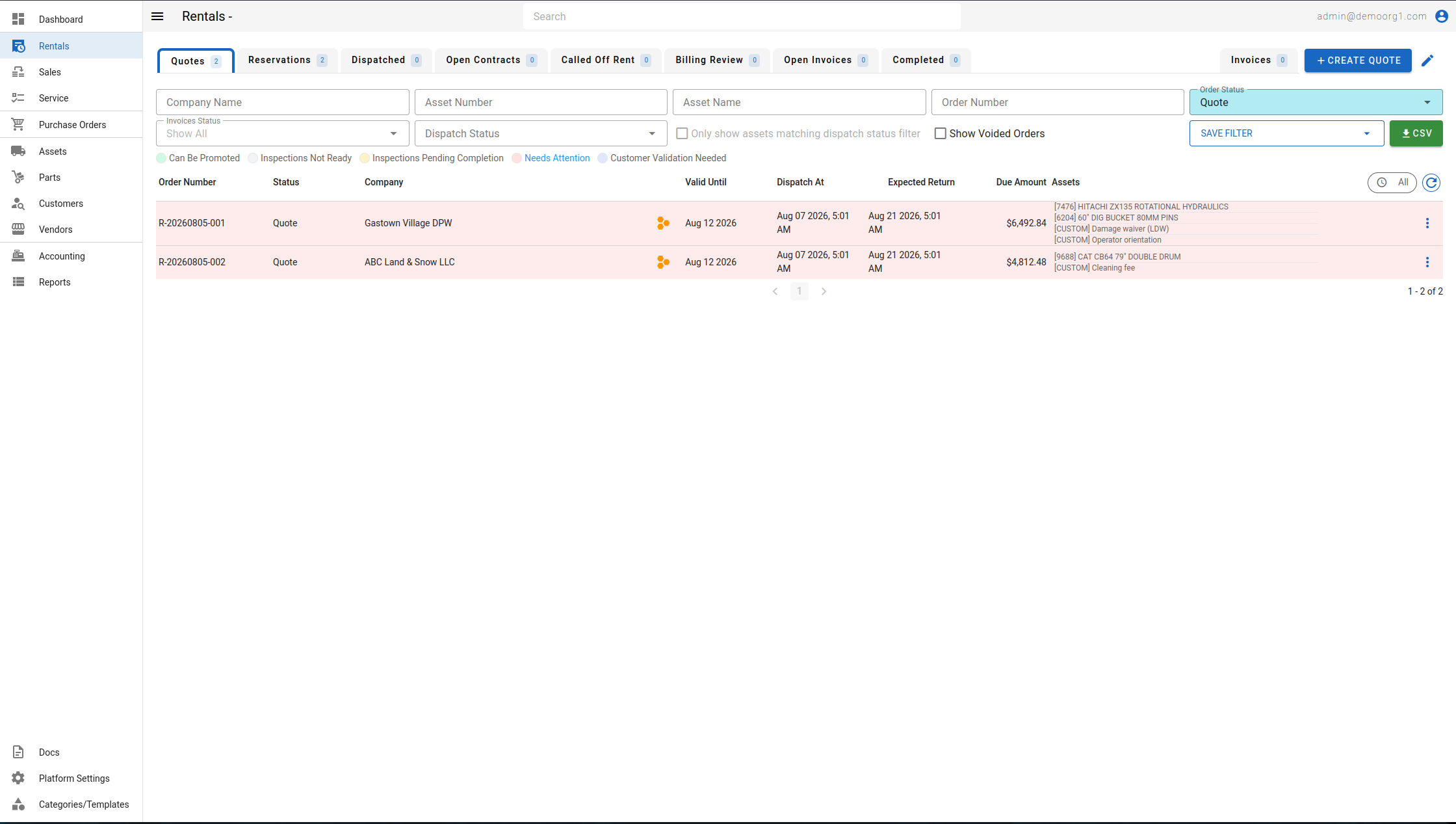
Two dropdown filters narrow the table:
- Order Status — Quote, Reservation, Open Contract, Closed Contract, Completed Contract.
- Dispatch Status — Quoted, Reserved, Dispatch Inspection, In Transit, Dispatched, Off Rent, Off Rent Inspection, Released.
In Transit is a dispatch status that sits between Dispatch Inspection and Dispatched in the flow. In-transit assets appear with a distinct badge in the Dispatches Popup, and their status cannot be changed manually while they are in transit.
Text filters for order number and customer/company name are also available. Click a column header to sort by that column, and use the column-settings button on the top-right to choose which columns are visible. The table follows your organization's row color scheme, whose legend appears above the table.
A Show Voided Orders checkbox switches the table to show only voided (deleted) rental orders; untick it to return to live orders. Voided orders appear with strike-through text and are read-only — they cannot be edited, promoted, or acted on from the action menu, and are available for viewing/reference only.
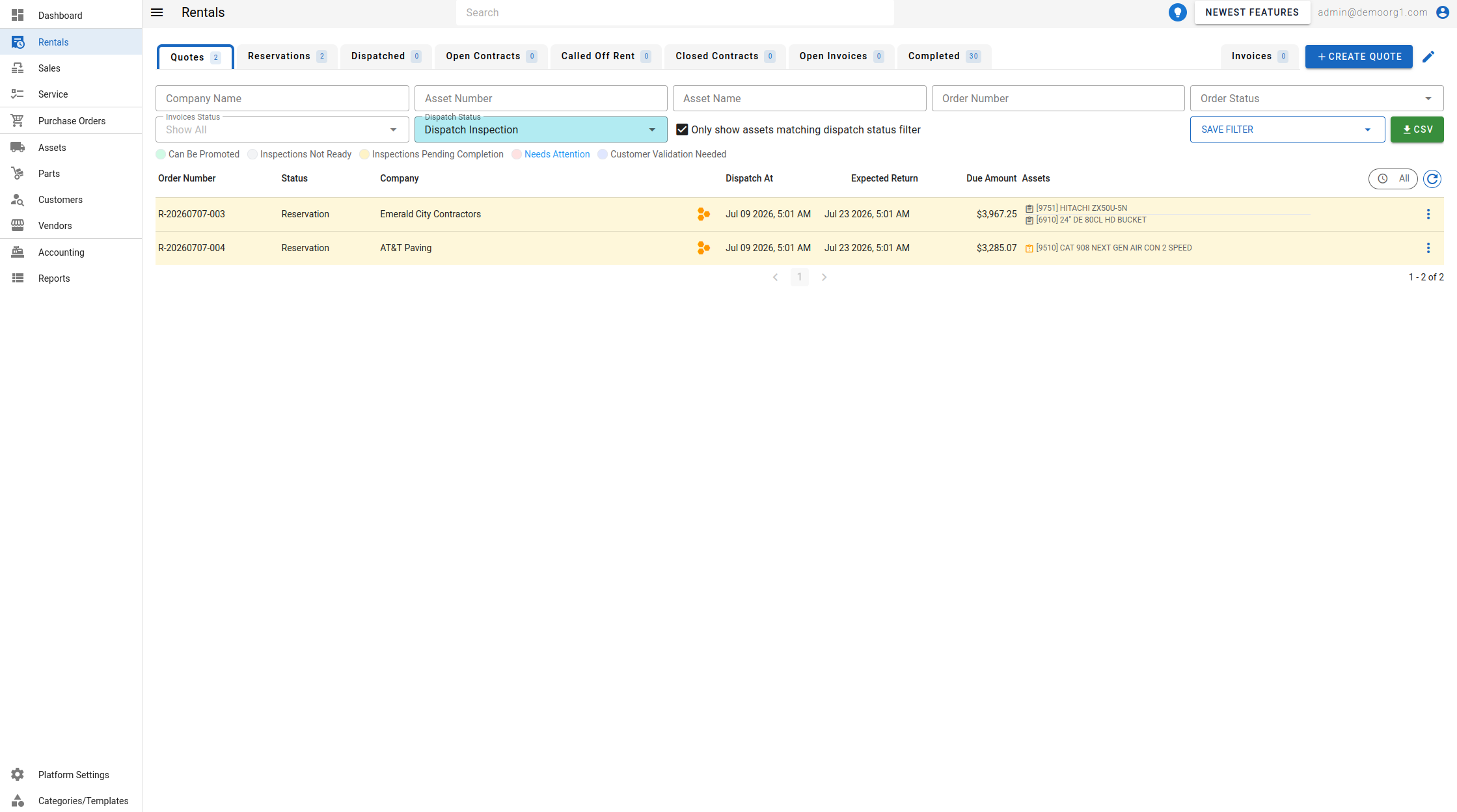
Next to the Dispatch Status filter is an Only show matched assets to dispatch status checkbox. When a Dispatch Status is selected, tick this to have each order row's asset list show only the assets whose dispatch status matches your filter (the row's asset preview and the "+ N more" count update to match). It does not change which orders are listed — only which assets are shown within each row — and it stays disabled until at least one Dispatch Status is selected.
Opening an order
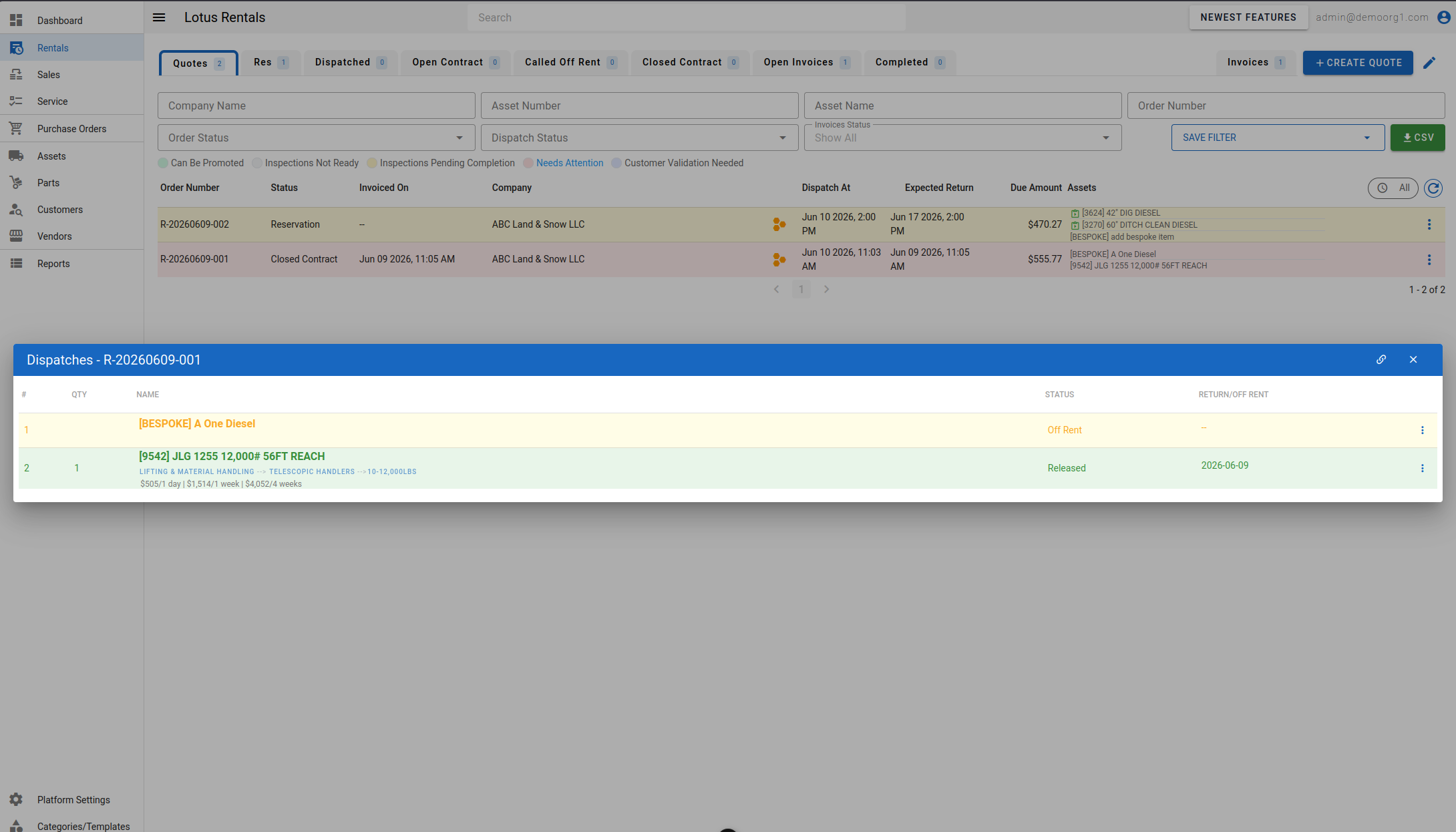
Click an order row to open the Edit Order Popup, where you can edit details on the order. To work with the order's dispatched assets, use the Show Dispatches action (see Additional Functions), which opens the Dispatches Popup where dispatch status can be updated, inspection forms can be filled, and assets can be replaced.
Saving Filters
A filter combination you use often can be saved as a reusable tab. Once you have applied one or more filters, click the Save Filter menu, enter a Filter Name, and click Save (up to 100 filters).
Each saved filter has its own controls:
- Rename — the pencil icon (orange) edits the name inline; the check icon (green) saves it (or press
Enter). - Set as default view — the star icon makes a filter the default view shown when the page opens (blue when set; only one can be default). Click again to remove it.
- Update with current view — when a saved filter is the one currently applied, a save icon appears that updates it to match your current filters.
- Reorder — drag a filter by its handle.
- Delete — the delete icon (red), with confirmation.