
Appearance
Viewing And Filtering Assets
INFO
Note: Assets can only be viewed by organizational users who have been granted relevant permissions
The Assets Page features three tabs for In Stock Assets, Pending Assets, and Assets that are en route via purchase orders respectively.
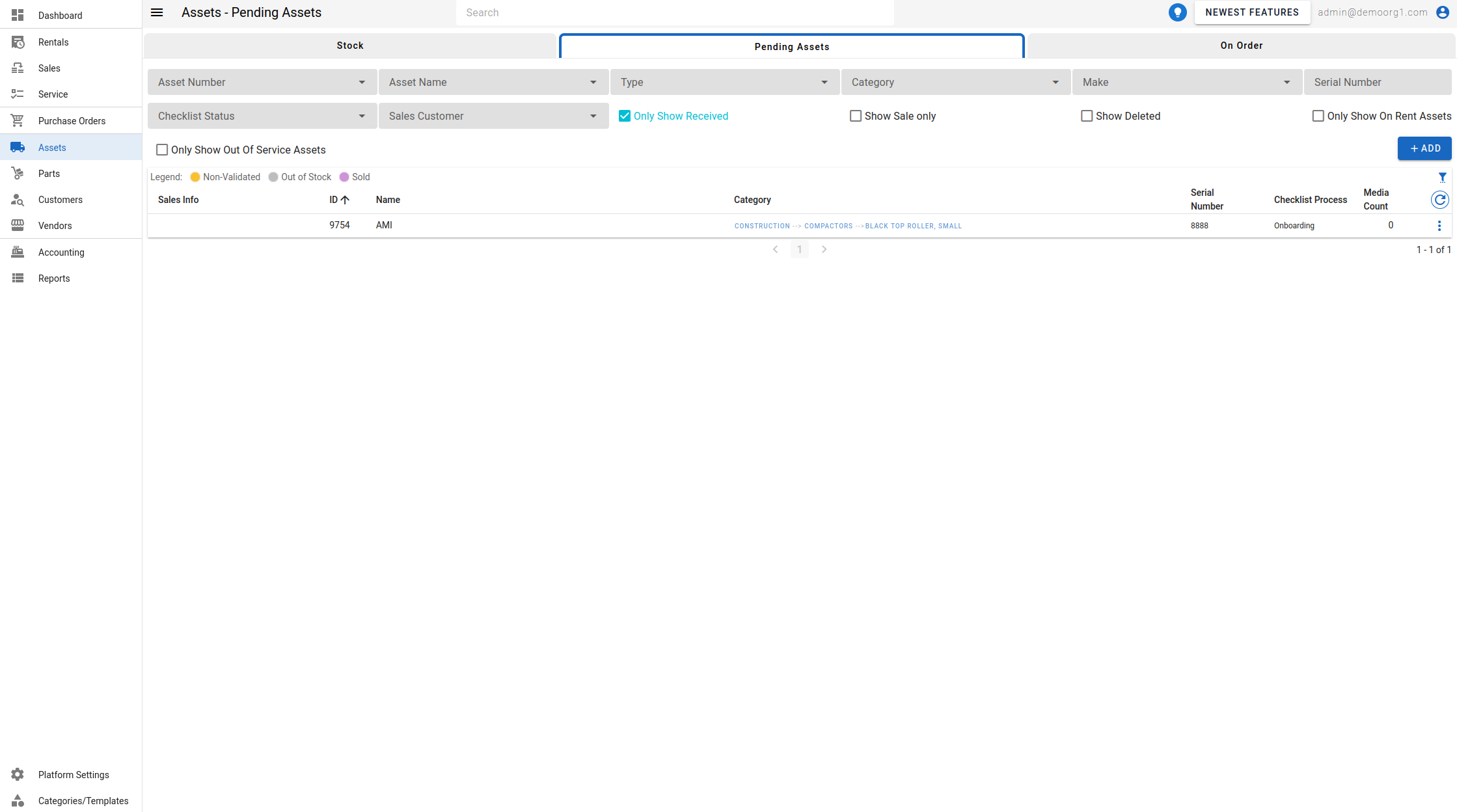
The In Stock Assets Page and Pending Assets Page feature several filters atop the Assets Table. Available filters include Asset Number, Asset Name, Type, Category, Make, Serial Number, Sold, Validation Failure, Facility, Checklist Status, and Sales Customer, along with toggle filters such as Only Show In Stock Assets / Only Show Received (Pending tab), Show Sale only, Show Deleted, Only Show On Rent Assets, and Only Show Out Of Service Assets. Set any combination of these filters to narrow the assets shown in the table and search for your desired asset(s).
The Type filter narrows the table to Assets or Attachments and Add Ons.
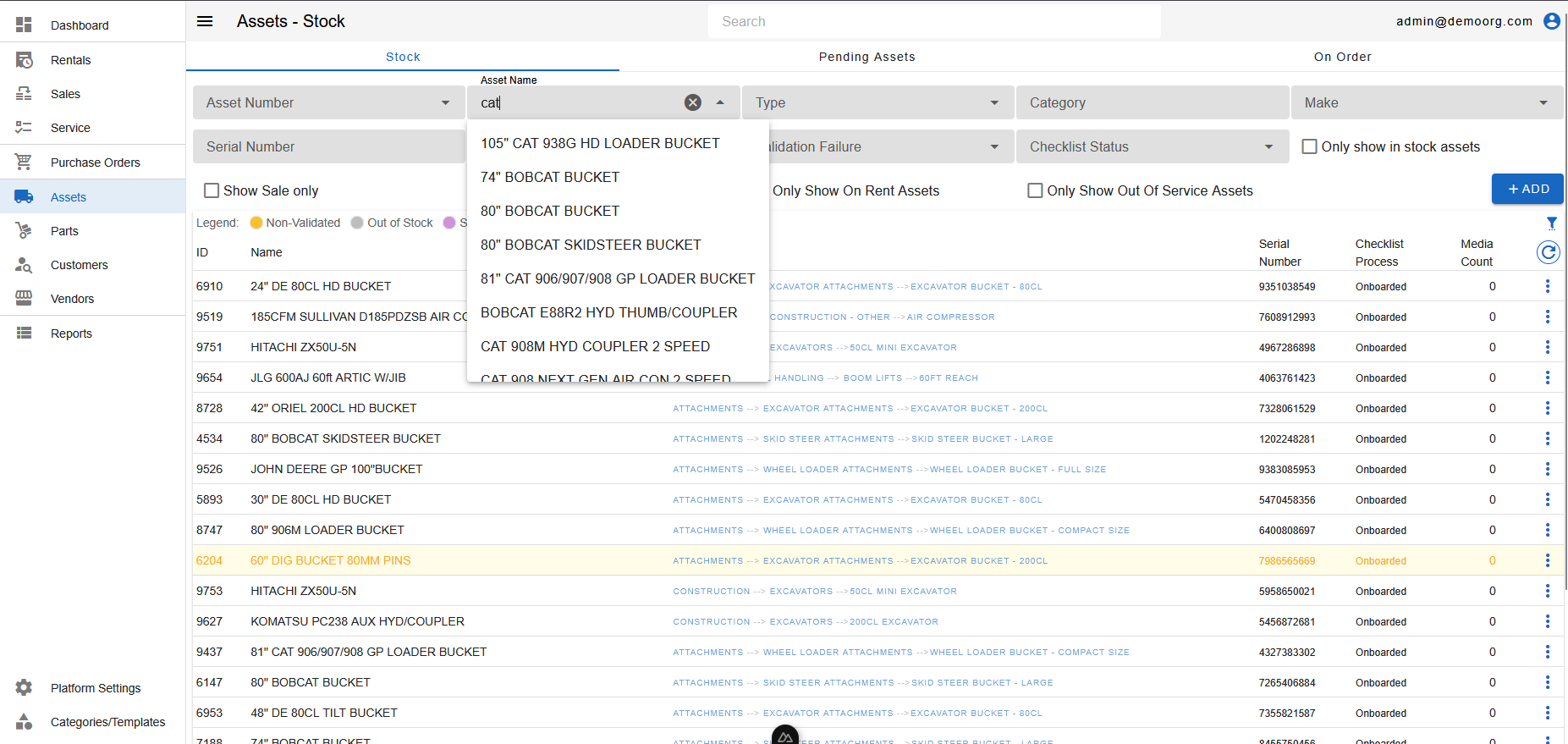
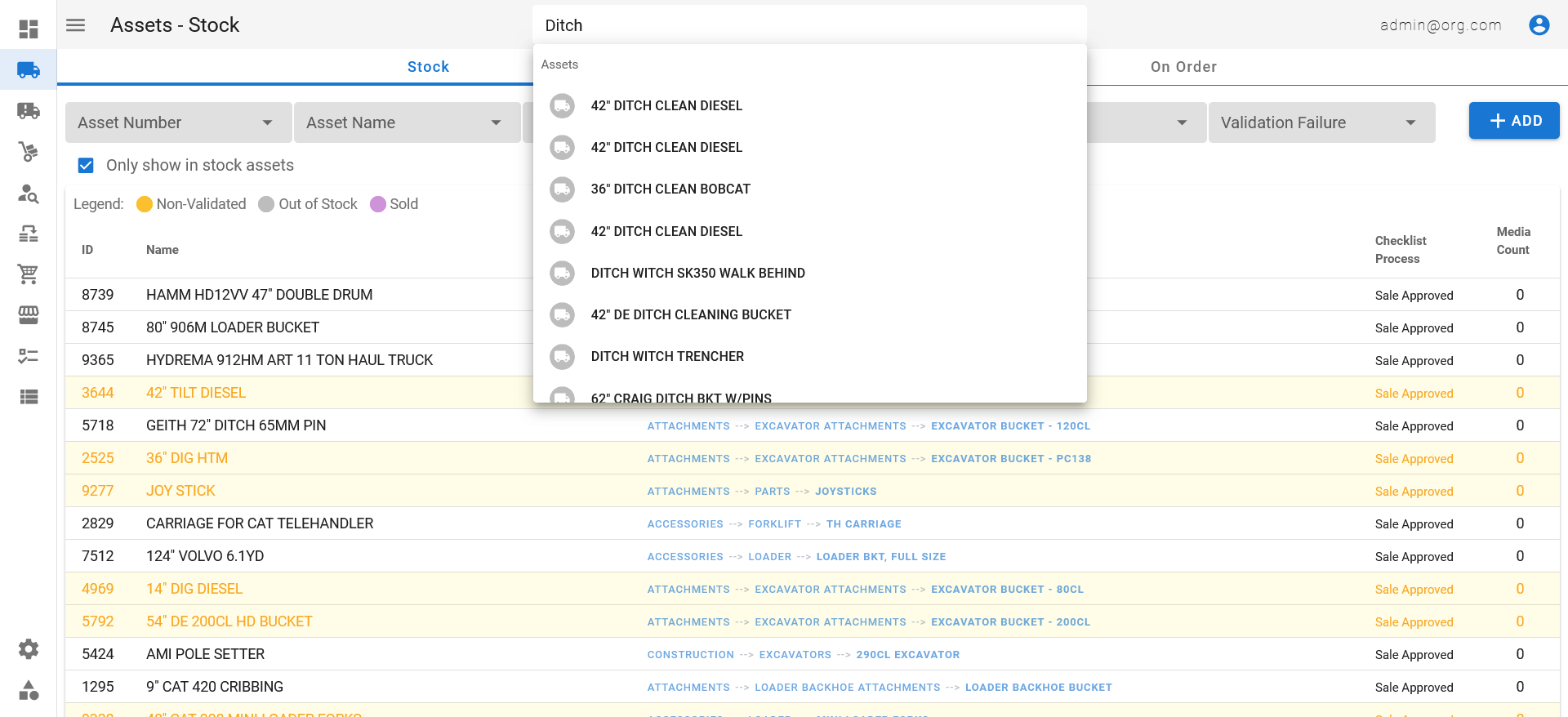
Additionally, you can use the Search Bar on the Top Navigation Bar to search for assets.
You can additionally click on the headers of each column in the Assets Table to reorder visible assets based on that column.
Visible columns can be altered using the column settings menu, accessible via the filter settings button on the top right corner of the table.
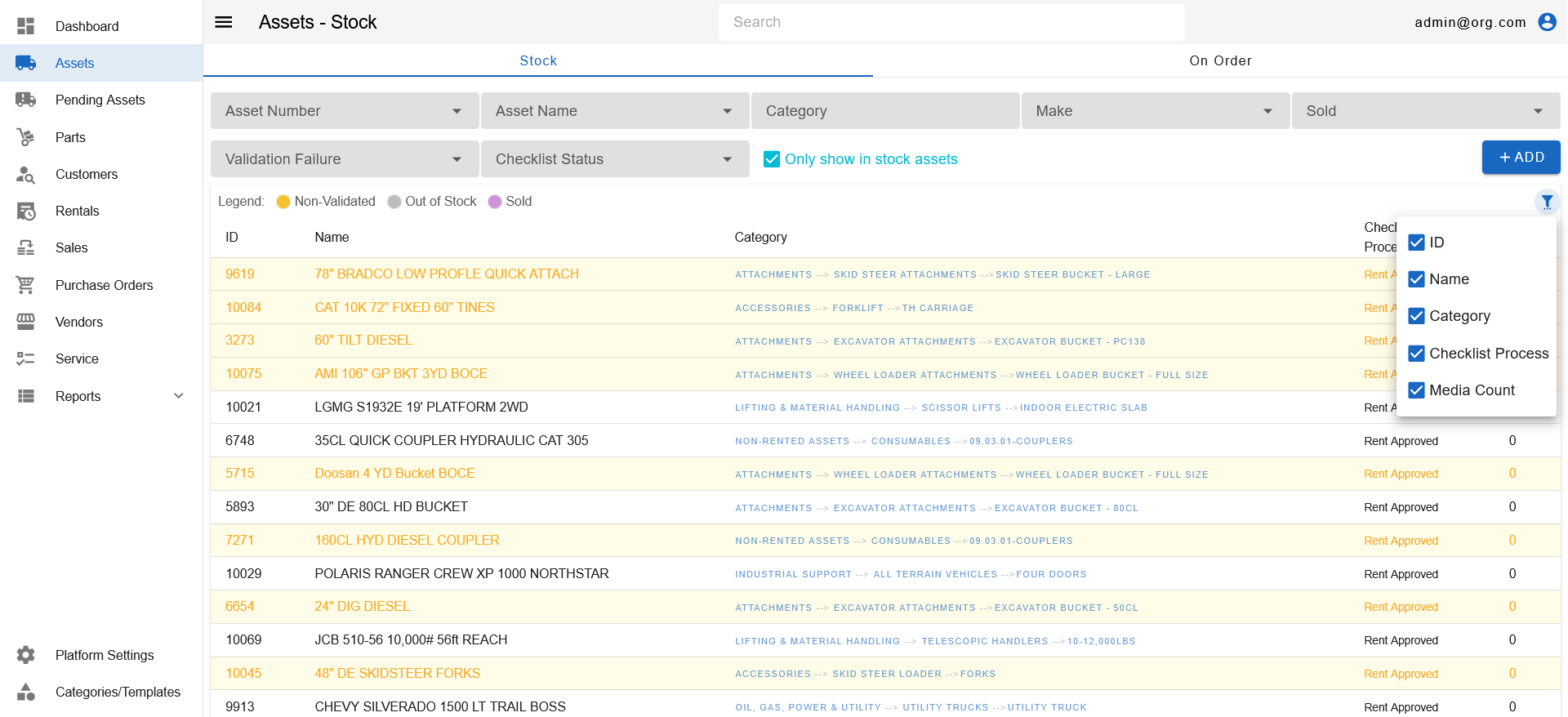
The Assets Table (on both the In Stock and Pending Assets tabs) also includes Year (the asset's model year), Sell Price, and Hours (the asset's hour meter) columns. Like other columns, these can be hidden or reordered via the column settings menu.
The Checklist Process column shows an asset's current checklist status, which on the Pending Assets tab tells you which pending stage each asset is in — for example Onboarding (being validated on creation), Selling (in the sale-approval checklist process), or Sale Approved (checklists complete). Use the Checklist Status filter to narrow the table to a particular stage.
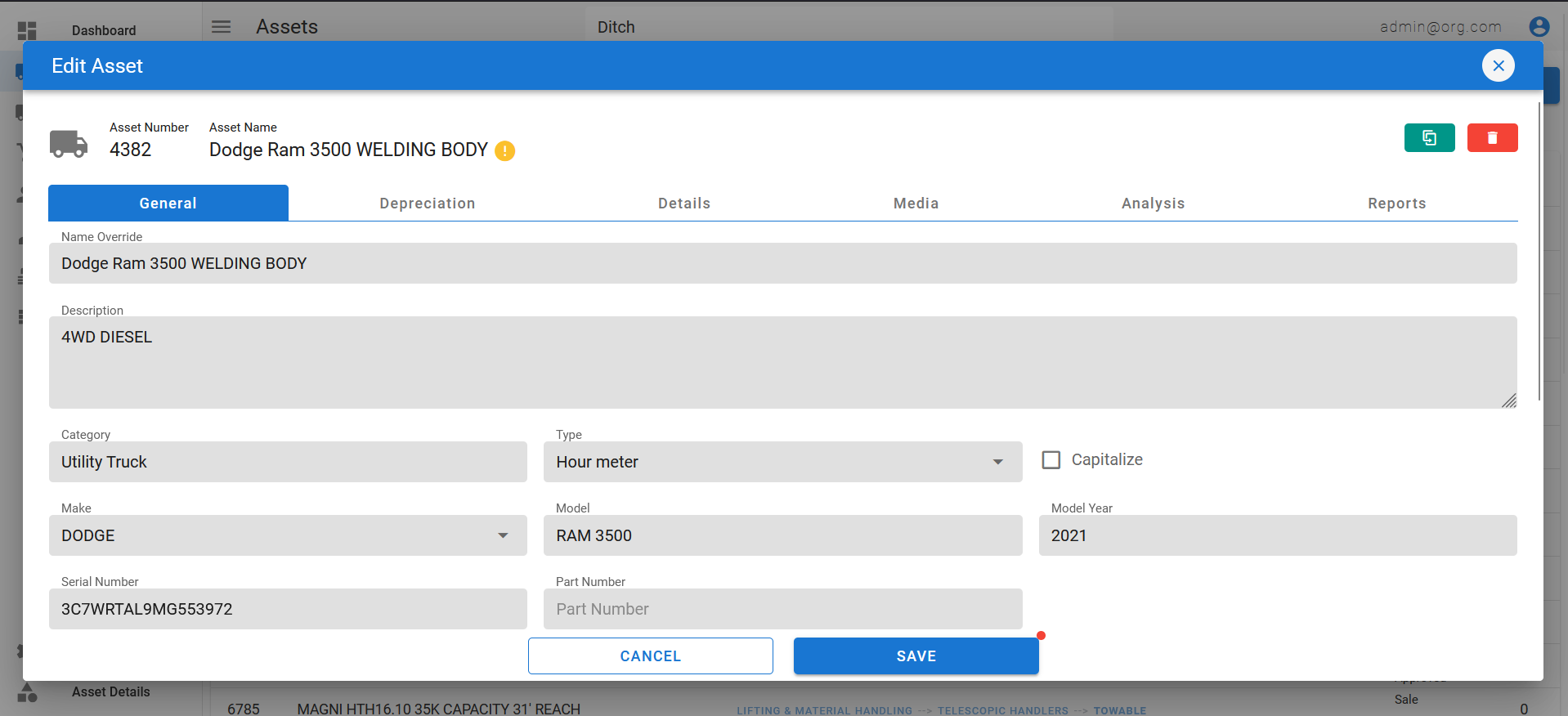
To view detailed information on an asset, simply click on an asset row to open up the Edit Asset Popup. The Edit Asset Popup shows all asset information within categorized tabs.
INFO
When your organization has the Samsara GPS module enabled, a GPS column appears on the Assets Table with a crosshair icon for assets that have a telematics reading. The icon is colored by how recent the device's last reported location is: green (within 48 hours), yellow (48 hours to 7 days), or red (over 7 days) — hover the icon to see the exact reading time. No icon is shown when the asset has no telematics reading yet. Clicking the icon opens the Edit Asset Popup directly on its Telematics tab.
The On Order Tab on the Assets Page allows you to view assets that have not yet arrived or have partially arrived via purchase orders. Filtering on this table is not yet supported.
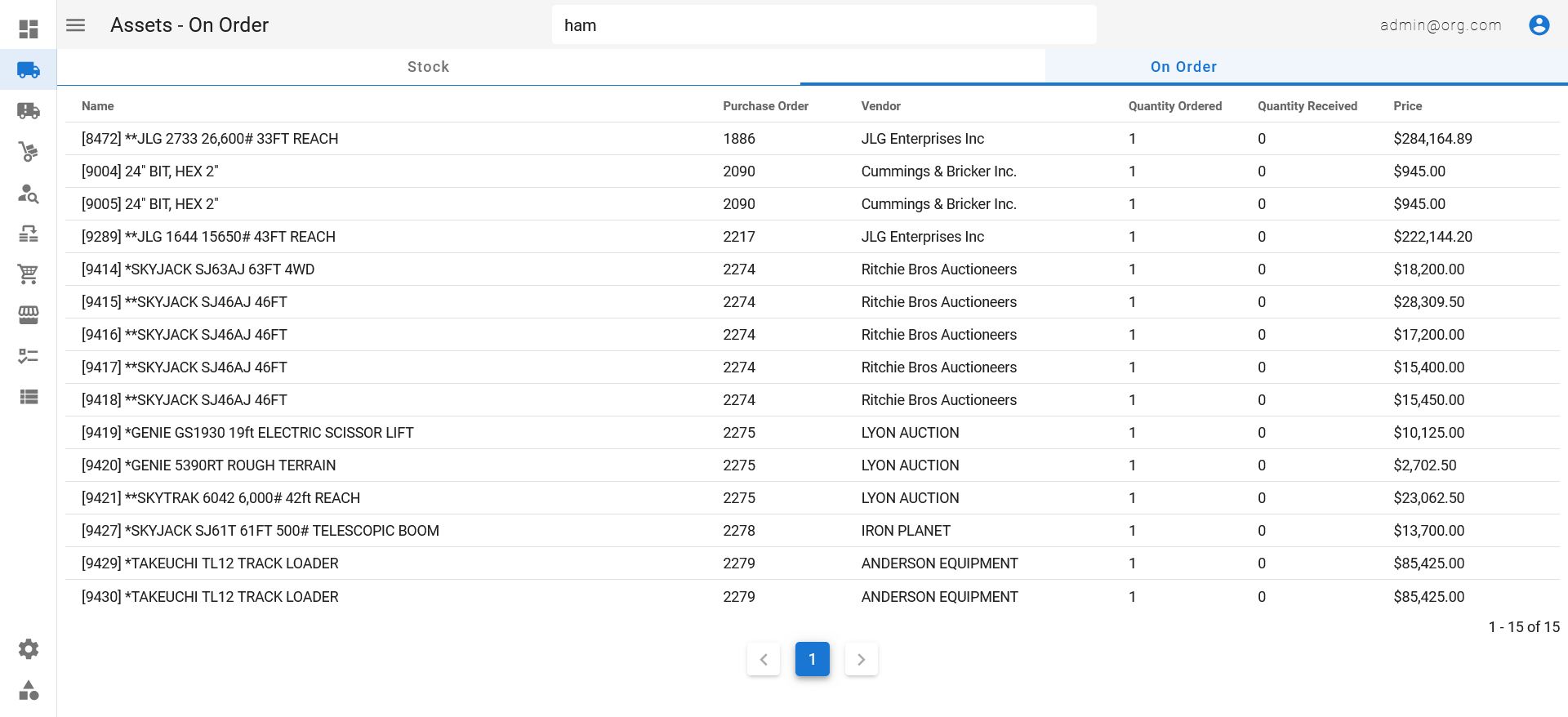
To view detailed information on the status of an asset's purchase order, simply click on an asset's row to open up the linked Purchase Order in a new tab. Lear more about purchase orders here.