Appearance
Transaction History QuickBooks Export
The Transaction History Quick Book Export report covers your organization's transaction history — order and invoice activity, together with sold assets — over a chosen date range. It can be viewed online in the browser, or downloaded formatted for import into your external accounting system.
INFO
Note: Reports can only be viewed by organizational users who have been granted relevant report permissions.
To generate the report, from the Left Navigation Bar open Accounting and select the Reports tab, then either View Online or Download the Transaction History Quick Book Export. Set the date range before viewing or downloading.
Filters
- From / To — a date window that bounds the transactions included. It filters on the order/sold date. When viewed online, the window defaults to the last month up to today; when both fields are cleared, only today (in the organization's timezone) is returned.
Viewing online
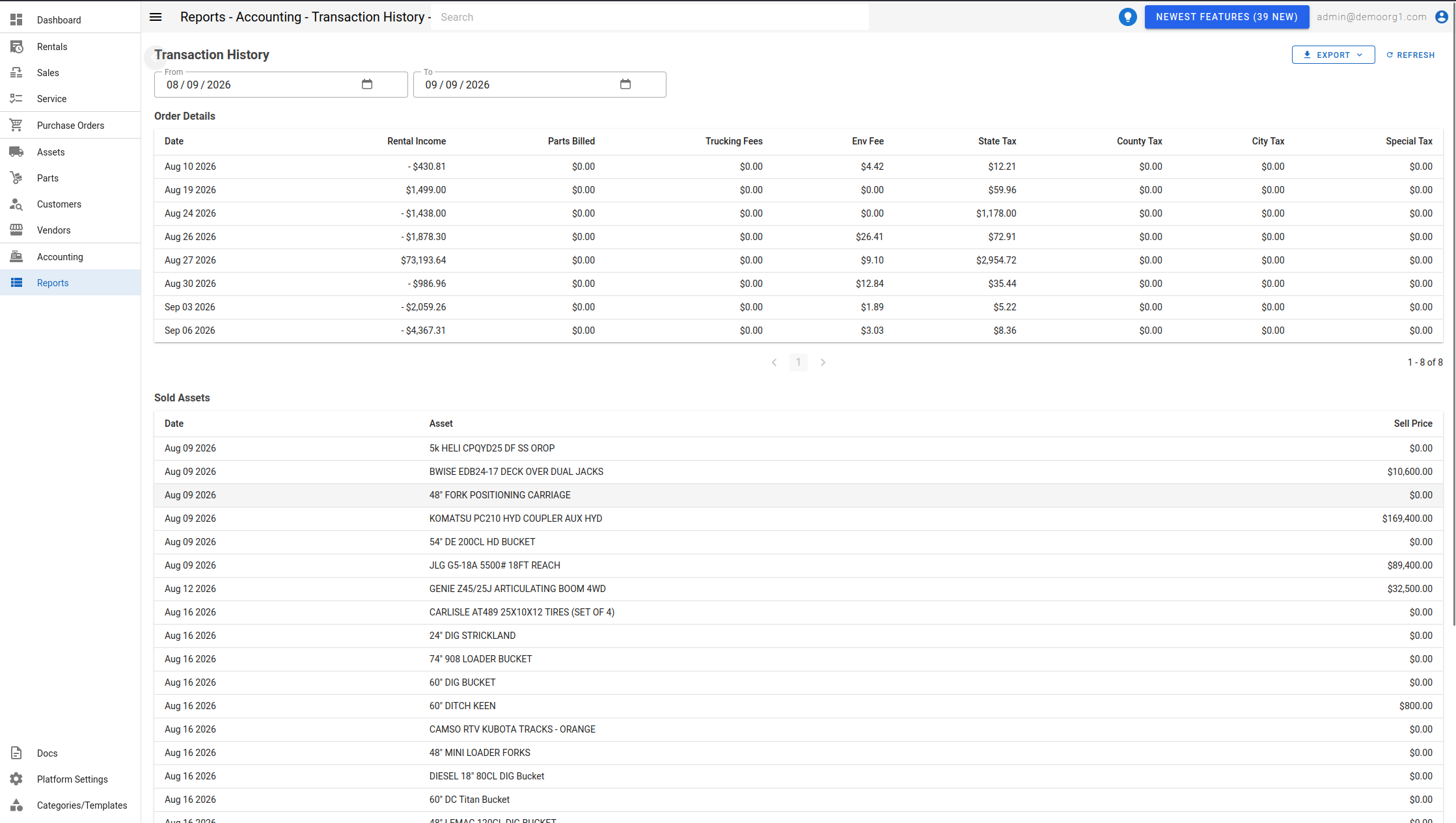
The online view (titled Transaction History) shows two tables:
Order Details
One row per day, with that day's order-related GL buckets:
| Column | Description |
|---|---|
| Date | The order date. |
| Rental Income | Rental income booked that day. |
| Parts Billed | Parts billed to customers that day. |
| Trucking Fees | Trucking fees that day. |
| Env Fee | Environmental fees that day. |
| State Tax | State sales tax that day. |
| County Tax | County sales tax that day. |
| City Tax | City sales tax that day. |
| Special Tax | Special sales tax that day. |
Sold Assets
One row per asset sold in the window:
| Column | Description |
|---|---|
| Date | The date the asset was sold. |
| Asset | The asset's name. |
| Sell Price | The price the asset sold for. |
Both tables are paginated independently. Use the Refresh button to reload after changing the date range.
Output formats
Alongside the online view, the report can be downloaded in one of two formats:
- QuickBooks (IIF) — an
.iiffile you can import directly into QuickBooks. - CSV — a comma-separated file for use in a spreadsheet or another accounting system.