Appearance
Viewing and Filtering Customers
INFO
Note: Customers can only be viewed by organizational users who have been granted relevant permissions
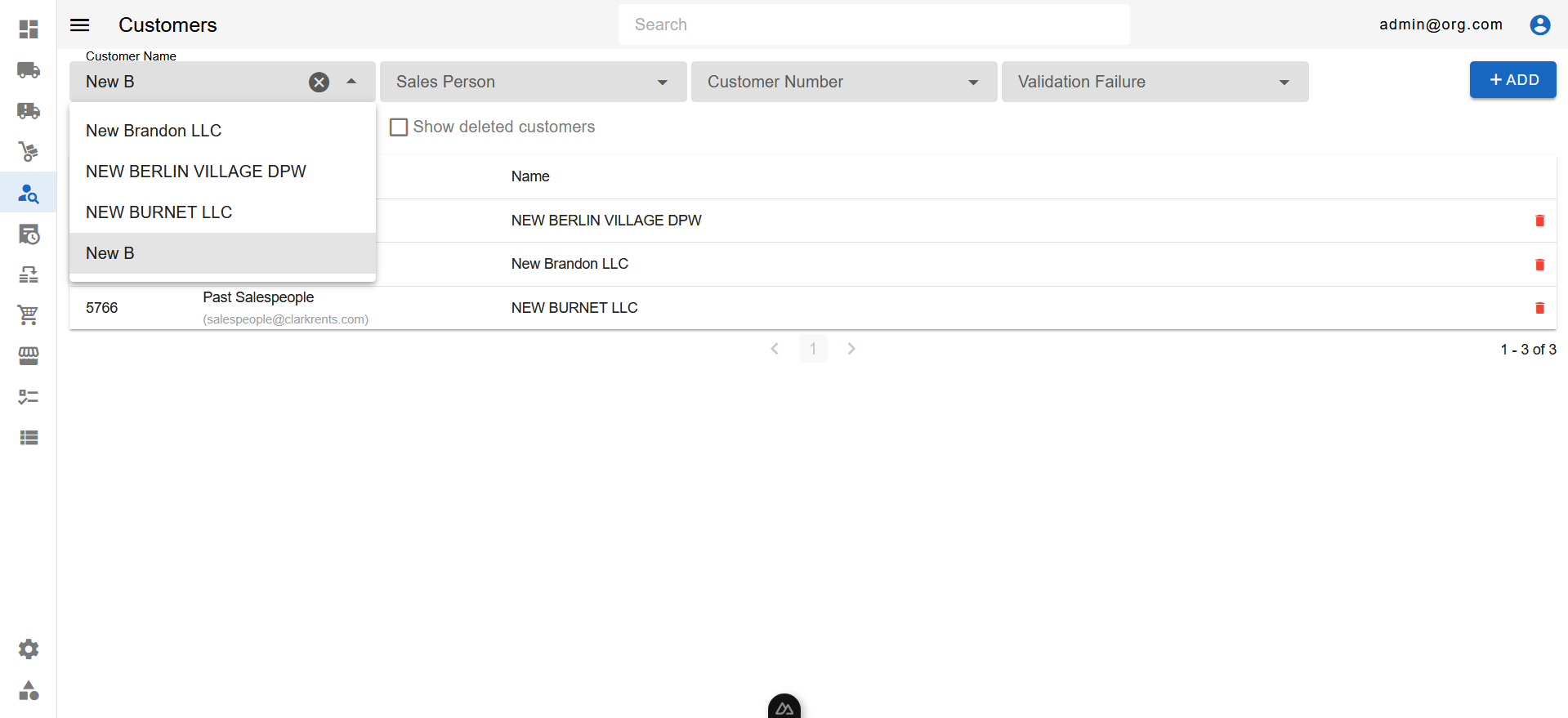
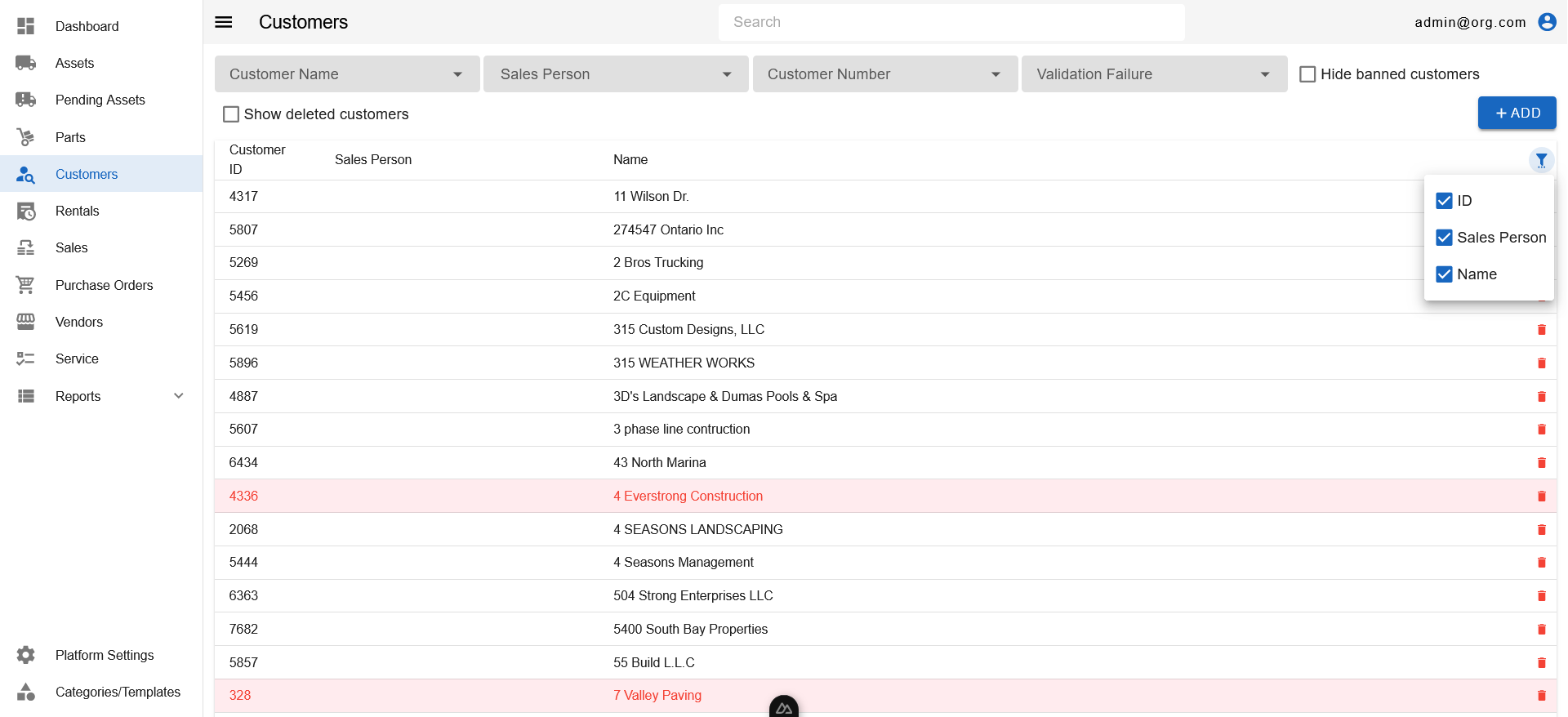
The Customers Page features several filters atop the Customers Table. Each of these filters can be set to filter customers within the Customers Table and search for your desired customer(s).
Customers highlighted in orange indicate that the customer is marked invalid.
Customers highlighted in red indicate that the customer is banned.
Customers highlighted in grey indicate that the customer is blacklisted.
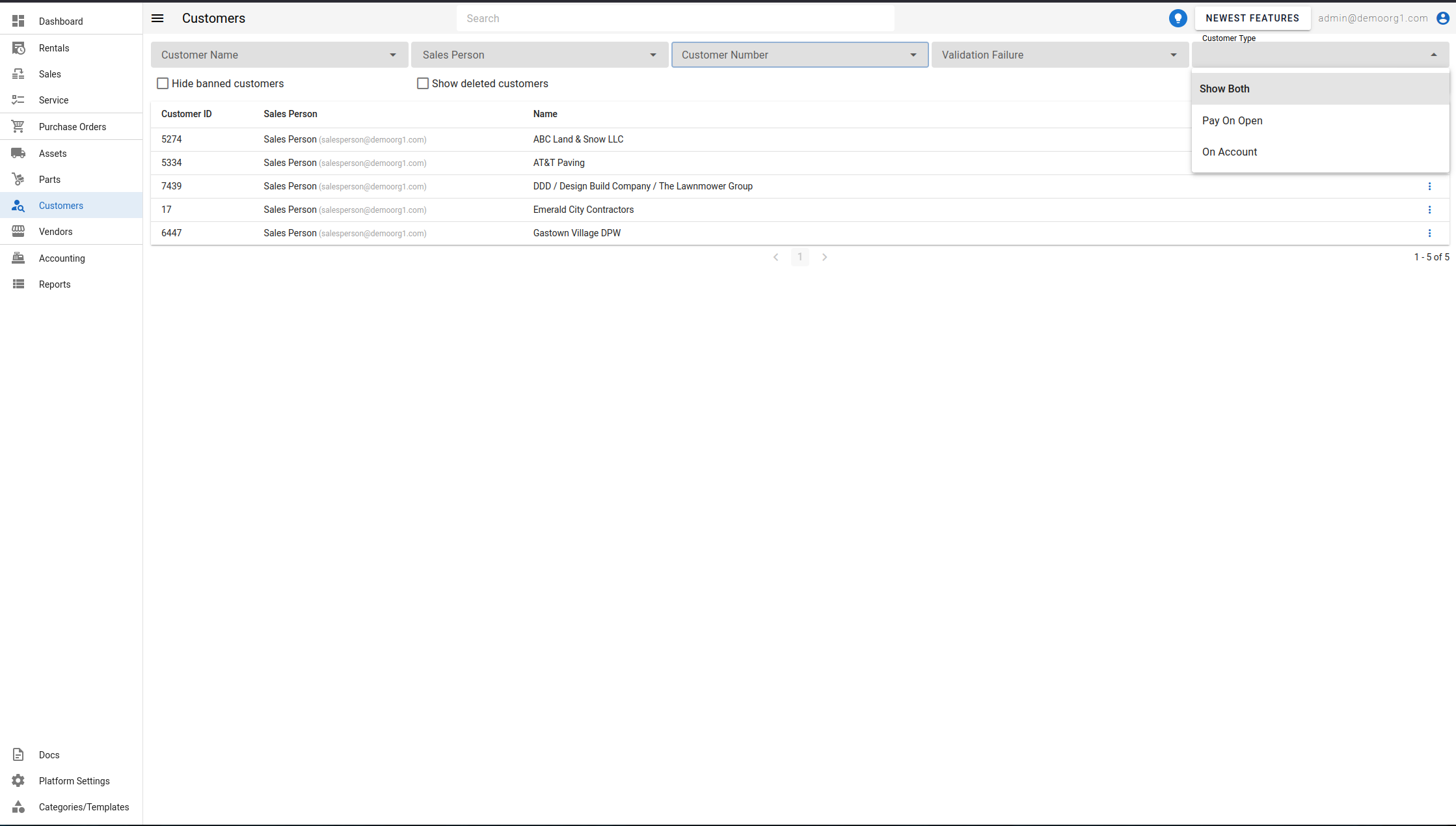
A Customer Type filter narrows the table to customers of a specific billing type — Pay On Open or On Account. Leave it cleared, or choose Show Both from its dropdown, to see customers of both types again.
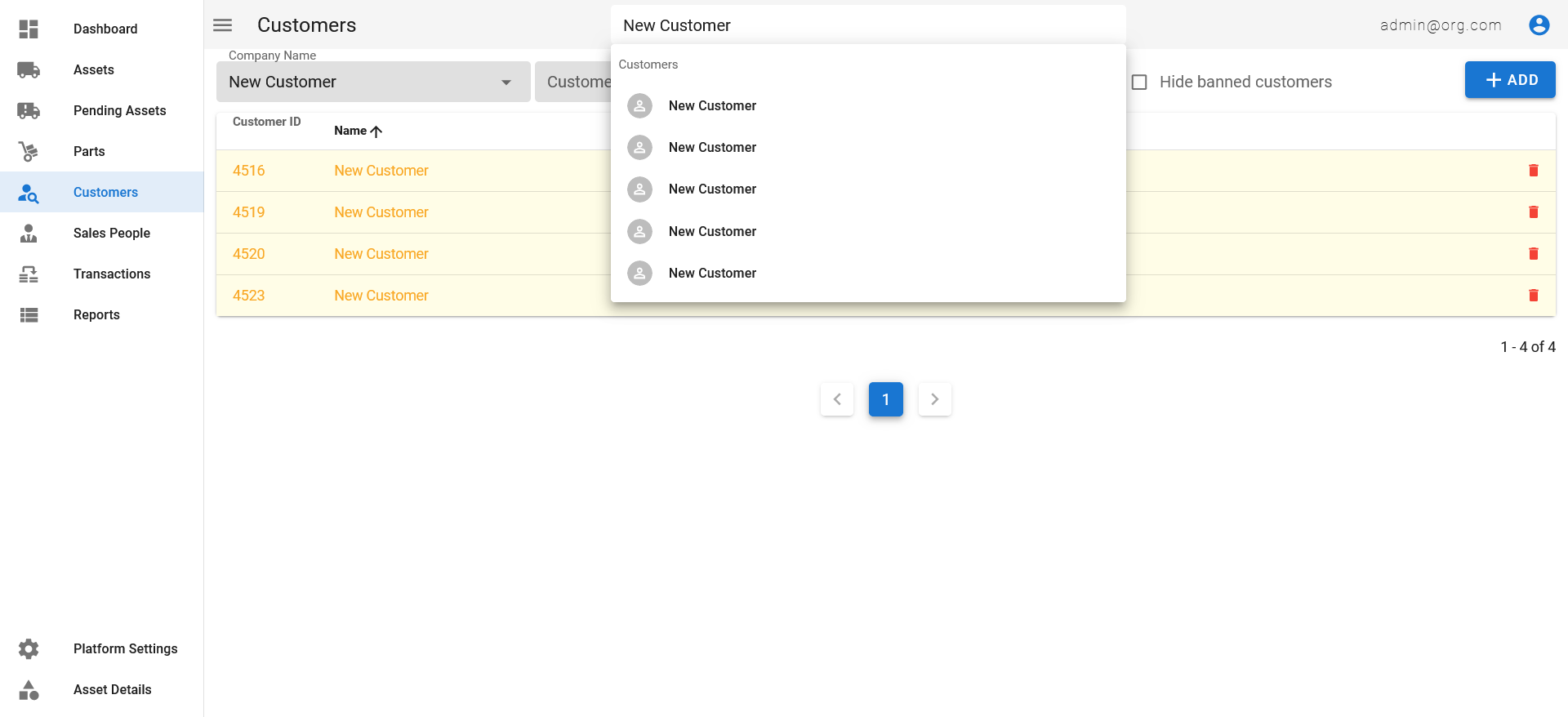
Additionally, you can use the Search Bar on the Top Navigation Bar to search for customers. By default, results for customers appear below results for assets in the Search Bar.
You can additionally click on the headers of each column in the Customers Table to reorder visible customers based on that column.
Visible columns can be altered using the column settings menu, accessible via the filter settings button on the top right corner of the table.
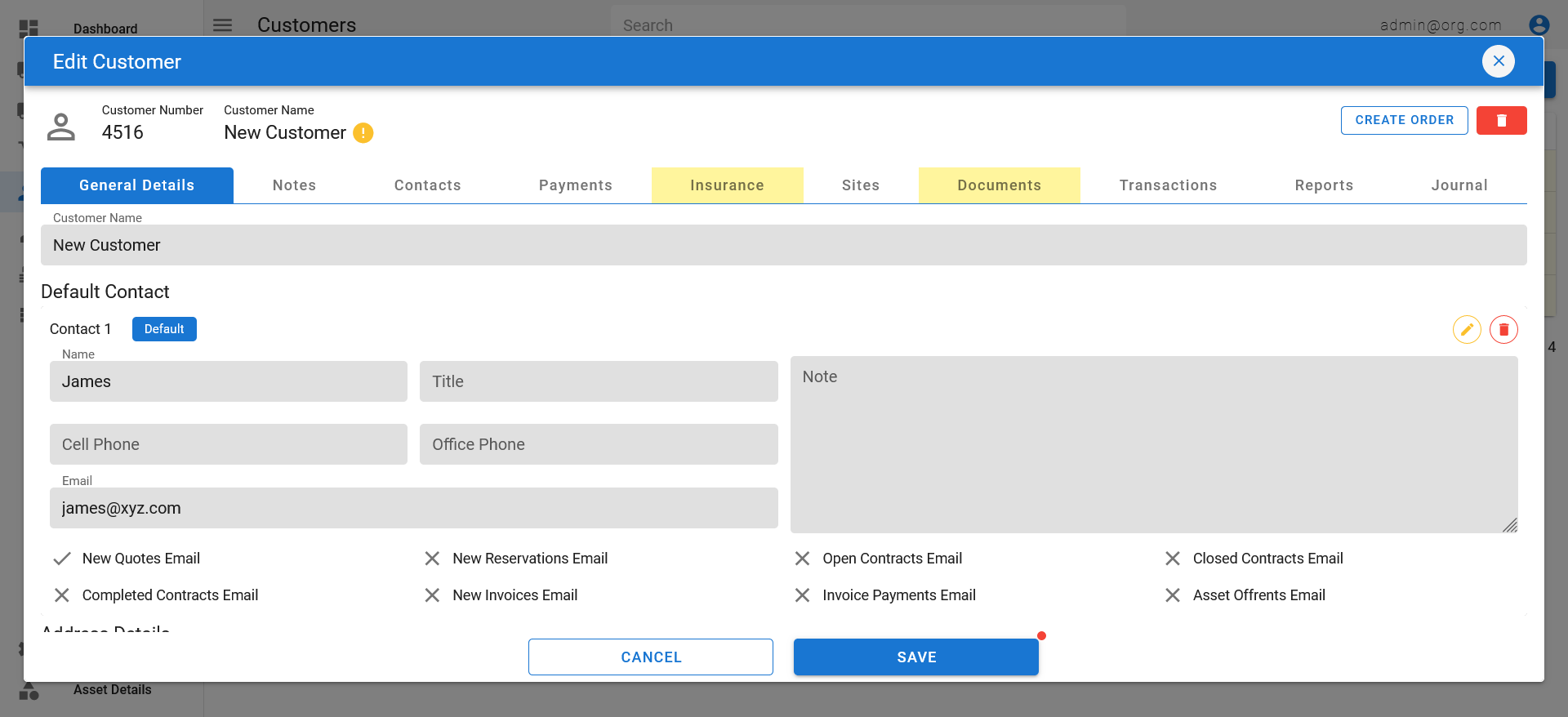
To view detailed information on a customer, simply click on a customer row to open up the Edit Customer Popup. The Edit Customer Popup shows all customer information within categorized tabs.