Appearance
Reconciling A Purchase Order
Reconciliation matches the vendor invoice(s) you've received for a purchase order against what was ordered and received on it, so you can see whether a purchase order has been fully billed before it's closed.
INFO
Note: Purchase Orders can only be viewed and edited by organizational users who have been granted relevant permissions.
Where to find it
Once a purchase order has been released — its state is released, partially_received, or received — an Invoices tab appears next to Details at the top of the Purchase Order Popup. The tab stays available (in a read-only form) once the purchase order is closed; it does not appear on a new purchase order, since it must be released to the vendor before a vendor invoice can be recorded against it.
INFO
A vendor invoice no longer has to wait for delivery. On a released purchase order that has had nothing received yet, its ordered quantities can already be billed — see Billing ahead of delivery below.
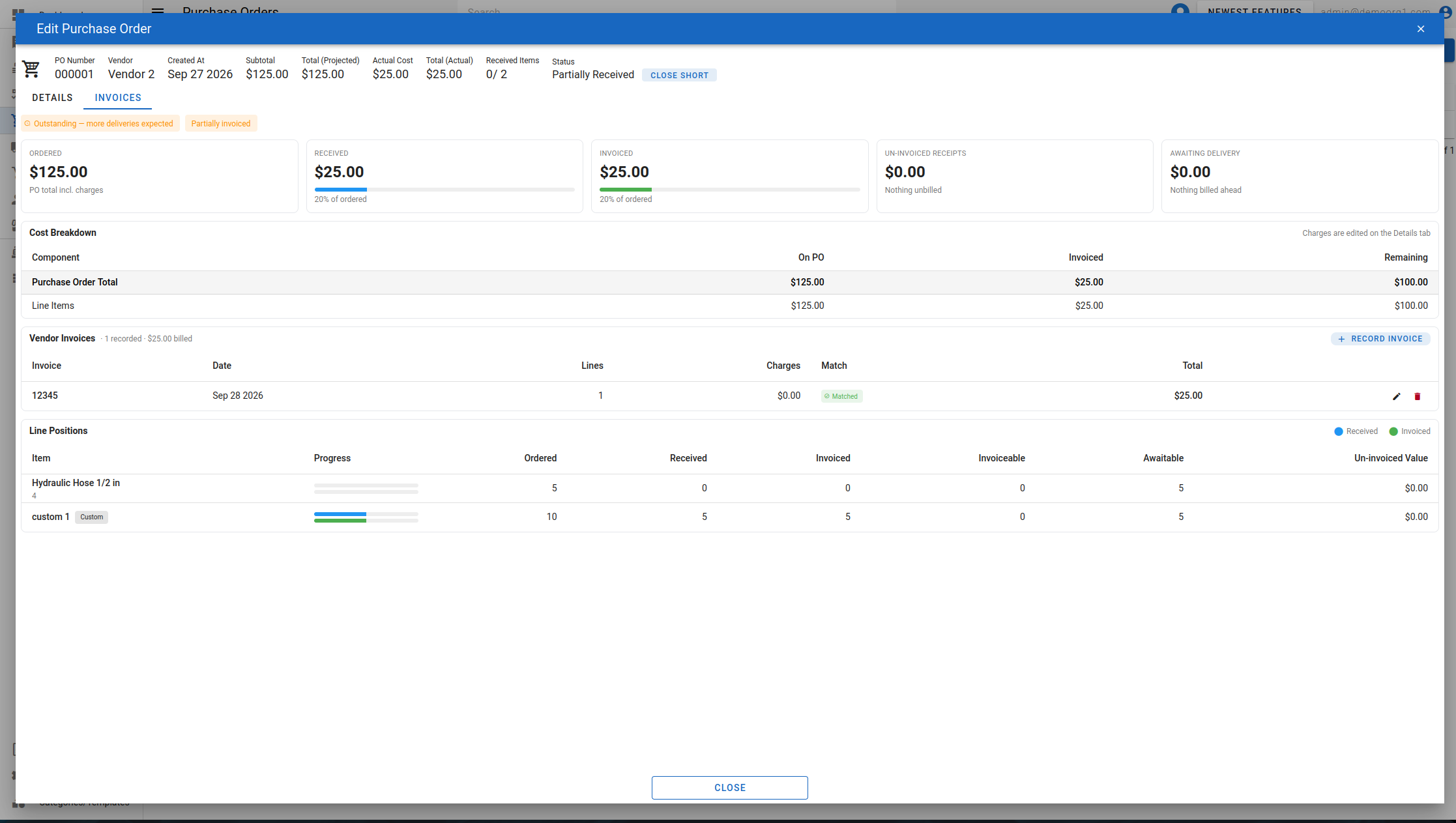
Reconciliation summary
The top of the Invoices tab shows a row of status chips for the purchase order as a whole:
- No vendor invoices recorded (grey) — nothing has been invoiced yet.
- Outstanding (orange) — the purchase order isn't fully billed. The chip explains why, for example "more deliveries expected" if items are still due, the dollar amount "received but unbilled" if received items haven't been invoiced yet, and/or the amount "billed awaiting delivery" if a vendor invoice covers units that haven't arrived (see below).
- Fully matched — nothing outstanding (green) — everything received has been invoiced with no unresolved variance.
- Matched with variances (green) — everything is invoiced, but one or more lines carry a variance. The chip reads the same whether those variances have been approved or are still waiting for approval.
- <n> price variances pending approval and <n> quantity variances pending approval (orange, each with its dollar amount) — shown in addition to the chip above whenever any invoice line is still waiting for approval (see Handling variances). Price and quantity variances are approved separately, so each kind gets its own chip. A purchase order can't be closed while either kind is pending.
Beside it, an Invoice Status chip shows Not Invoiced, Partially Invoiced, or Invoiced, and, on a closed purchase order, a Reconciliation frozen at close chip appears too (see below).
Below the chips, a row of cards totals Ordered, Received (with a progress bar for the share of ordered received), Invoiced (with a progress bar for the share of ordered invoiced), Un-invoiced receipts (received but not yet billed), and Awaiting delivery (billed ahead of delivery — see below, with its line count).
Cost Breakdown
Below the summary cards, the Cost Breakdown card lists each cost component — Line Items, then any of Freight, Sales Tax, or Miscellaneous that the purchase order or a recorded invoice carries — against what has actually been billed for it, plus a pinned Purchase Order Total row. Each row shows On PO, Invoiced, and Remaining; a remaining figure goes negative (and reads amber) when a component has been billed for more than the purchase order carries for it. The three charges are read-only here — edit them from the Details tab (see Editing a Purchase Order and Processing a Purchase Order).
Line Positions
Further down, the Line Positions table lists every live line on the purchase order with a progress bar (received and invoiced, each against ordered), its ordered, received, already-invoiced, and remaining invoiceable quantities, an Awaitable quantity (ordered units that haven't arrived or been billed yet — these can still be invoiced ahead of delivery with no variance), and the un-invoiced value still outstanding on that line.
Recording a vendor invoice
With the purchase order released, partially_received, or received, click Record Invoice above the Vendor Invoices list to open the invoice popup.
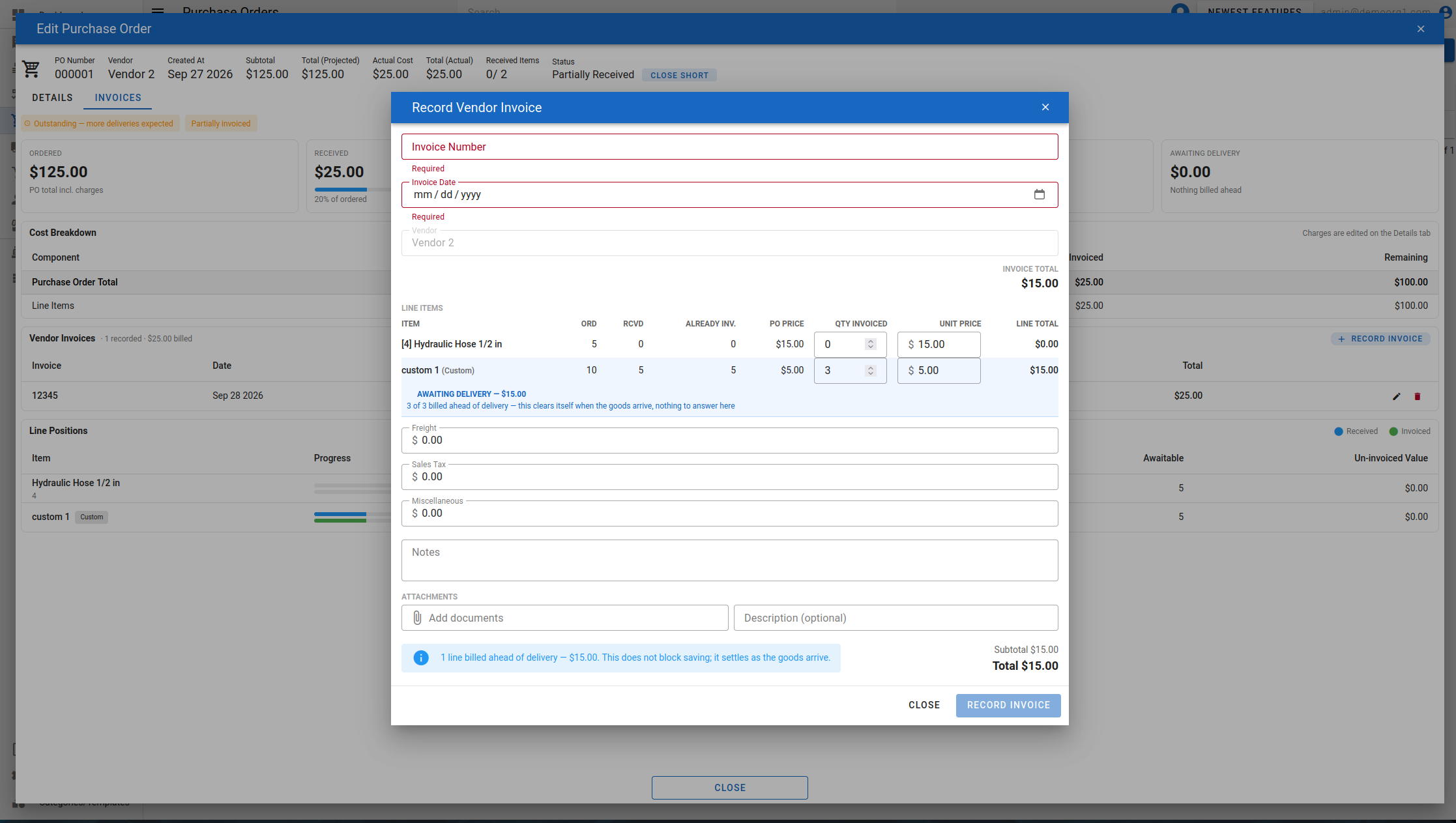
Fill in:
- Invoice Number and Invoice Date — both required.
- Vendor — shown read-only; it's taken from the purchase order and can't be changed.
- Line Items — each purchase order line shows its ordered/received/already-invoiced quantities and its PO price for reference. Enter the Qty Invoiced and Unit Price for the line; on a new invoice Qty Invoiced defaults to the quantity the line is still expected to be billed for (its ordered quantity less what earlier invoices already billed), even if the goods haven't arrived yet, and is left blank when nothing remains to bill; Unit Price defaults to the purchase order's price, which matches with no variance.
- Freight, Sales Tax, and Miscellaneous — optional charges, each compared against the purchase order's own charges and labelled accordingly (for example matched, within tolerance, variance, under-invoiced, or new (not on PO)).
- Notes — optional.
An invoice needs at least one invoiced line or charge amount before it can be saved, and its Invoice Total updates live as you edit.
Billing ahead of delivery
A line can be invoiced for more than it has received, up to its full remaining ordered quantity, without that being treated as a variance — for example, billing a released purchase order's ordered quantity before anything has arrived. Such a line is highlighted in blue and shows an Awaiting delivery note with the billed-ahead amount; it needs no action and doesn't block saving — it clears itself once the goods are received. A summary line below the line items totals how many lines are billed ahead of delivery and for how much.
Handling variances
If a line's invoiced quantity goes past what it can be billed for (its un-invoiced received quantity plus anything still awaitable) or its unit price doesn't match the purchase order, the line is highlighted in orange and shows the variance amount broken into its quantity and price components. A variance no longer stops you saving the invoice — you can save it as a partial invoice and deal with the variance afterwards. For each variance line you can:
- Correct to <quantity> — labelled with the line's current billable quantity, this snaps Qty Invoiced back to it, clearing a quantity variance. If only the price is off, the button instead reads Correct price and just resets the unit price to the purchase order's.
- Leave a Note for the approver (optional) explaining the difference. Every variance line shows this field.
- Accept price / Accept quantity — one button for each kind of variance the line carries, each shown only if you may approve that kind. A price variance can be accepted by the purchase order's purchaser or a user with the Approve Vendor Invoice Variances permission; a quantity variance only by a user with the Approve Vendor Invoice Quantity Variances permission (the purchaser cannot, without it). It accepts the variance on the spot, with an optional Reason, and the button then reads Price accepted or Quantity accepted. A line carrying both kinds needs both accepted; if you can accept only one, the other is saved pending its own approver.
A banner at the bottom of the popup counts, per kind, the variances that will be saved pending approval (for example "1 price variance and 2 quantity variances will be saved pending approval"). A line only billed ahead of delivery is never counted here.
INFO
Variances in the company's favor — for example a vendor invoicing at a lower unit price than the purchase order — don't need the purchaser's approval; the invoice can be saved and closed without anyone approving them. Only variances that cost the company more are held for approval.
Variances pending approval
When the invoice is saved, any variance that wasn't accepted is stored as pending approval along with your note. In the Vendor Invoices list, the invoice's Match chip reads Pending approval, and a sub-row under the invoice lists each pending line with the uploader's note. Each pending line is labelled Price pending approval and/or Quantity pending approval. A user who may approve at least one of the pending kinds sees an Approve button on that invoice (the purchase order's purchaser, or a holder of the price or quantity approval permission, as described above); confirming it approves every pending variance of the kinds you may approve, recorded as approved by you, and the chip changes to Variance approved once nothing is left pending. If you can approve only some of the pending kinds, the button names them (for example Approve price), and the confirmation notes that the other variances will still await their own approver.
Reopening an invoice shows lines that were already approved with a locked Price approved by <name> and/or Quantity approved by <name> chip and their reason. Editing that line's quantity or price makes it a new variance that needs a fresh approval.
Attachments
Once an invoice is saved, an Attachments section lets you upload supporting documents (for example the vendor's PDF invoice) with an optional description, view any attached file, and remove ones you no longer need. Files chosen before the invoice is first saved are queued and uploaded automatically right after the invoice is recorded.
Managing recorded invoices
Every vendor invoice recorded against the purchase order is listed in the Vendor Invoices table, showing its number (with a paperclip icon if it has attachments), date, line count, charges total, a Match chip, and its total. The Match chip — Matched, Awaiting delivery, Variance approved, or Pending approval — is re-derived every time the purchase order receives, so it can move on its own as deliveries land. Click anywhere on a row (or its pencil icon) to reopen and edit that invoice; click the delete icon to remove it — this frees its invoice number for re-entry and recomputes the purchase order's reconciliation. You're asked to confirm first.
Viewing reconciliation on a closed purchase order
Once a purchase order is closed, its Invoices tab remains visible but becomes read-only — a Reconciliation frozen at close chip appears alongside the status chips, and the figures shown reflect the moment of closing rather than a live recalculation. Record Invoice and the edit/delete actions are no longer available; opening a past invoice shows it in a view-only View Vendor Invoice popup (fields, variance approval, and attachments are all locked to viewing).
Closing and reconciliation
A purchase order with any variance still pending approval can't be closed: Mark as Closed and Close Short are disabled with a tooltip explaining how many variances are awaiting approval, and a close attempt that finds some is stopped and sends you to the Invoices tab. Approve or correct them first.
When you close a partially_received or received purchase order (see Processing a Purchase Order), the current reconciliation figures are captured along with your closing notes. If the reconciliation has changed since you opened the popup — for example, someone else recorded or deleted an invoice in the meantime — the close attempt is rejected and you're returned to the Invoices tab with the latest figures reloaded so you can review them before retrying.
WARNING
If any amount is still billed awaiting delivery when you close, the confirmation prompt warns you first: closing turns that amount into a variance recorded as approved by you, since the purchase order can no longer receive anything after it's closed. Doing so requires the permission to close purchase orders with invoice discrepancies.