Appearance
Viewing and Searching Orders
INFO
Note: Sales Quotes/Orders can only be viewed by users who have been granted relevant permissions
The Sales Page features several tabs, dedicated to each type of order within the sale flow. Each tab header also displays a badge with the count of orders that are currently available of that type.
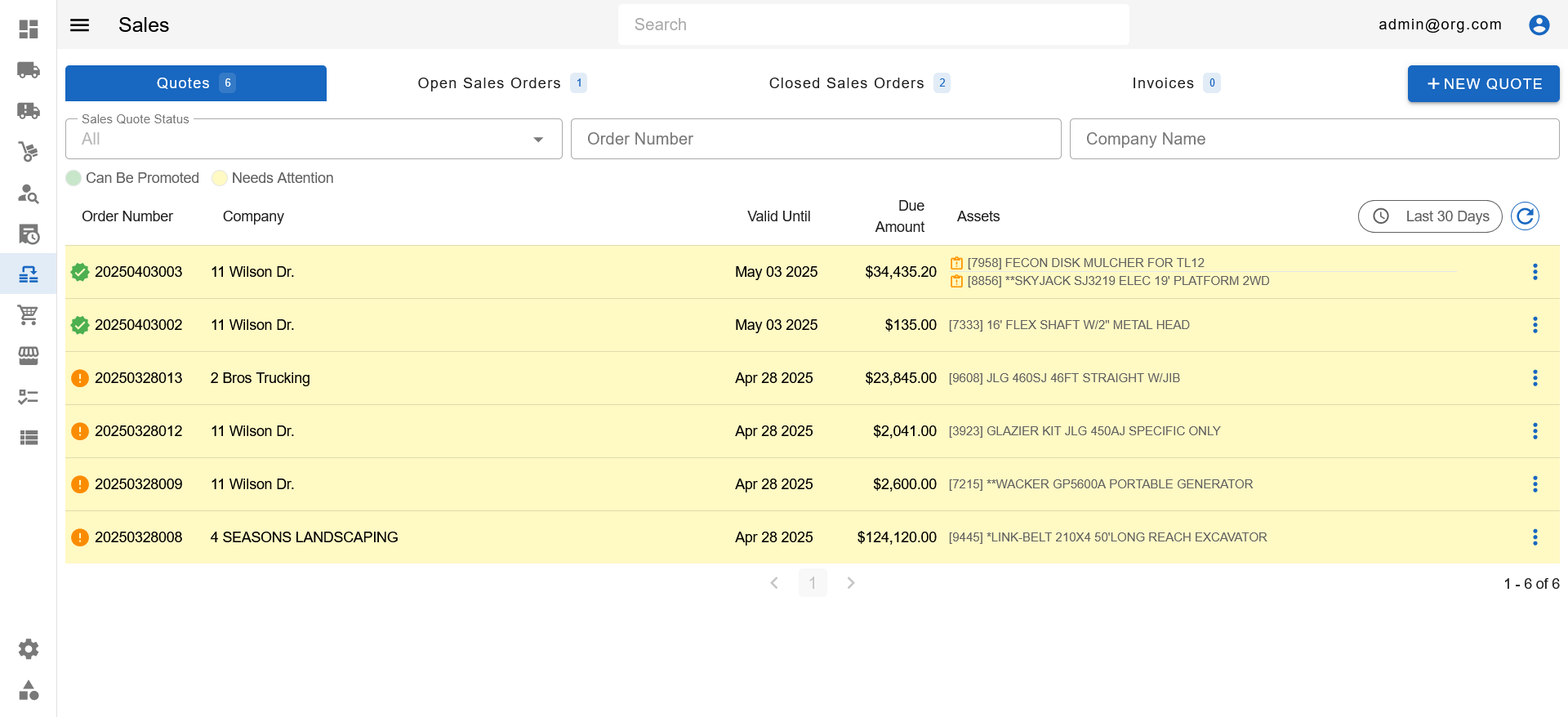
Within each tab is a table that displays orders of that type. Atop the table are two text filters that allow filtering orders by order number and by customer/company name. An additional filter on the quotes table allows filtering quotes by quote status.
A Show Voided Orders checkbox switches the table to show only voided sales orders; untick it to return to live orders. Voided orders appear with strike-through text and are read-only — their action menu exposes no edit, void, approve/reject, or promote options, only passive actions such as View Summary.
The tables follow a user defined color scheme for rows to make it easier to identify an order's current condition. The color scheme's legend is visible atop the orders table, underneath filters.
Each table features several columns that display information particular to that type of order. The last column's header on the table features a date filter, and a refresh button to update the table.
Clicking a row on the Quotes Table opens up the Edit Quote Popup, where user can edit various details pertaining to that order.
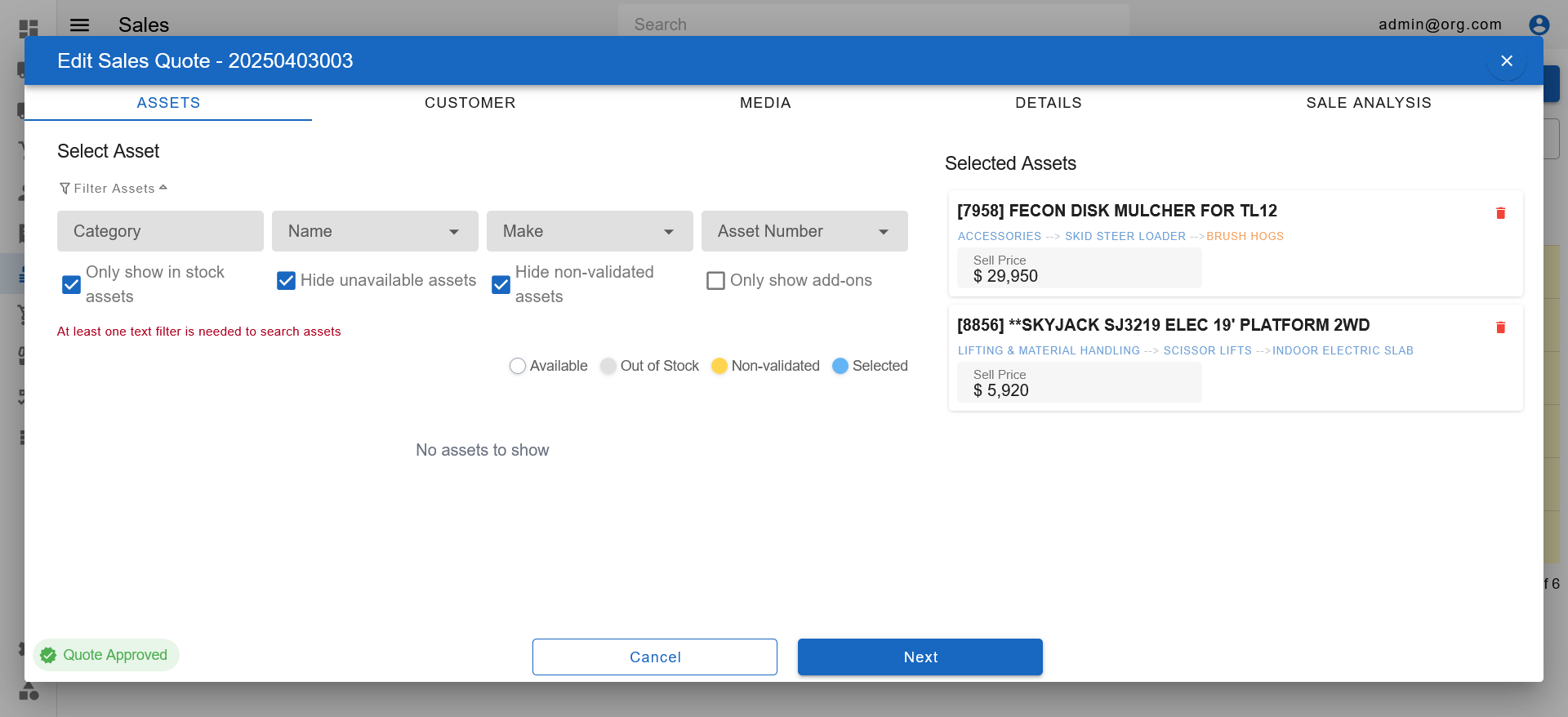
To modify information, simply click on a field and enter/modify information. When information is modified, the Save /Next button will display a red badge to indicate stale information that has not yet synced with our database. Clicking the Save button will sync this information on our servers.
An additional Sale Analysis tab breaks down the profitability of the order. On a quote, information can be modified on the fly and re-analyzed with the new figures, and the tab also lets you Approve or Reject the sales quote.
Sale Analysis can now be viewed for a sales order in any state, not just quotes. For an open or closed order, use the View Sale Analysis action on the order row (see Additional Functions) — this opens an analysis-only popup titled Sales Analysis - <order number> that shows just the Sale Analysis tab, fully read-only (figures can only be edited while the order is a quote). Viewing analysis on a non-quote order does not require order-update permission.
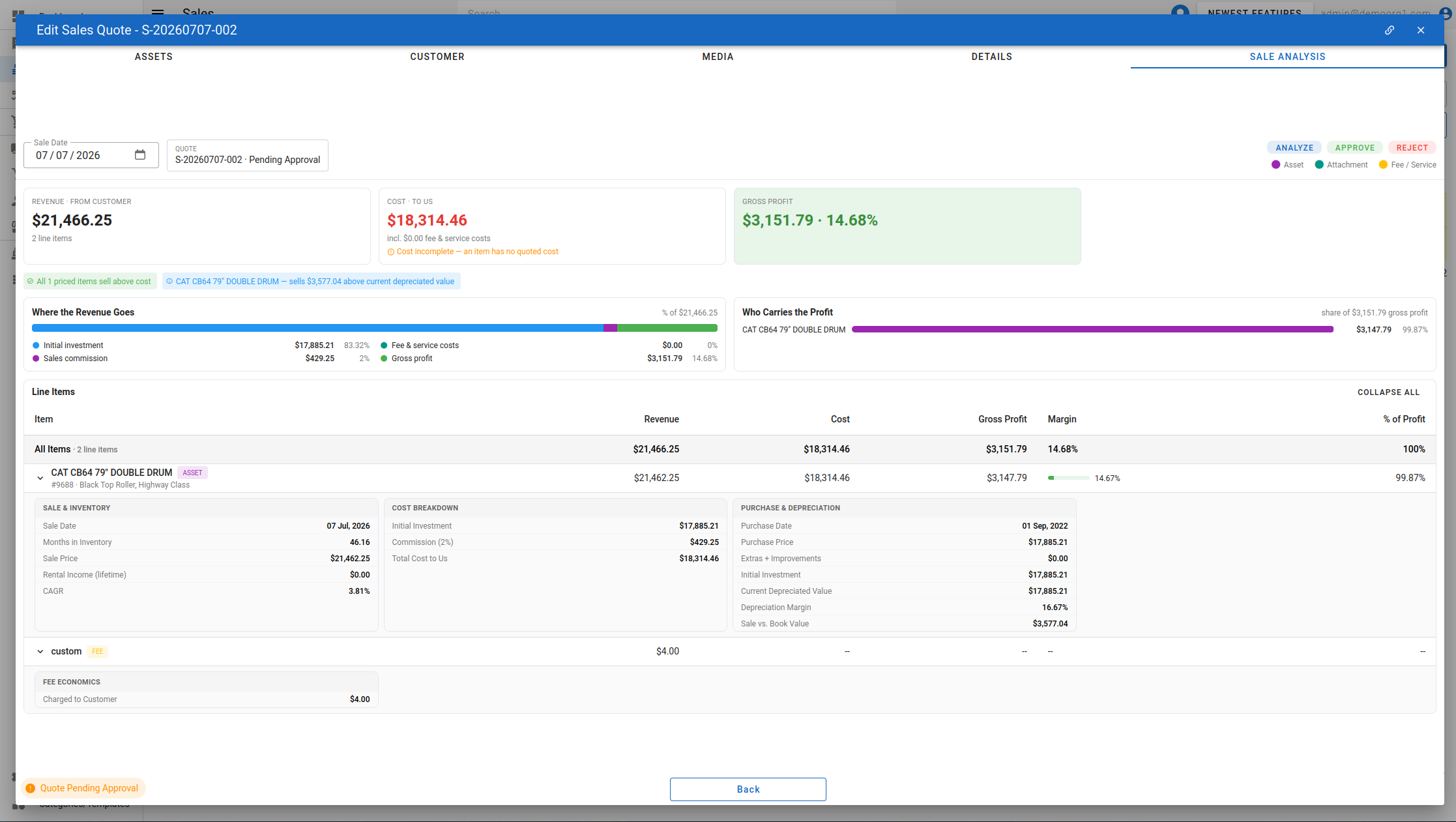
The tab presents:
A context row — the sale date, order number and quote status, the Approve / Reject actions, and a colour legend for the deal breakdown.
Roll-up cards summarising the deal's key figures (for example revenue, cost, and gross profit). When discounts apply, the Revenue card breaks them out — an "Items $X − $Y discounts" sub-line plus an itemised list of Customer Discount, Order Discount, and Flat Discount, each shown as a negative amount; the All Items line-items row likewise shows gross revenue with a "Net: $X (after $Y discounts)" line beneath it.
Profitability flags — callout notes that highlight profitability concerns on the deal.
Where the Revenue Goes — a stacked bar showing how the deal's revenue splits across its components (as a percentage of total revenue).
Who Carries the Profit — the distribution of gross profit, showing each item's contribution and its share of profit.
Line Items — shown in one of two views: Deal Summary (a row per item with Revenue, Cost, Gross Profit, Margin, and % of Profit; click a row to drill into its detail cards, and items may carry profitability badges), or Compare Matrix, which lays the metrics out as rows with one column per line item so multiple assets can be compared side by side. When a line item's gross profit is negative, its gross-profit card is tinted red (rather than green) so a loss stands out at a glance. An attachment or warranty tied to an asset is nested directly beneath that asset (indented, with a small arrow icon) regardless of where it falls in the underlying data, so it's easy to see which attachments and warranties belong to which asset.
The Revenue value is editable inline for eligible rows (standalone asset sell prices and attachments/add-ons, including ones that are currently free; fees, warranties, and custom items require the fee-edit permission). Editable rows show a
$-prefixed input, and edited rows are highlighted amber (a price cannot be less than 0). An attachment can be priced or made free from here — typing a price makes it a billable line, and clearing the field back to blank keeps it a free line (the input stays empty rather than snapping to0). Edits auto-save after a short pause and then re-run the analysis without leaving the tab — a "Saving & recomputing…" indicator appears next to the Line Items heading. There is no manual Analyze button; the analysis recomputes on its own whenever a value changes, so you never have to trigger a re-analysis by hand. Freight/delivery revenue is also editable here (with the fee-edit permission) — it edits the same Customer Delivery Fee as the Details step's Delivery section — except when the order's delivery freight company is marked as no-fee, in which case it stays read-only at $0.
Assets or attachments added on the Details tab are picked up automatically the next time you open the Sale Analysis tab — the analysis re-runs on activation, so you no longer have to close and re-open the order for newly added line items to appear in the profitability figures.
If the quote has no asset or line items yet, the Sale Analysis tab shows a clean empty state ("No line items on this sales order.") under zeroed totals instead of an error message.
When Samsara GPS is enabled for your organization, a View Telematics GPS icon (crosshair) appears next to each asset row on the analysis; clicking it opens that asset in place (as a popup) on its Telematics tab.
If you switch to the Sale Analysis tab while there are unsaved changes on the order, a confirmation dialog titled Unsaved Changes appears ("You have unsaved changes that need to be saved before proceeding to sale analysis. Confirm save before proceeding?"). Choose Save & Proceed to persist the order and load the analysis with fresh figures, or Cancel to stay on the current tab.
Open sales orders can now be edited — the Edit row action opens the order with all tabs editable (Assets, Customer, Media, Details, Sale Analysis), and the popup is titled Edit Sales Order - <order number>. When adding new assets during an open-order edit, a Details-tab checkbox "Create inspections / work orders now for added assets" forces their sub-work to be created immediately. On save, a message reports the billing outcome (a delta invoice, a credit, or no change). Editing an open order requires the open-order edit permission; without it (or for a closed order), the row opens the read-only analysis-only view described above.