Appearance
Accounts Receivable
The Accounts Receivable report is an A/R aging view: for each customer it totals the outstanding amount owed and spreads it across aging buckets, so you can see at a glance how overdue each balance is.
INFO
Note: Reports can only be viewed by organizational users who have been granted relevant report permissions.
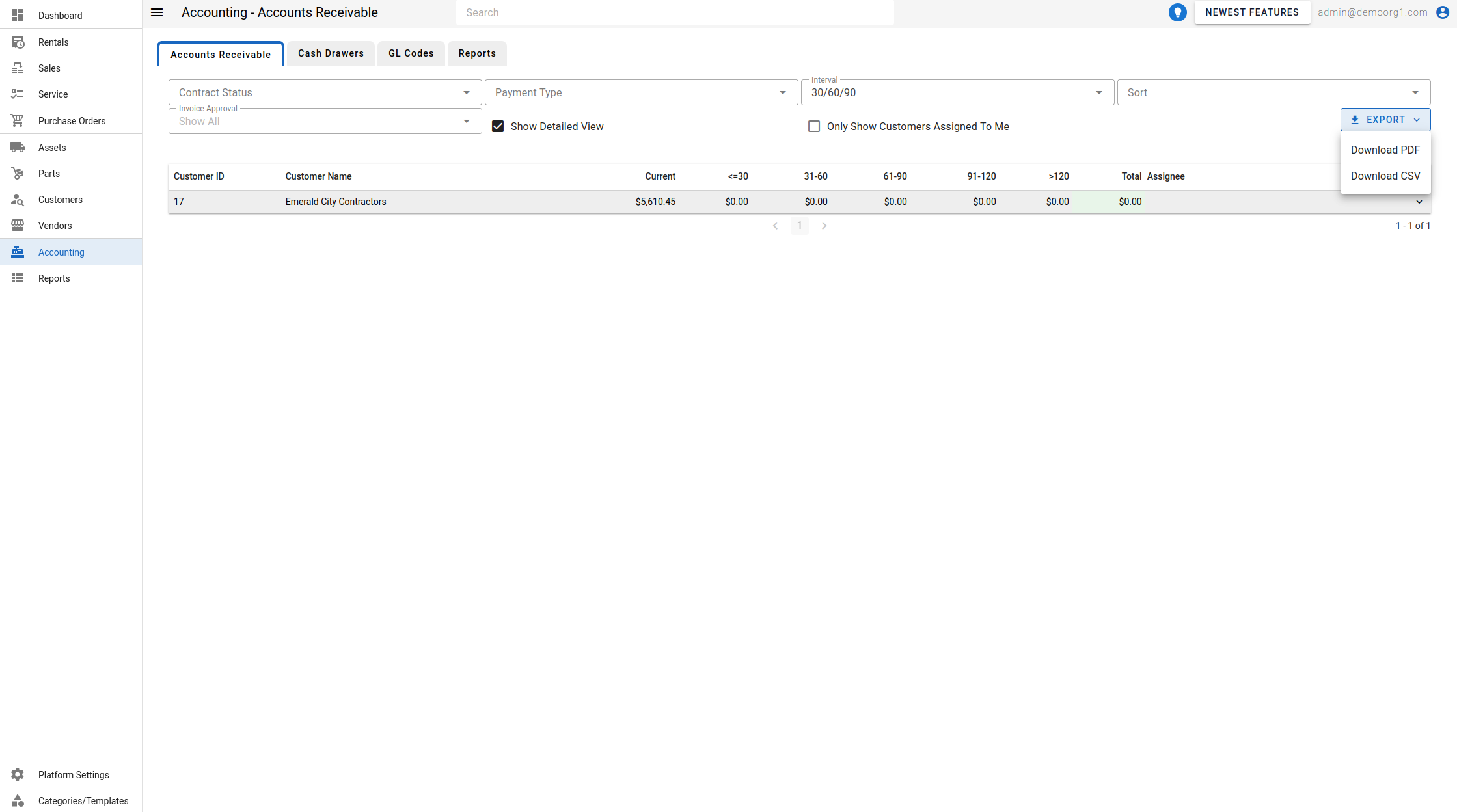
To open the report, from the Left Navigation Bar open Accounting and select the Accounts Receivable tab. Use Export to download the report as PDF or CSV.
Filters
- Contract Status — multi-select across Reservations, Open/Closed/Completed Contracts, Quotes, Open/Closed Sales Orders, and Work Order states (Pending, Ready, In Progress, Paused, Done). Leave empty to Show All.
- Payment Type — Pay On Open, On Account, or Show Both.
- Interval — the aging buckets to age balances into: 30/60/90 or 45/75/105 days.
- Sort — order the rows by Site, Order Sales Person, or Contract Month.
- Invoice Approval — Approved, Non-Approved, or Show All.
- Show Detailed View — expands the level of detail shown per customer.
- Only Show Customers Assigned To Me — limits the report to customers where you are the assignee.
The table
Each row is a customer, with these columns:
- Customer ID and Customer Name.
- One column per aging bucket (per the selected Interval) plus a total column. Click any bucket amount to drill into the invoices making up that figure for the customer and period.
- Assignee — the customer's sales person.
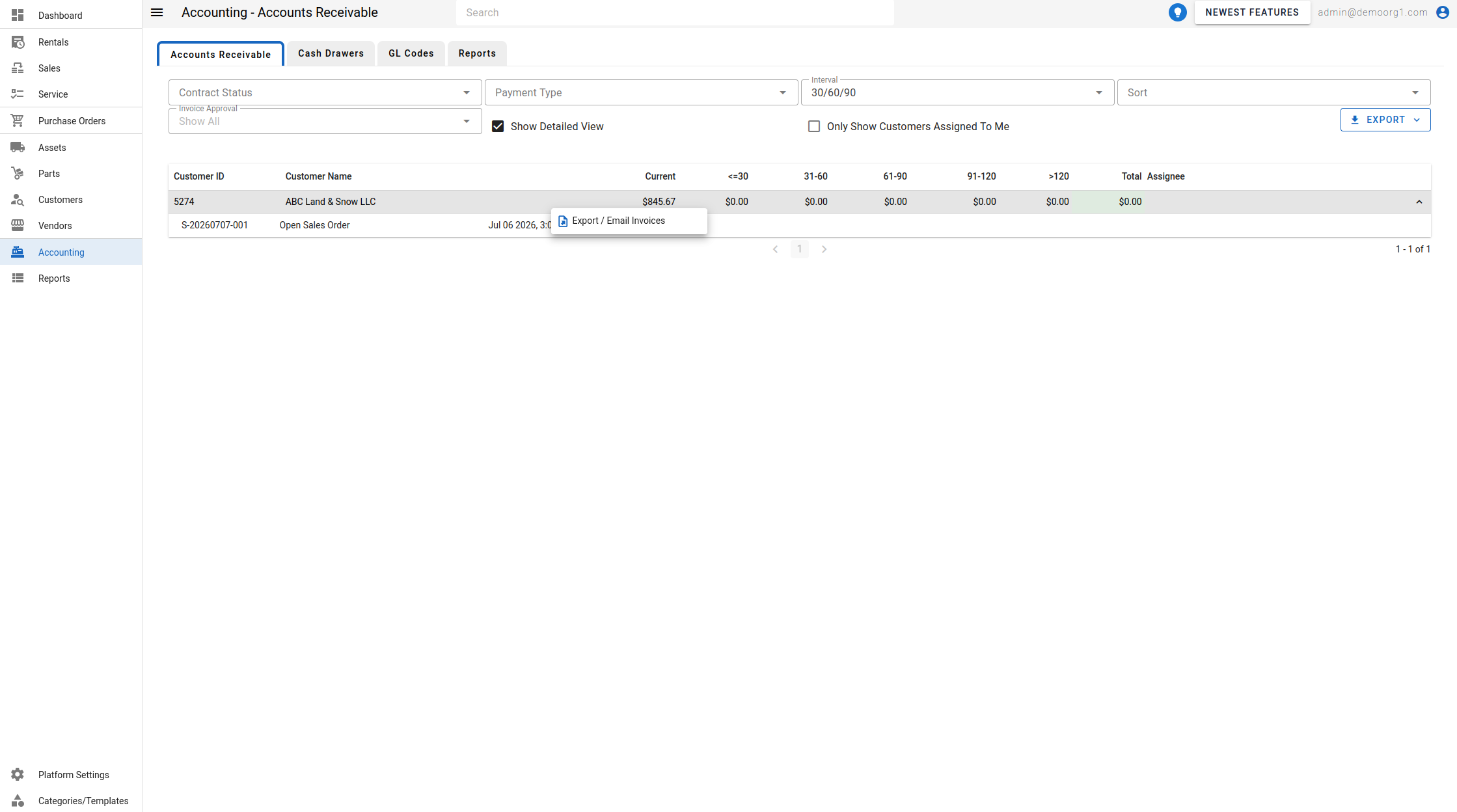
Expand a customer row (chevron) to list the individual invoices contributing to the balance. Each contributing line shows its invoice number as a link — clicking it opens that invoice on the Rentals page (filtered to the invoice) in a new tab — along with the date/time and amount.
Row actions
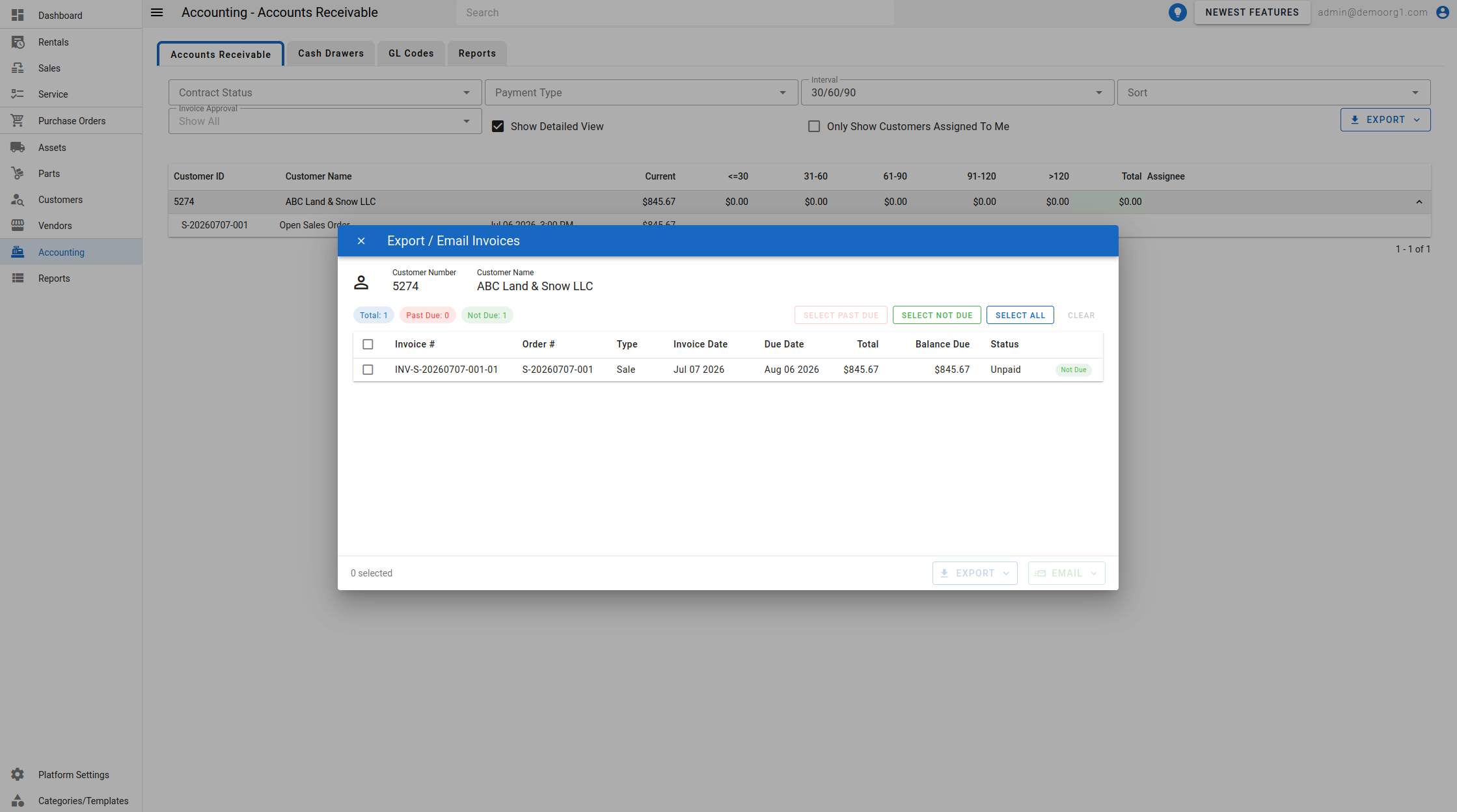
Right-click a customer row for Export / Email Invoices, which opens the customer's invoice export dialog. There you choose which invoices to include — using the Select Past Due, Select Not Due, and Select All helpers, or by ticking individual rows — then either Export them as a single Merged PDF or as Individual PDFs, or Email them to selected recipients.