Appearance
Service Credentials
Credentials let your own internal services call the CloudERM API. Each one acts with the permissions of its role.
To view service credentials, head to Platform Settings via the Left Navigation Bar and click on the Service Credentials tab (before History).
INFO
Note: Viewing, creating, editing and revoking credentials each need their own permission in the Platform group: Allows User To View Service API Credentials, Allows User To Create Service API Credentials (also needed to rotate a secret), Allows User To Update Service API Credentials, and Allows User To Revoke Service API Credentials. These are separate from the permissions for editing other platform settings.
For developers: see Authentication for how a service uses its Key ID and Secret to sign its requests.
The credentials table
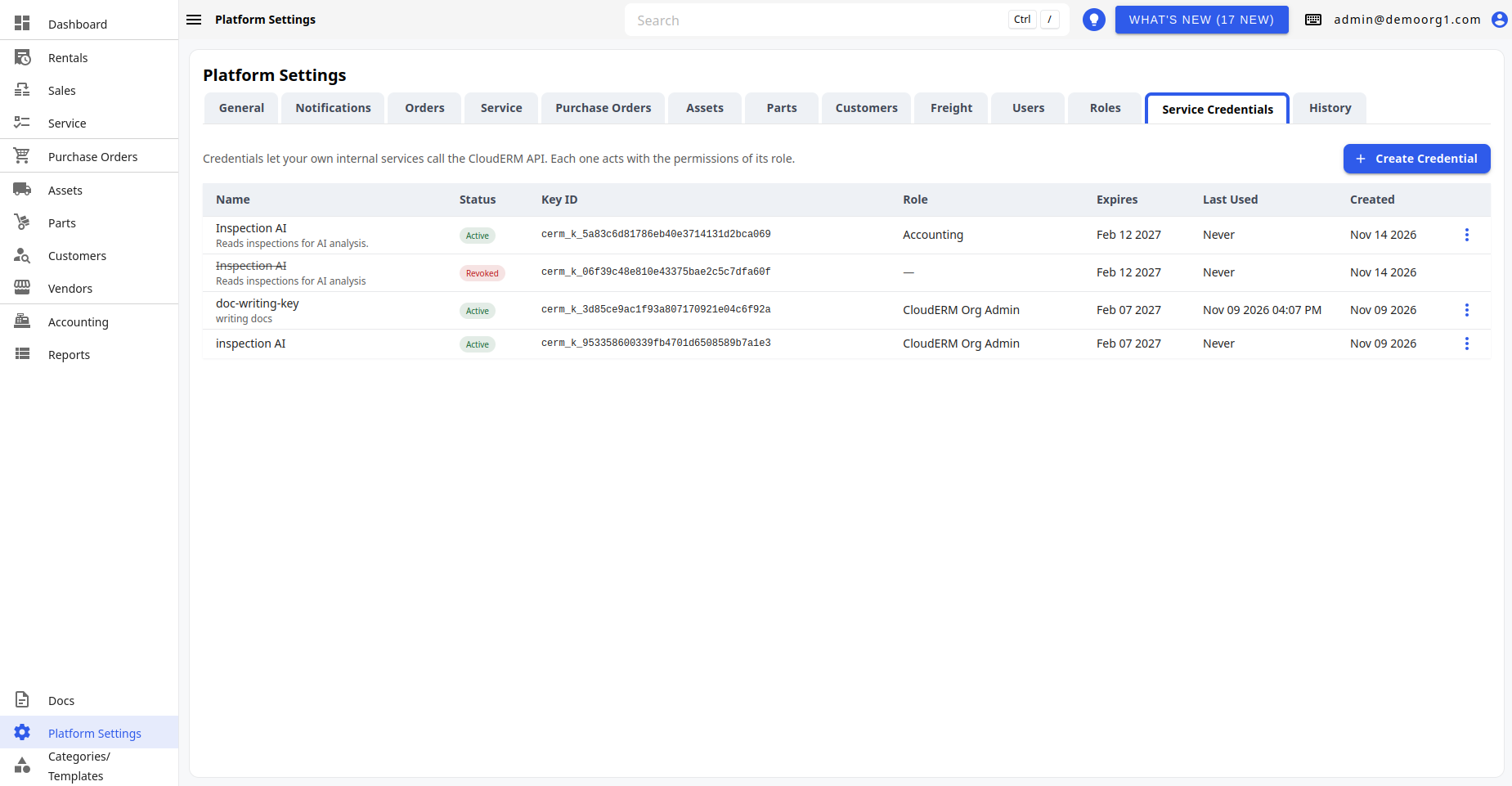
| Column | Description |
|---|---|
| Name | The credential's name, with its description underneath. Struck through when revoked. |
| Status | Active, Expired, or Revoked. |
| Key ID | The credential's key ID. Click the copy button to copy it. |
| Role | The role the credential acts as (Role deleted if that role was removed, — once revoked). |
| Expires | The date the credential stops working. |
| Last Used | When the credential was last used, or Never. |
| Created | When the credential was created. |
| Actions | The ⋮ button that opens the actions menu. |
When there are no credentials, the tab shows "No service credentials yet".
- Click a row to edit the credential (not available for revoked credentials).
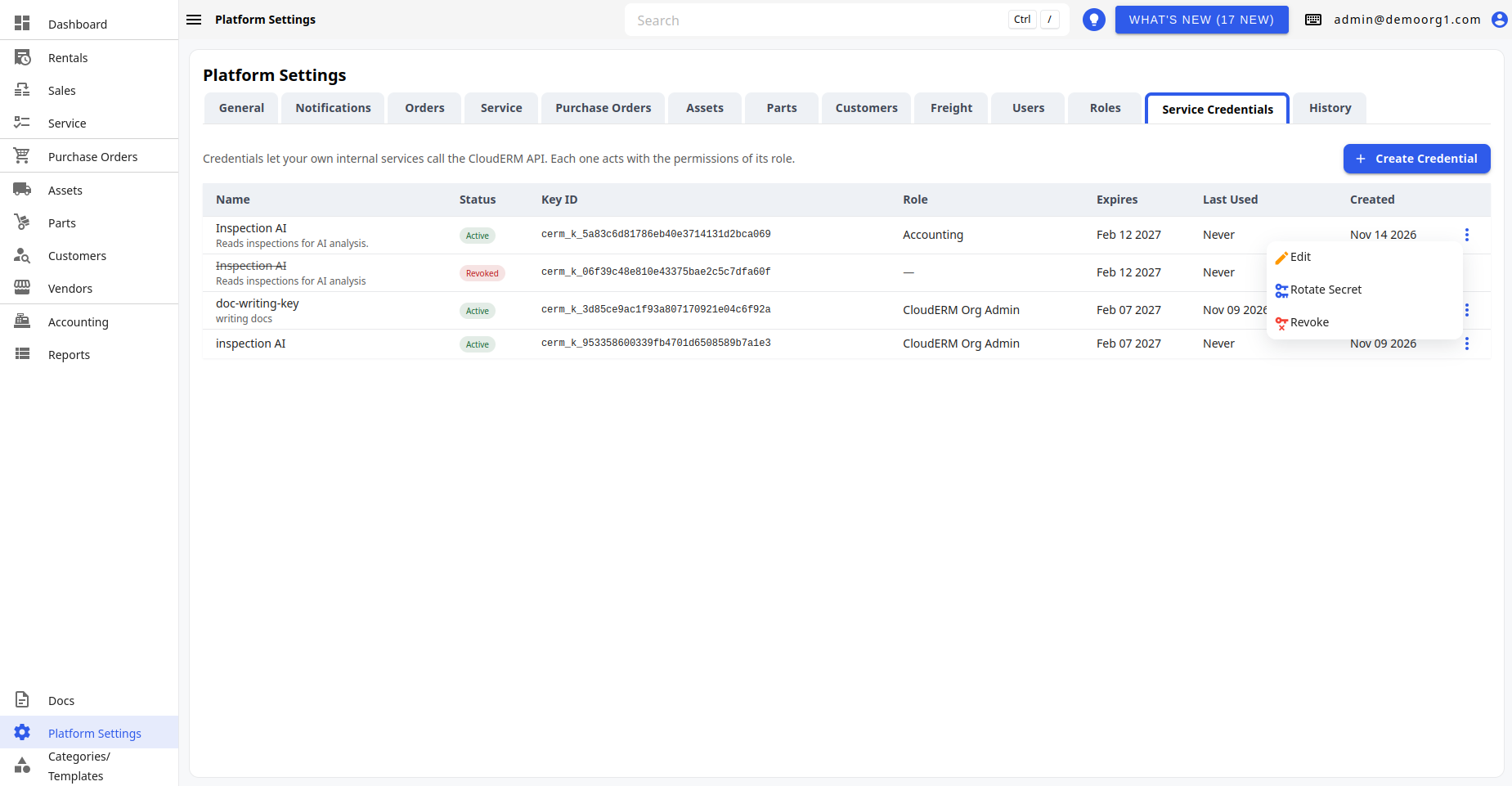
- Right-click a row, or click its ⋮ button, to open the actions menu:
- Edit — change the credential's name, expiry date, description, or role.
- Rotate Secret — issue a new secret (see Rotating a secret).
- Revoke — permanently disable the credential (see Revoking a credential).
Revoked credentials have no actions and can't be edited.
Creating a credential
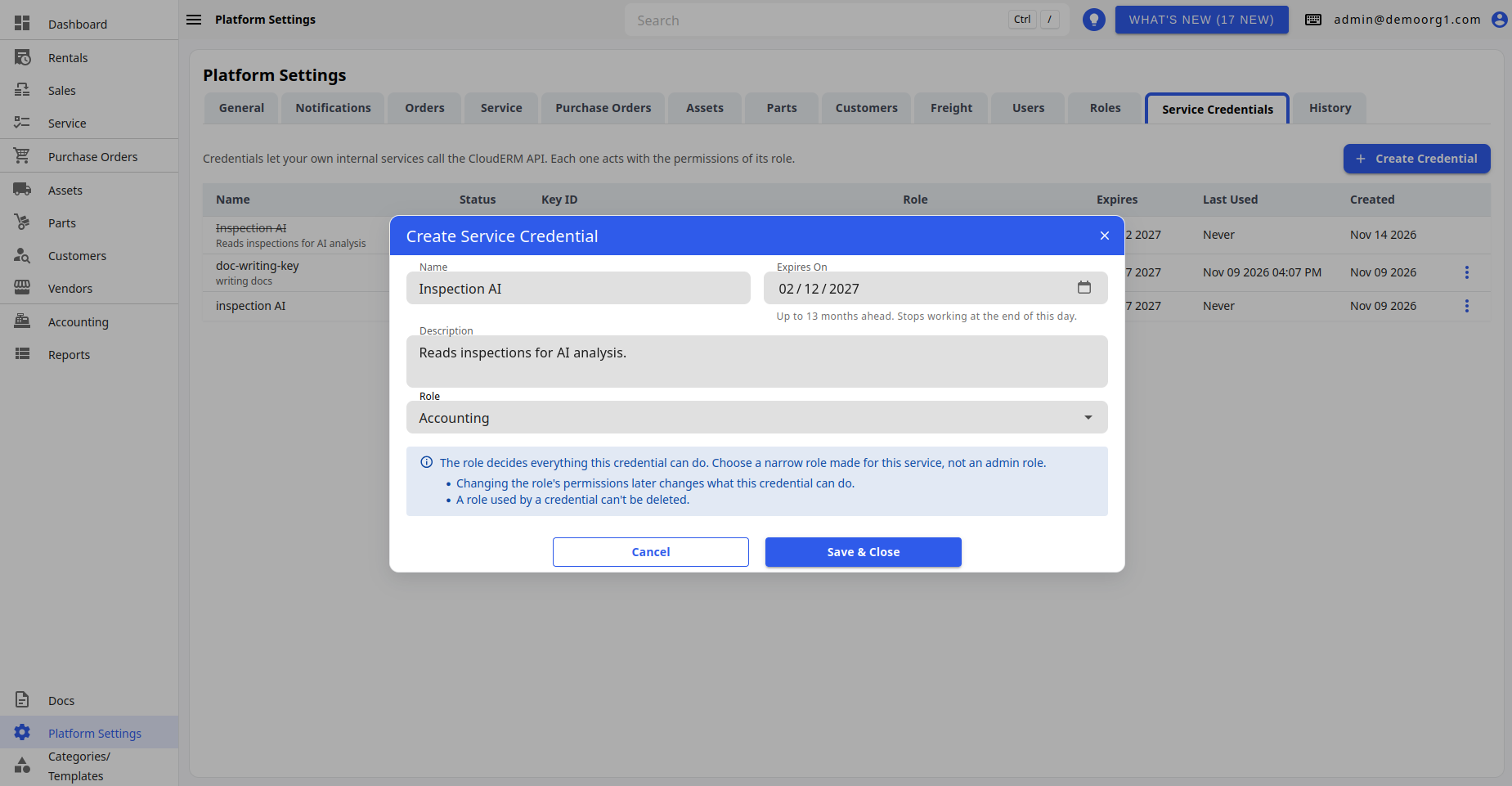
Click Create Credential and fill in the popup:
| Field | Description |
|---|---|
| Name | Required. A name for the service, for example Inspection AI. |
| Expires On | Required. Defaults to 90 days from today and can be set up to 13 months ahead. The credential stops working at the end of that day. |
| Description | Optional notes about what the credential is for. |
| Role | Required. The role the credential acts as; the number of permissions in each role is shown. |
WARNING
The role decides everything the credential can do. Pick a narrow role made for the service, not an admin role. Changing the role later changes what the credential can do straight away. A role that a credential uses can't be deleted.
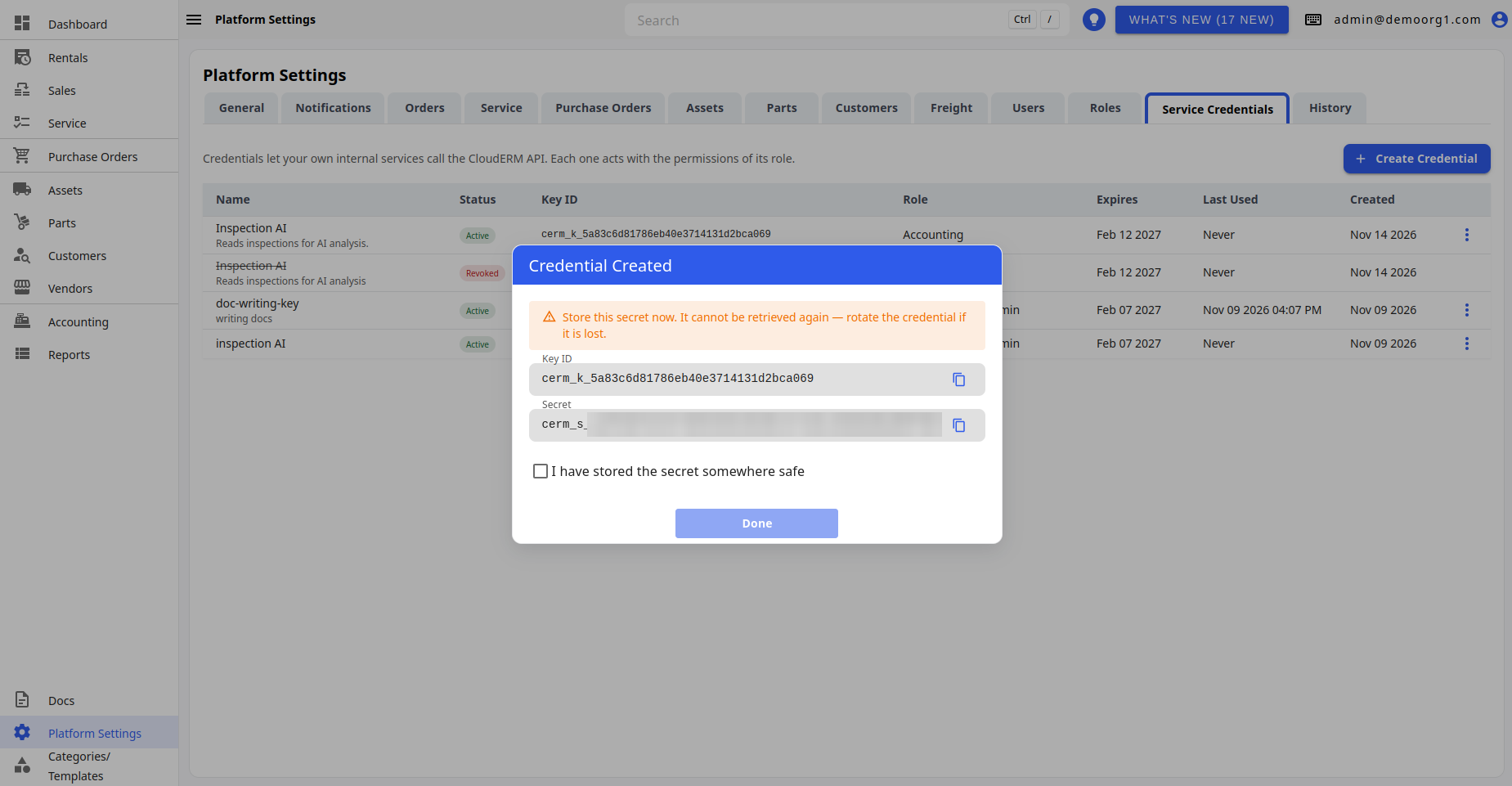
After you create the credential, the Credential Created dialog shows its Key ID and Secret, each with a copy button, and the warning "Store this secret now. It cannot be retrieved again — rotate the credential if it is lost." Copy both into your service's configuration or a secure store, tick I have stored the secret somewhere safe, and click Done (it stays disabled until the box is ticked).
Rotating a secret
Use Rotate Secret when a secret is lost or may have been exposed. The Rotate Secret? prompt warns that a new secret will be issued and the old one stops working immediately — the service will fail until it is updated with the new secret. Confirm, and the New Secret Issued dialog shows the new secret once, just like when the credential was created.
Revoking a credential
Use Revoke when a service no longer needs access. The Revoke Credential? prompt warns that the credential stops working immediately and its secret is destroyed. This can't be undone. A revoked credential stays in the list, struck through, with the Revoked status.