
Appearance
Deposits & Customer Balance
A deposit is money received from a customer that is held as credit on their account before it is applied to any specific invoice. The sum of a customer's deposits, minus everything already applied, makes up their Customer Balance. That balance can later be applied to invoices automatically (at payment time) or manually via the Apply Balance flow.
Deposits and balance are managed from the Payments tab of the Customer Popup.
INFO
Note: The Payments tab is only available to users who have been granted the relevant transaction permissions. Editing the auto-apply setting additionally requires restricted-update permission.
Opening the Payments Tab
Open a customer's record to bring up the Customer Popup, then click the Payments tab.
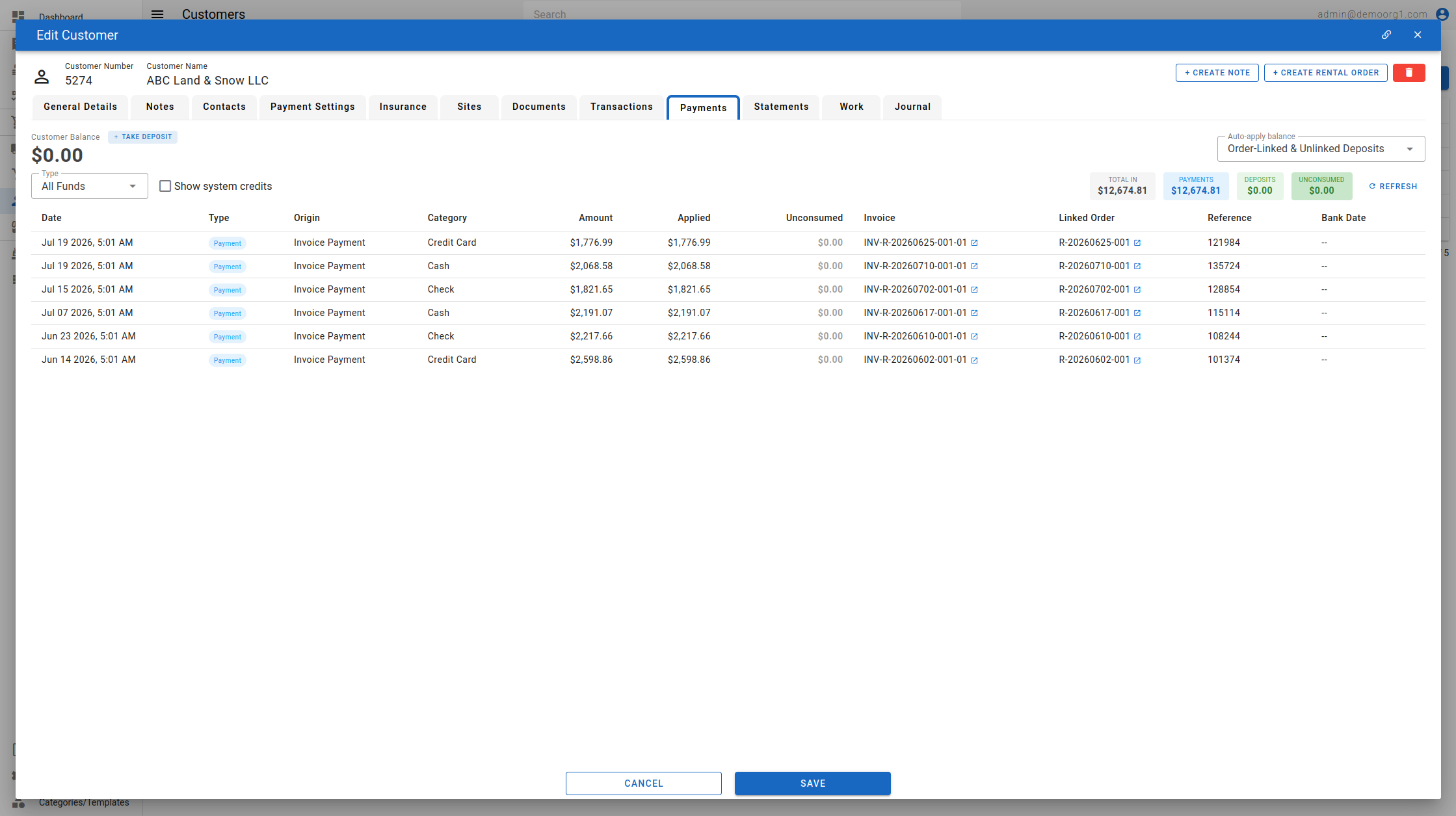
The top of the tab shows the current Customer Balance. The amount appears in green when the customer has an available balance and in grey when the balance is zero.
Two summary cards break the balance down: Deposits (money taken directly from the customer) and System Credits (credit the system created, for example from refunds or overpayments). A Show system credits toggle controls whether system-generated credits are included alongside manually-taken deposits in the list below.
Auto-applying Balance
Next to the balance is a switch labelled Auto-apply unlinked balance at invoice payment. When enabled, any unlinked deposits (those not earmarked to a specific order) are automatically applied — oldest first — whenever one of the customer's invoices is paid.
INFO
Note: Changing this switch requires update and restricted-update permissions. Without them the switch is read-only and shows the message "You do not have permissions to edit this data".
The Deposits Table
Below the balance, the table lists every deposit that still has an unconsumed amount. Use the Refresh button (top right) to reload the list and re-read the balance. A scope filter narrows which deposits are listed — Order-Linked Deposits Only, Order-Linked & Unlinked Deposits, or All Deposits (Incl. Cross-Order).
The table has the following columns:
| Column | Description |
|---|---|
| Date | When the deposit was recorded. |
| Source | How the deposit originated (see below). |
| Type | The payment type used (e.g. Cash, Check, ACH, Wire, Credit Card). |
| Amount | The original deposit amount. |
| Applied | How much of the deposit has already been applied to invoices. |
| Unconsumed | The remaining balance still available from this deposit. |
| Order | Whether the deposit is tied to a specific order or unlinked. |
| Reference | The reference number entered when the deposit was taken (or --). |
| Bank Date | The check-clearing / bank date recorded on the deposit; falls back to the deposit date when not set. |
When the customer has no deposits with a remaining balance, the table shows "No unconsumed deposits".
Source values
The Source column describes where each deposit came from:
| Source | Meaning |
|---|---|
| Cash On Hand | A manually-recorded cash, check, ACH, or wire deposit. |
| Online Prepayment | A credit-card deposit processed online. |
| Refund Credit | Credit created by absorbing a refund. |
| Overpayment Credit | Credit created when an invoice was overpaid. |
| Invoice Payment | Credit that originated from an invoice payment. |
| Legacy Payment | A deposit carried over from a legacy record. |
When a deposit originated from an invoice, a small open-in-new icon appears next to its source; clicking it opens that invoice in a new tab.
Order-tied vs Unlinked deposits
- An Order-tied deposit (shown as a chip in the Order column) is earmarked to a specific order and only auto-applies to that order. Use Apply Balance if you need to cross-apply it to a different invoice.
- An Unlinked deposit is not tied to any order and can be auto-applied to any of the customer's invoices.
Related actions
- Taking a Deposit — record a new cash, check, ACH, wire, or credit-card deposit.
- Applying Balance — apply available balance across one or more open invoices.