
Appearance
Viewing and Searching Tasks
INFO
Note: Tasks can only be viewed by users who have been granted relevant permissions
The Service page is organized into tabs: an All Tasks tab, a Task Invoices tab, a Tasks Timeline tab (see Tasks Timeline), and any saved-filter tabs you create (see Saving Filters). New tasks and inspections are started from the Create menu (see Creating A Task and Creating Stand-Alone Inspections).
The Tasks table features several filters atop it, that allow filtering tasks. Some tasks that are due in the distant future are hidden via a platform setting by default. To view such tasks, the Show Hidden checkbox can be toggled.
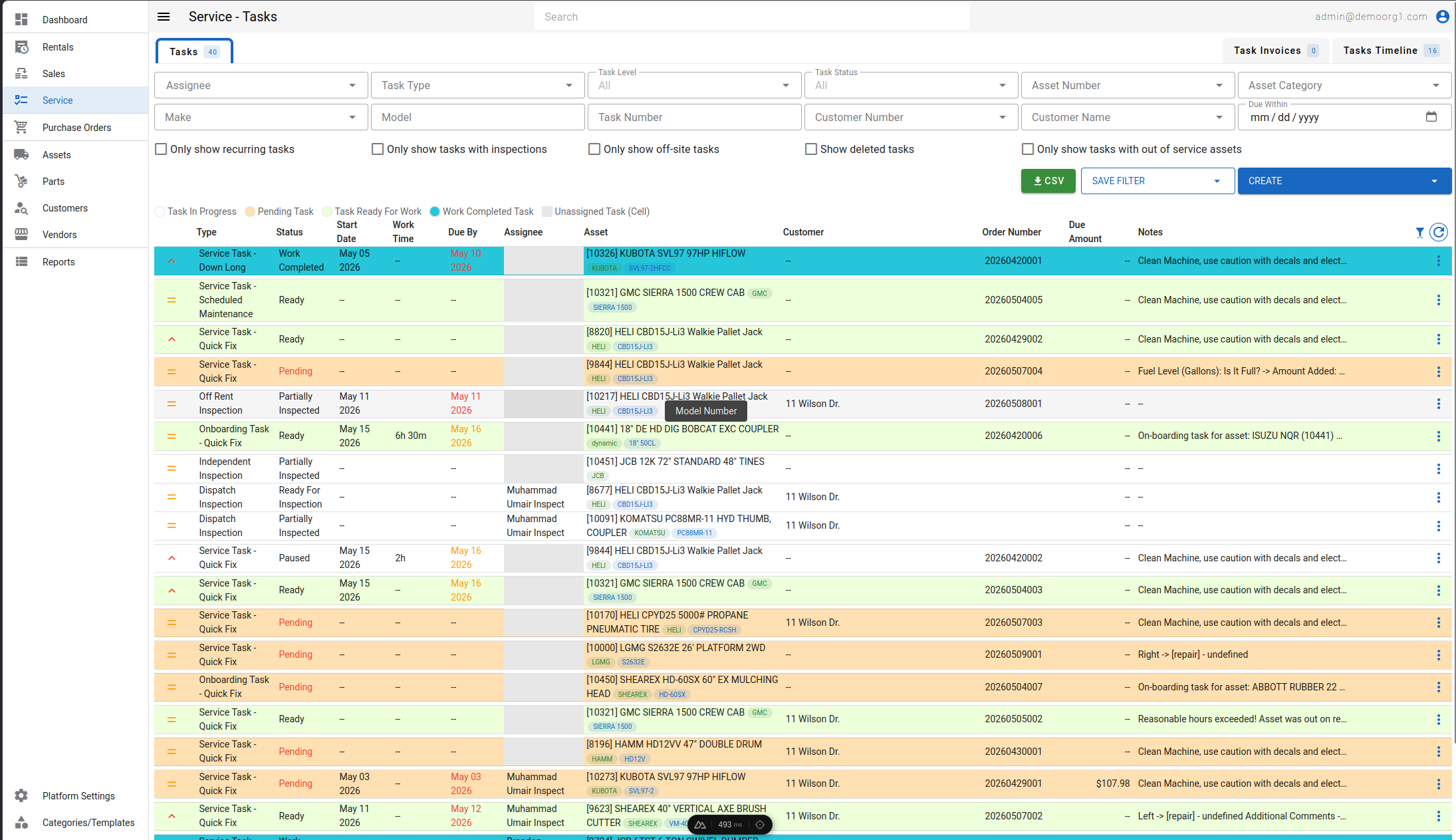
The table follow a user defined color scheme for rows to make it easier to identify an task's current condition. The color scheme's legend is visible atop the table, underneath filters. Additionally, statuses such as Booking Failed and Pending are shown in red.
All tasks/inspections are grouped under the order number they were created against (unless there is only one tasks against an order number).
The table features several columns that display information. The last column's header on the table features a refresh button to update the table. Clicking on some of the column headers allow sorting tasks on that column.
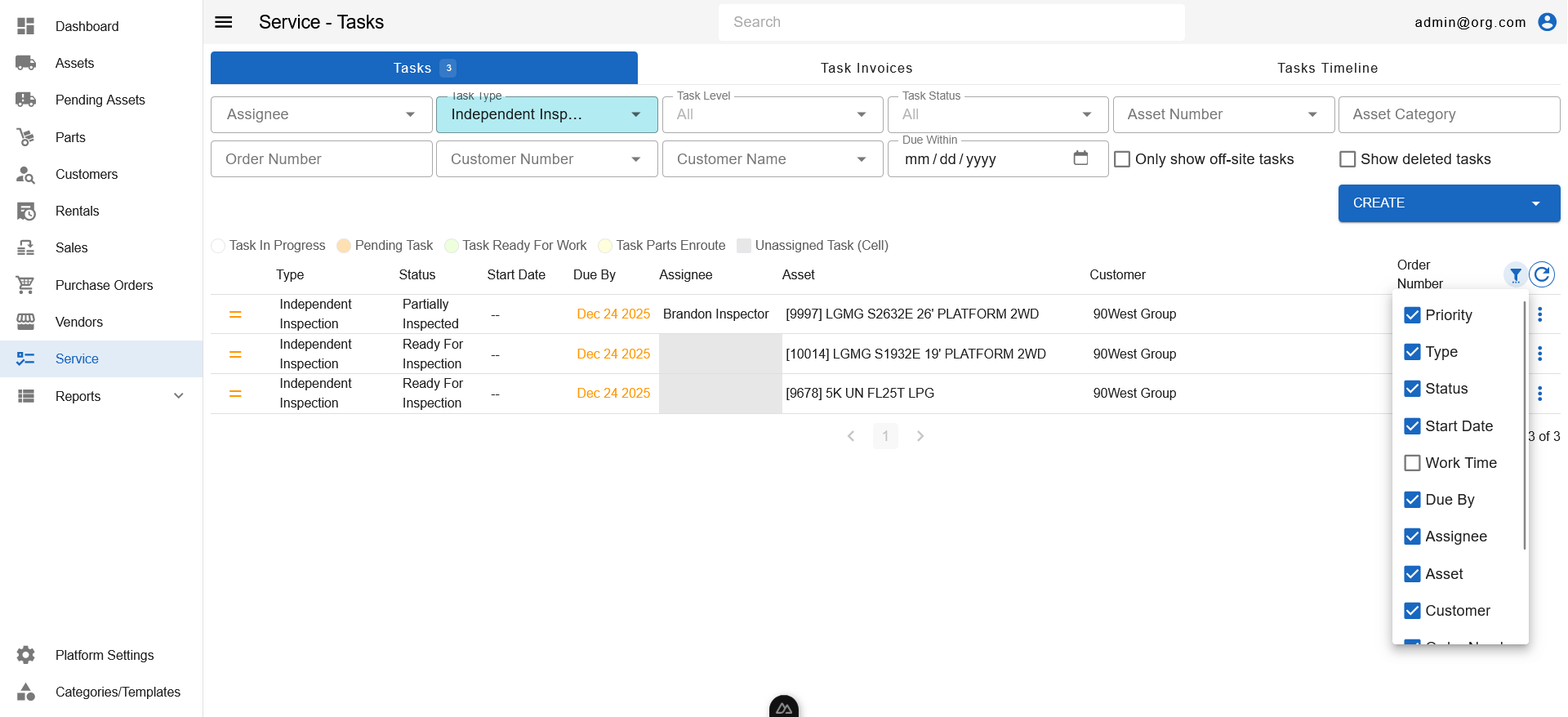
Visible columns can be altered using the column settings menu, accessible via the filter settings button on the top right corner of the table.
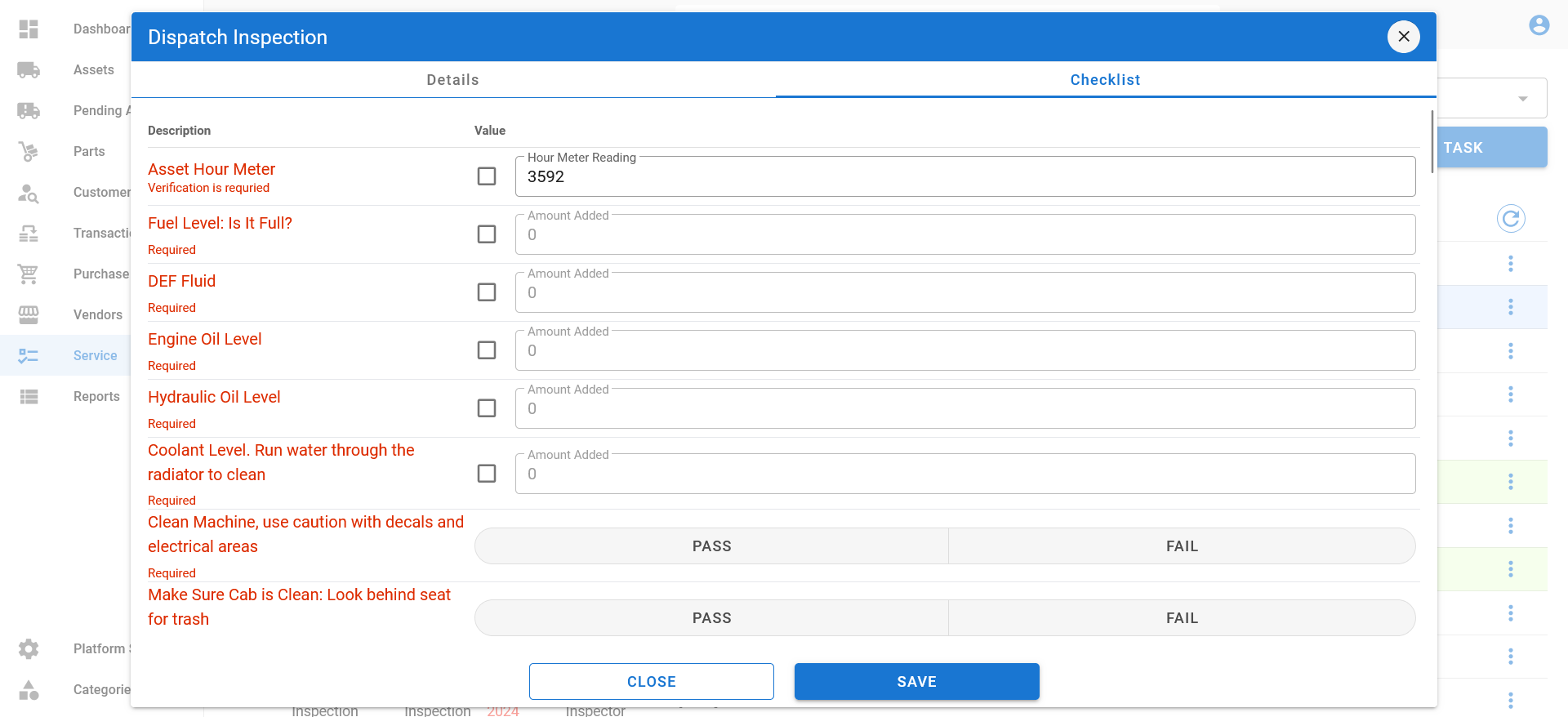
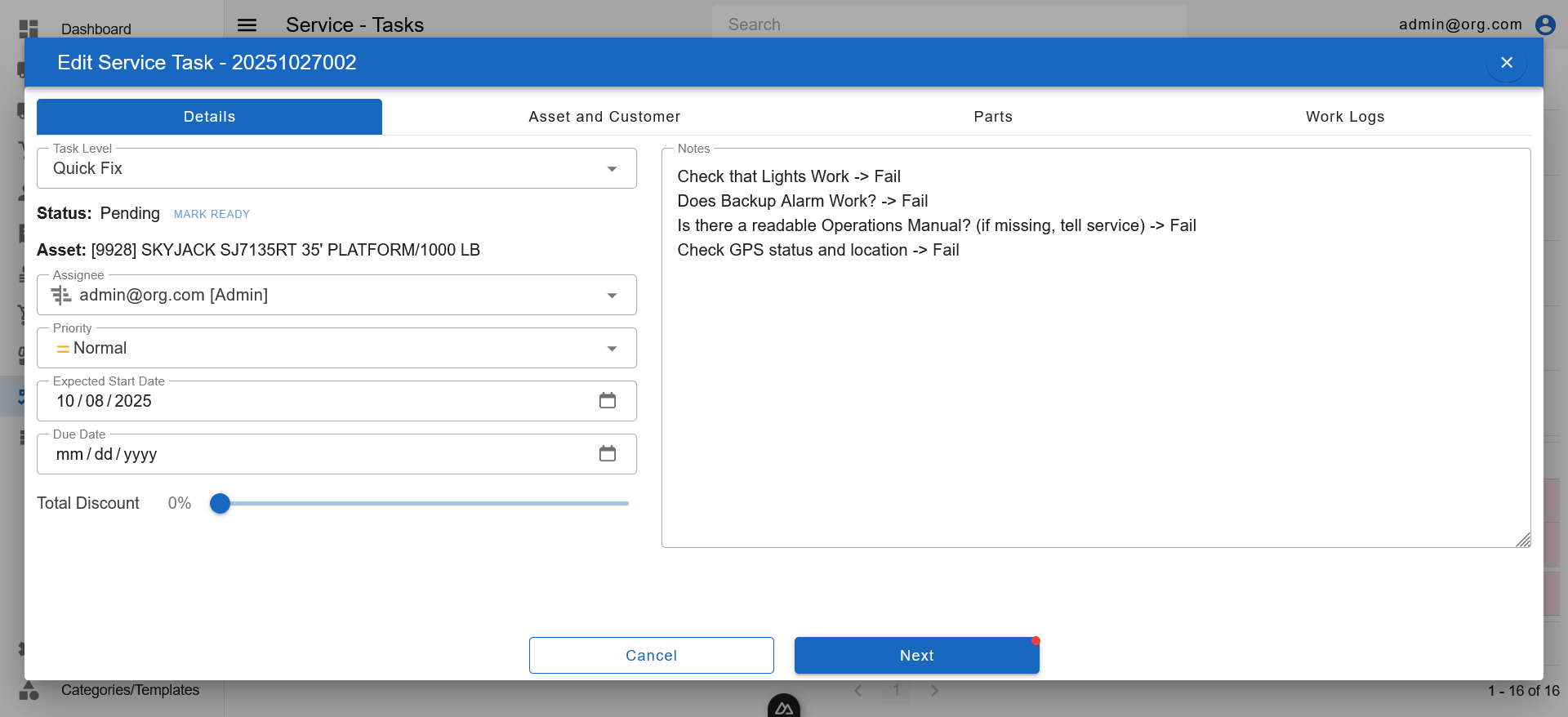
Clicking a row on the Tasks Table opens up the Inspection Popup for inspections, and the Task Popup for work orders, where user can edit various details pertaining to that task.
Saving Filters
A filter combination you use often can be saved and re-applied later. Once you have applied one or more filters, click the Save Filter menu, enter a Filter Name, and click Save. You can save up to 100 filters.
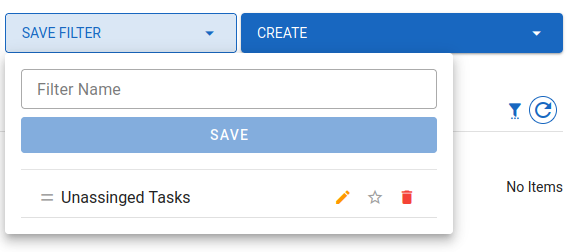
Each saved filter in the list has its own controls:
- Rename — click the pencil icon (orange) to edit the name inline, then the check icon (green) to save it (or press
Enter). - Set as default view — click the star icon to make a filter the default view shown when you open the page. The star turns blue when set, and only one filter can be the default at a time. Click it again to remove it as the default.
- Update with current view — when a saved filter is the one currently applied, a save icon appears that updates it to match your current filters.
- Reorder — drag a filter by its handle to change its order in the list.
- Delete — click the delete icon (red) and confirm to remove the saved filter.